Microsoft is quietly testing a way to uninstall Copilot from Windows—finally—but only for a narrow slice of users and only under strict conditions. It’s not the sweeping opt-out many have been asking for, yet it’s a notable shift from the company’s AI-first posture and an acknowlEdgement that not every workflow benefits from a built-in chatbot.
Who Can Uninstall Copilot Now, and Under What Conditions
The new option appears in a Windows 11 Insider Preview for devices managed by IT. It’s aimed at Enterprise, Pro, and Education editions that are joined to an organization and governed by policy. In other words, this is an admin-controlled switch, not a consumer setting you’ll stumble upon at home.
- Who Can Uninstall Copilot Now, and Under What Conditions
- The Fine Print and Caveats for Removing Copilot
- How IT Can Remove the Microsoft Copilot App
- Why Microsoft Is Making Room for Choice in Windows
- What Home Users Can Do Instead of Uninstalling Copilot
- The Bottom Line on Microsoft’s Copilot Removal Policy
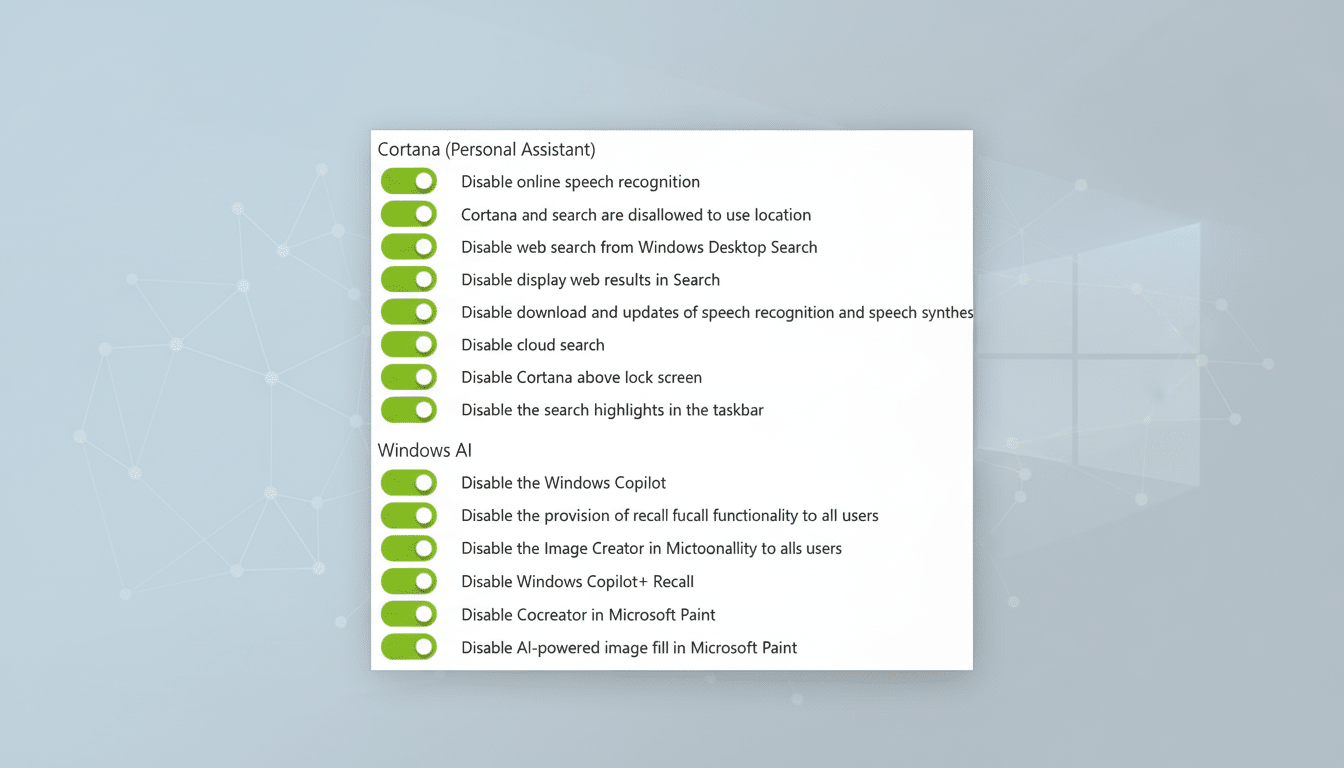
The policy, called RemoveMicrosoftCopilotApp, targets the Microsoft Copilot app that ships with Windows 11. It does not rip AI out of every corner of the Microsoft ecosystem—Edge and Microsoft 365 integrations have separate controls and licensing. Think of it as removing one system-level app, not de-AI-ing Windows top to bottom.
The Fine Print and Caveats for Removing Copilot
There are several hoops to jump through. Microsoft’s documentation specifies that both Microsoft 365 Copilot and the Microsoft Copilot app need to be present on the device. The Copilot app also must not have been installed by the user (it needs to be provisioned by the system or IT), and—here’s the kicker—it cannot have been launched in the previous 28 days.
That last requirement is tougher than it sounds. Copilot is configured to auto-start on login by default, which means many machines will reset that 28-day clock every time users sign in. As reported by Tom’s Hardware, admins would need to disable Copilot’s auto-launch via Startup Apps in Task Manager or by policy, then ensure users don’t open it while the countdown runs. For a busy fleet, that’s not trivial.
How IT Can Remove the Microsoft Copilot App
On eligible, managed Windows 11 Insider builds, admins can navigate to Group Policy Editor and apply the setting under User Configuration > Administrative Templates > Windows AI > Remove Microsoft Copilot App. In pilot tests, organizations are pairing this with startup restrictions to meet the 28-day condition and avoid user confusion.
Expect a staggered experience even after removal. Shortcuts or UI hooks may linger until the next sign-in or policy refresh, and Edge or Microsoft 365 may still surface Copilot-branded prompts unless those are controlled separately. If you manage devices through Microsoft Intune, the same policy can be deployed at scale with your standard configuration profiles or administrative templates.

Why Microsoft Is Making Room for Choice in Windows
Microsoft has been betting heavily on Copilot to drive Windows and productivity engagement, but enterprise reality is nuanced. Regulated industries, privacy-conscious organizations, and cost-focused IT shops want sharper levers to decide where AI belongs. Gartner estimates that the vast majority of enterprises will adopt generative AI in some form, but doing so safely requires granular controls, audit trails, and the ability to remove apps that don’t align with policy or user need.
User sentiment also matters. When a previous Windows update inadvertently removed Copilot for some users due to a software glitch, community threads on Reddit filled quickly—many cheering the unexpected reprieve. Microsoft isn’t abandoning its AI roadmap, but the new policy is a pragmatic nod to administrators who need opt-outs as much as opt-ins.
What Home Users Can Do Instead of Uninstalling Copilot
For now, most consumers won’t see an uninstall button. If you simply don’t want Copilot in the way, you can turn off the Copilot button on the taskbar in Settings under Personalization > Taskbar. You can also disable Copilot at startup via Task Manager’s Startup Apps tab and revoke its keyboard shortcut if your software allows it. On Windows Pro, organizations can use existing policies to hide Copilot’s interface without fully removing the app.
These workarounds don’t claw back storage in a meaningful way, but they do restore a quieter desktop and reduce accidental launches. For users worried about data flow, remember that privacy controls live elsewhere—in telemetry settings, browser policies, and Microsoft 365 admin centers—not just in the Copilot app itself.
The Bottom Line on Microsoft’s Copilot Removal Policy
Microsoft’s new policy is a careful first step, not a wholesale retreat. If you manage Windows devices and need Copilot gone, you finally have a sanctioned path—provided you’re on the right build, you meet the prerequisites, and you can clear the 28-day usage hurdle. For everyone else, disabling and hiding Copilot remains the practical middle ground.
The signal is clear: Copilot is here to stay, but Windows is slowly making space for those who would rather opt out. In the enterprise, that balance between AI ambition and admin control is exactly what many have been waiting for.