Many people feel stressed when videos stop working suddenly without warning. This problem often occurs due to file corruption, which can harm important data stored there. You may see errors, freezes, or missing parts when trying to play videos. However, there are various methods to resolve this issue without harming further data. Thus, this guide explains simple ways to fix damaged files at home with ease today.
Part 1. Understanding File Corruption: Why Your Important Documents Fail Randomly
File corruption happens when stored data changes, disappears, or shifts from position. Programs expect files to be arranged, so small damage stops them from opening at all. This issue may also affect documents, photos, or videos saved on devices today. Many users think failures appear random, but hidden events usually cause them.
- Part 1. Understanding File Corruption: Why Your Important Documents Fail Randomly
- Part 2. 5 Early Warning Signs That a Video File Is Corrupted or Damaged
- Part 3. Simple Ways to Fix Corrupted Files and Restore Videos Safely
- 1. Use Dedicated Desktop Video Repair Software
- 2. Use Built‑in “Edit”/“Trim” Tools
- 3. Re‑Download or Re‑Copy The File
- 4. Play/Convert With a Different Media Player
- 5. Transcode The Video (e.g., HandBrake/FFmpeg)
- 6. Restore From Backup (iCloud/Google Drive/PC)
- Conclusion
However, power cuts during saving often leave files half-written and unreadable afterward. Bad storage areas can remove bits, making the structure confusing for software sometimes. Therefore, sudden crashes or forced restarts may interrupt writing and damage file content. Understanding these causes helps you prevent damage and fix video problems.
Part 2. 5 Early Warning Signs That a Video File Is Corrupted or Damaged
Sometimes, file corruption appears at once when videos show strange playback problems early. Below are early warning signs showing that your video is getting damaged from the inside:
- Playback Stutter: Video pauses while playing, showing hidden errors inside some frames. However, these short freezes often mean some parts failed to load from storage.
- Black Frames: Random black images appear, meaning some visual parts cannot load. These flashes indicate frame data is missing or unreadable at those moments within the files.
- Pixel Blocks: Blocky squares or odd colors appear when the video cannot read data inside. This means stored info changed or broke after saving, or before, for unknown reasons.
- Audio Desync: Sound plays on while the picture stops, showing damaged timing data inside the video file. This problem occurs when the saved data becomes disordered during transfer or recording.
- Copy Failure: The file will not copy or move, which shows read errors on storage devices. These issues appear when areas holding video data turn faulty over time.
Part 3. Simple Ways to Fix Corrupted Files and Restore Videos Safely
When videos stop playing or show errors, multiple ways are available to fix corrupted files. This part explains simple and safe methods to restore damaged videos without risk:
1. Use Dedicated Desktop Video Repair Software
The first and top-notch choice of every user to fix videos is Repairit. This dedicated tool supports over 25 video file formats, including MP4 and MKV. It uses AI technology to detect damage patterns and restore broken video data. You can even repair videos from any source, even if the recording process stopped. It repairs lost video metadata needed for proper playback, editing, and file recognition.
The tool is compatible with various storage devices, such as SD cards and NAS devices. It fixes damaged audio tracks, restoring sound clarity and proper playback quality. You can repair multiple corrupted videos together, saving time for editors and creators. The program supports repairing large video files without size limits or performance slowdowns. In addition to offline repair, Repairit offers an online solution to fix damaged or unplayable videos.
Key Features
- Frame Repair: Rebuilds broken frames so video plays without jumps or missing visuals.
- Safe Process: Repairs videos without overwriting original files, keeping source data protected always.
- Professional Mode: Handles high-resolution videos, including 4K and higher formats, during repair.
Step-by-Step Guide to Repair Your Damaged Video Using Repairit
Review the given steps below to repair the video without further damage:
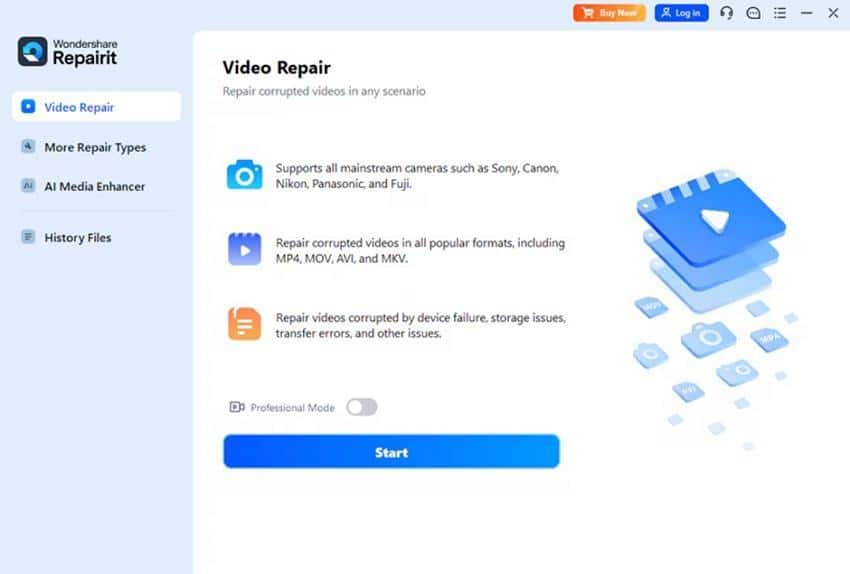
Step 1. Add Your Damaged Videos in Repairit
Upon accessing the program, go to the “Video Repair” section and opt for the “Start” button.
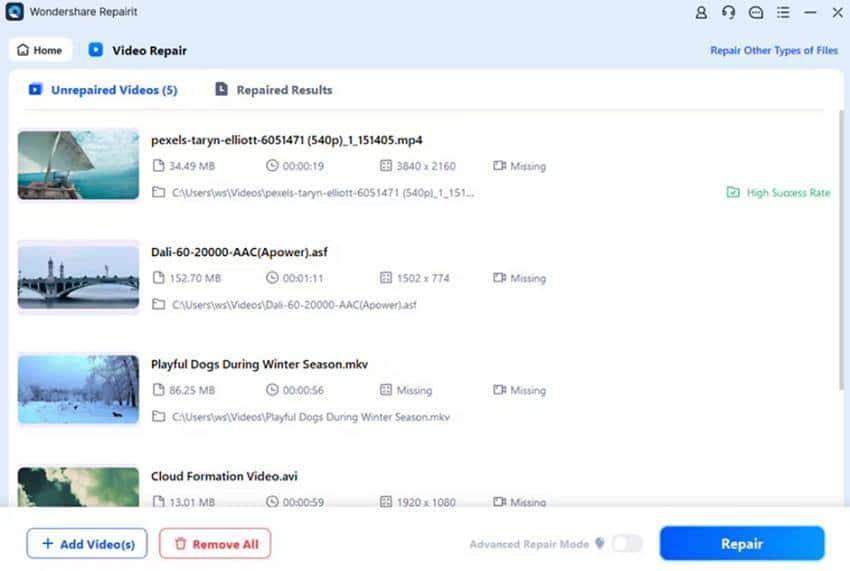
Step 2. Repair Your Damaged or Corrupted Videos
Once you import the damaged videos to the tool, press the “Repair” button to start the repair process.
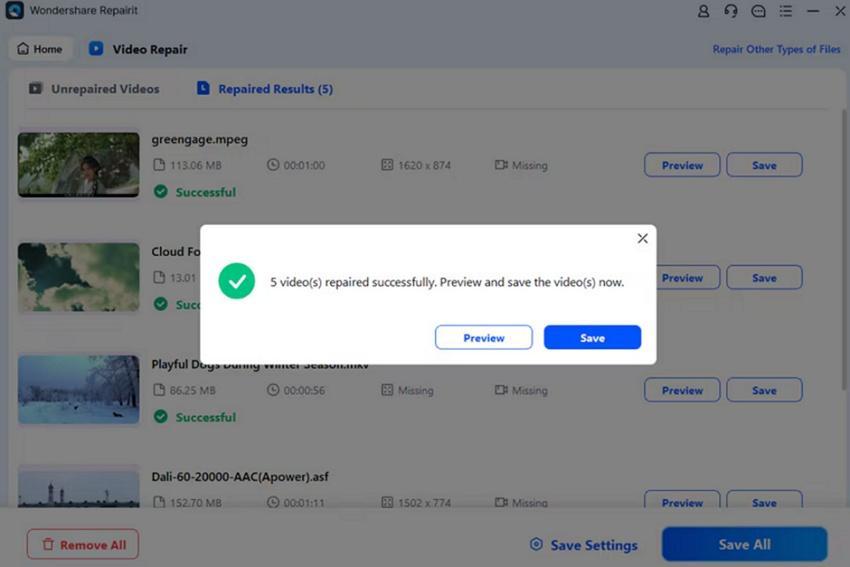
Step 3. Preview or Save Your Repaired Videos Using Repairit
When your videos get repaired, opt for the “Preview” button to watch them for accuracy. After previewing videos, click the “Save” button to save them on your system.
2. Use Built‑in “Edit”/“Trim” Tools
Built-in edit or trim tools help fix corrupted files by removing damaged video parts. They rebuild the file structure while saving, creating cleaner clips playable on most devices. However, this works when glitches occur only in small sections, not entire recordings. Trimming also skips unreadable frames and writes fresh data for smoother playback later. Therefore, many phones, cameras, and laptops include these editors, making recovery simple everywhere.
3. Re‑Download or Re‑Copy The File
You should re‑download or re‑copy the file to fix video corruption caused by transfer errors. Interrupted downloads, unstable connections, or faulty drives often create incomplete or broken files. However, getting a fresh copy from the source ensures all bytes match this time. Also, healthy storage and verified transfers prevent repeated corruption during saving or copying processes. This method restores videos that freeze, jump, or display “cannot read” errors.
4. Play/Convert With a Different Media Player
Sometimes using a different media player can help bypass strict decoders and errors. Players like VLC can fix corrupted files by reading past minor container or index issues. These players also allow playback even when parts of the file get damaged. However, it works best for minor corruption, not extreme missing video or audio data.
5. Transcode The Video (e.g., HandBrake/FFmpeg)
Another way to fix video issues is to transcode the video using FFmpeg for cleaner playback. FFmpeg reads damaged files, skips unreadable frames, and rewrites streams into a new container. This process rebuilds indexes and metadata, often removing glitches that cause freezes or crashes. Remuxing preserves original quality, while full re-encoding recovers heavily corrupted segments. Thus, go through the given steps to transcode the video using FFmpeg:
Step 1. Go to the official site of “FFmpeg” and hit the “Download” button to download it, then install it.
Step 2. Now search for “Command Prompt” from the “Start” menu and opt for “Open.”
Step 3. After accessing it, type “ffmpeg -err_detect ignore_err -i broken_video.mp4 -c copy fixed_video.mp4” to fix the video.
6. Restore From Backup (iCloud/Google Drive/PC)
If recent fixes fail, you can restore a backup from Google Drive instead of fixing corrupted files. Backups like Google Drive keep earlier versions of videos separate from damaged local copies. Downloading a clean copy replaces broken files with a healthy version stored online. Let’s explore the simple steps below to restore a video file via Google Drive:
Instructions. Open Google Drive and find your video file, then right-click it or press the “Three Dots” icon, then opt for “Download.”
Conclusion
File corruption can occur anytime, causing videos to stop working. Understanding early warning signs and using safe methods to prevent data loss. Simple actions like trimming, re-downloading, or switching media players often restore partial functionality. However, for severe or stubborn corruption, dedicated software ensures complete recovery. Therefore, Repairit provides a professional solution to repair videos. It uses AI-powered repair and supports all video file formats for recovery.