What is the best free remote control software?
In today’s fast-paced digital world, reliable remote control software has become essential for businesses, IT professionals, and individual users alike. Whether you need to access your office computer from home, provide remote IT support services, or manage multiple devices efficiently, having a fast, secure, and easy-to-use solution makes all the difference.
This is where AnyViewer stands out as a top-tier remote connect software for PC, specifically designed to deliver an exceptional remote access experience on Windows.
- What is the best free remote control software?
- Why choose AnyViewer as your remote control software?
- 1. Ultra-fast and smooth performance
- 2. Secure remote control software you can trust
- 3. Easy setup and user-friendly interface
- 4. Unattended access for maximum flexibility
- 5. Fast and convenient file transfer
- 6. Cost-effective solution for individuals and businesses
- How to use AnyViewer for remote control
- Final Thoughts
Why choose AnyViewer as your remote control software?
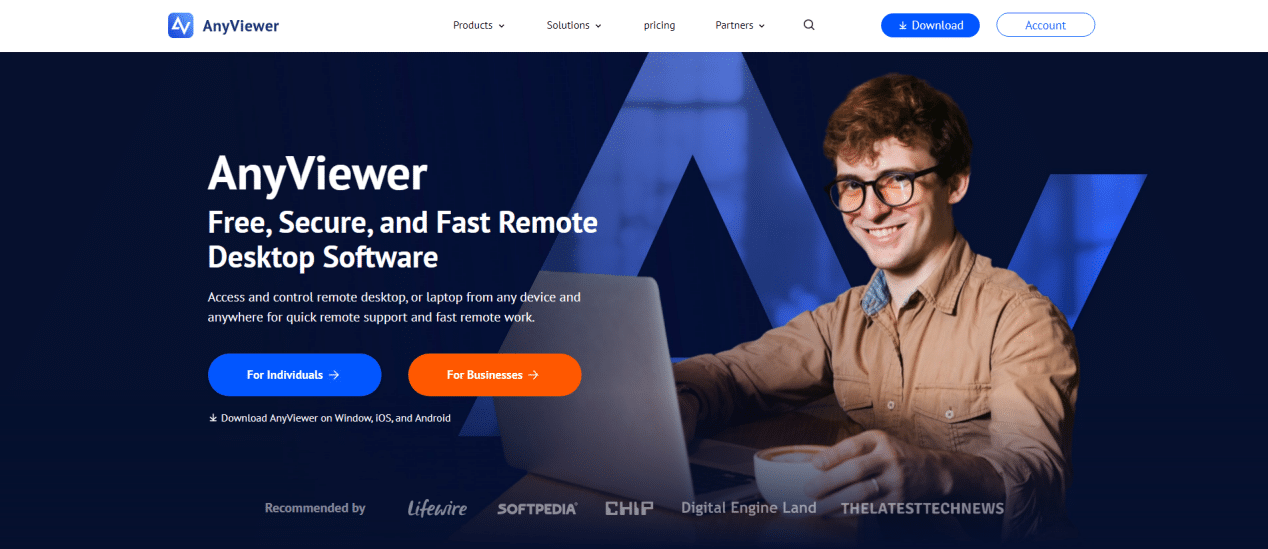
AnyViewer is a professional remote control software for Windows that allows users to remotely access and control PCs from anywhere with an internet connection. Unlike many traditional remote desktop tools, AnyViewer combines high performance, strong security, and a user-friendly interface in one lightweight application.
With so many remote access tools on the market, choosing the right one can be challenging. AnyViewer distinguishes itself by focusing on the core needs of modern users: speed, stability, security, and simplicity.
1. Ultra-fast and smooth performance
One of the biggest advantages of AnyViewer is its high-speed connection and ultra-low latency, especially on Windows systems. As a dedicated remote control software for PC, it is optimized for Windows 10 and Windows 11, ensuring smooth screen rendering and responsive control even over long-distance connections.
This makes AnyViewer ideal for:
- Remote office work
- Real-time IT support
- Editing documents or managing software remotely
- Accessing high-performance PCs from low-end devices
Compared to many generic remote control software solutions, AnyViewer delivers a noticeably smoother experience with fewer lags and disconnections.
2. Secure remote control software you can trust
Security is a top concern when using remote control software, and AnyViewer takes this seriously. It uses advanced encryption technology to protect all remote sessions and data transfers. Multiple security mechanisms ensure that unauthorized access is prevented, giving users peace of mind when connecting to their PCs remotely.
For businesses handling sensitive information or IT teams managing multiple endpoints, AnyViewer offers a secure environment without sacrificing performance.
3. Easy setup and user-friendly interface
Another key strength of AnyViewer is its simplicity. Even first-time users can get started within minutes. The installation process is straightforward, and the interface is clean and intuitive.
With just a few clicks, users can:
- Sign in to their AnyViewer account
- Assign devices for unattended access
- Start remote control sessions instantly
This ease of use makes AnyViewer an excellent remote control software for Windows users who don’t want to deal with complex configurations or technical barriers.
4. Unattended access for maximum flexibility
AnyViewer supports unattended remote access, allowing you to control a Windows PC without someone being present on the other end. This feature is especially useful for:
- Accessing office computers after hours
- Managing servers or workstations remotely
- Providing remote maintenance and updates
As a professional remote control software for PC, AnyViewer ensures that you stay connected to your devices anytime, anywhere.
5. Fast and convenient file transfer
Beyond remote control, AnyViewer also includes a high-speed file transfer feature. Users can easily move files between local and remote PCs without relying on third-party tools or cloud storage.
This all-in-one functionality makes AnyViewer more than just a remote desktop tool, it’s a complete remote productivity solution for Windows users.
6. Cost-effective solution for individuals and businesses
AnyViewer offers a generous free version along with affordable paid plans that unlock advanced features. Compared to many expensive remote control software options, AnyViewer delivers excellent value for money, especially for small businesses and freelancers looking for a reliable remote control software for Windows.
How to use AnyViewer for remote control
Ready to experience seamless remote access? Setting up AnyViewer takes only a few moments and requires minimal effort.
Step 1. Visit the AnyViewer website and download the app for your device. It supports Windows, macOS, and mobile platforms, and the installation process is fast and straightforward.
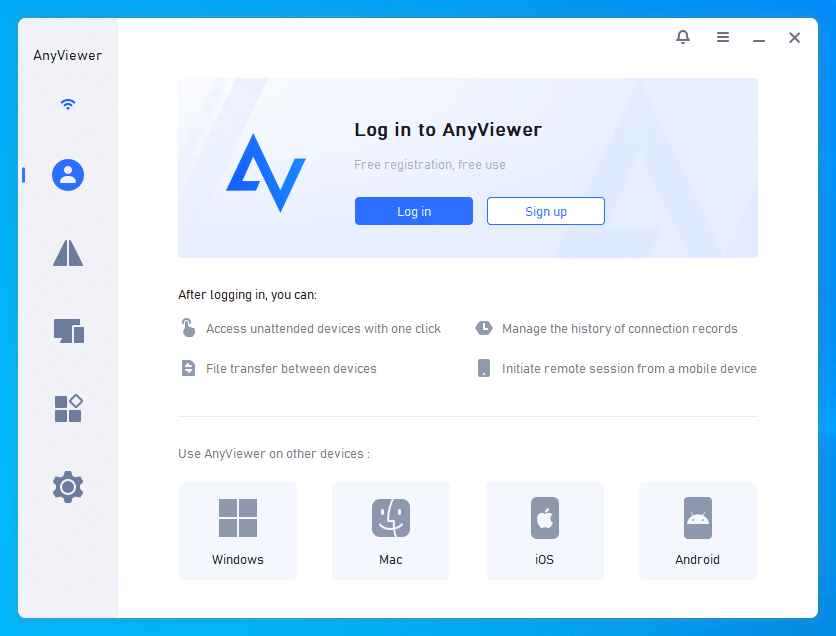
Step 2. Register for a free account and sign in on both devices. Once logged in, you can immediately begin accessing remote systems.
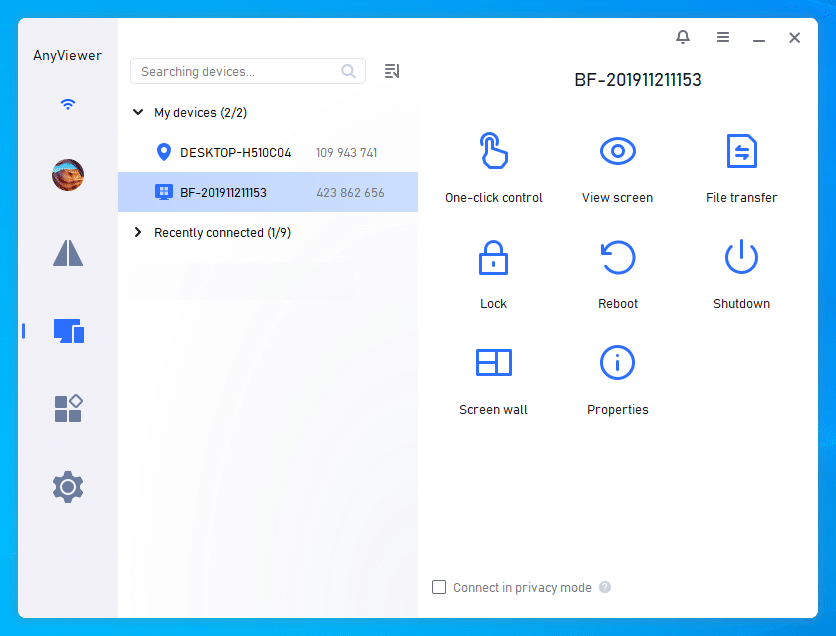
Step 3. Select the device you want to access, click One-click control, and gain full control of the remote computer, just as if you were sitting in front of it.
Final Thoughts
If you’re looking for a fast, secure, and reliable remote control software, AnyViewer is an excellent choice. As a leading remote control software for PC, it is purpose-built for Windows users who demand smooth performance, strong security, and ease of use.
Whether you’re an individual user or a business professional, AnyViewer provides a powerful remote access solution that simplifies how you connect to your Windows PCs, anytime and anywhere.