A detailed guide to Abacus AI Studio covering image generation, video creation, AI voice tools, lip sync, workflow features, pricing, pros, cons, and who it’s best suited for.
This review explains how the platform works, its models, and whether it’s worth using for content creation workflows.
- Introduction
- What Is Abacus AI Studio?
- Abacus AI Studio Features: Image, Video, and AI Voice Tools
- 1. Image Generation Features in Abacus AI Studio
- 2. Video Generation Features
- 3. Speech and Audio Features
- Workflow Chaining: How the Steps Connect
- What You Can Upload and How
- Pricing: What You Actually Get
- Who This Platform Is and Isn’t For
- Common Questions About Abacus AI Studio
- Is Abacus AI Studio free?
- What AI models does Abacus AI Studio support?
- Can I generate videos from text in Abacus AI Studio?
- Does Abacus AI Studio support languages other than English?
- How does the AI lip sync feature work?
- Can I upscale images and videos inside Abacus AI Studio?
- Final Thoughts: Is Abacus AI Studio Worth It?
Introduction
Creating digital content has become much easier over the past few years. Whether you’re designing social media graphics, generating AI videos, creating voiceovers, or experimenting with animations, there are now AI tools that can do in minutes what once took hours.
The problem is that most of these tools focus on just one job. You might generate an image with one platform, create a video with another, record an AI voice using a third, and then use a completely different service for lip sync or image enhancement. Besides paying for multiple subscriptions, constantly switching between platforms can interrupt your workflow and make even simple projects feel more complicated than they need to be.
That’s why all-in-one AI creative platforms are becoming more popular. Instead of piecing together several different tools, they bring everything into a single workspace, making it easier to create, edit, and experiment without leaving the platform.
Abacus AI Studio is one such platform. It combines image generation, AI video creation, voice synthesis, lip sync, image upscaling, and other creative tools in one place. In this guide, we’ll take a closer look at what Abacus AI Studio is, how it works, the AI models it supports, its pricing, practical use cases, and whether it’s worth using for your projects.
What Is Abacus AI Studio?
Abacus AI Studio is an AI-powered creative workspace that lets you generate, edit, and enhance images, videos, and audio from a single chat-style interface. Instead of learning multiple creative tools, you simply describe what you want in plain language or upload an image, and the platform takes care of the rest.
One of its biggest strengths is the range of AI models it brings together. Rather than limiting you to a single model, Abacus AI Studio gives you access to a wide range of image, video, speech, editing, and upscaling models from OpenAI, Google DeepMind, xAI, and Abacus.AI. Each model has its own strengths, whether you’re creating realistic images, cinematic videos, AI voiceovers, lip-synced animations, or high-resolution artwork.
The workspace is designed to be simple enough for beginners while still offering the controls that experienced creators expect. You can let the platform handle everything automatically or choose the exact model, resolution, aspect ratio, video duration, and other settings yourself.
At the center of the experience are three generation modes:
- Auto Mode analyzes your prompt and automatically selects the most suitable model, output type, resolution, and settings. If your request is better suited for an image, it generates an image. If it requires motion, it switches to video generation automatically.
- Image Mode is for users who want full control over image generation, including selecting a specific AI model and available image settings.
- Video Mode works the same way for video creation, allowing you to choose the generation model, duration, aspect ratio, resolution, and other supported options.
Another useful feature is Rewrite Prompt. When enabled, Abacus AI Studio expands and refines your prompt before sending it to the selected model. It adds more context about elements such as lighting, composition, style, and scene details, helping produce better results without requiring advanced prompt-writing skills. If you already prefer writing detailed prompts yourself, you can simply leave this option turned off.
Abacus AI Studio Features: Image, Video, and AI Voice Tools
1. Image Generation Features in Abacus AI Studio
- Create Images with Multiple AI Models
One of the biggest advantages of Abacus AI Studio is that you’re not limited to a single image generator. Instead, you can choose from a wide collection of AI models, each designed for different creative tasks.
The platform includes models such as GPT Image 1.5, GPT Image 2, Nano Banana 2, Nano Banana Pro, Seedream 4.5, Midjourney, Grok Imagine Image, FLUX.2 Pro, Hunyuan Image 3.0, Wan 2.7, Imagen 4, Recraft SVG, and Ideogram 3.0.
Rather than forcing every request through one model, Abacus AI Studio lets you select the one that best matches your project. Some models focus on photorealistic images, while others are better suited for artistic illustrations, vector graphics, typography, or detailed prompt understanding.
- Edit Existing Images with AI
Creating images from scratch is only part of the experience. Abacus AI Studio also includes AI-powered image editing.
Using GPT Image 1.5 Edit, GPT Image 2 Edit, or Qwen Image Edit, you can upload an existing image and describe the changes you want in plain English. Whether you want to replace a background, remove an object, adjust colors, add new elements, or transform the overall style, the AI performs the edits without requiring traditional photo-editing software.
For creators who don’t have experience with applications like Photoshop, this conversational editing workflow makes image refinement much more accessible.
- Upscale Images Without Losing Quality
If you need a higher-resolution version of an image, Abacus AI Studio includes Magnific Upscaler.
It supports 2×, 4×, 8×, and up to 16× image upscaling. Instead of simply enlarging an image, the AI enhances details during the upscaling process to produce sharper and cleaner results.
To help optimize different types of content, Magnific Upscaler offers nine enhancement presets:
- Standard
- Portraits
- Art & Illustrations
- Videogame
- Science Fiction & Horror
- 3D Renders
- Nature & Landscapes
- Film & Photography
- Books & Comics
Selecting a preset that matches your content helps the AI preserve the characteristics that matter most for that particular image.
2. Video Generation Features
- Generate Videos Using Different AI Models
Abacus AI Studio also brings together several leading AI video models in one place.
The current lineup includes Sora 2, Seedance 2.0, Wan 2.5, Seedance 1.5 Pro, Hailuo 2, Kling AI v3, Kling AI O3, Kling v2.6 Motion Control, Luma Labs, Veo 3.1, Veo 3.1 Lite, Grok Imagine Video, and Topaz Upscaler.
Each model is designed for different video generation tasks. Some prioritize cinematic storytelling, while others focus on realistic motion, physics simulation, photorealistic scenes, or controlled camera movement. This gives creators the flexibility to experiment with different models depending on the style of content they want to produce.
- Text-to-Video and Image-to-Video Workflows
Abacus AI Studio supports multiple ways to generate videos.
With Text-to-Video, you simply describe a scene, and the AI creates a video from scratch.
With Image-to-Video, you upload an existing image and animate it.
There’s also an Image + Text workflow that combines both approaches. You provide a reference image along with a prompt describing the movement, camera motion, or scene changes, allowing the AI to generate a more controlled result.
Depending on the selected model, videos can be generated in different aspect ratios, resolutions, and durations, with common options ranging from 4 to 15 seconds. Most models support HD output, while selected models also offer 4K generation.
- Motion Control and Video Upscaling
For creators who want more control over animation, Abacus AI Studio includes Kling v2.6 Motion Control.
This feature allows you to upload a reference image or video that demonstrates the type of movement you want. The AI then applies a similar motion pattern to the newly generated video, making it useful for creating more consistent animations.
Once a video has been generated, Topaz Upscaler can increase its resolution by 2× or 4×. You can also adjust the target frame rate during the upscaling process for supported workflows.
3. Speech and Audio Features
AI Voice Generation
Abacus AI Studio includes built-in speech generation powered by ElevenLabs, OpenAI, and Hume.
Together, these providers support text-to-speech, speech-to-text, and speech-to-speech workflows, along with ten built-in voice profiles that can be previewed before generation.
The platform also supports multilingual voice input. Instead of typing a prompt, you can use the microphone button to speak in your preferred language. Abacus AI Studio converts your speech into a prompt, making the creative process faster for users who prefer voice interactions.
AI Lip Sync
Another useful capability is AI-powered lip sync.
Upload a portrait image or an existing video, enter your script or select one of the available voice profiles, and Abacus AI Studio generates synchronized speech with matching lip, jaw, and facial movements.
This feature can be used to create AI presenters, talking avatars, educational videos, product explainers, social media content, and localized videos for different languages without manually animating facial expressions.
Workflow Chaining: How the Steps Connect
Abacus AI Studio lets you connect different creation steps inside a single chat. You don’t need to export files or move them between tools manually. Everything stays inside one workflow, which makes the process more continuous.
A typical workflow can look like this:
- Generate an image using models like GPT Image 2 or Nano Banana 2
- Enhance the image using Magnific Upscaler to increase resolution and detail
- Use the upscaled image as a base for video generation with models such as Seedance or Kling AI
- Improve the final video quality using Topaz Upscaler
The main idea is simple: each output can be reused directly in the next step without leaving the platform or uploading files again.
This makes it easier to refine creative work step by step instead of starting from scratch every time.
What You Can Upload and How
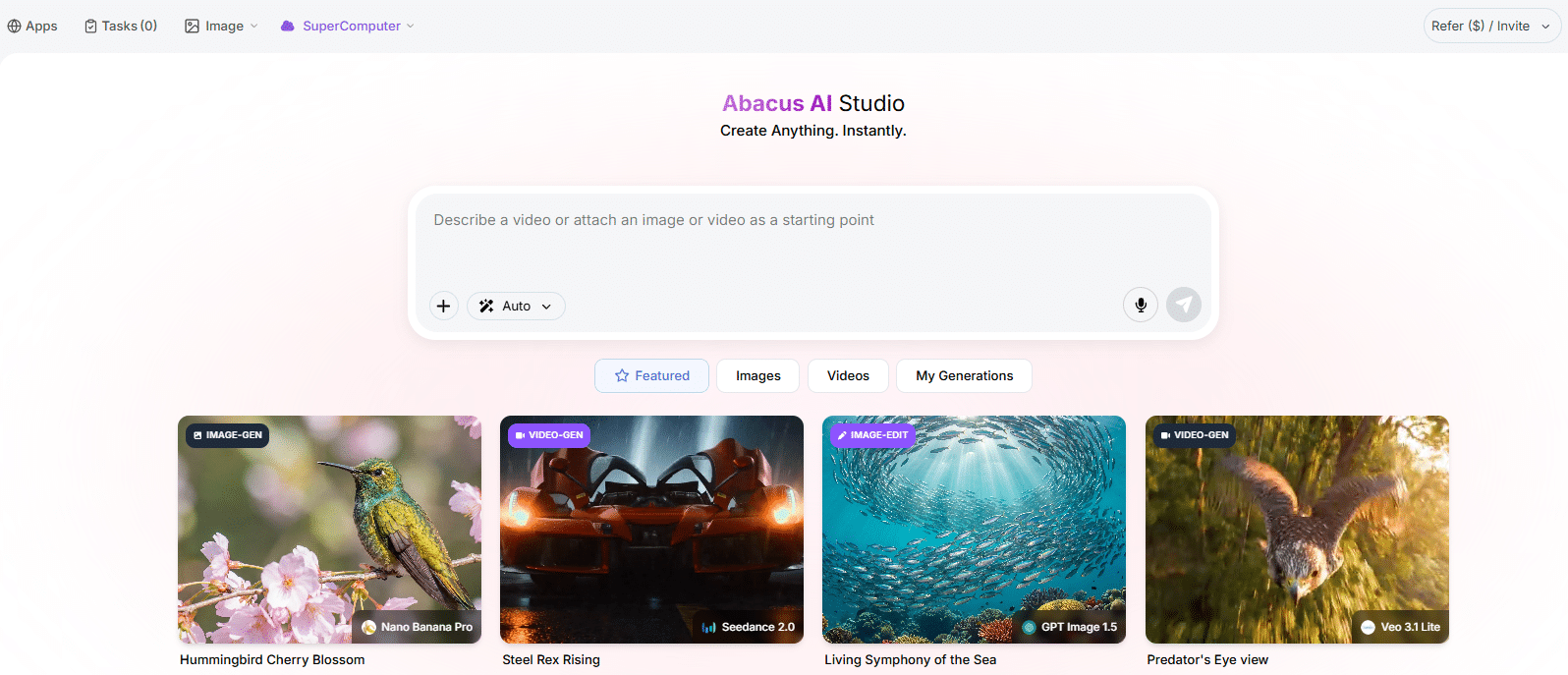
The “+” attachment menu supports uploads from your device, paste from clipboard, and direct import from Google Drive. Supported image formats are PNG, JPG/JPEG, and WebP. For motion control video references, MP4 is the recommended format.
The My Generations tab stores everything you’ve created in a private gallery. From there you can retrieve original prompts, reuse them, and iterate on outputs that worked well.
Pricing: What You Actually Get
Abacus AI Studio runs on a credit-based system layered on top of two subscription tiers:
| Plan | Cost | What’s Included |
|---|---|---|
| Basic | $10/month ($7 first month) | Max 3 video conversations; 2,500 credits per conversation |
| Pro | +$10/month | Unrestricted access to Studio + Abacus AI Agent with active credits |
Credit consumption scales with what you generate. Higher resolutions cost more than lower ones. Longer videos cost more than shorter ones. Premium models cost more than standard ones. The exact credit cost for each model and setting is shown in the settings panel before you generate – you’re not in the dark about what something will cost until after it runs.
Credit balance and usage history are trackable through the Abacus.AI billing dashboard. If your balance hits zero, generations stop until you add more credits.
Commercial usage rights depend on individual model license terms and may include certain restrictions, so it’s worth checking when generating content for clients or commercial campaigns.
Who This Platform Is and Isn’t For
Abacus AI Studio makes the most practical sense for:
- Content creators who regularly need images, video clips, and voiceovers and currently use multiple separate tools to get them
- Marketers building ad creatives, product visuals, and campaign videos at volume
- Small teams that need to produce branded visual content without dedicated design or video production staff
- Educators or course creators who want to produce narrated video content without recording equipment
- Developers or agencies prototyping visual concepts quickly before committing to full production
It’s probably not the right fit for:
- Users who only need images and have no use for video or audio – a dedicated image tool would be a great choice.
- Professionals with specific model preferences (e.g., if you only ever use one particular model, a direct subscription to that provider may cost less).
Common Questions About Abacus AI Studio
Is Abacus AI Studio free?
Abacus AI Studio offers a Basic plan at $10/month (with a $7 introductory first month) and a Pro plan for an additional $10/month. Credits are required for each generation.
What AI models does Abacus AI Studio support?
It supports a wide set of image models (including GPT Image 2, Midjourney, FLUX.2 Pro, Imagen 4) and video models (including Sora 2, Kling AI v3, Veo 3.1, Seedance 2.0), plus ElevenLabs, OpenAI, and Hume for audio.
Can I generate videos from text in Abacus AI Studio?
Yes. Abacus AI Studio is a full text-to-video AI generator. Just type your scene description and select a video model. You can also do image-to-video and combined image + text workflows.
Does Abacus AI Studio support languages other than English?
Yes. The voice input (microphone) supports multilingual speech recognition. For best results in non-English languages, align your browser language settings with the language you are speaking.
How does the AI lip sync feature work?
Upload a portrait image or video, enter your script or choose a voice profile, and the AI generates natural lip movement, jaw animation, and facial expressions synchronized to the speech.
Can I upscale images and videos inside Abacus AI Studio?
Yes. Magnific Upscaler supports image upscaling up to 16x with 9 style presets. Topaz Upscaler handles video upscaling at 2x or 4x with adjustable FPS.
Final Thoughts: Is Abacus AI Studio Worth It?
Abacus AI Studio is a practical tool for people who need to produce visual content regularly and want to do it from one place. The breadth of model selection is genuinely useful – different tasks benefit from different models, and having access to all of them without managing separate subscriptions simplifies the workflow considerably.
The credit-based pricing means costs scale with actual usage rather than being a flat fee regardless of how much you produce. That’s either an advantage or a limitation depending on your volume and predictability needs.
If you’re currently paying for and switching between three or four separate AI tools, consolidating into Abacus AI Studio is worth evaluating. If you only need one specific capability, a more specialized tool might serve you better.
You can explore the platform at Abacus AI.