When I prepare long documents, I often need to add Roman page numbers to PDF files for front matter like introductions or indexes. Many academic and professional PDFs require this format, yet most tools make it confusing. In this guide, I’ll share how I personally handle roman numbering, how to switch formats, and why I rely on UPDF to do it cleanly.
So, read till the end if you want professional-looking PDFs without frustration. Download UPDF PDF Editor here and follow along as I show each step.
Part 1. Why Use Roman Numerals in PDFs?
Before moving forward, it helps to understand why professionals “switch pdf pages from numbers to roman numerals” in structured documents. Based on my experience, these practical reasons explain why the format still matters today:
- Academic Standards: Roman numerals follow accepted academic rules for front matter pages in formal documents. They ensure compliance with thesis guidelines, research formatting, and institutional submission requirements.
- Professional Appearance: Using Roman numerals makes documents look polished, organized, and professionally prepared. This formatting choice reflects attention to detail expected in legal and academic work.
- Document Structure: Roman numerals separate introductory pages from main content, creating logical document flow. Readers instantly recognize where chapters start without scanning or guessing page placement.
- Editing Safety: Manual numbering breaks easily when pages move, reorder, or update during revisions. Controlled numbering tools prevent errors by allowing previews before finalizing page formats.
- Navigation Clarity: These roman numerals improve navigation when documents include tables, prefaces, and indexes. Cross-references remain accurate and easier to follow throughout longer, structured PDFs.

Part 2. How to Add Roman Page Numbers to a PDF?
I use UPDF Annotate PDF function because it gives me full control when I need to add Roman page numbers to PDF files accurately. Instead of manual work, I rely on its header and footer tools to format front matter pages cleanly. The interface feels simple, and I can preview results before applying changes confidently every time without worrying about alignment or errors.
Moreover, the tool helps me convert PDF page numbers to Roman numerals without breaking the document structure. This matters when handling academic or legal files with strict rules. So, below is the step-by-step guide for using the UPDF to add roman page number to a PDF:
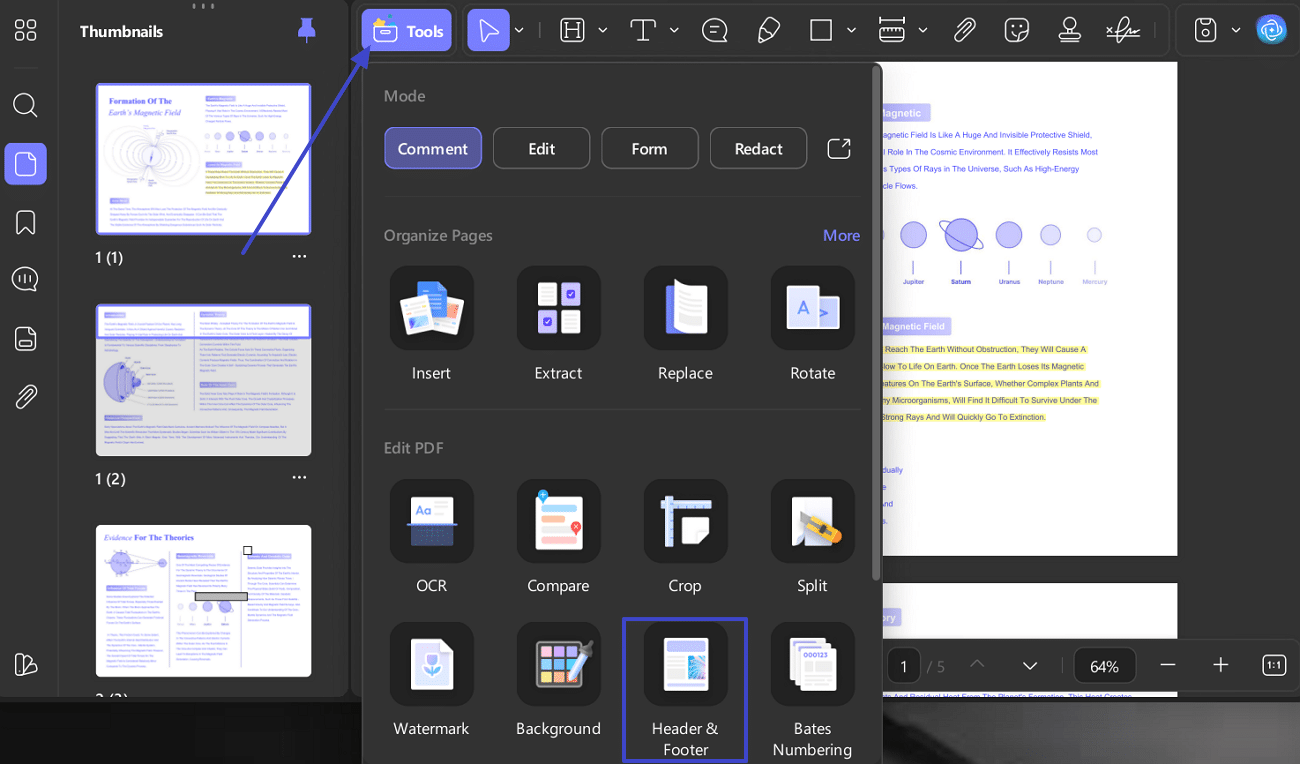
Step 1. Open PDF And Access Page Numbering Tool
Upon launching the UPDF, open the target PDF file and navigate to “Tools > Header & Footer” to access page number controls.
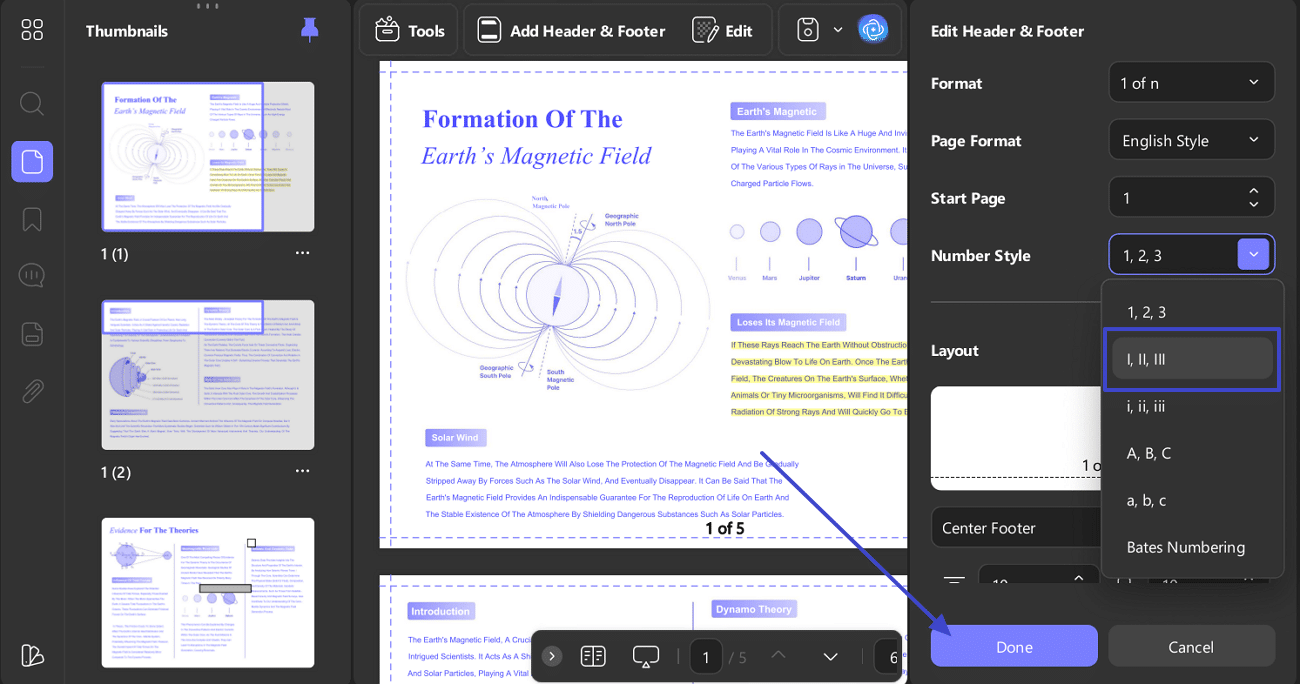
Step 2. Configure Roman Numeral Page Number Settings
Next, select “Add Page Number” and choose “Roman Numeral” from the numbering format options. Moreover, define the page range and position to ensure numbering applies only to the intended section and press “Done” to apply.
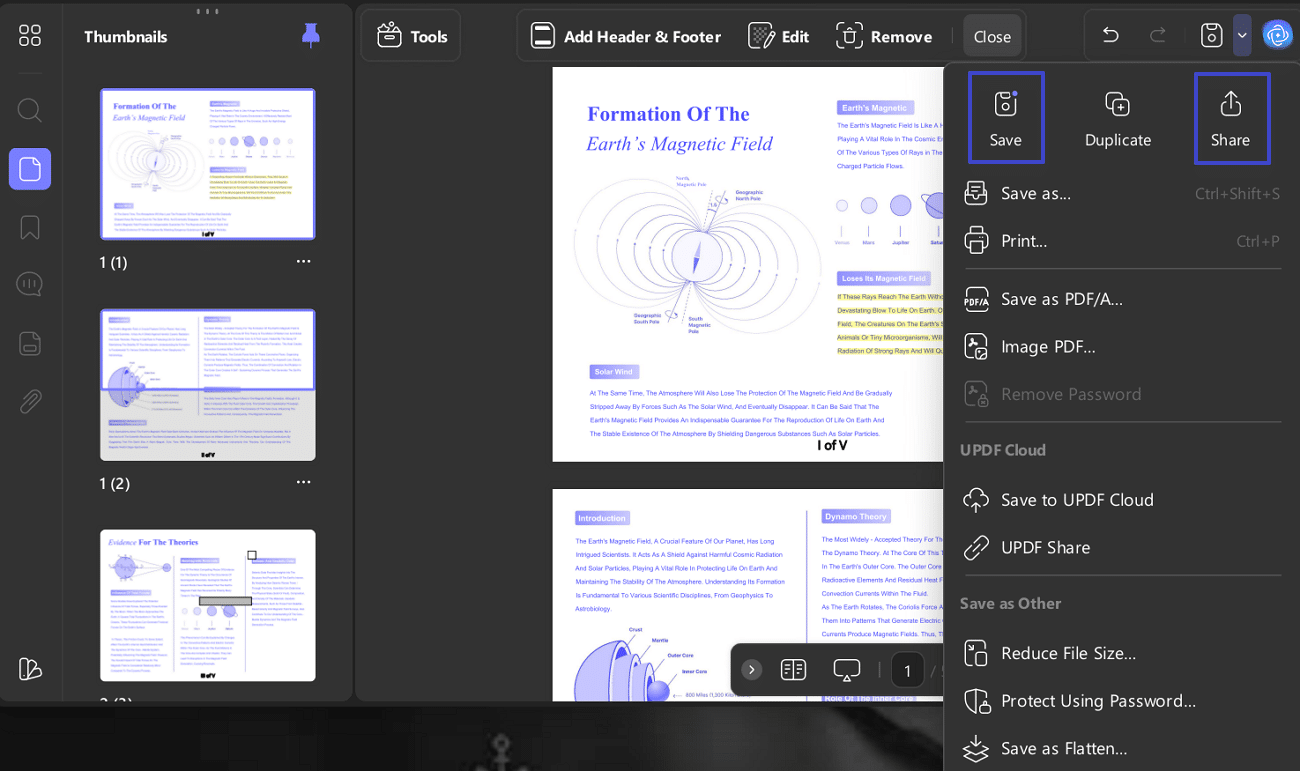
Step 3. Preview, Apply, and Save Document
Lastly, preview the page numbering to verify alignment, sequence, and placement accuracy. After that, click “Save” to store changes, or select “Share” to export the PDF with markup.
Part 3. How to Batch-Add Roman Page Numbers to PDFs?
I use UPDF’s batch mode to add Roman page numbers across multiple PDFs. Moreover, below are the exact steps showing how to batch add Roman page numbers to PDFs:
Step 1. Access the Batch Tool to Proceed
To start, select the “Tools” option from the home interface. Afterwards, choose the “Header & Footer” option to manage page numbering across files.
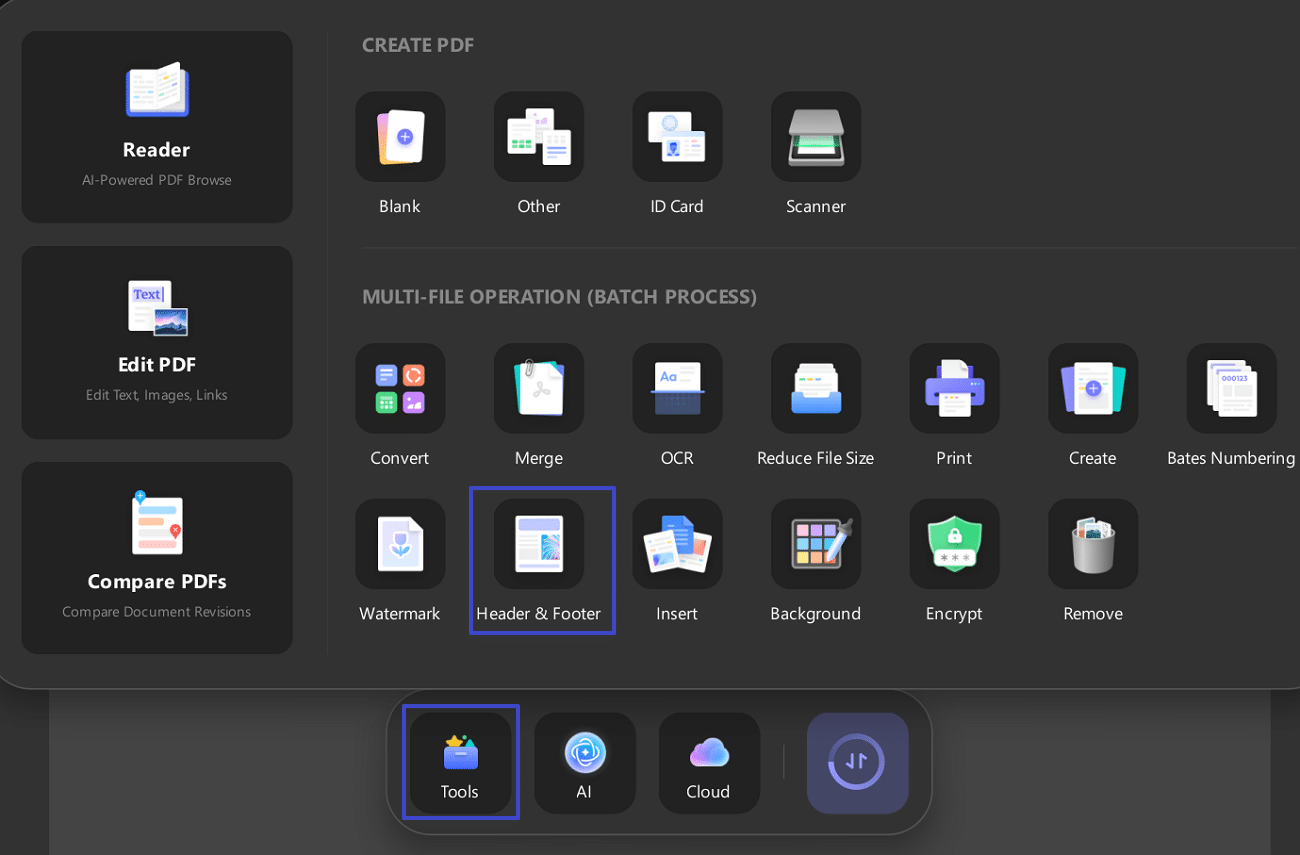
Step 2. Set the Roman Numbering Format
Here, select “Page Number” to continue by choosing the “+Add” button. Then change the numbering style to Roman numerals and adjust the position, size, margins, and hit “Save” to apply changes.
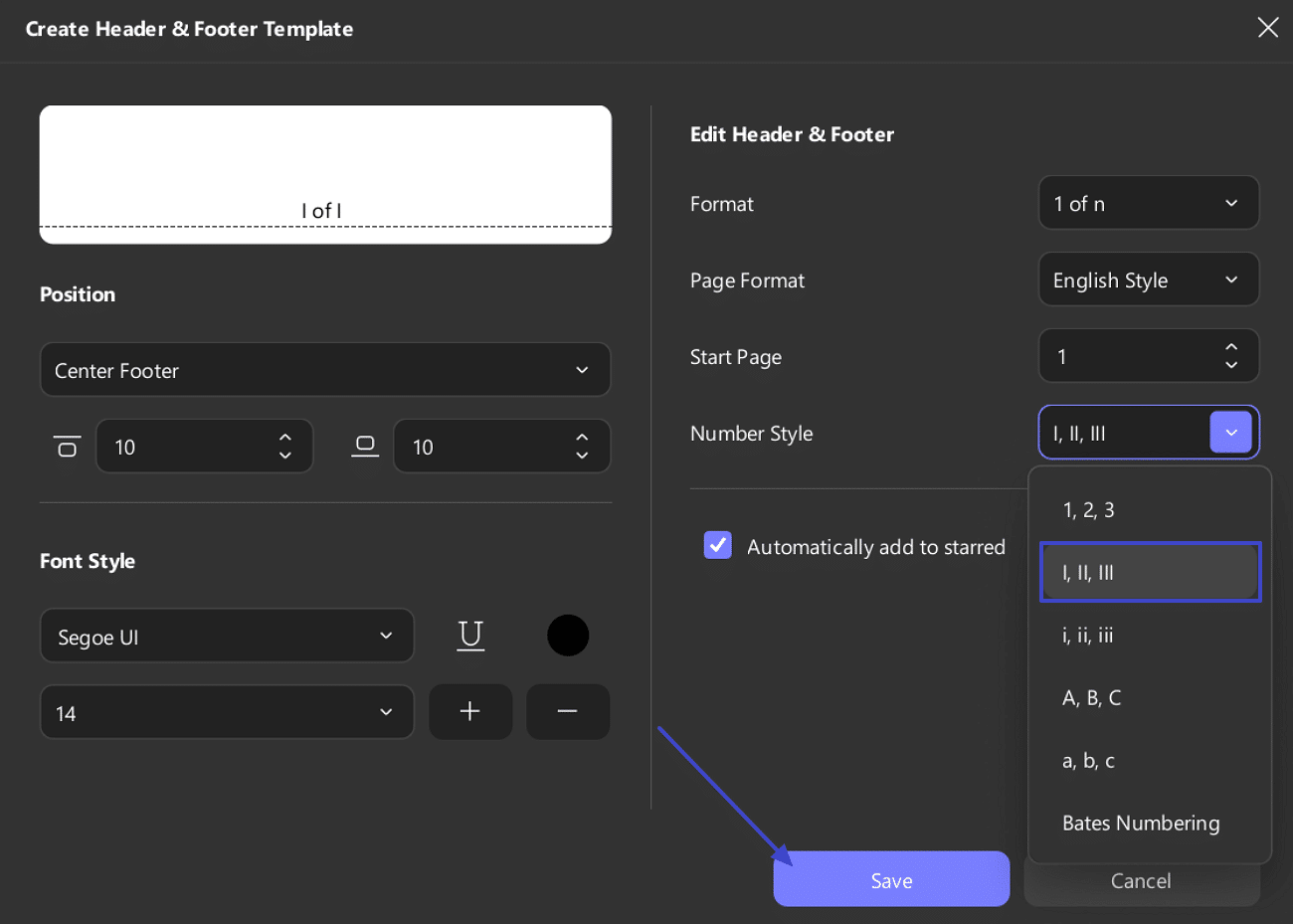
Step 3. Apply Roman Numerals Across Multiple PDFs
Lastly, use “Add Files” to import all PDFs, preview settings, and select “Apply” to save changes in batch.
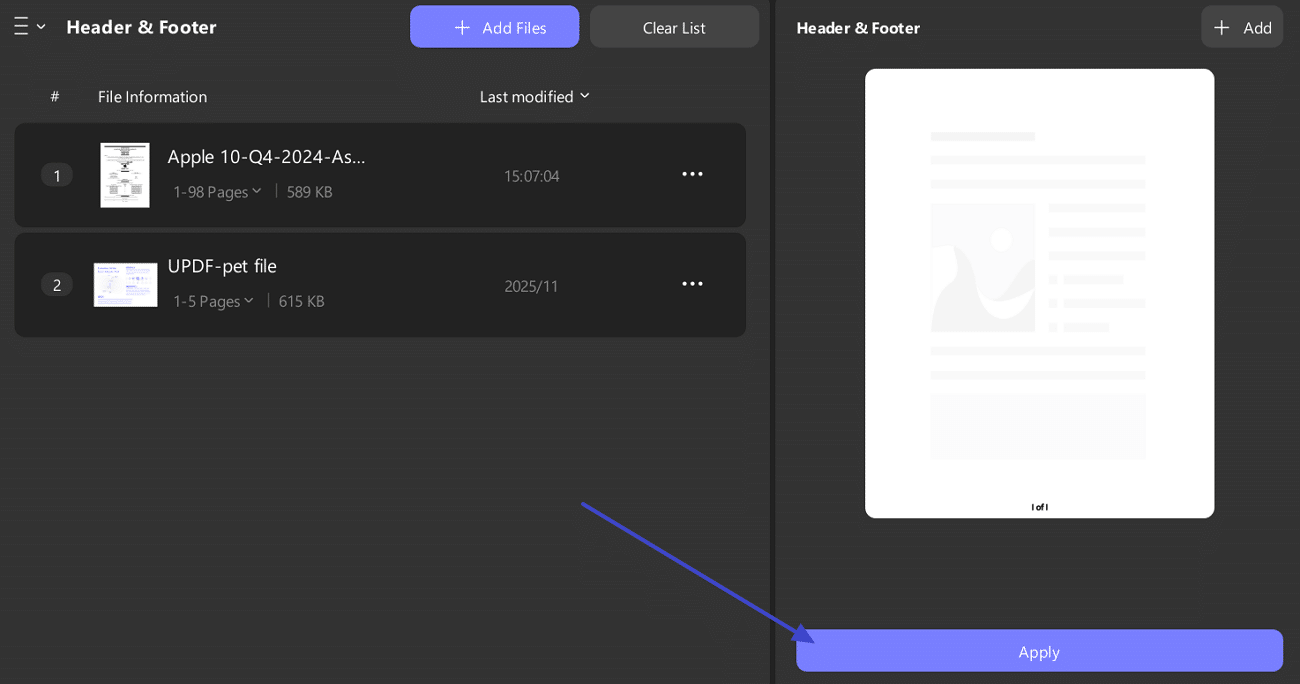
Part 4. How to Switch PDF Pages from Numbers to Roman Numerals?
In many documents, page numbering rules vary across the sections. Introductory pages often use Roman numerals, while the main content continues with standard numbers. Instead of recreating the file, you can switch PDF pages from numbers to Roman numerals directly by adjusting page numbering settings. The following steps explain how to do this using UPDF with ease:
Step 1. Access Header and Footer Configuration
First, access the “Tools” from the top toolbar, then select “Header & Footer” from the document tools panel. The header and footer layer becomes active for the current PDF.
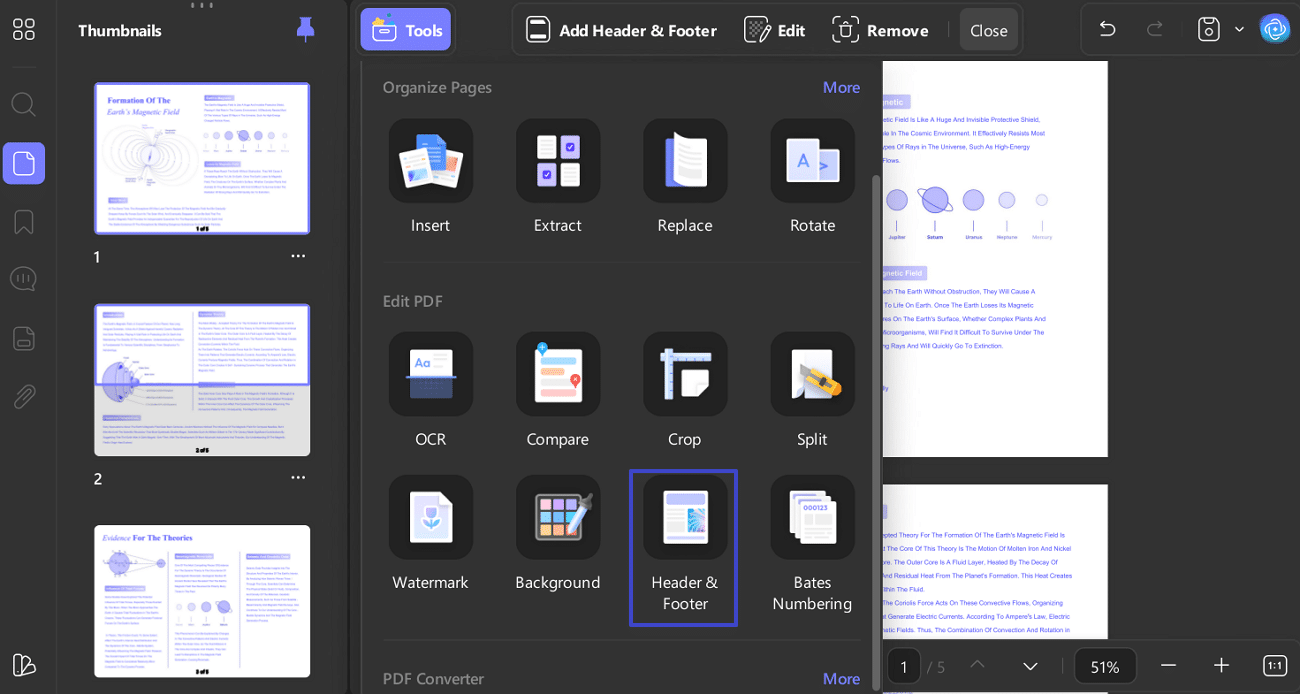
Step 2. Enter Header and Footer Edit Mode
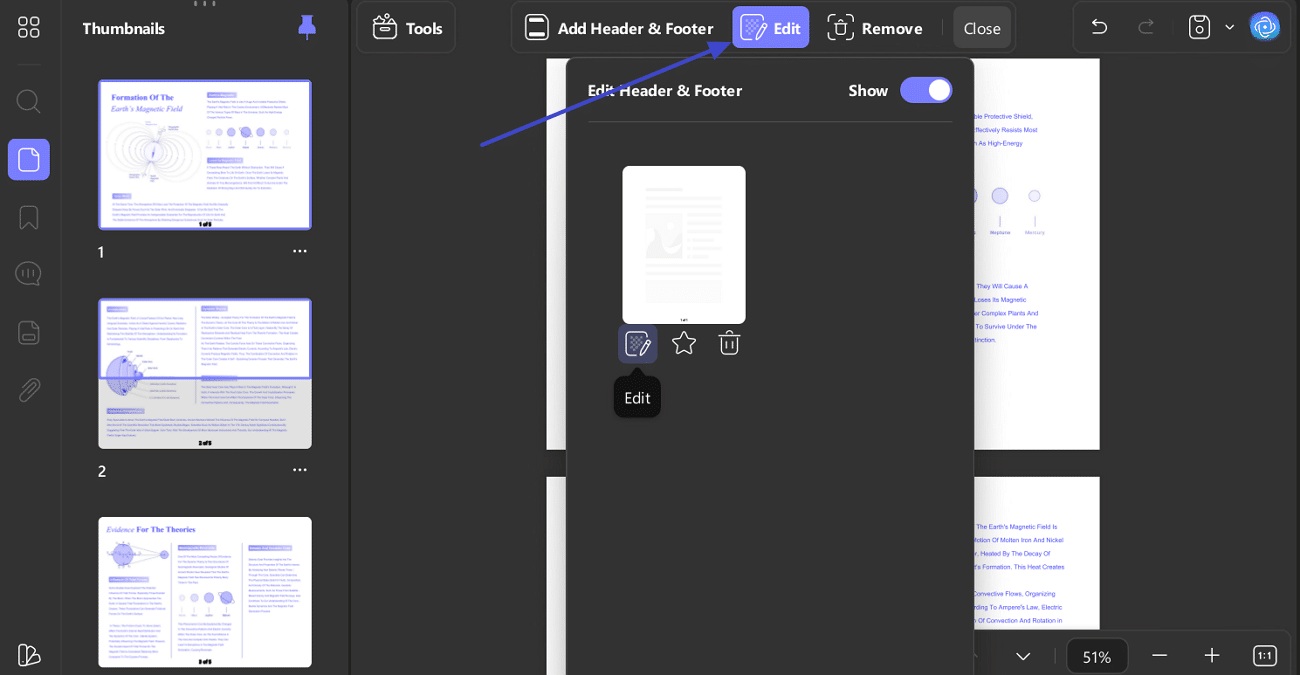
Here, choose “Edit” in the top Header & Footer toolbar to continue. In the side panel, click the existing header or footer element to enable page number configuration.
Step 3. Change Number Style to Roman Numerals
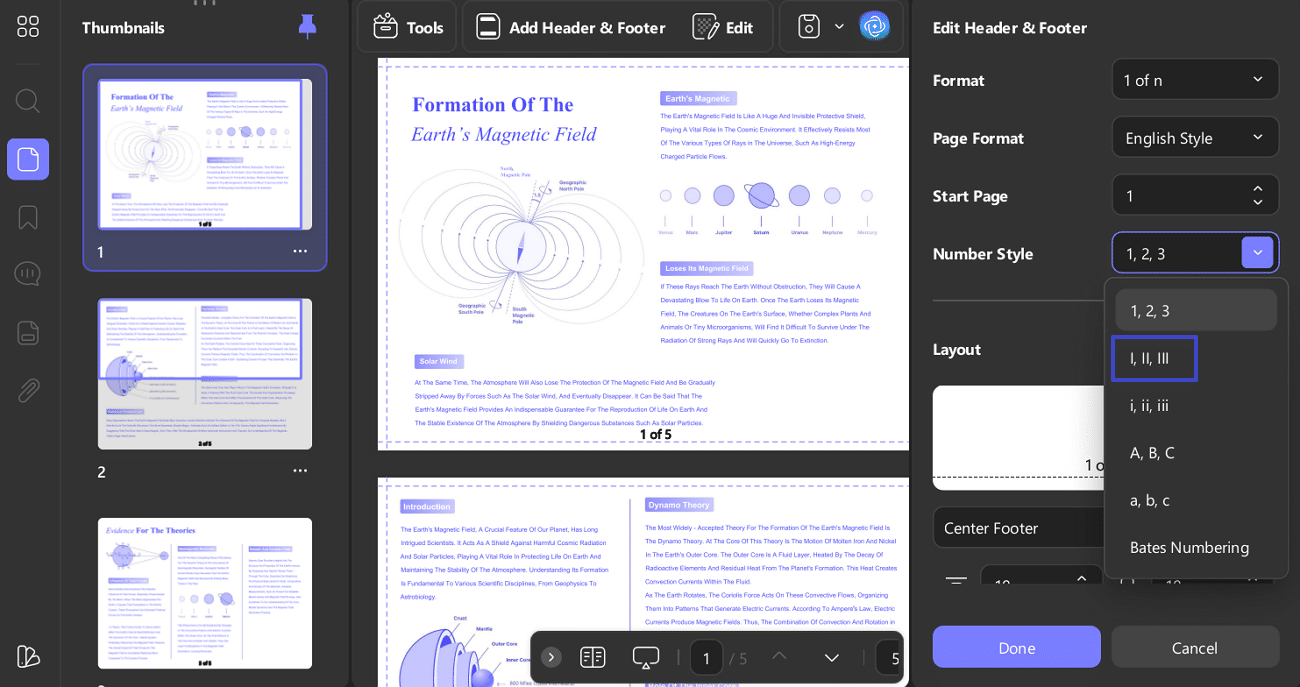
In the “Edit Header & Footer” panel, open the “Number Style” dropdown. Next, switch from “1, 2, 3” to “I, II, III”, then click “Done” to apply changes.
Part 5. Why UPDF Is Perfect for Custom Page Numbering
The following benefits show why I rely on UPDF when I need to add Roman numbers to PDF files accurately:
- Flexible Numbering Control: UPDF lets me choose Roman numerals, Arabic numbers, start pages, positions, and spacing. This flexibility helps me format academic, legal, and professional documents without manual errors.
- Batch Numbering Application: I apply page numbering rules to multiple PDFs at once using batch mode. This saves time and keeps numbering consistent across large document collections without work.
- Live Preview Validation: Preview mode lets me review page number placement before making permanent changes safely. This reduces mistakes and prevents redoing formatting after saving the PDF file later.
- Cross-Platform Compatibility: I use UPDF on Windows, Mac, iOS, and Android with the same account. This ensures consistent results when adding Roman page numbers across different devices easily.
- All-in-One PDF Management: UPDF combines page numbering with PDF editing, annotation, merging, converting, and OCR tools. I manage complete PDF workflows in one interface without switching between applications frequently.
Conclusion
To conclude, proper page numbering improves structure, readability, and compliance across academic documents. Learning how to add Roman page numbers to PDF prevents confusion and formatting inconsistencies. UPDF makes numbering tasks simple by offering precise controls, previews, and batch processing. Using the right tool ensures polished PDFs ready for submission, publishing, or professional sharing.