


Google is broadening its AI assistant’s ability to accomplish tasks in Google Sheets, allowing users to call out database-style formatting and structural changes by voice in a single command. The upgrade, of course, and the more mundane cleanup and layout chores — once a repetitive string of clicks — can now all be orchestrated from top to bottom by Gemini in the sidebar with a neat summary when it’s done of everything it changed.
What’s new with Sheets and Gemini in this update
In addition to existing functions such as describing formulas and correcting obvious formatting errors, Gemini can now connect actions like a chain. In a single request you can tell it to:
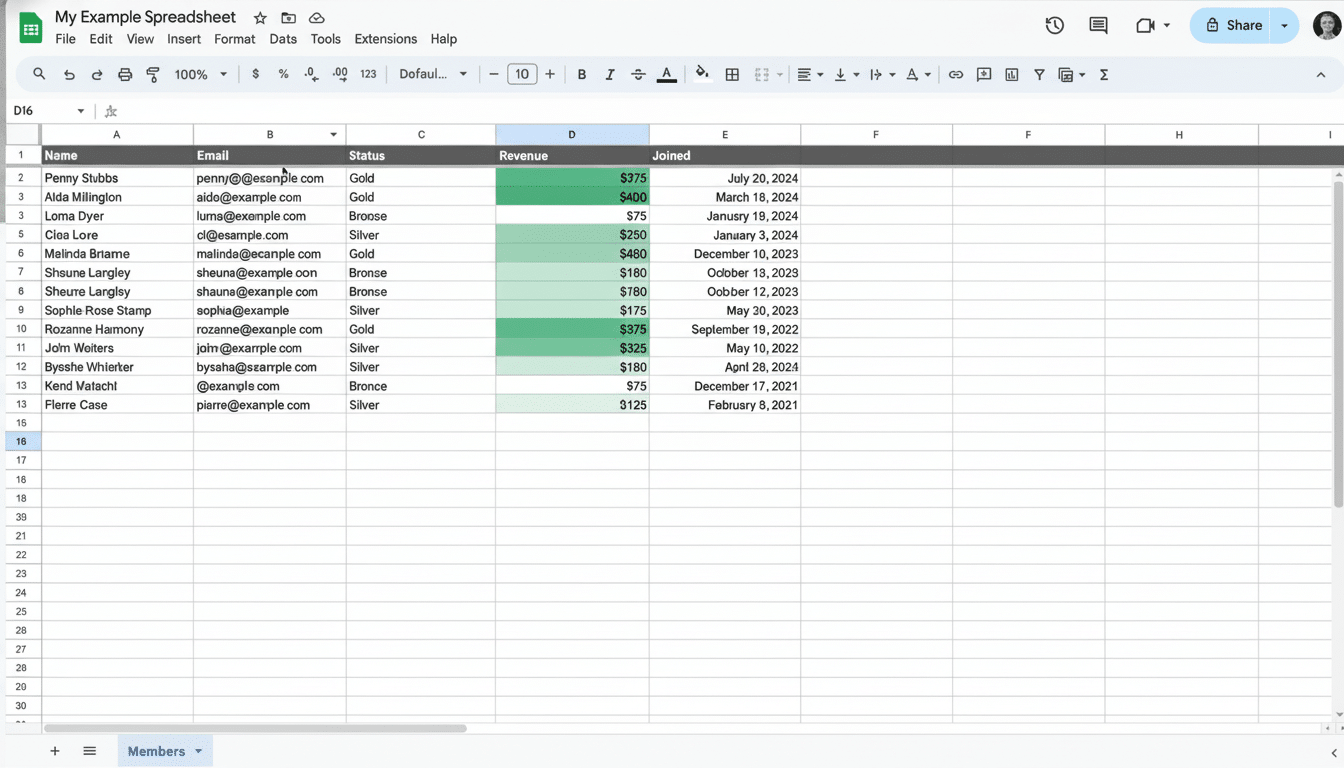
- Add a column that computes a custom metric from the fields you specify
- Apply a number format to that value
- Insert conditional formatting rules
- Add or remove columns and rows in chunks of 500 at once
- Rearrange all this however you like according to one of these schemas
It also does a broader array of quick jobs:
- Insert checkboxes and dropdowns
- Create filters
- Freeze or unfreeze header rows and columns
- Add validation rules
This all occurs within the Gemini sidebar, to the right of the desktop interface in which you’re working, meaning that you can see a plan and its associated changelog without having to leave your sheet at any point.
How multi-step prompts work for formatting in Sheets
“Think of the new flow as an instruction bundle. For instance: ‘Add revenue by quarter column, format as percentage to 1 decimal place, color negative numbers in red, freeze row 1, add an @-filter view for the region column, and move customer segment next to revenue.’” Gemini dissects the request, carries it out step by step, and then reveals what it did.
This cuts down on the “click tax” that teams pay when normalizing exported CSVs or pulling together weekly reports. Industry surveys have long reported that data work is mostly prep and cleaning, not analysis. Numbers vary across studies, but a number of research teams — including industry practitioners quoted by Harvard Business Review and companies selling data tooling — have found that data workers spend most of their time preparing the data for analysis rather than analyzing it. Automation of those rote parts in Sheets can earn back some of that time.
Why this matters for teams using Google Sheets and AI
Spreadsheets are still the system of record for finance, operations, sales operations, and education.
Those little victories add up when dozens of people are following the same formatting steps every day. When Gemini manages multi-step edits, things we expect to be standard (like header order, data validation, or highlight rules) can be expressed once as a prompt and executed on a consistent basis across files.
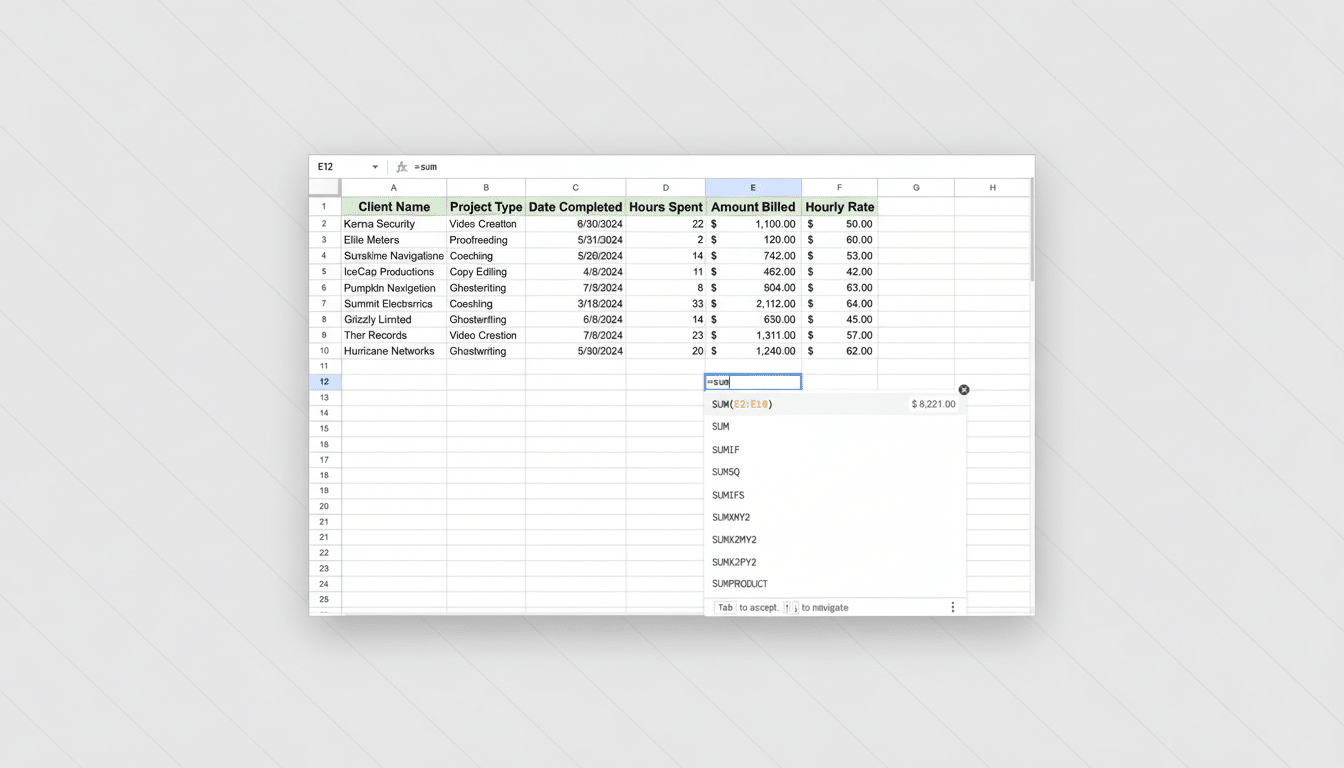
There’s also a quality angle. Guided prompts can enforce rules about ordering and formatting that are sometimes overlooked as deadlines approach. And because Gemini surfaces a breakdown of the actions taken, reviewers can cross-check changes with internal policies before sharing a sheet more broadly.
Availability and requirements for Gemini features in Sheets
According to Google’s Workspace communications, the wider rollout of Gemini features in Sheets is beginning today and should extend across business, enterprise, and education editions. They’re available for individual accounts to use with Google’s AI Pro or AI Ultra subscriptions. Like other Workspace AI features, availability might vary based on admin settings and regional rollout plans.
Google has emphasized its Workspace responsibility to data protection, explaining that customer content from enterprise versions does not train public models unless companies decide to opt in. That confidence will be important for teams working with AI on spreadsheets of financial information, student records, or customer data.
Best practices and real-world uses for Gemini in Sheets
Clarity helps. Reference columns by name, state the exact formula or metric you require, and write out your formatting rules in detail. State each filter statement in easy-to-read language. If you need to work on sensitive data, try it out on a practice sheet and copy the approved result into production.
Examples include standardizing CRM exports by renaming headers and arranging fields, creating a margin column with currency formatting as a simple formula, adding dropdowns for status codes, freezing top rows to make dashboards easy to view, and applying conditional formatting to highlight overdue items. Every one of these can be combined into a single call rather than calling five or six things separately.
As with all automation, oversight is critical. Some complex transformations still need a second pass through the rule cycle and not all powerful operations are supported by this release. Yet, the day-to-day cleanup and presentation work. Gemini’s multi-part prompts are nudging Sheets closer to an assistant that works with intent — not just individual clicks.
