


Your Galaxy already has a big battery and smart silicon, but a handful of One UI settings can stretch runtime by hours without turning your phone into a brick. These changes lean on how OLED displays draw power, how the modem behaves on 5G, and how Samsung manages background apps. Independent testing from outlets like GSMArena and PhoneArena consistently shows the display and radio dominate drain on modern phones, so optimizing those two alone can pay real dividends.
Enable Dark Mode and Use Dark Wallpapers
Most Galaxy models use AMOLED panels that switch off individual pixels to render true black. That’s free energy savings. Google demonstrated at an Android developer event that dark themes can reduce power draw dramatically on OLED at higher brightness levels, with the effect scaling with how much of the UI is black. In day-to-day use, expect a modest but compounding benefit—especially outdoors and on extra-bright screens.
- Enable Dark Mode and Use Dark Wallpapers
- Use Adaptive Brightness Instead Of Manual
- Uninstall or Disable Apps You Never Use on Galaxy
- Limit Background Activity For Power-Hungry Apps
- Download Maps and Media Over Wi‑Fi to Save Power
- Schedule Always On Display for Core Hours
- Switch to the Light Performance Profile for Efficiency
- Identify And Tame Network And Location Scans
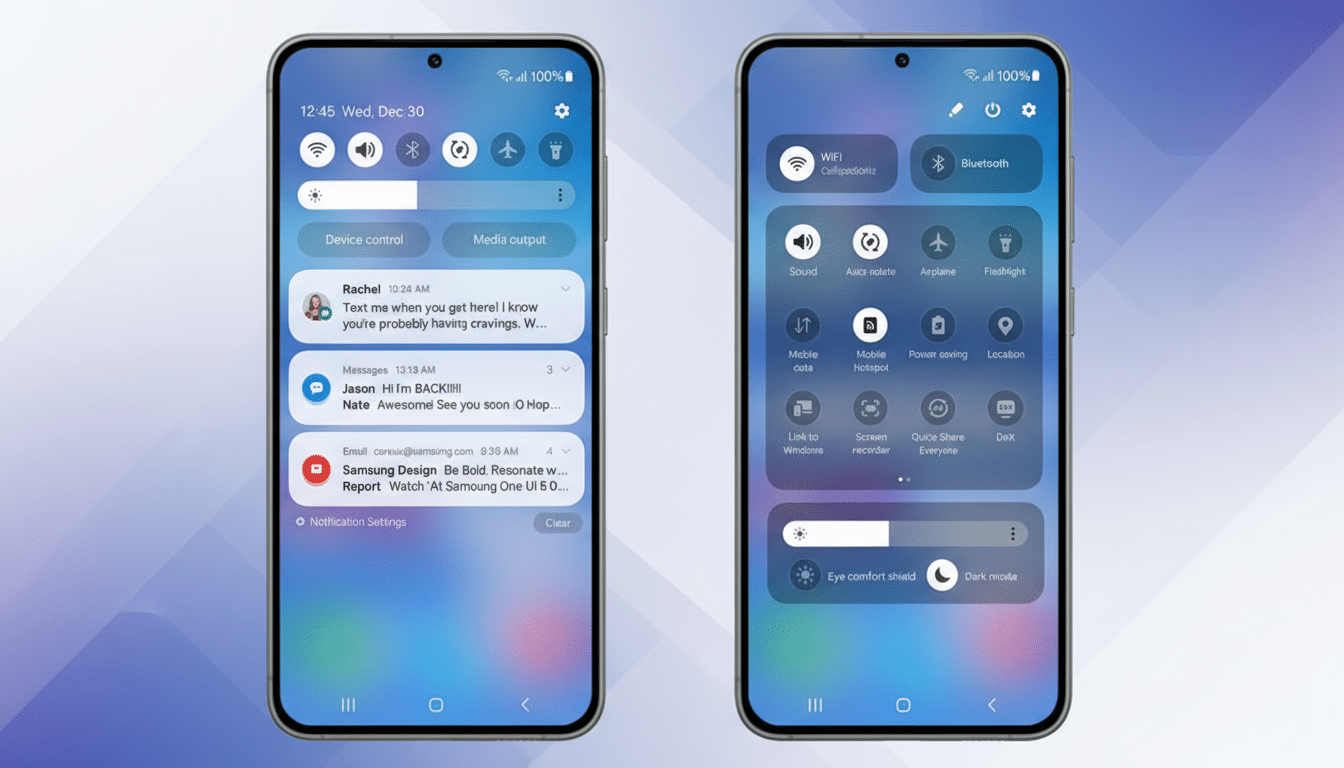
How to: Settings > Display > Dark. For a double win, pick a black or near-black wallpaper under Settings > Wallpaper and style.
Use Adaptive Brightness Instead Of Manual
The screen often accounts for 20–30% of total battery usage in reviewer endurance tests. Samsung’s adaptive brightness uses sensors and on-device learning to set just-enough luminance, avoiding the “stuck too bright” tax. It’s especially effective on the latest Vision Booster panels found on recent Galaxy S and A series models.
How to: Settings > Display > Adaptive Brightness on. You can still nudge the slider; the system learns your preference by context.
Uninstall or Disable Apps You Never Use on Galaxy
Preloaded apps and rarely used services quietly wake for syncs, location checks, and push notifications. Academic studies of mobile energy use have shown background analytics and networking can create a noticeable battery tax even when you don’t open an app. Trimming the roster reduces wakeups and keeps the CPU in low-power states longer.
How to: Long-press an app icon > Uninstall. If Uninstall isn’t available, tap the “i” icon > Disable. Prioritize big hitters like social clients you don’t use, duplicate photo or cloud apps, and trialware.
Limit Background Activity For Power-Hungry Apps
One UI’s battery tools surface the culprits. Mapping, ride-hailing, social, and messaging apps can hold wakelocks, ping GPS, and keep radios active. Moving nonessential apps to “Sleeping” or “Deep sleeping” stops them from running until you launch them, cutting idle drain significantly.
How to: Settings > Battery and device care > Battery > Background usage limits. Add infrequently used apps to Deep sleeping. Also check Battery > Usage since last full charge to spot offenders.
Download Maps and Media Over Wi‑Fi to Save Power
Streaming video or music and constantly fetching map tiles lights up the modem, CPU, and sometimes the GPU. Network analysts at firms like Ookla have shown that poor signal and 5G handoffs spike power draw; that’s when your phone also gets warm. Preloading your commute playlist and offline maps trims that radio chatter and smooths battery curves.
How to: In Spotify, YouTube Music, or your podcast app, toggle Download for playlists and episodes on Wi‑Fi. In Google Maps: tap your profile > Offline maps > Select your area. One hour of 5G video streaming can cost 10–15% battery on many phones; offline playback is often a fraction of that.
Schedule Always On Display for Core Hours
On LTPO panels found in recent Galaxy S Ultra models, Always On Display (AOD) can refresh at 1 Hz and sip power—GSMArena’s lab work has measured roughly 0.5–1% per hour depending on brightness and complications. Midrange models without LTPO are less efficient. Scheduling AOD for core hours captures the convenience without the overnight drain.
How to: Settings > Lock Screen and AOD > Always On Display > When to show > As scheduled. For extra savings, disable Show lock screen wallpaper in AOD settings and keep complications minimal.
Switch to the Light Performance Profile for Efficiency
Unless you game hard or render video on your phone, peak CPU/GPU clocks are wasted energy. Samsung’s Light profile tones down aggressive boost behavior, prioritizing efficiency and thermals. In synthetic tests the difference shows up as lower burst scores; in daily use the experience stays smooth while background and standby drain improve.
How to: Settings > Device care > Performance profile > Light. You can still run demanding apps; they’ll just sustain gentler clocks and draw less power over time.
Identify And Tame Network And Location Scans
Frequent Wi‑Fi, Bluetooth, and location scans keep radios awake. Android’s scanning features help with indoor positioning and faster discovery, but they aren’t essential for everyone. Reducing scan frequency can shave idle drain, which matters on long days away from a charger.
How to: Settings > Location > Location services > Wi‑Fi scanning and Bluetooth scanning > Off if you don’t need them. Also consider turning off 5G in Mobile networks if coverage is weak; modems draw more power hunting for a stable 5G signal, a behavior documented by carrier and chipset reports.
Put together, these seven tweaks target the biggest energy sinks on Galaxy phones—display, radios, and runaway background apps. Real-world users routinely report 1–3 extra hours of screen-on time after dialing in these settings, and endurance rankings from independent reviewers back up the strategy. Smart defaults are getting better every year, but a few minutes in Settings can still buy you a lot of battery back.
