


Netflix has quietly ended support for a feature that many used nightly: casting from the Netflix phone app to the TV via newer Chromecast and Google TV devices. A recently updated Netflix support page now lists that most televisions and streaming devices on which you can accept and watch mobile-to-TV casting no longer support the feature, implying viewers instead use the native Netflix app on said device.
And that familiar Cast button now goes—nowhere, if you transitioned from an original Chromecast puck to a Chromecast with Google TV (or TV with Google TV capabilities). You will need to put Netflix on the TV and find your way around with its remote.
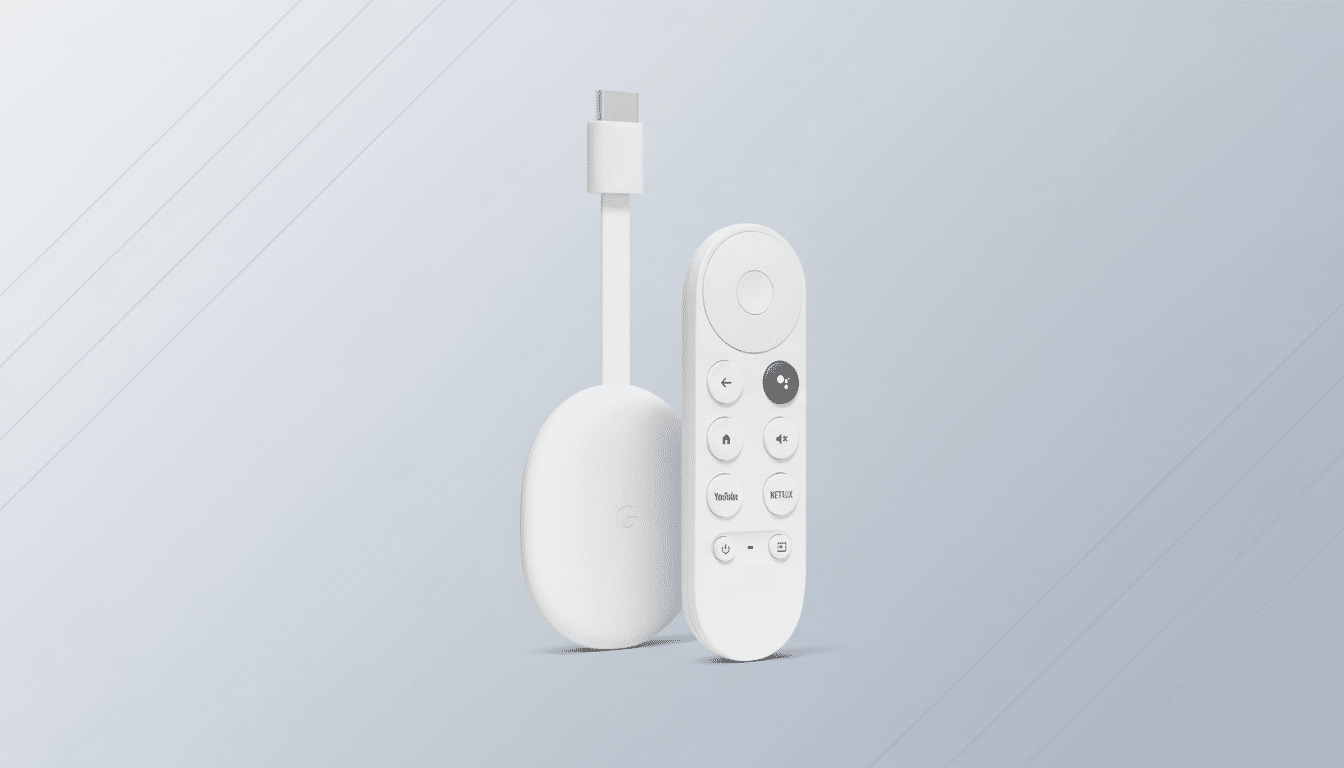
What Changed, and Who It Affects on Google TV Devices
Netflix’s updated guidance confirmed the new rule of thumb: If you have a streaming device with an on-screen interface and its own remote, Netflix casting from a phone is blocked. That includes Chromecast with Google TV, or Google TV sets from manufacturers like Sony and Hisense, along with most contemporary streaming sticks and boxes that run Netflix directly.
Older Google Cast–only hardware is still an exception. The original Chromecast and Chromecast Ultra—both managed entirely through your phone with no remote or interface on the TV—still support casting, according to Netflix’s help page. Those devices are older than the shift to Google TV’s more remote-centric experience in 2020.
Another wrinkle: Regardless of the type of device you’re using, Netflix’s ad-supported tier still doesn’t support casting or screen mirroring. On the ad plan, classic Cast or mirroring will not grant you access to Netflix on your big screen.
User reports first began making their way onto Reddit and have since been verified by a number of Android-specific websites. Some subscribers who contacted Netflix customer service were told that the change was being made to enhance the “customer experience,” though in actuality it means fewer ways to initiate playback.
Why Netflix May Be Doing This on Newer Devices
Netflix has not released a detailed technical explanation, but the logic dovetails with broader industry trends. On streaming devices that graduated from phone-reliant dongles to full operating systems, platforms have coerced viewers toward native apps and remote-driven interfaces. That transfer grants services additional control of playback behavior, recommendations, accessibility features, and ad measurement.
Having everyone consolidate around the TV app also minimizes edge cases. Casting is supported across a wide range of phone models, OS releases, and network configurations; moving the initiation logic to the device app would make for a simpler support model. It could also make it easier for Netflix to enforce account policies more uniformly among profiles and households, which the company has emphasized as part of its password-sharing crackdown.
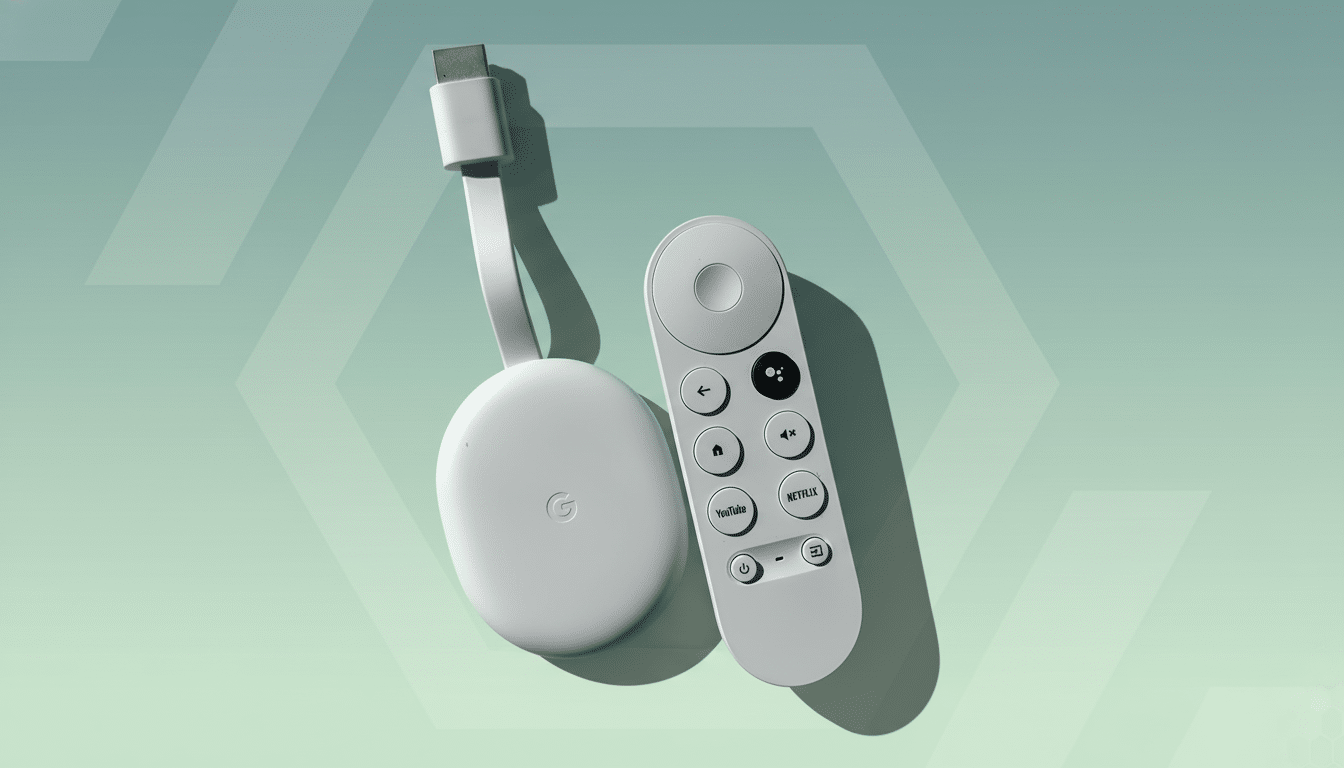
There’s also a monetization angle. Apps targeting on-device playback instead could have standardized ad delivery on supported plans and do DRM handling more closely, for 4K/HDR that’s cast, which has historically been the one area with differences based on hardware and network conditions.
How to Continue Watching on Your TV Without Casting
Access the Netflix app from your TV or streaming device (Apple TV, Chromecast, and so on) and use it with the TV remote. If it’s been a minute since you’ve fired up Netflix on Google TV, now would be the time to check for app and firmware updates that will keep your app running smoothly (to say nothing of giving you access to all the latest profiles and features).
And if your household depends on casting for convenience, you still have options:
- Leave an original Chromecast or Chromecast Ultra attached; Netflix casting still works on these remote-free devices.
- Start watching on the phone, and continue watching from where you left off on the TV—simply tap “Watch on TV” in the mobile app; tap it again when you get home to play through your home system.
- With the Netflix app on a supported device, cue up what you want to watch on your phone, then send it to your TV with the touch of a button.
- Hook up a laptop via HDMI and then play Netflix in a browser if you want to start from your own device. Please remember that ad-tier restrictions apply as well as DRM.
If you’re using an older TV or streamer produced before the mid-2010s, Netflix cautions support could be limited. In those situations, the simplest way to upgrade is with a modern streaming dongle that has a native Netflix app.
What This Means for Casting Overall Going Forward
That is not the end of casting technology, though it marks a significant retrenchment for a service that moved to help popularize second-screen control. Casting continues to flourish in apps like YouTube and throughout music services where device-to-device handoff is a fundamental use. For premium video, though, the industry has been shifting toward remote-first interfaces with unified watchlists and home screens that are all personalized and curated at the TV.
For Netflix viewers, the message is clear: if your device has a remote, Netflix would like you to use it. The move streamlines Netflix’s ecosystem, but it still annoys longtime Chromecast users who enjoyed the idea of starting a show from the couch with just one tap on their phone.
Netflix has not projected any roadmap hinting toward a reversal. For the time being, your TV-native apps and remotes will be the predominant path—and you’ll want to keep that old Chromecast on hand if no-remote casting is a central part of your setup.
