


Ever wonder what the first KDE desktop was “really” like to use? MiDesktop is bringing it back, with a degree of faithfulness that is almost surprising. I installed the current beta, used it for a while, and was immediately taken back to the early days of the Linux desktop — a Linux desktop whose core parts still looked awfully similar to the monochrome maze o’ windows I’d first navigated in the 90s among dual-floppy PC demo-loser boxes at The Electronics Boutique. Here’s what that is, how to try it without being a jerk about it, and what you can hope to get out of it.
What Is MiDesktop and How It Recreates Early KDE 1
MiDesktop is a contemporary reimplementation of KDE 1 on the Osiris toolkit, based on a fork of Qt 2. In real terms, it doesn’t just wear a retro coat on modern KDE; rather it’s an environment fully true to the original behavior, look, and limitations of old-school KDE. Zero compositing, zero transparency panels, no Plasma bells and whistles — just the good old K menu, panel, and utilities as they used to be.
- What Is MiDesktop and How It Recreates Early KDE 1
- How to Try MiDesktop Safely on Debian or Ubuntu Systems
- What It’s Like to Use MiDesktop in Daily Desktop Tasks
- Why MiDesktop Matters for History and Learning Today
- Who Should Try MiDesktop and Who Should Skip It
- Tips and Caveats for Installing and Using MiDesktop
The project doesn’t appear to be looking for easy solutions so much as historical ones. What that also means is there are some functions today that we all take for granted in KDE Plasma, which simply do not exist and haven’t been implemented by design. It’s a living museum piece — the kind of thing you can boot and use.
How to Try MiDesktop Safely on Debian or Ubuntu Systems
The current targets are Debian Trixie and Ubuntu Noble Numbat. For the smoothest experience I installed Debian Trixie into a brand-new VM. Some hypervisors can lag behind the latest Ubuntu kernels; if your VM doesn’t boot, then try Debian or different virtualization software.
Setup is command-line based, but the commands are not difficult to execute. In short, you add the project’s APT repository and keyring, do an update, then install a few packages. The main set is:
- midesktopbase
- midesktoplibs
- midesktopwallpapers
- midesktopbase-doc
- midesktoplibs-doc
- hisuite-desktop-i18n
The repository entry and keyring processes are described in the project documentation.
We have now successfully installed; reboot into the login screen, and in your session selector you can pick “MiDesktop”. Upon initial start-up, you should see a clean and minimal desktop with the look — and usability — of early KDE.
There will not be a kitchen-sink app store. I was able to find a simple browser, file manager, terminal, and a few utilities. To get around it, I installed LibreOffice using apt and launched it by typing “libreoffice” in the terminal. It ran without drama. The integrated menu editor is there, but in my test it wouldn’t open, so applying custom launchers may take some manual tweaking until the beta settles down.
What It’s Like to Use MiDesktop in Daily Desktop Tasks
MiDesktop is fast in the old-school way — no animations, no compositing overhead, just windows that pop open. The panel and the K menu are spartan, the file manager is reminiscent of old-school KFM rather than today’s Dolphin. Fonts and icons are that sharp pre-retina look that just immediately takes you back to the beginning days of Linux being usable.
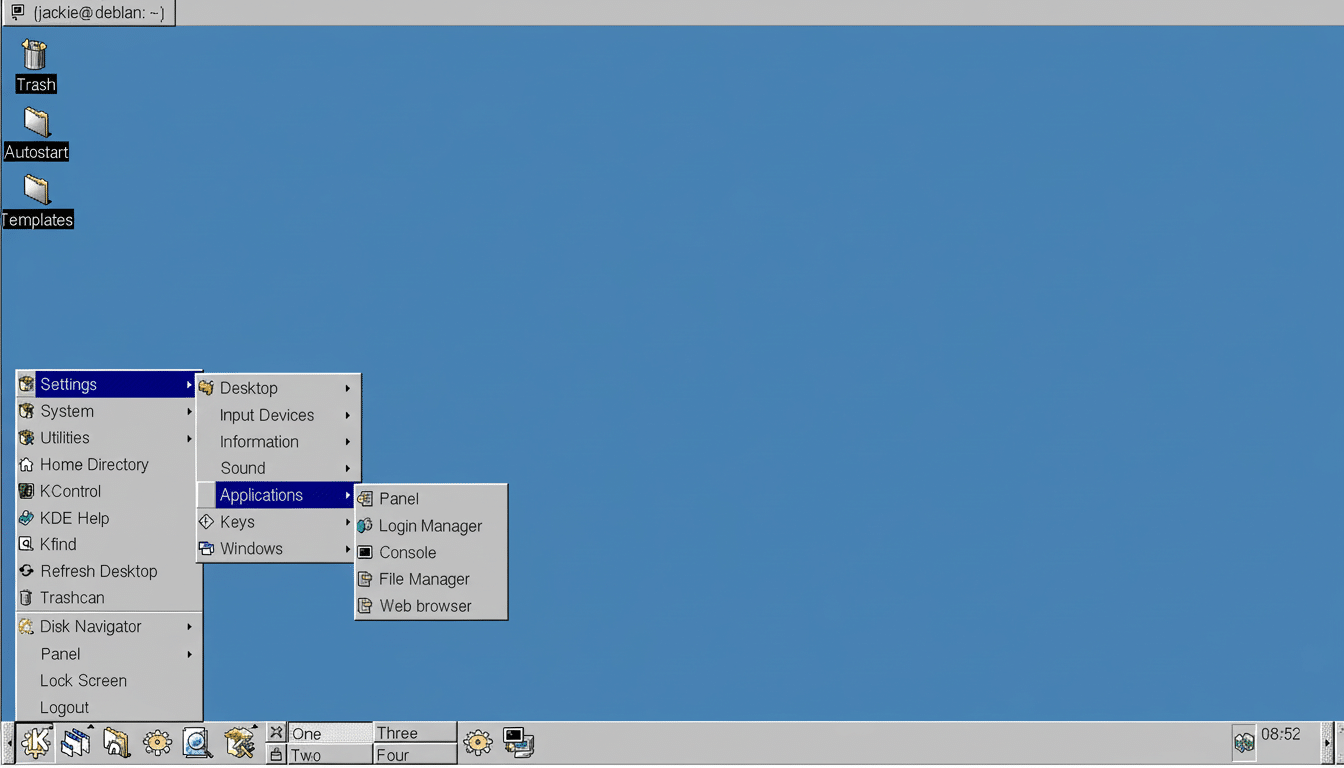
As it strives to feel realistic, you might notice behaviors that look odd in hindsight: lack of copy/paste shortcuts (less right-click convenience), simple configuration dialogs with limited customizability, and a menu system that feels like it was born before the freedesktop era. Menu entries are much like the old-style launchers that predate today’s standard .desktop files, which is awesome for accuracy and not so ideal for convenience.
Most modern apps work fine, but there are rough spots here and there. It’s a bit like if, as an art conservator, your job isn’t to fit everything out for the modern workflow, but rather to let you climb the scaffolding and see the ground that was laid down by our amazing KDE e.V. communities.
Why MiDesktop Matters for History and Learning Today
Native versions of KDE made Linux desktops less spartan and more integrated and easier to use long before we had Plasma or Wayland discussions. It’s worth looking back at that period of time to be reminded how much the ecosystem has developed, from multimillion-euro toolkit licensing deals with The Qt Company through cross-desktop standards that underpin daily computing.
It’s also an incredible teaching tool. Hackers and students can see, touch, and feel decisions behind modern KDE/GNOME setups. And even as Linux desktop share has barely climbed over 4% according to StatCounter GlobalStats, knowing the lineage behind some of that polish is more than nostalgia – it’s context.
Who Should Try MiDesktop and Who Should Skip It
It is great for science fiction fans, retrocomputing enthusiasts, Linux historians, and people who like to tinker with things.
For a daily driver, KDE Plasma is still the modern option to support. If you want to understand how we arrived at that point — how emerging UI patterns and panel metaphors came to be — MiDesktop is a unique, tactile time capsule.
Tips and Caveats for Installing and Using MiDesktop
- Put it in a VM and snapshot frequently.
- If the menu editor refuses to open (or you’re using another DE), start apps from the terminal or create simple launchers yourself.
- Expect X11-era stuff; no nice Wayland thingies.
- Debootstrap will be your friend.
- On Ubuntu Noble, if your virtualization stack complains about the kernel, use Debian Trixie and/or a different hypervisor (VirtualBox, for example, has better support over time).
Above all, calibrate expectations. MiDesktop doesn’t pretend to be new. It tries to be right. For many of us, that authenticity is kind of the point.
