Steam’s massive gaming library serves over 120 million active users, making it the world’s leading PC gaming platform. While Steam offers robust cloud save features, game data loss remains a common frustration for players. Whether you’ve encountered a failed cloud sync, corrupted local files, or accidental deletion, losing hundreds of hours of progress can feel frustrating. This comprehensive guide will show you exactly how to retrieve lost game data on Steam and recover your precious save files.
Understanding Steam Save Data Structure
To effectively recover Steam game data, you first need to understand how Steam stores your saves. Steam employs a dual storage system combining local and cloud-based saves.
- Understanding Steam Save Data Structure
- Common Steam data loss scenarios
- Advanced Steam Game Recovery with Wondershare Recoverit
- Complete Recovery Process:
- Alternative game-specific locations
- Recoverit Features Beneficial for Steam Users:
- Built-in Steam Recovery Methods
- Prevention for Future Steam Data Loss Strategies
1, Local save files reside on your computer’s hard drive, typically in the Steam installation directory. The primary location is
C:\Program Files (x86)\Steam\userdata\[UserID]\[AppID]\remote\
UserID is your unique Steam account number and AppID is the specific game’s identifier. Some games also store saves in other locations like Documents\My Games\ or AppData\Local\. This fragmented storage can make recovery challenging if you don’t know where to look.
2. Steam Cloud synchronization automatically uploads compatible game saves to Steam’s servers, allowing you to access your progress from any computer. However, Steam Cloud isn’t universal—not all games support it, and it must be manually enabled for each title.
Common Steam data loss scenarios
Common Steam data loss scenarios include several frustrating situations.
- Failed cloud sync occurs when Steam’s servers are unreachable, when there’s a conflict between local and cloud versions, or when cloud storage quota is exceeded.
- Local file corruption can result from improper game shutdowns, disk errors, or malware.
- Accidental deletion happens when users clean up their hard drive without realizing they’re removing save files.
- System reinstallation or formatting drives without backing up the Steam userdata folder causes immediate data loss.
Advanced Steam Game Recovery with Wondershare Recoverit
Wondershare Recoverit provides advanced game recovery capabilities specifically suited for Steam save file recovery.
Complete Recovery Process:
Step 1: Locate Steam save file directories. Before launching Recoverit, identify where your Steam saves were stored. The default path is C:\Program Files (x86)\Steam\userdata\[YourUserID]\[GameAppID]\remote\.
To find your UserID, check your Steam profile URL or look at folder names in the userdata directory—it’s typically an 8-10 digit number. The GameAppID can be found on the game’s Steam store page in the URL (store.steampowered.com/app/APPID/).
Alternative game-specific locations
C:\Users\[YourUsername]\Documents\My Games\
C:\Users\[YourUsername]\AppData\Local\
C:\Users\[YourUsername]\Saved Games\
Some games store saves outside the Steam directory, so research your specific game’s save location if necessary.
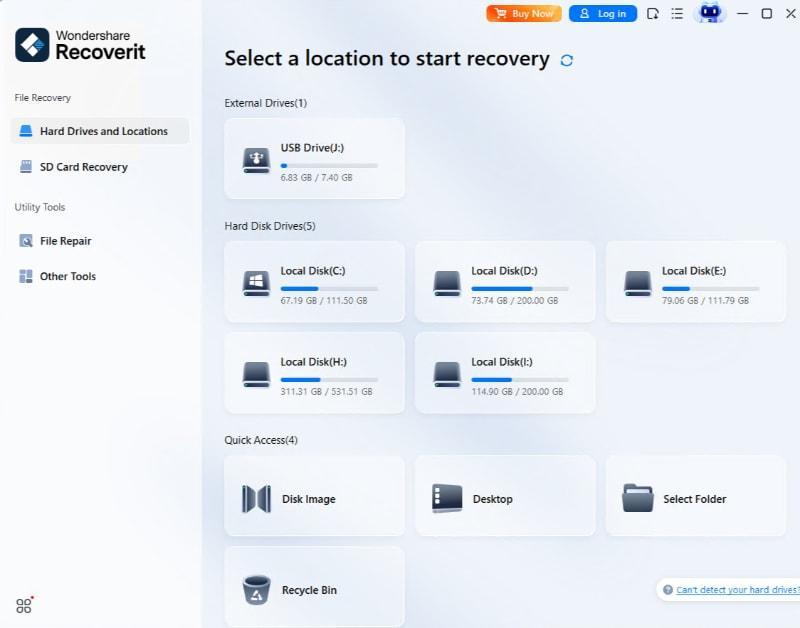
Step 2: Launch Recoverit and select target location. Open Wondershare Recoverit and you’ll see the main interface displaying all available drives and folders. Select the C: drive if your Steam installation is on your primary drive, or choose the specific drive where Steam is installed. For more targeted recovery, you can navigate directly to the Steam folder location using the folder selection option.
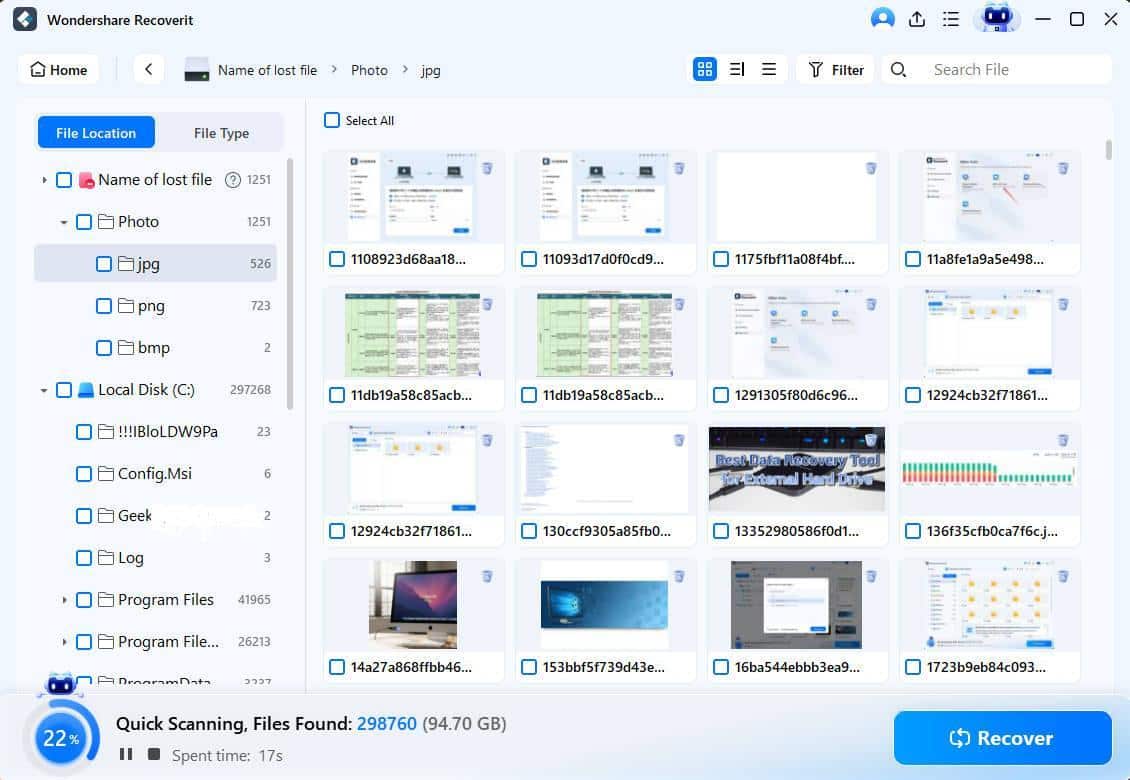
Step 3: Perform deep scan for Steam save files. Click “Start” to initiate the scanning process. Recoverit will perform an all-around scan, systematically searching for deleted and lost files. The AI-accelerated scanning technology significantly speeds up the process compared to traditional recovery methods. You’ll see real-time results appearing as the scan progresses, with file counts and types displayed.
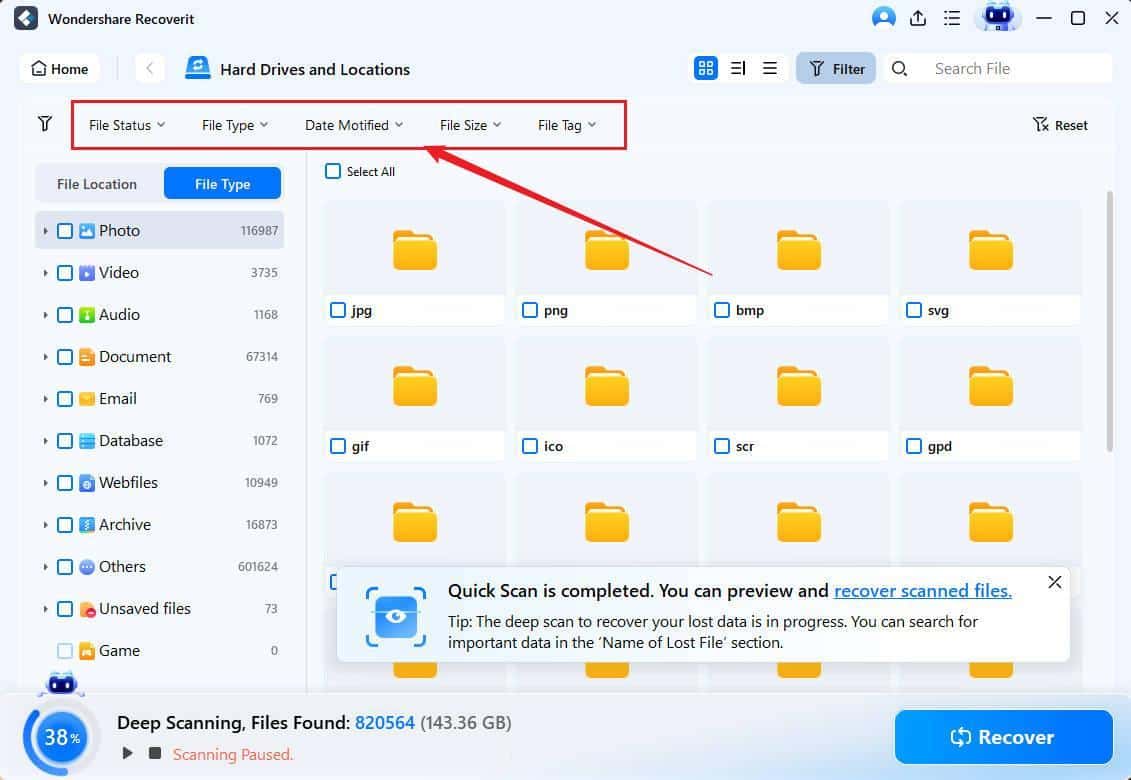
Step 4: Filter results by file type and date. Once scanning completes (or while it’s still running), use Recoverit’s powerful filtering options. Click on “File Type” and select “Documents” or “Other” depending on your game’s save format. Use the search box to find specific filenames—many Steam saves have recognizable names like “save.sav,” “profile.dat,” or game-specific extensions.
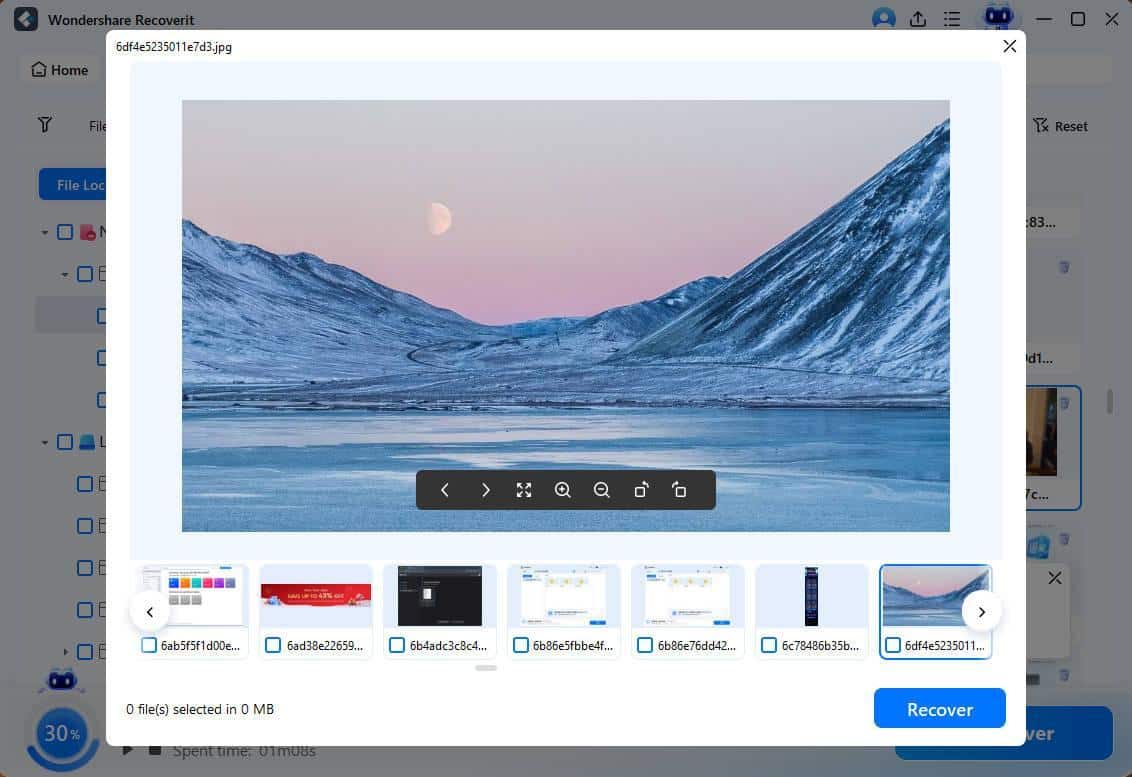
Step 5: Preview and recover Steam game saves. Select the files you believe are your Steam saves and click “Preview” to examine file details like size, modification date, and path. While binary save files may not preview visually, you can verify file properties match your lost saves. Once confirmed, select all relevant files and click “Recover.”
Critical warning: Never save recovered files directly back to C:\Program Files (x86)\Steam\ (where your lost game data was stored). Instead, save to your Desktop, Documents folder, or an external drive first. After recovery, you can manually copy them to the appropriate Steam directory.
Recoverit Features Beneficial for Steam Users:
Several Recoverit capabilities make it particularly valuable for Steam gamers.
- Support for various game save formats means whether your game uses .sav, .dat, .bin, .json, or proprietary formats, Recoverit treats all data equally during recovery.
- Recovery from formatted drives helps if you accidentally formatted a partition containing your Steam library.
- Crashed computer recovery feature allows you to create bootable media and recover data from a non-booting PC, invaluable if Windows crashed and took your Steam saves with it.
- External device support proves useful for Steam Library folders stored on external drives—if the drive fails or is accidentally formatted, Recoverit can recover the entire library including saves.
Built-in Steam Recovery Methods
If you don’t want to use a game data recovery software, Steam also offers several built-in recovery options worth exploring.
- Steam Cloud Recovery serves as your primary safety net. To enable Steam Cloud for your games, open Steam, go to Steam > Settings > Cloud, and check “Enable Steam Cloud synchronization for applications which support it.” For individual games, right-click the game in your library, select Properties > General, and verify that “Keep game saves in the Steam Cloud” is enabled.
- Forcing cloud sync can resolve many issues. If local saves are missing but cloud saves exist, try this: close Steam completely, navigate to the path: C:\Program Files (x86)\Steam\userdata\[UserID]\[AppID]\ , delete the local remote folder, then restart Steam. Steam will automatically download the cloud version.
- Resolving sync conflicts requires identifying which version is newer—Steam usually prompts you to choose between local and cloud saves when conflicts arise.
Prevention for Future Steam Data Loss Strategies
Enable Steam Cloud for all compatible games by checking Settings > Cloud and enabling cloud sync globally, then verifying each game has it enabled individually. This single step prevents most save file losses.
Regular manual backups of userdata folder—once monthly, copy your entire C:\Program Files (x86)\Steam\userdata\ folder to an external drive or cloud storage. This provides a safety net if cloud sync fails.
Use cloud storage services like OneDrive, Google Drive, or Dropbox to automatically sync your Steam userdata folder. Right-click the userdata folder, select Properties, go to the Location tab, and move it to your cloud storage folder for continuous backup.
Monitor disk health using tools like CrystalDiskInfo to check your hard drive or SSD health. Failing drives can corrupt data—replace drives showing warnings before they fail completely.
Keep Steam client updated as updates often include cloud sync improvements and bug fixes that prevent data loss scenarios.
By combining Steam’s built-in protection features with proactive backup strategies and keeping Wondershare Recoverit available for emergencies, you can ensure your Steam game progress remains safe no matter what technical issues arise. Whether you’re hundreds of hours into an RPG or maintaining competitive rankings, these recovery and prevention strategies will keep your gaming achievements secure.