


Entering the wrong iPhone passcode a few times is easy to do, especially if you recently changed it or usually use Face ID and Touch ID to unlock your iPhone. After several failed attempts, the iPhone becomes unavailable or disabled, leaving you locked out of your own device.
The good thing is that Apple provides several official ways to regain access if you forgot iPhone passcode, and there are also third-party tools that simplify the process for beginners. In this guide, you’ll learn how to unlock an iPhone without a password using different methods, whether you have a computer available or not.
- What Happens After Too Many Wrong Passcode Attempts?
- How to Unlock iPhone Without Passcode
- Method 1: Unlock iPhone Using Forgot Passcode Feature
- Method 2: Unlock iPhone with TunesKit iPhone Unlocker
- Method 3: Unlock iPhone Using iCloud Find My iPhone
- Method 4: Restore iPhone with iTunes or Finder
- Frequently Asked Questions
- Conclusion
What Happens After Too Many Wrong Passcode Attempts?
Apple increases the lockout time after repeated incorrect passcode attempts. In the beginning, your iPhone may display temporary lock messages like “iPhone Unavailable, try again in 1 minute.” After multiple failed passcode attempts, the screen may show iPhone Unavailable no timer, and eventually become permanently disabled until it is erased and restored.
Depending on your iOS version, you may also see options like “Erase iPhone” or “Forgot Passcode“ directly on the lock screen. In most cases, unlocking an iPhone without the passcode requires erasing the device first. Afterward, you can restore your data from an iCloud or computer backup.
How to Unlock iPhone Without Passcode
Method 1: Unlock iPhone Using Forgot Passcode Feature
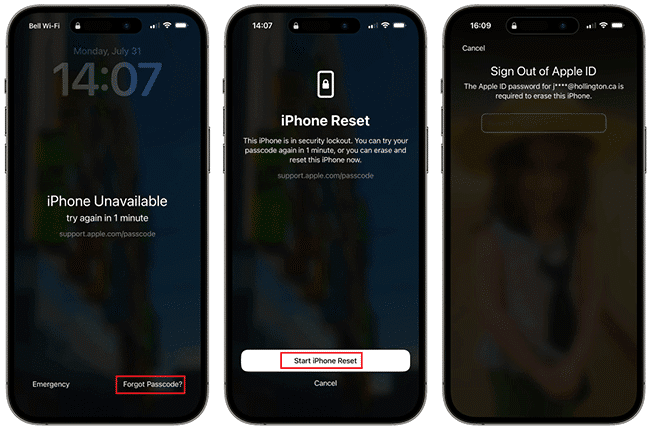
If your iPhone runs iOS 15.2 or later and is connected to Wi-Fi or cellular data, you can erase the device directly from the lock screen. This method is convenient because it does not require a computer or additional software.
Steps to use Forgot Passcode:
- Keep entering the wrong passcode until the “iPhone Unavailable” screen appears.
- Tap Forgot Passcode or Erase iPhone in the lower corner.
- Tap Start iPhone Reset.
- Enter your Apple ID password to sign out of the device.
- Wait for the iPhone to erase itself. Then set up the iPhone and restore your backup if available.
Method 2: Unlock iPhone with TunesKit iPhone Unlocker
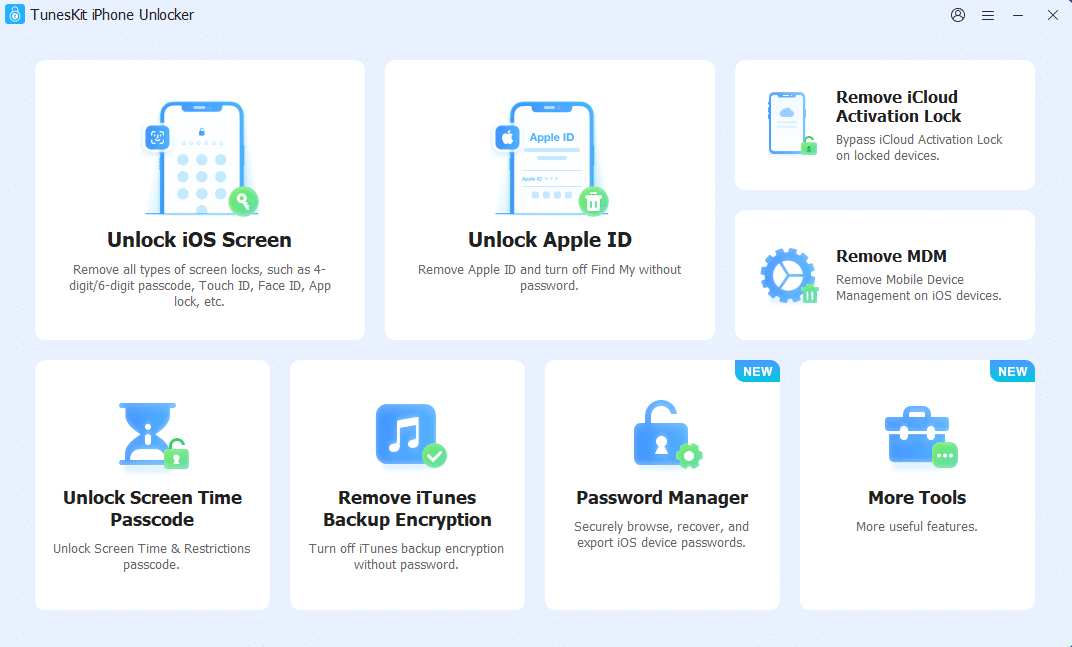
If you cannot remember your Apple ID password, tools like TunesKit iPhone Unlocker can help you unlock iPhone without an Apple ID. TunesKit iPhone Unlocker is designed to remove different iPhone locks, including screen passcodes, Screen Time restrictions, and iCloud activation lock on supported devices. It also works well if your iPhone is disabled, you need to unlock iPhone with broken screen, or Face ID is not working. TunesKit works on both Windows and Mac and supports most iPhone, iPad, and iPod touch models running iOS 7 through iOS 26.
How to unlock an iPhone using TunesKit iPhone Unlocker:
- Install and launch TunesKit iPhone Unlocker on your computer. Connect your iPhone using a USB cable.
- Select Unlock iOS screen. Click Start, then put the device into Recovery Mode or DFU Mode by following the on-screen instructions.
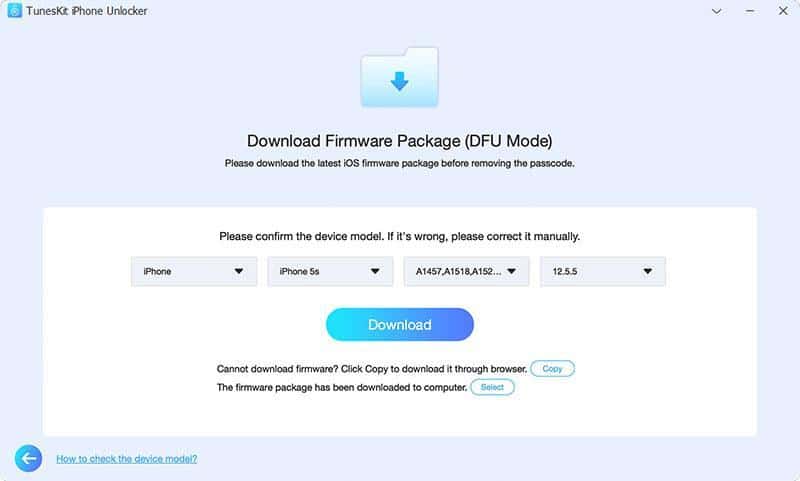
- Confirm your device information and download the matching firmware package.
- Once the download is completed, click Unlock to start removing the passcode. Wait a few minutes and do not disconnect the device during the unlock process.
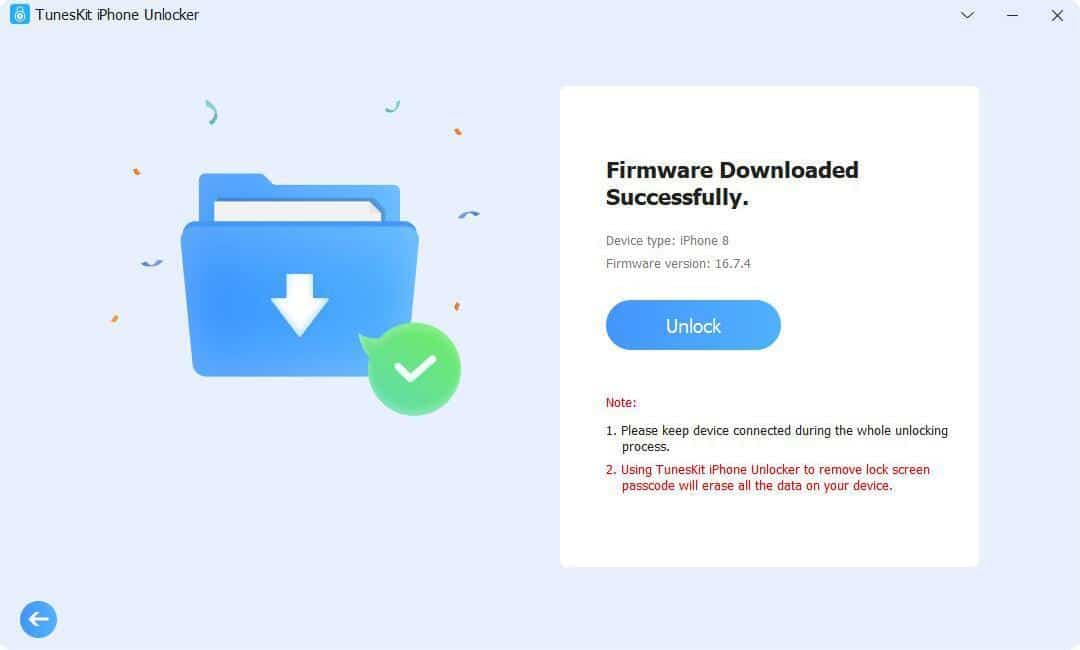
The main advantage of using dedicated unlocking software is that it guides you through the process step by step, which can save time if iTunes fails to detect the device properly.
Method 3: Unlock iPhone Using iCloud Find My iPhone
If Find My iPhone is enabled on the locked device and you remember your Apple ID and password, you can erase it remotely through iCloud. This method is useful when you need to unlock an iPhone without a computer.
Steps to erase iPhone using iCloud:
- Visit iCloud.com on any device.
- Sign in with your Apple ID and password.
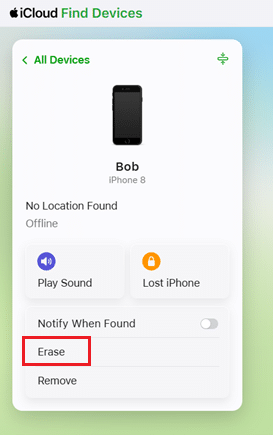
- Open Find My iPhone.
- Select the locked iPhone from the device list.
- Click Erase and confirm the action, wait for the erase process to complete.
Once erased, you can set up the iPhone again and restore your backup.
Method 4: Restore iPhone with iTunes or Finder
Using iTunes or Finder is one of Apple’s official solutions for restoring a locked iPhone. For Windows PCs and older Macs, you’ll use iTunes. On macOS Catalina and later, the process is handled through Finder. This method works reliably, though the process can feel complicated if you are unfamiliar with Recovery Mode.
Steps to restore iPhone in Recovery Mode:
- Connect the iPhone to your computer and open iTunes or Finder.
- Force restart the device using the correct button combination.
- Continue holding the button until the Recovery Mode screen appears.
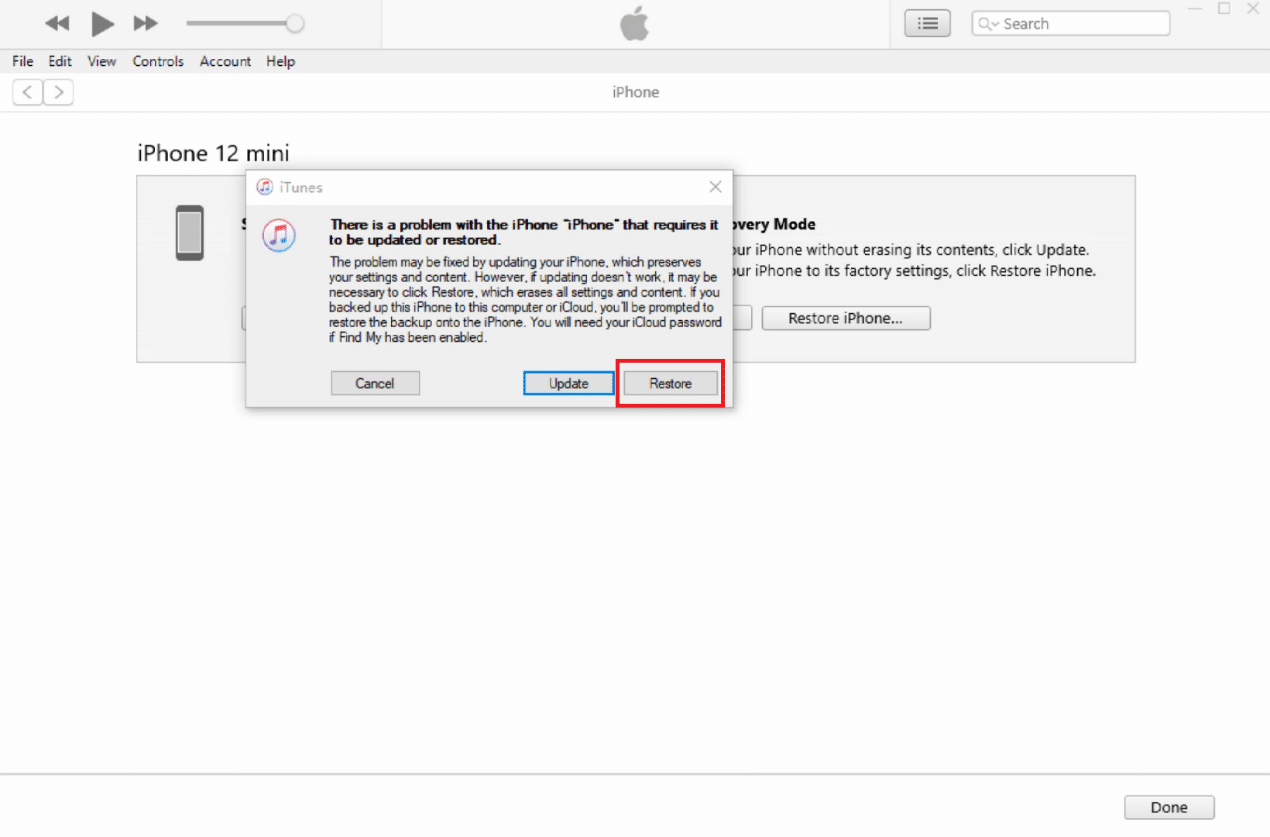
- Choose Restore when the prompt appears.
- Wait for the process to complete.
If the firmware download takes too long and the iPhone exits Recovery Mode, repeat the steps.
Frequently Asked Questions
1. How to unlock a disabled iPhone?
A disabled iPhone can usually be unlocked by erasing and restoring the device. You can use the Erase iPhone feature, iTunes, Finder, iCloud, or third-party tools like TunesKit iPhone Unlocker. After erasing the device, you can restore your backup during setup.
2. Can I unlock an iPhone without losing data?
In most situations, removing the passcode also erases the iPhone. Apple uses encryption to protect user data, so bypassing the passcode without wiping the device is generally not possible. If you previously created an iCloud or computer backup, you can restore your data after unlocking the iPhone.
3. Can Siri unlock an iPhone without a passcode?
Older iOS versions once had Siri-related lock screen vulnerabilities, but Apple patched those issues years ago. On modern iPhones, Siri cannot unlock the device or bypass the passcode.
Conclusion
Forgot iPhone passcode and getting locked out of it is stressful, but it does not mean the device is unusable forever. Apple provides several official recovery options, including using the Forgot Passcode option, restoring via iTunes or Finder, and erasing the iPhone via iCloud. If you prefer a more reliable experience, tools like TunesKit iPhone Unlocker can make the process easier and faster for less technical users.
Before unlocking your iPhone, make sure you remember your Apple ID credentials, since Activation Lock may appear after the reset. Regular iCloud backups are also worth enabling, as they make restoring your data much easier after regaining access to the device.