


If the Windows 11 interface leaves you cold, you’re not alone. Between a centralized taskbar, shifting Start menu behavior, and creeping “recommendations,” plenty of power users want a different feel without abandoning their apps. The good news: mature alternative shells can make Windows look and behave more like macOS or a popular Linux desktop, while keeping all your software intact.
Independent tracking from StatCounter shows Windows 11’s share climbing but still polarizing users, and enterprise adoption has trailed expectations in multiple Lansweeper audits. That tension has pushed many to try shells that swap the desktop, taskbar, and menus for a cleaner, more efficient experience. Here are three expert-vetted picks, each suited to a different type of user.
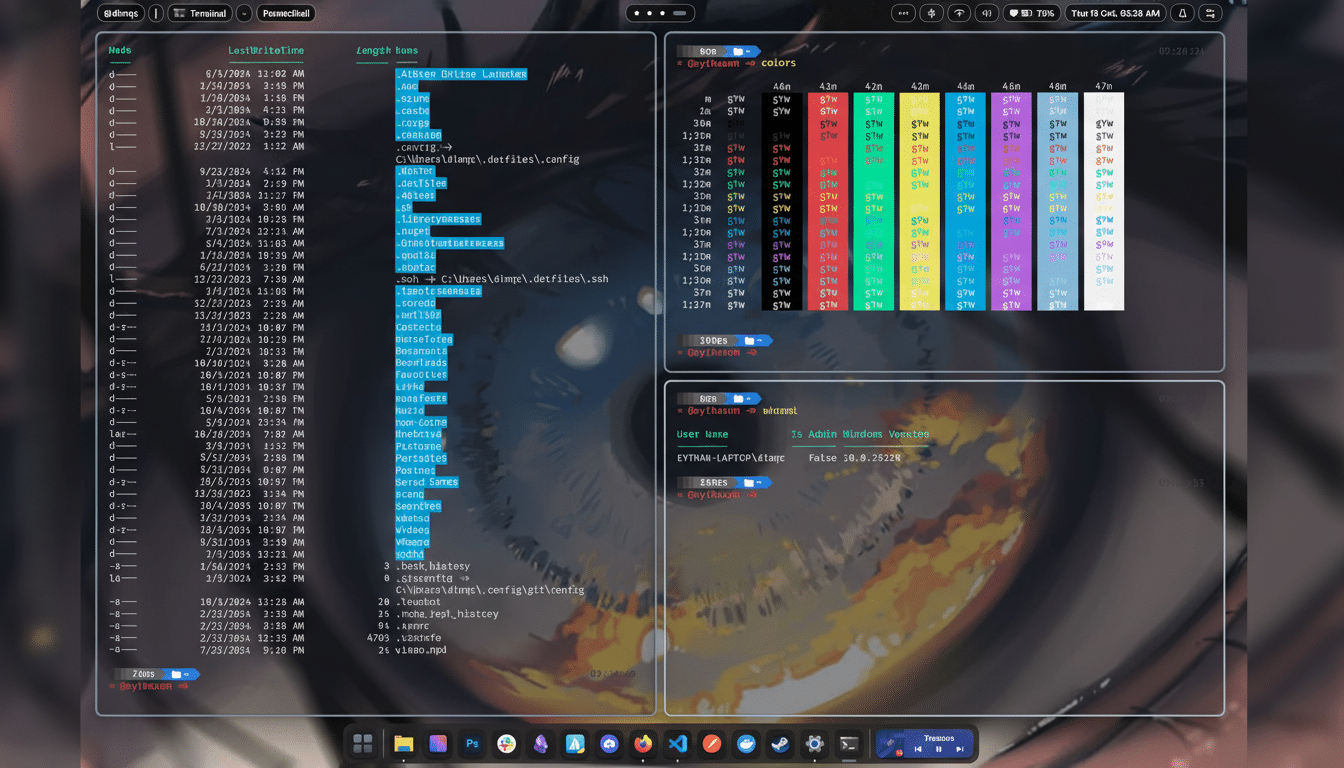
Seelen UI For Full-Fledged Makeovers And Tiling Efficiency
Seelen UI is the most transformative option. Think of it as a configurable workspace layer that can mimic macOS, GNOME, or KDE, or morph into a tiling window manager vibe reminiscent of i3 or Pop!_OS. You can reposition panels, tweak transparency and blur, swap icon packs, and build menus that surface exactly what you need—no more, no less.
Beyond aesthetics, Seelen UI prioritizes speed. Keyboard-driven navigation, optional tiling, and quick-launch modules remove friction from common tasks. Power users often cite fewer clicks to reach files and apps, and the ability to set per-layout rules (for example, float creative tools while tiling terminals and editors) brings a distinctly Linux-like efficiency to Windows.
It’s free, community-driven, and extensible via plugins such as enhanced taskbars and glass effects. In practical terms, expect a lightweight footprint compared to full desktop theming stacks, and an easy exit back to stock Explorer if you want to switch. If you want Windows to feel fundamentally different—and measurably faster to operate—this is the place to start.
Cairo Desktop For File-Centric Productivity
Cairo Desktop rethinks Windows around your files. It adds a global menu bar with app stacks, a more coherent programs menu, and a dynamic desktop overlay that lets you browse folders without launching a separate file manager. Double-click a directory and you’re inside it instantly, right on the desktop—a workflow that feels a lot like macOS Stacks and Finder married to a persistent overlay.
Cairo is open source and noticeably snappier than stock Explorer on machines burdened with background processes. You can create category stacks, pin key locations, and strip out ads or suggested content that clutter your flow. For teams, it’s an effective way to standardize navigation and reduce support tickets related to the Start menu’s shifting layout.
The result is a calmer, more task-focused Windows that rewards people who live in projects and folders—designers, developers, researchers—without forcing them to relearn the entire OS.
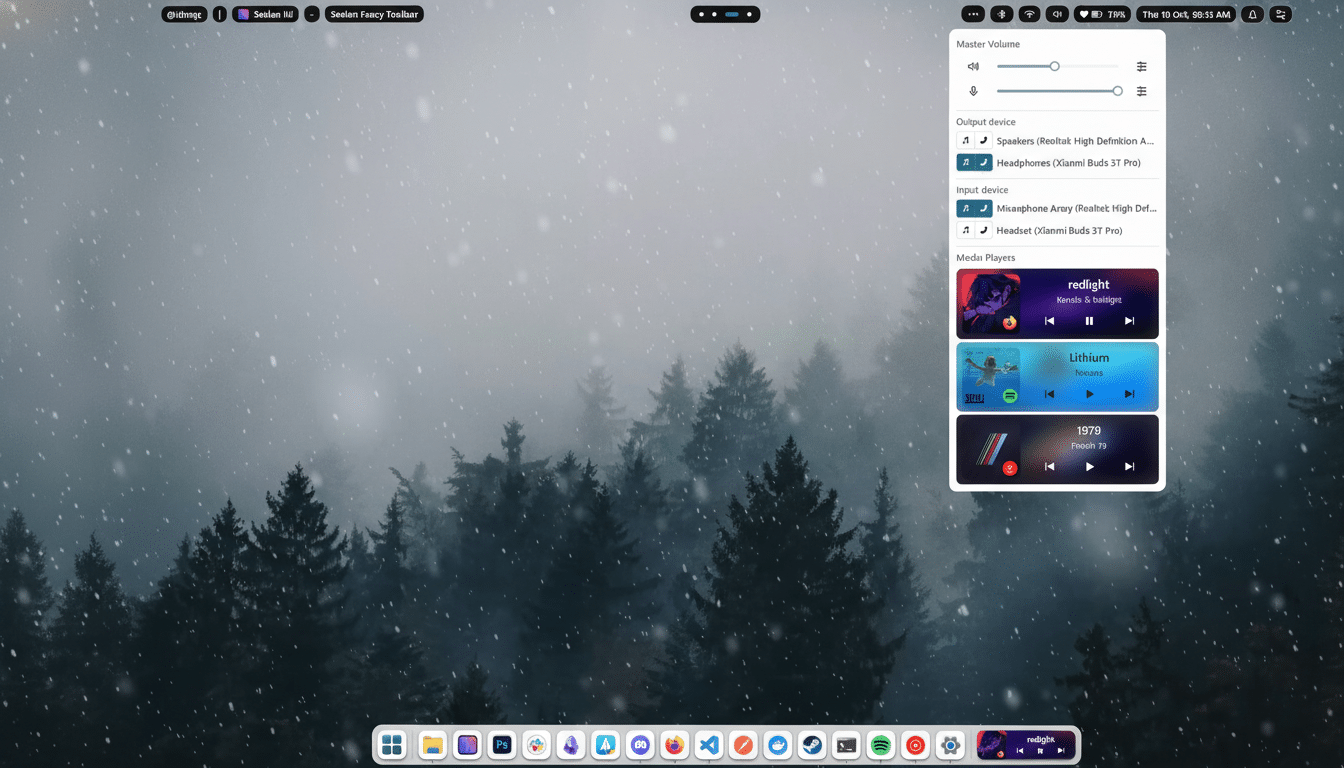
Start11 For Subtle, Strategic Windows Tweaks
Start11, from Stardock (the maker behind WindowBlinds), targets the pain points most users mention first: the Start menu and taskbar. It offers classic menu styles—Windows 7, 10, and modern variants—plus deep customization of layout, search, and pinned apps. You can move the taskbar to the top, refine transparency, and dial in icon behavior to reduce misclicks.
Unlike full-shell replacements, Start11 feels native and safe for work PCs. It plays nicely with Windows updates and doesn’t upend Explorer. Pricing is straightforward with a 30-day trial, then a low-cost license with either an annual plan or a one-time fee. For most people who “mostly like” Windows 11 but want agency over the Start menu, this is the pragmatic choice.
Setup Tips And What To Expect Before You Switch
Installation is typically reversible: run the shell alongside Explorer, test performance, then decide whether to set it as default. Resource usage varies by configuration, but modern shells tend to consume tens to a few hundred megabytes of RAM—minor on current hardware. If you’re gaming with strict anti-cheat tools or working under corporate policies, test on a non-critical account first.
Security-wise, stick to official releases, verify digital signatures when available, and avoid mixing multiple shell layers at once. For organizations, pilot with a small group and capture feedback; usability gains can be significant, especially for roles that benefit from tiling or file-centric navigation.
Which One Should You Choose Based On Your Workflow
Pick Seelen UI if you want a transformative, Linux-like workflow with tiling and deep theming. Choose Cairo Desktop if you think in projects and folders and crave a smoother desktop/file nexus. Go with Start11 if you just want the Start menu and taskbar to behave sensibly again.
Windows remains dominant on the desktop, but that doesn’t mean you must live with its default interface. With the right shell, you can keep Windows—and finally enjoy using it.
