Over time, every Windows PC collects digital clutter. Temporary files, broken registry entries, invalid shortcuts, cached data, startup leftovers, and hidden junk slowly accumulate in the background. At first, you may not notice the impact. But eventually, your computer begins to feel sluggish—slow boot times, lagging programs, freezing screens, and reduced responsiveness.
The good news is that you don’t need advanced technical skills to fix this problem. With IObit’s Advanced SystemCare 19, you can perform a deep system cleanup and restore your PC’s performance in just a few simple steps.
- Why Deep Cleaning Your Windows PC Matters
- Step-by-Step to Deep Clean Windows PC Junk with Advanced SystemCare 19
- Step 1: Download and Install Advanced SystemCare 19
- Step 2: Run a Smart Scan
- Step 3: Review Scan Results Carefully
- Step 4: Perform Deep Clean and Optimization
- Step 5: Optimize Startup Programs
- Step 6: Use Deep Registry Clean
- Step 7: Activate Real-Time Monitoring (Optional)
- Step 8: Schedule Automatic Cleaning
- Additional Features That Improve Performance
- How Often Should You Deep Clean?
- Final Thoughts
This step-by-step tutorial will guide you through cleaning Windows junk files effectively and optimizing your system safely.
Why Deep Cleaning Your Windows PC Matters
Many users believe deleting a few files from the Recycle Bin is enough. Unfortunately, that barely scratches the surface. Windows continuously creates temporary files, system logs, update remnants, and background caches that remain hidden from manual view.
If left unchecked, this junk can:
- Slow down startup speed
- Reduce available disk space
- Cause system instability
- Increase program load time
- Impact overall performance
Using a professional PC Cleaner ensures that these hidden files are safely detected and removed without harming essential system components.
Step-by-Step to Deep Clean Windows PC Junk with Advanced SystemCare 19
Step 1: Download and Install Advanced SystemCare 19
Start by installing Advanced SystemCare 19 from the official website. The installation process is straightforward:
- Download the installer file
- Run the setup wizard
- Follow on-screen instructions
- Launch the software after installation
Once installed, you’ll see a clean and user-friendly interface designed for both beginners and advanced users.

Step 2: Run a Smart Scan
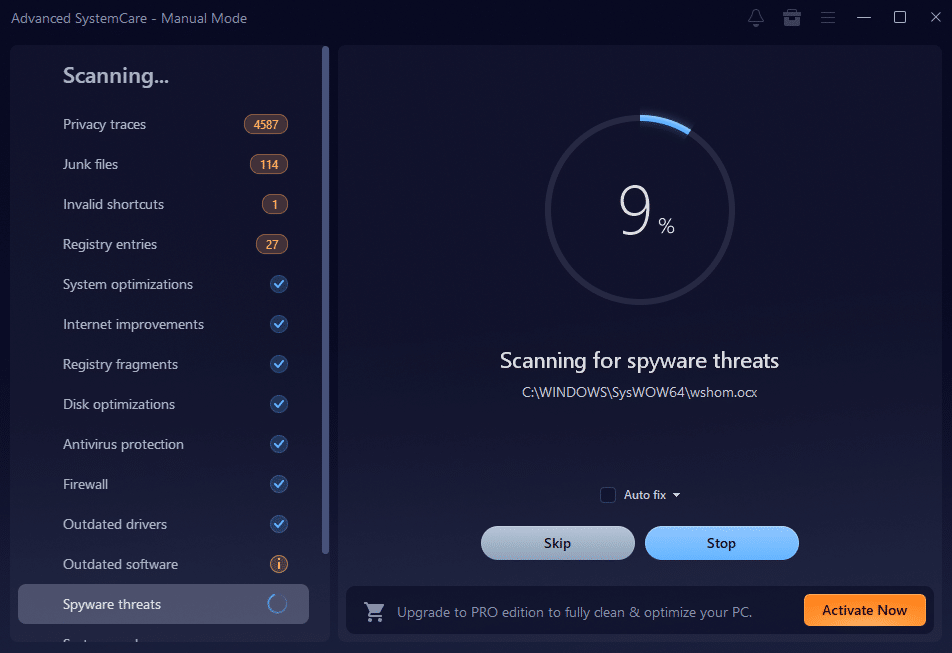
After opening Advanced SystemCare 19, the first thing you’ll notice is the “Scan” button. This is where the deep cleaning process begins.
What the Smart Scan Checks:
- Junk files
- Registry issues
- Privacy traces
- Temporary files
- Invalid shortcuts
- Startup optimization opportunities
Click “Scan,” and let the software analyze your system. The process usually takes only a few minutes, depending on your system size and condition.
Step 3: Review Scan Results Carefully
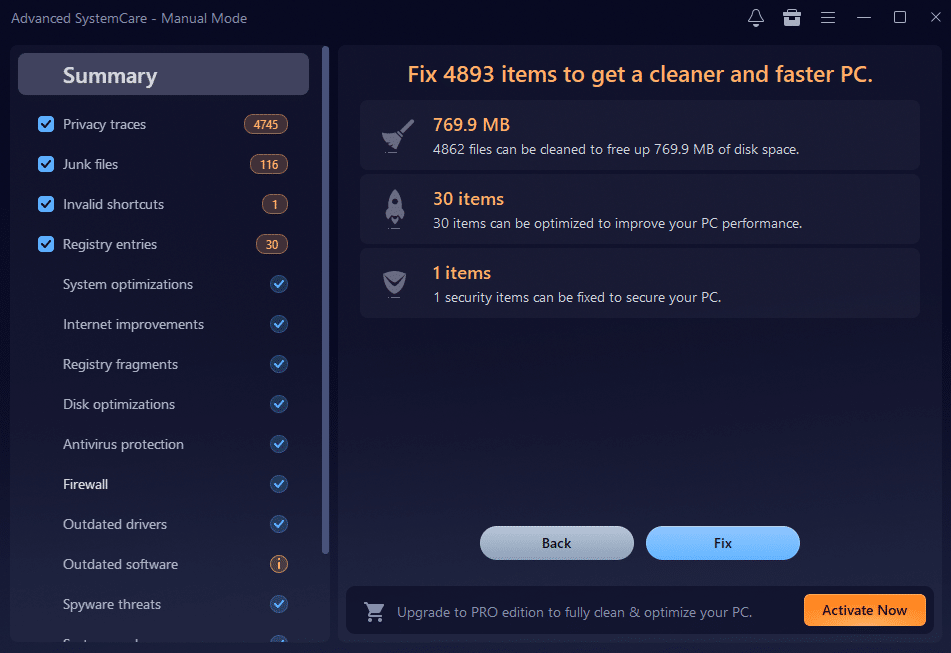
Once the scan is complete, Advanced SystemCare 19 will display a detailed breakdown of detected issues. Instead of blindly cleaning everything, take a moment to review the results.
You’ll typically see categories such as:
- System junk
- Registry fixes
- Privacy cleanup
- Startup items
- Security improvements
The software automatically selects safe items for cleaning, but you can manually adjust selections if needed.
Step 4: Perform Deep Clean and Optimization
Now comes the most important part—cleaning.
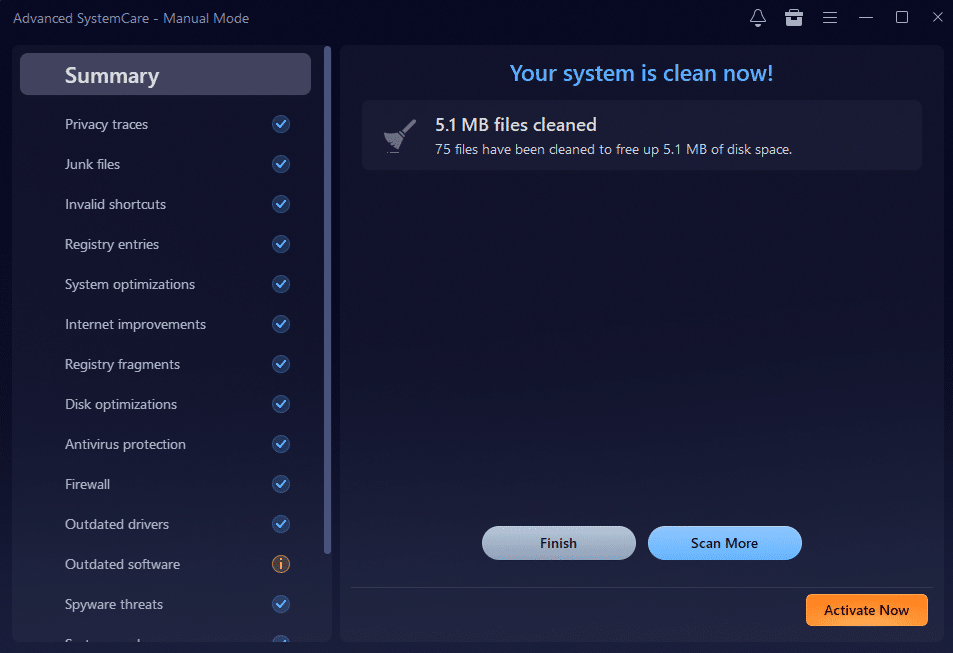
Click the “Fix” button to allow Advanced SystemCare 19 to remove junk files, repair registry errors, and optimize performance. This process:
- Frees up disk space
- Repairs invalid system entries
- Improves system responsiveness
- Enhances overall stability
Unlike manual cleaning, this PC Cleaner ensures that only unnecessary files are removed, protecting essential Windows components.
Step 5: Optimize Startup Programs
One major cause of slow PCs is too many startup applications running in the background. Advanced SystemCare 19 includes a Startup Manager tool that helps you control which programs launch when Windows starts.
How to Optimize Startup:
- Open the “Speed Up” section
- Access Startup Optimization
- Disable unnecessary startup programs
- Apply changes
Reducing startup load significantly improves boot time and overall performance.
Step 6: Use Deep Registry Clean
The Windows registry is like the backbone of your operating system. Over time, unused and broken entries accumulate, slowing down performance.
Advanced SystemCare 19 provides a safe registry cleaning feature that:
- Detects invalid entries
- Repairs broken references
- Optimizes system configuration
This deep cleaning step improves system stability and reduces unexpected crashes.
Step 7: Activate Real-Time Monitoring (Optional)
For ongoing optimization, you can enable real-time performance monitoring. This feature helps keep your system clean automatically by:
- Detecting junk buildup
- Monitoring RAM usage
- Suggesting optimization actions
With this active protection, your PC stays optimized without repeated manual effort.
Step 8: Schedule Automatic Cleaning
To maintain peak performance, schedule automatic scans. Advanced SystemCare 19 allows you to set regular cleaning intervals so junk doesn’t accumulate again.
Scheduled cleaning helps:
- Maintain fast system speed
- Prevent performance decline
- Keep storage space optimized
Consistency is key when it comes to system maintenance.
Additional Features That Improve Performance
Beyond junk cleaning, Advanced SystemCare offers additional tools that enhance performance:
- Privacy sweep to remove browsing traces
- Disk optimization
- Internet speed enhancement
- Security vulnerability fixes
- Real-time resource monitoring
These tools work together to create a smoother and faster computing experience.
How Often Should You Deep Clean?
For most users, performing a deep clean once every one to two weeks is sufficient. However, if you frequently install and uninstall programs, download large files, or use your PC heavily, weekly cleaning is recommended.
Using a reliable PC Cleaner like Advanced SystemCare 19 ensures consistent maintenance without risk.
Final Thoughts
A slow PC is not always a sign that you need new hardware. In many cases, accumulated junk files and registry clutter are the real culprits. With Advanced SystemCare 19, deep cleaning your Windows system becomes simple, safe, and highly effective.
By following this step-by-step guide, you can: Remove hidden junk files, Optimize startup speed, Repair registry errors, Improve overall system performance.
Regular maintenance with a trusted PC Cleaner helps extend your computer’s lifespan and ensures it runs smoothly every day.