


Samsung’s One UI is packed with thoughtful features, but it also ships with a handful of preinstalled apps that many owners never use—and that can quietly sap storage, attention, and battery. If you want a cleaner, faster Galaxy experience, these five first-party apps are prime candidates to remove or disable right now.
Why These Preinstalled Samsung Apps Get In The Way
Preloads run background services, schedule sync jobs, and compete for notification space, even when you don’t launch them. On a typical 128GB phone, system software and bundled apps can consume a sizable portion of storage before you install a single game or take a photo. Regulators have taken notice: India’s Ministry of Electronics and Information Technology has discussed guidance requiring OEMs to make preinstalled apps removable, and Android itself has tightened background limits to curb power drain. The bottom line—if an app isn’t part of your daily workflow, it’s clutter.
The Five Samsung Apps To Remove For A Cleaner Phone
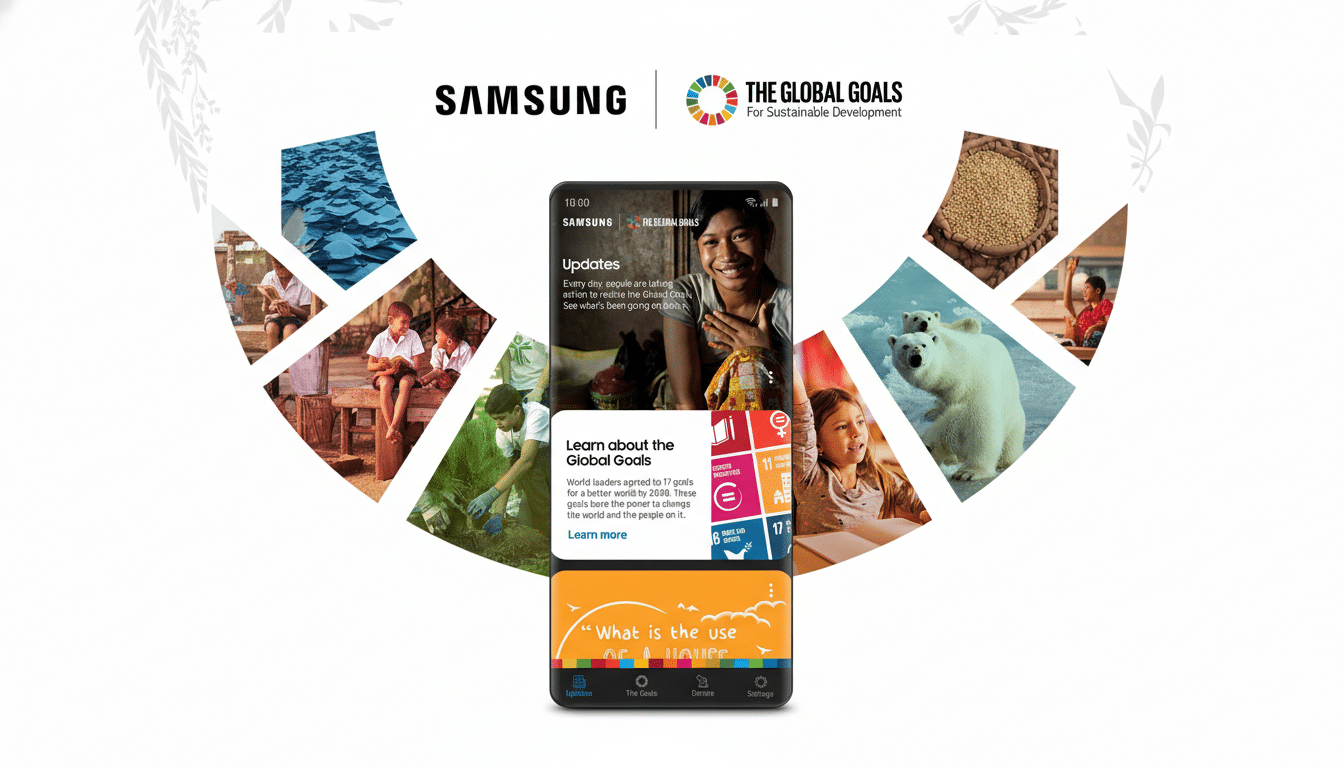
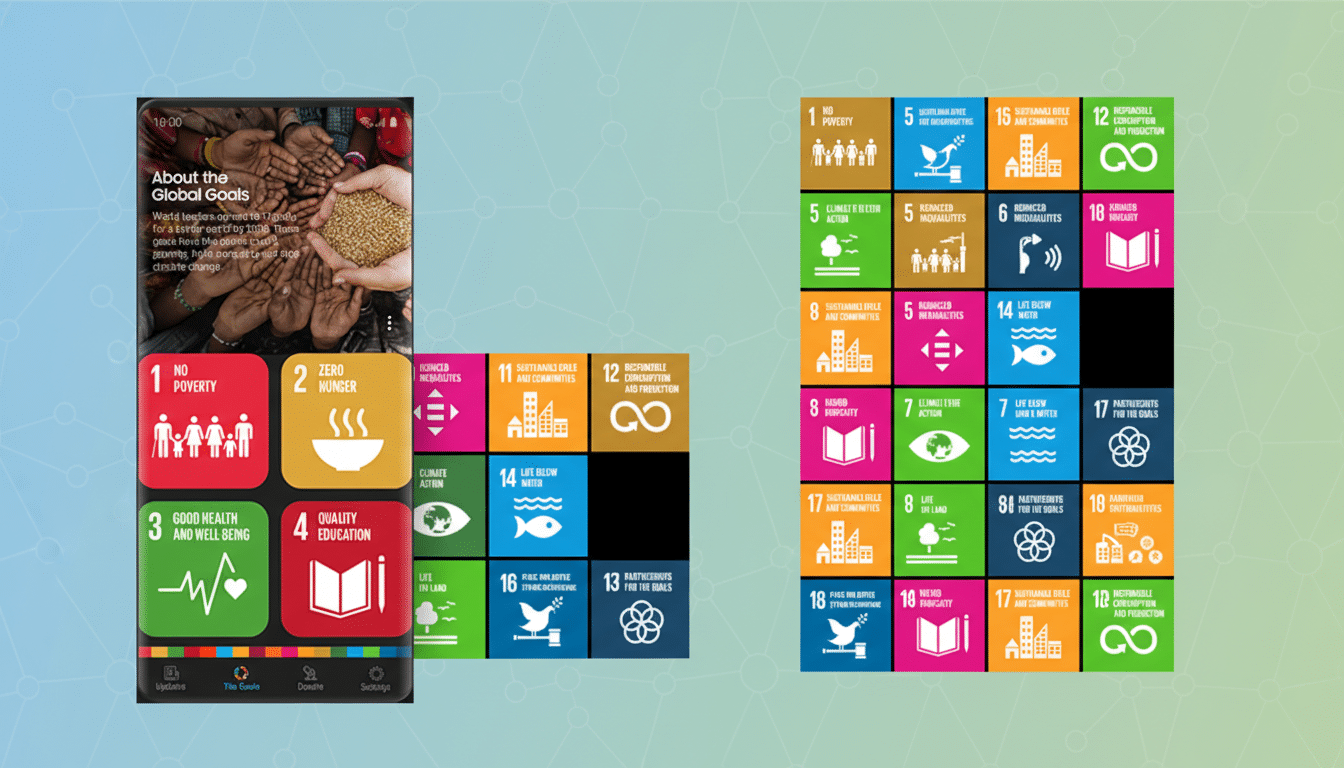
- Samsung Global Goals: A well-intentioned charity companion tied to the United Nations’ SDGs, it nudges you to engage with ads or donations. Admirable mission, but if you don’t plan to use it, there’s no reason to let it claim space or notification slots. You can always donate directly through trusted organizations without a persistent app on your phone.
- Samsung Free: Think of this as a catch-all hub for news, games, and video snippets. In practice, it overlaps with other Samsung services and your preferred news or podcast apps. Many users report accidentally triggering it from the home screen and then never returning on purpose. Removing it simplifies your launcher and reduces background content fetching.
- Samsung TV Plus: Samsung’s free, ad-supported streaming service offers over 1,200 channels across 24 countries, according to the company. That sounds impressive, but if you already pay for Netflix, YouTube Premium, or other on-demand services—and especially if you don’t watch TV on your phone—TV Plus adds little value. Disable it and reclaim quiet from autoplay prompts and channel notifications.
- Samsung Shop: A storefront for deals, product recommendations, and promotions on Galaxy devices and accessories. It can pepper you with marketing alerts and surfaces content you’ll likely check on the web anyway when you’re actually ready to buy. Removing or disabling it cuts down on sales pings masquerading as “important” notifications.
- Samsung Kids: A walled-garden mode with learning apps and parental controls. It’s useful for families, but if you don’t hand your phone to children, it’s dead weight. On some devices it places an icon in quick settings and prompts you to enable profiles—extra friction you don’t need if you’re the only user.
How To Remove Or Disable Samsung Apps Safely
Most Galaxy phones let you uninstall or disable these apps in seconds. Long-press the app icon and select Uninstall or Disable; or go to Settings > Apps, tap the app, and choose Disable if Uninstall isn’t available. Disabling stops background activity and hides the icon without risking system stability, and you can re-enable later. For stubborn system variants, Samsung’s Galaxy Store sometimes allows removal, and carriers may also preinstall their versions—repeat the same steps for those duplicates.
What You Gain By Ditching These Samsung Apps
Fewer background tasks mean fewer wake-ups and less chatter on your notification shade, which can translate to smoother scrolling and better standby life. Power users on enthusiast forums like XDA Developers consistently report cleaner app lists and reduced distraction after pruning bloat. It also frees up storage for photos and updates—critical on 128GB models where large system images and games can balloon fast.
What You Should Keep On Your Samsung Galaxy Phone
Core Samsung apps such as Galaxy Wearable, Wallet, and SmartThings add real value if you use Galaxy Watch, Samsung Pay, or connected home devices. Likewise, Camera, Gallery, and Phone services are tightly integrated with One UI. The smartest play is targeted cleanup: remove the five apps above, then scan for other redundancies—news aggregators you don’t read, duplicate browsers, or trialware from carriers—that you can disable without losing features you rely on.
Quick Check After Setup To Keep Your Galaxy Lean
Make app hygiene part of your setup routine. After signing in, open Settings > Apps, sort by Installed or by Battery usage, and remove the obvious outliers you won’t touch. With a few minutes of cleanup, even a feature-packed Galaxy S or A-series phone feels leaner, quieter, and more responsive—exactly how a modern Android device should.
