Portable monitors are a popular accessory for handheld gaming: they offer larger screens, more ergonomics, and a convenient lightweight display you can take anywhere. For Steam Deck users, connecting a portable monitor to a dock to achieve a near-console experience is an obvious next step but how well does it really work? In this article I cover the technical details, real-world advice, and gotchas so you can decide if a portable screen + dock setup is worth it for your use case.
Quick summary
Yes, portable monitors can work great with Steam Deck docks but the experience will vary based on three factors: the monitor’s connection and power requirements, the dock’s feature set (DisplayPort Alt Mode/PD power delivery/bandwidth), and the games/settings you run (resolution and refresh rate also matter). The right combinations will provide low-latency, high-refresh gaming on large portable screens. The wrong combo and you’ll run into limits like capped refresh rates, power shortfalls, or flaky connections.
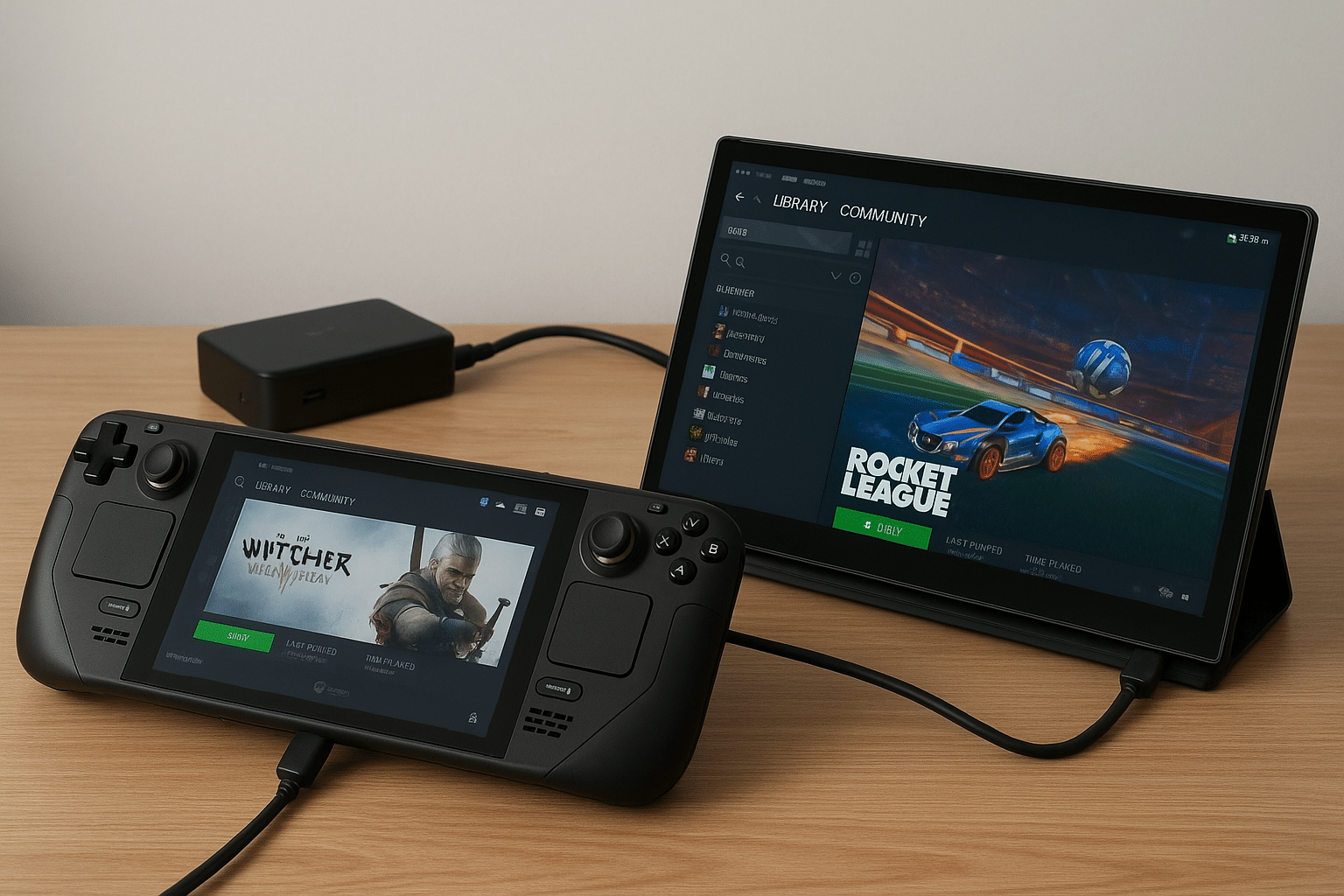
How the connection works
The Steam Deck outputs video over USB-C using DisplayPort Alt Mode. The dock generally just passes that DP Alt signal to the connected HDMI/DP monitor. Portable monitors typically use USB-C (single-cable DisplayPort Alt Mode or USB DisplayLink) or HDMI. When evaluating options, be aware of these points:
- DisplayPort Alt Mode vs DisplayLink: Alt Mode provides a native video link over USB-C with minimal latency, supporting higher refresh rates and resolutions. DisplayLink is a method that uses the USB protocol and a driver to compress/decompress video on the monitor – it’s fine, but tends to add latency and uses some CPU resources (not great for high-action gaming).
- Power delivery (PD): To charge your Steam Deck while docked, the dock must be able to provide sufficient PD power over the USB-C port (45W-65W is typical). Many portable monitors can source/pass power; others need a separate power input.
- Bandwidth limits: Higher resolutions and refresh rates require more bandwidth. If a dock/cable only supports HDMI 1.4 or limited DisplayPort lanes, that will cap refresh rates (e.g. 60Hz @ 1080p vs 144Hz @ 1080p).
What to look for in a portable monitor for Steam Deck docks
If you’re in the market for a portable display to pair with a Steam Deck dock, here are the practical specs to focus on:
- Interface: Prefer USB-C with DisplayPort Alt Mode (single cable for video + power) over DisplayLink-based models. The USB-C/Alt Mode option will give the most console-like feel.
- Resolution & size: 1080p is the ideal resolution for the Steam Deck – it’s the best compromise between visuals and GPU headroom. If you want a bigger window for splitscreen or couch gaming, a widescreen 18-20 inch panel that can still output 1080p comfortably is a good bet. If you want high refresh rates, verify that the panel supports it over the interface you’ll use.
- Refresh rate: For low-latency, responsive gameplay, 120-144Hz is nice to have. That said, plenty of handheld-to-dock setups will be fine at 60Hz. If you go high-refresh, confirm the dock and cable also support the required bandwidth.
- Power handling: Verify whether the monitor can be powered from the dock or must have its own adapter. Some monitors include pass-through PD power so you can charge the Steam Deck and power the monitor from one input.
- Touch and ergonomics: A touch screen monitor can be a nice portable addition for tabletop use or menu navigation but touch adds little to most Steam games and may need driver support when connected through a dock.
If you want a large, high-refresh portable monitor that’s also built for gaming, check options like an 18 inch portable monitor that claim 144Hz and adaptive sync features. The large screen with native refresh support will let you get the “big-screen” feel while still being a portable/mobile setup.
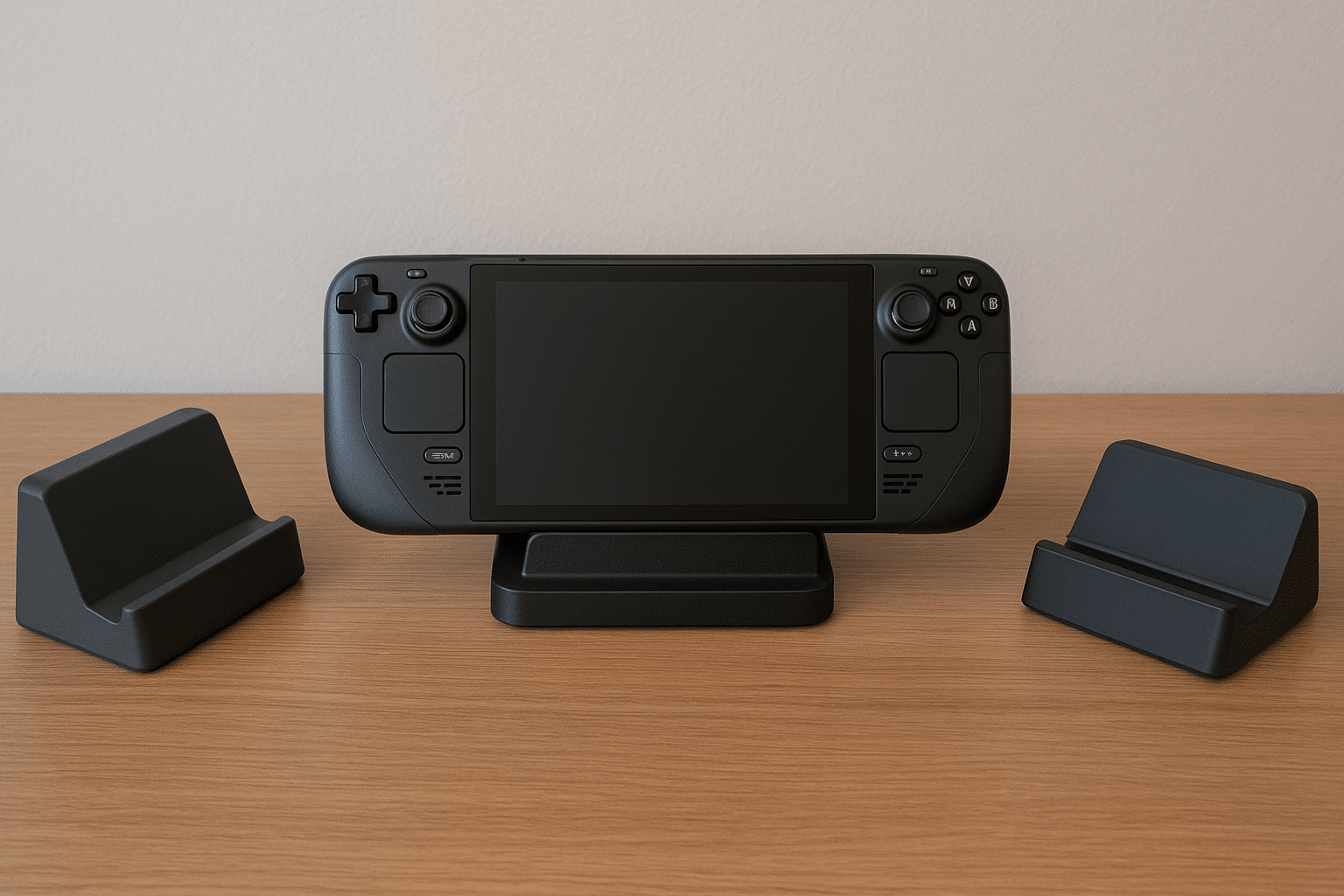
Compatibility with Steam Deck docks – real-world cases
- Official/robust USB-C dock with DP Alt Mode & PD: This is the ideal scenario. Plug the Deck into the dock and run a single USB-C to USB-C cable to a portable monitor that supports Alt Mode (or an HDMI cable from dock to monitor). Expect native resolution and refresh rate with minimal latency. You can also charge the Deck while playing.
- Cheaper hubs or older docks (no Alt Mode): This is going to be problematic. If the hub is USB-only or uses DisplayLink, you may see added latency, compatibility quirks, or driver issues. Performance-sensitive games may not feel as snappy. HDMI-only docks can work great but ensure they support the resolution/refresh you want.
- Portable monitor that needs its own power: This works but you’ll have more cables. If the monitor draws power separately and the dock can’t pass enough PD, the Deck may not charge while you play.
- Console portable monitors particularly PS5 models: Many portable gaming monitors are designed for consoles like PS5, Switch, or Xbox. A portable monitor for PS5
for example often supports full HDMI inputs, DisplayPort Alt Mode, and higher refresh rates, so they tend to make a very good choice for Steam Deck docking too – just make sure the Deck-to-dock chain provides the right signal.
Performance tips and gotchas
- Use DisplayPort Alt Mode if available: It’s the least latency-intensive connection.
- Match resolution to Deck capabilities: Stick to 1080p for more GPU-intensive titles and up/downscale if you care more about visuals.
- Use good cables: Cheap USB-C cables are often flaky with limited DP lanes or PD power support.
- Update firmware/drivers: If your dock/monitor has firmware updates, apply them. Compatibility can improve.
- Test with wired controller or KB/M: Wireless inputs can add extra lag making troubleshooting harder.
Pros and cons – quick list
Pros:
- Portable, flexible multi-screen setups
- Can be close to console-like with a good dock
- Many gaming-focused portable monitors now support high refresh rates/adaptive sync
Cons:
- Potential power/bandwidth mismatches
- DisplayLink monitors/hubs can add latency
- Cable clutter if monitor needs own power
FAQs
Q: Will a touch screen monitor make my Steam Deck better?
A: Touch screens are awesome for casual menu navigation, drawing apps, and touch-friendly indie games but the majority of Steam games are optimized for controllers/keyboard first. A touch screen monitor
can be convenient, but it’s not essential.
Q: Can I use a 144Hz portable monitor with the Steam Deck?
A: Yes – but only if your dock and the monitor support the needed bandwidth (DP Alt Mode/HDMI spec) and your Steam Deck can output the higher refresh rate for the game. Expect many titles to max out at 60-90Hz depending on settings.
Q: Do I need a powered dock to charge the Steam Deck while gaming?
A: Yes. To be able to charge while docked, the dock must support sufficient PD power over USB-C. Check the dock’s power rating and whether the monitor needs separate power.
Q: Are portable monitors sold for PS5 good with Steam Deck?
A: Generally yes. A portable monitor for PS5 that was built to accept HDMI input and support high refresh rates will work great for the Steam Deck when you dock through an appropriate hub or dock. Just double check the ports and power requirements.
Q: Is DisplayLink okay for Steam gaming?
A: DisplayLink is fine for casual gaming, less fast-paced games, or emulation. For competitive or high-action games, prefer DisplayPort Alt Mode due to lower latency and less compression.
Final thoughts
Portable monitors pair very well with Steam Deck docks with the right hardware. Focus on USB-C DisplayPort Alt Mode, confirm power delivery and bandwidth support, and choose a resolution/refresh rate that the Deck can handle. Whether you want a compact touch-enabled display for on-the-go convenience or a larger high-refresh 18 inch portable monitor
for immersive tabletop gaming, a properly configured dock + portable screen setup can turn your Steam Deck into a more flexible, console-like experience without sacrificing portability.