


Apple’s most extreme security setting is back in the spotlight thanks to high-profile investigations and a steady drumbeat of spyware discoveries. If you’ve heard about Lockdown Mode on iPhone and wondered what it actually does—and when you should use it—here’s a clear, expert guide to how it works and how to turn it on.
What Is Lockdown Mode and Who Should Use It
Lockdown Mode is an optional, system-wide defense for people at heightened risk of targeted hacking. Apple introduced it with iOS 16 to blunt so-called “zero-click” exploits—attacks that compromise a device without the victim tapping or opening anything. These campaigns have been documented by research groups such as Citizen Lab and Amnesty International’s Security Lab, and have involved mercenary spyware like Pegasus from NSO Group.
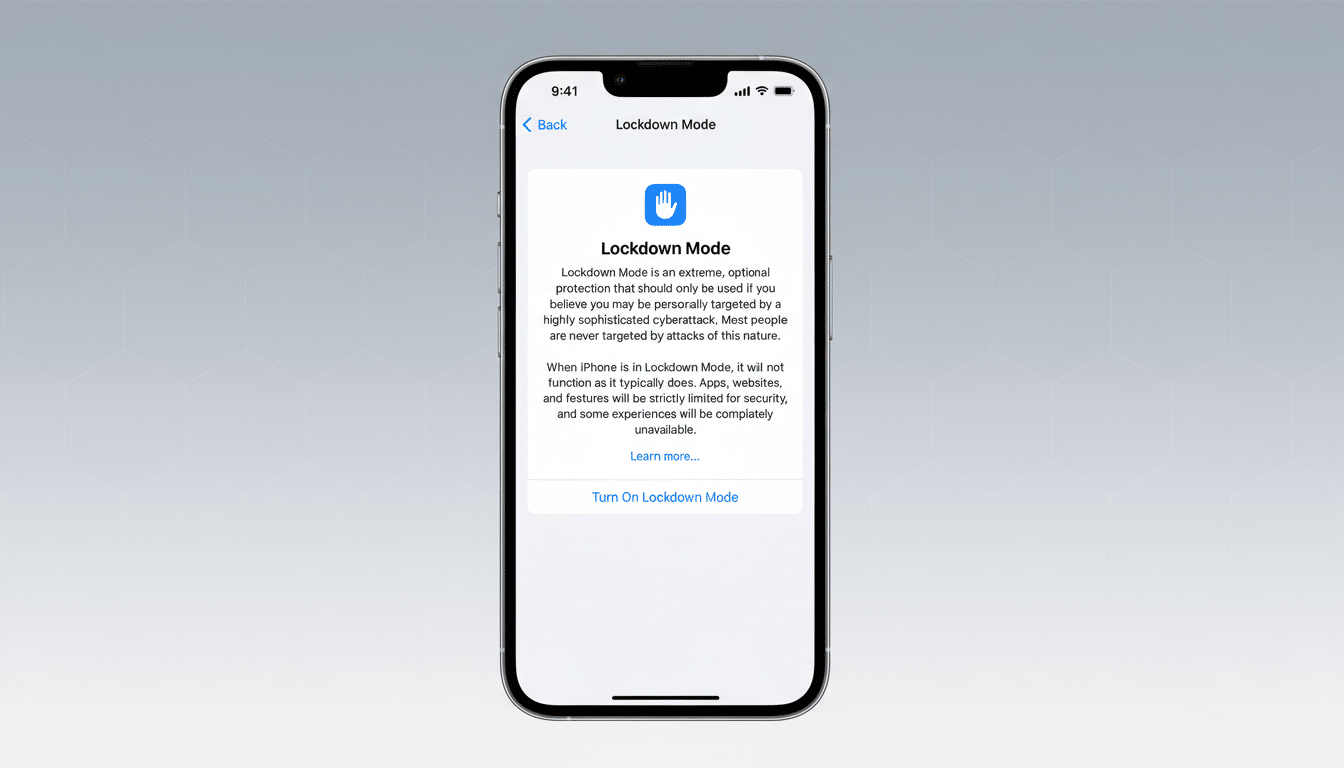
Unlike antivirus or a VPN, Lockdown Mode reduces the iPhone’s attack surface by turning off entire categories of features that are commonly abused in advanced intrusions. It trades convenience for safety. Apple’s position is explicit: most users never need it, but for journalists, human rights defenders, diplomats, executives handling sensitive M&A, election staff, and others in high-risk roles, the trade-off can be worth it.
To encourage scrutiny, Apple aligned Lockdown Mode with its largest Security Bounty payouts, offering up to $2 million for qualifying bypasses, and announced a $10 million grant to support civil society groups investigating spyware. In parallel, teams like Google’s Threat Analysis Group continue to publish evidence that targeted iOS attacks remain a real, if rare, hazard.
What Changes When You Turn Lockdown Mode On
Lockdown Mode limits or disables features that have historically been used as entry points. Messages becomes far more restrictive: most attachment types are blocked, link previews are off, and rich content handling is pared back to reduce exploit opportunities. Live Photos are also unavailable.
Unknown FaceTime calls are silenced unless you’ve contacted the person in the last 30 days, cutting off a channel attackers have used for zero-click delivery. Standard phone calls and plain texts still work, though incoming calls won’t ring on a paired Apple Watch.
On the web, Lockdown Mode tightens Safari by limiting advanced web technologies like just-in-time JavaScript compilation and certain fonts or media processing. If a trusted site breaks, you can add an exception in Safari’s website settings so that specific page behaves normally while the rest of the web stays locked down.
Wired connections to computers are blocked while the phone is locked, thwarting forensic tools that rely on a cable. Configuration profiles can’t be installed and the device can’t be newly enrolled in mobile device management, a safeguard against malicious or coerced device control.
Photos strips location data by default when you share an image, shared albums are removed from the Photos app on that device, Game Center and SharePlay are disabled, and the phone avoids insecure networks by refusing to auto-join untrusted Wi-Fi. Mobile compatibility with legacy 2G and 3G can be turned off to reduce interception risks.
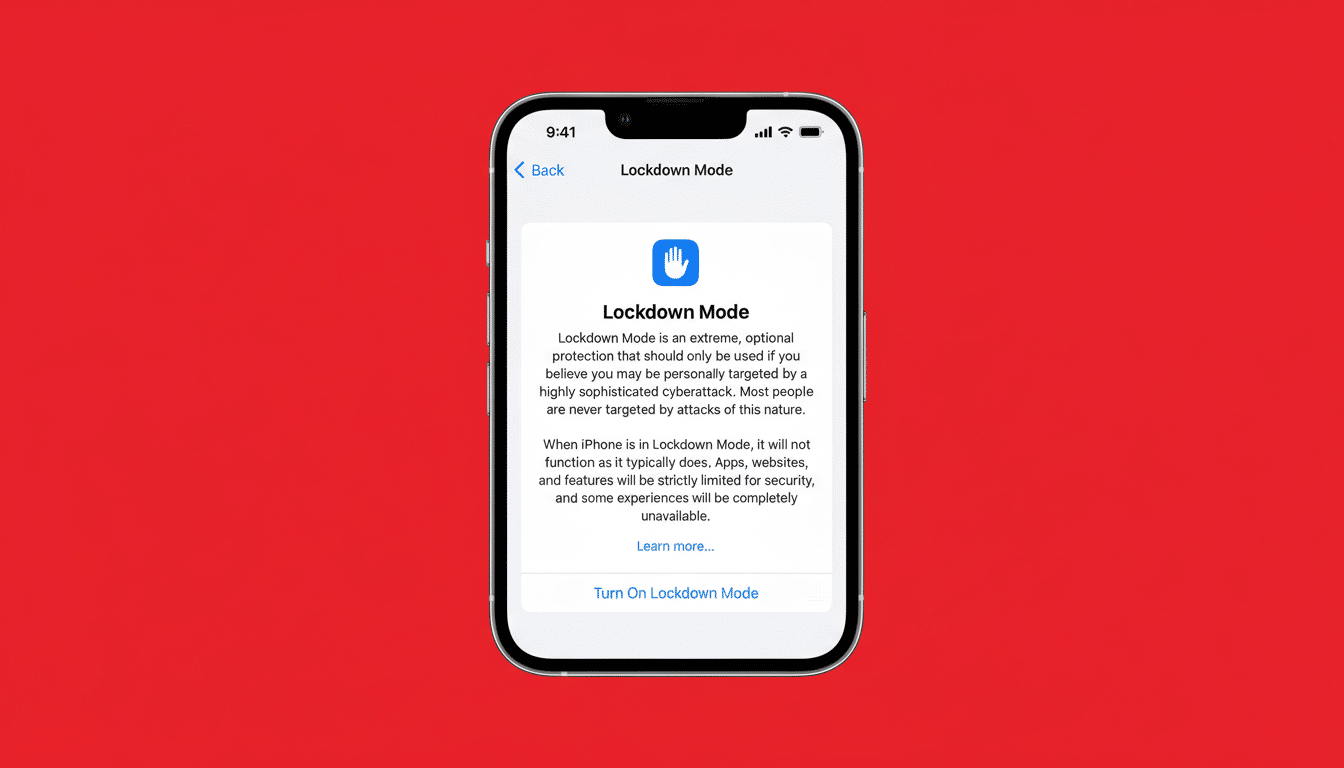
The bottom line: everyday features become more constrained, which is the point. You can still message, call, browse, take photos, and use core apps, but with fewer bells and whistles—and fewer places for attackers to hide.
How to Enable Lockdown Mode on iPhone and iPad
Before you start, update to the latest iOS and make a fresh backup. Lockdown Mode is available on iPhone and iPad with iOS/iPadOS 16 or later, on Mac with macOS Ventura or later, and on Apple Watch with watchOS 10 or later.
Open Settings, tap Privacy & Security, then scroll to Lockdown Mode. Tap Turn On Lockdown Mode and review the summary of changes. Confirm by tapping Turn On Lockdown Mode again, authenticate with your device passcode or Apple ID password if prompted, and choose Turn On & Restart. The iPhone will reboot into Lockdown Mode.
Lockdown Mode is set per device. If you enable it on iPhone, a paired Apple Watch adopts the restrictions automatically. To disable it, return to the same menu in Settings, choose Turn Off Lockdown Mode, and restart.
When to Use Lockdown Mode and Expert Tips
Consider turning it on during sensitive travel, while covering volatile events, managing confidential deals, or after receiving a credible threat notification. Apple periodically sends threat alerts to users targeted by state-sponsored spyware; even if you never see one, unusual device behavior combined with your risk profile may justify a temporary lockdown.
Layer your defenses. Keep iOS updated, use a strong passcode, disable iCloud data you don’t need, and separate high-risk communications onto a dedicated device if possible. If a critical app breaks under Lockdown Mode, see whether a web exception in Safari or a temporary toggle off is safer than leaving the device open indefinitely.
Beyond iPhone: The Wider Apple Device Ecosystem
Lockdown Mode spans iPad and Mac with similar restrictions, giving high-risk users a consistent security posture across devices. Turn it on individually via Settings on iPad or System Settings on Mac. Because the protections are most effective when applied broadly, enabling it everywhere you work with sensitive data is a smart move.
For most people, Lockdown Mode is overkill. For the few who need it, it can be a decisive barrier—one that deliberately sacrifices convenience to make the hardest attacks even harder.
