


Plenty of great Android apps never make it onto Google Play, and the only way to get them is by installing the APK file manually. It sounds like a hassle, but it really only takes a few steps. This guide walks through the full install process and the safety points worth keeping in mind along the way.
What Is an APK File?
APK stands for Android Package Kit – it’s the install format Android apps come packaged in, similar to how .exe works on Windows. Every Android app gets bundled as an APK when it’s released, and even installs through Google Play go through this same file behind the scenes, though most users never see that step happen.
- What Is an APK File?
- Why Do Some Apps Need to Be Installed Manually via APK?
- Before You Install: Turn on “Unknown Sources”
- Step 1: Find a Reliable Source for the APK
- Step 2:Download APK File
- Step 3: Install the APK File
- FAQ
- Q: Where can I find an older version of a specific app?
- Q: I’m getting a “There was a problem parsing the package” error – what do I do?
- Q: The app won’t open properly after installing?
- Wrapping Up

When an app isn’t available on Google Play, you can download its APK directly and install it manually instead.
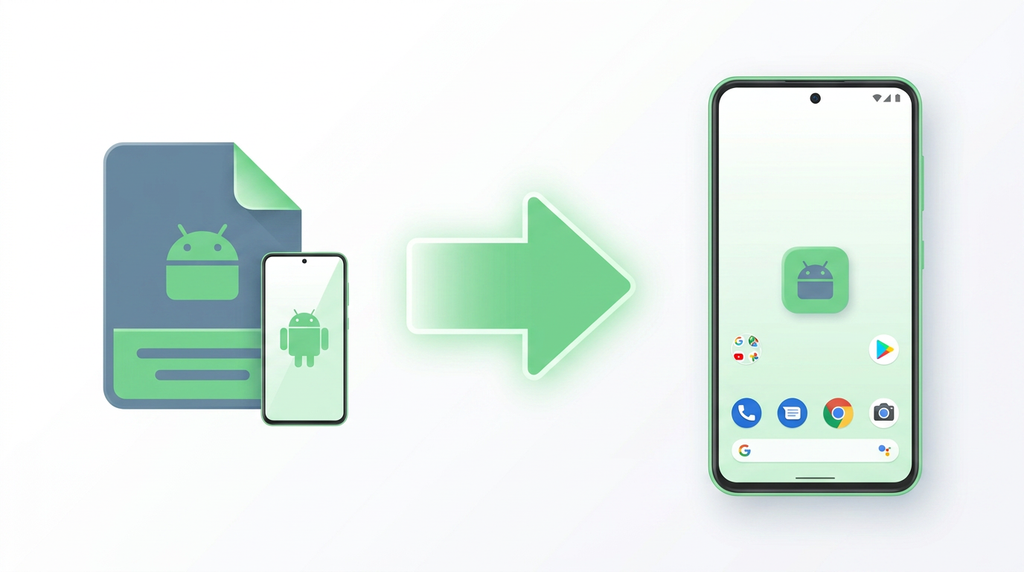
Why Do Some Apps Need to Be Installed Manually via APK?
Not every app makes it onto Google Play. Common reasons include:
- The app is geo-restricted in your region and isn’t available through the store
- The developer chose not to list on Google Play and distributes through independent channels instead
- You need an older version of an app, but the store only offers the latest
- The app is still in testing and hasn’t officially launched yet
In any of these cases, downloading the APK directly is usually the simplest and most reliable workaround.
Before You Install: Turn on “Unknown Sources”
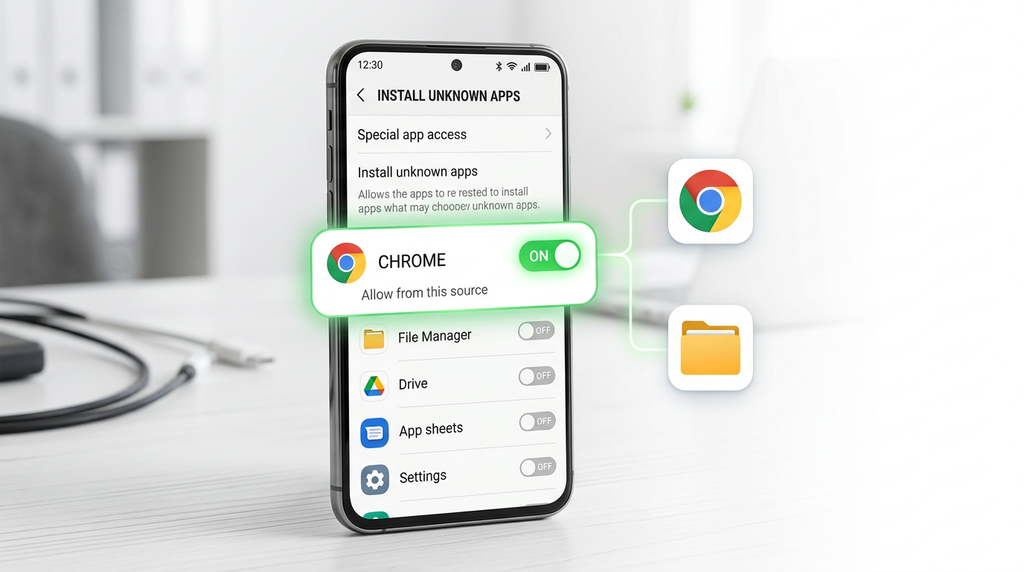
Android only allows installs from Google Play by default, so you’ll need to enable the right permission in system settings before installing a third-party APK. The exact steps vary slightly by Android version:
Android 8.0 and above: The system prompts you automatically the first time you try to install, so tap “Settings” from that prompt and enable “Allow from this source” on the relevant app’s permission page.
Android 7.0 and below: Go to Settings → Security and turn on “Unknown sources.” Enabling this doesn’t automatically make your phone less secure – as long as the download source is reliable, the process is basically no different from installing a regular app.
Step 1: Find a Reliable Source for the APK
This is the most important step in the whole process. APK sources online vary widely in quality, and some tampered files can carry malware that puts your device and personal data at risk.
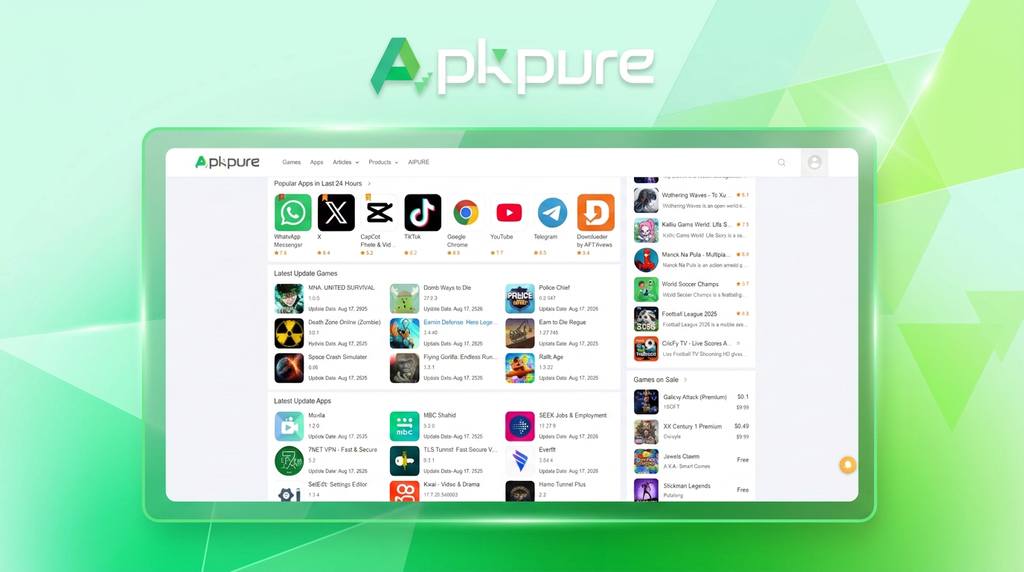
Among the major third-party APK platforms, APKPure stands out for its large user base and a relatively complete version archive.
The platform hosts APK files for millions of apps, covering both titles available on Google Play and some independent apps not listed on the store. Each download page shows the version number, package name, file size, and upload date, making it easy to verify these details before downloading.
APKPure also displays digital signature info and basic security scan records right on the download page, which helps first-time APK users judge how trustworthy a file source is. The platform is generally straightforward to use, with fast search results, making it a solid go-to whenever you need something outside of Google Play.
Step 2:Download APK File
Once you’re on the download page for the app you want, check the following before you tap Download APK.
- The app name and package name match what you’re looking for
- The version number matches what you need (latest, or a specific older release)
- The file size falls within a normal range – an unusually small file can be a sign of a fake package
Once downloaded, the file usually lands in your phone’s “Downloads” folder, or you can find it in your browser’s download history.
Step 3: Install the APK File
Once you’ve found the downloaded file, tap it to start the install:
- The system brings up an install confirmation screen listing the permissions the app is requesting
- Check whether these permissions make sense – a video player app asking for storage access is normal, but one asking for your contacts or texts is worth a second look
- Once you’re satisfied, tap “Install” and wait for the progress bar to finish
- Once it’s done, tap “Open” to launch the app right away, or find its icon in your app drawer
FAQ
Q: Where can I find an older version of a specific app?
Some APK platforms keep an archive of past versions – APKPure, for instance, maintains a multi-version archive you can search by version number to find and download the release you need.
Q: I’m getting a “There was a problem parsing the package” error – what do I do?
This is usually because the downloaded file is incomplete or corrupted. Try downloading it again.
Q: The app won’t open properly after installing?
Check whether your Android version meets the app’s minimum system requirements – some newer app versions have OS restrictions.
Wrapping Up
Installing an APK manually isn’t as complicated as it sounds, and it’s something any regular user can handle on their own. The one step that actually deserves your attention is picking a reliable source. Get that right, and the rest of the install process almost never runs into trouble; get it wrong, and even a successful install can leave you exposed to risk.
When choosing a platform, it’s worth leaning toward the ones that show complete file details, have some form of security verification, and have been running steadily for a while. APKPure holds up reasonably well across all three, whether you’re searching for a specific app, checking version details, or confirming a file is safe – making it a solid everyday choice for getting APKs.
Once you’ve got APK installs down, the range of apps available to you opens up well beyond what Google Play alone offers.