


As an Outlook user, you may face a situation where your emails disappeared from the Inbox. It is a strange issue as you have seen those emails in your Inbox a moment ago or few days back. So, if you’re wondering why your emails are missing, disappearing, or not showing in the Outlook Inbox, then read this article to know the possible causes behind this issue, and some effective solutions to fix the issue and recover the emails.
Reasons behind the Emails Disappearing or Missing from Outlook Inbox Issue
There can be several reasons for emails disappearing from your Outlook issue. Some of the most common ones are:
- Reasons behind the Emails Disappearing or Missing from Outlook Inbox Issue
- Solutions to Resolve the Emails Disappearing from Outlook Inbox Issue
- Solution 1 – Check the Deleted Items Folder
- Solution 2 – Review and Update Outlook Email Rules
- Solution 3 – Find and Restore Archived Emails in Outlook
- Solution 4 – Create a New Outlook Profile
- Solution 5 – Check and Remove Filters
- Solution 6 – Repair the PST File
- What to do When ScanPST Fails to Repair the PST File?
- Below are some of the key features of this tool:
- Conclusion
- Emails are accidentally deleted or moved to another folder.
- Incorrectly configured rules that are moving emails to other folder.
- Emails may be hidden from view due to a filter.
- The messages were archived.
- There are multiple accounts configured and you’re checking the wrong account for the emails.
- Outlook profile is corrupted or damaged.
- Corruption in the PST file.
Solutions to Resolve the Emails Disappearing from Outlook Inbox Issue
Depending on the cause, you can follow the methods mentioned below to fix the issue and recover the missing emails.
Solution 1 – Check the Deleted Items Folder
There are chances that the emails you’re looking for have been accidentally deleted. So, the first thing you can do is check the Deleted Items folder for the missing emails. If you find the missing emails, select them, right-click, and choose Move. Then, select Inbox or other preferred folder to restore them.
If the emails are not in the Deleted Items folder, then move to the next solution.
Solution 2 – Review and Update Outlook Email Rules
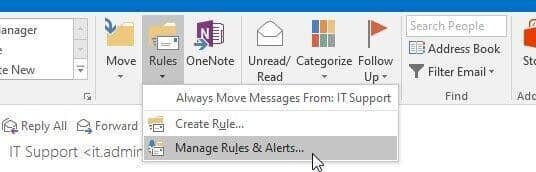
Outlook rules are used to manage incoming or outgoing emails based on conditions you set. You can set specific rules to delete, forward, or categorize the messages. Review the listed rules and check whether any of them are moving or deleting your emails. Follow the steps below:
- Open Outlook.
- Go to Home > Rules > Manage Rules & Alerts.
Alt-text-Manage-Rules-Alerts
- Review the rules listed under Email Rules.
- Check the actions and conditions associated with each rule.
- Double-click a rule to review or modify its settings.
You can disable, edit, or delete any rule that is incorrectly configured.
Note: If you’re using new Outlook or Outlook on the web, go to Settings > Mail > Rules to access the rules.
After making the changes, check the Inbox and other mail folders to check if the missing emails are now visible.
Solution 3 – Find and Restore Archived Emails in Outlook
Emails may also appear missing from the Inbox if they have been archived. Depending on your Outlook configuration, you can check the following locations for the archived emails:
- Archive folder
- Online Archive or In-Place Archive, if available
- Other folders where archived messages are stored
- Archive PST file, if you use classic Outlook with a local archive
If you find the missing messages, you can move them back to the Inbox. You can do this by right-clicking the email, selecting Move, and choosing Inbox or another appropriate folder.
Solution 4 – Create a New Outlook Profile
A damaged or incorrectly configured Outlook profile can cause synchronization problems, leading to emails not showing in the Inbox. You can create a new profile to check whether the issue is related to the existing profile.
After creating the new profile, add your email account and attach the existing PST file through File > Open & Export > Open Outlook Data File. Check whether the missing emails are now available.
If the emails appear, remove the old profile if it is no longer needed.
Solution 5 – Check and Remove Filters
Outlook allows users to filter and customize the mailbox view. If a filter is applied, certain emails may be hidden from the view. For example, a filter is applied to display only unread messages, messages from a particular sender, or emails matching another condition. To check and clear filters in classic Outlook:
- Select the affected Inbox folder.
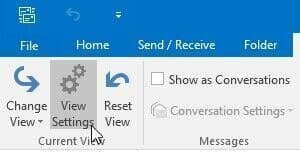
- Go to View > View Settings.
Alt-text-view-settings
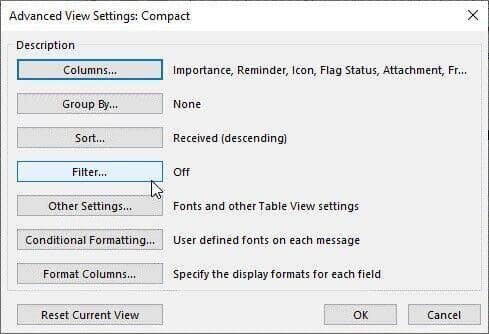
- Click Filter.
Alt-text-Advanced-view-settings
- Review the configured filters.
- Clear any filters if they’re hiding the emails.
- Click OK to apply the changes.
Note: You can also try resetting the current Outlook view, if the problem is caused by a customized view.
After clearing the filters, check the Inbox again to see if the missing emails are visible.
Solution 6 – Repair the PST File
If your PST file is corrupted, Outlook may fail to display or properly process some stored mail items. For minor PST issues, Microsoft Outlook includes the Inbox Repair Tool (SCANPST.EXE). It can diagnose and repair errors in Outlook data files (.pst). Follow these steps to repair the PST file:
- Close Outlook.
- Search for SCANPST.EXE on your computer and open it. The exact location of SCANPST.EXE varies depending on the installed Outlook version.
- Click Browse and select the PST file that contains the missing emails.
- Click Start to scan the PST file for errors.
- If errors are found, select Repair. Create a backup of the PST file when prompted.
- Wait for the repair process to complete.
- Open Outlook and check whether the missing emails are now visible.
What to do When ScanPST Fails to Repair the PST File?
If SCANPST.EXE cannot repair the PST file, the repair is incomplete, or important mailbox items are still missing, you can consider a dedicated online PST Repair service by Stellar for repairing small PST files. This browser-based service lets you repair PST files up to 500 MB for free, without requiring you to install desktop software.
However, if you are managing larger files, then Stellar Repair for Outlook is more suitable option. This tool can repair severely corrupted PST files and recover all the mailbox items, including deleted emails. After scanning the file, it displays all the mail items.
Below are some of the key features of this tool:
- It can search for the missing/deleted emails and save them to a new PST file.
- Recovers emails and other mailbox items from severely corrupted PST files.
- Highlights Deleted Items in the recovery results, making them easier to identify.
- Provides a preview of recoverable mailbox data before saving the results.
- It provides include or exclude specific emails while saving recovered mail items to a new PST file.
- It allows you to save the scan to Reload and Resume PST repair anytime later.
Conclusion
Outlook emails can disappear from the Inbox for several reasons. Above, we have mentioned the reasons for disappearing emails from your Outlook and the solutions to recover your missing emails. You can start by checking Deleted Items folder or the archive locations. If your PST file is corrupted, then you can use the Inbox Repair Tool (SCANPST.EXE) to diagnose and repair the file.
If SCANPST.EXE fails to repair the PST file or the required emails are still missing, Stellar Repair for Outlook can help you to repair the file and recover the mailbox data. You can preview the recovered items and save them to a new PST file, which can then be opened in Outlook.