


If you’re a Pixel owner who’s been annoyed with the fuzzy glass effect in the app drawer and Quick Settings, there’s finally an official off switch. In Android 16 QPR2, Google introduced a system-level toggle that cuts back on the blur effect and restores hard, solid colors to core Pixel UI surfaces—no more frosted overlay in sight.
The move addresses feedback we’ve continuously received since the Material 3 Expressive refresh, which brought more heavy-handed transparency and blur.
- What’s New in the Latest Pixel Update Release
- How To Turn Off Background Blur On Your Pixel Phone
- What Really Changes When Blur Is Off on Your Pixel
- Performance And Accessibility Insights For Pixel Phones
- Troubleshooting And Limits of the New Blur Toggle
- Bottom Line: Why This Pixel Blur Toggle Matters Now
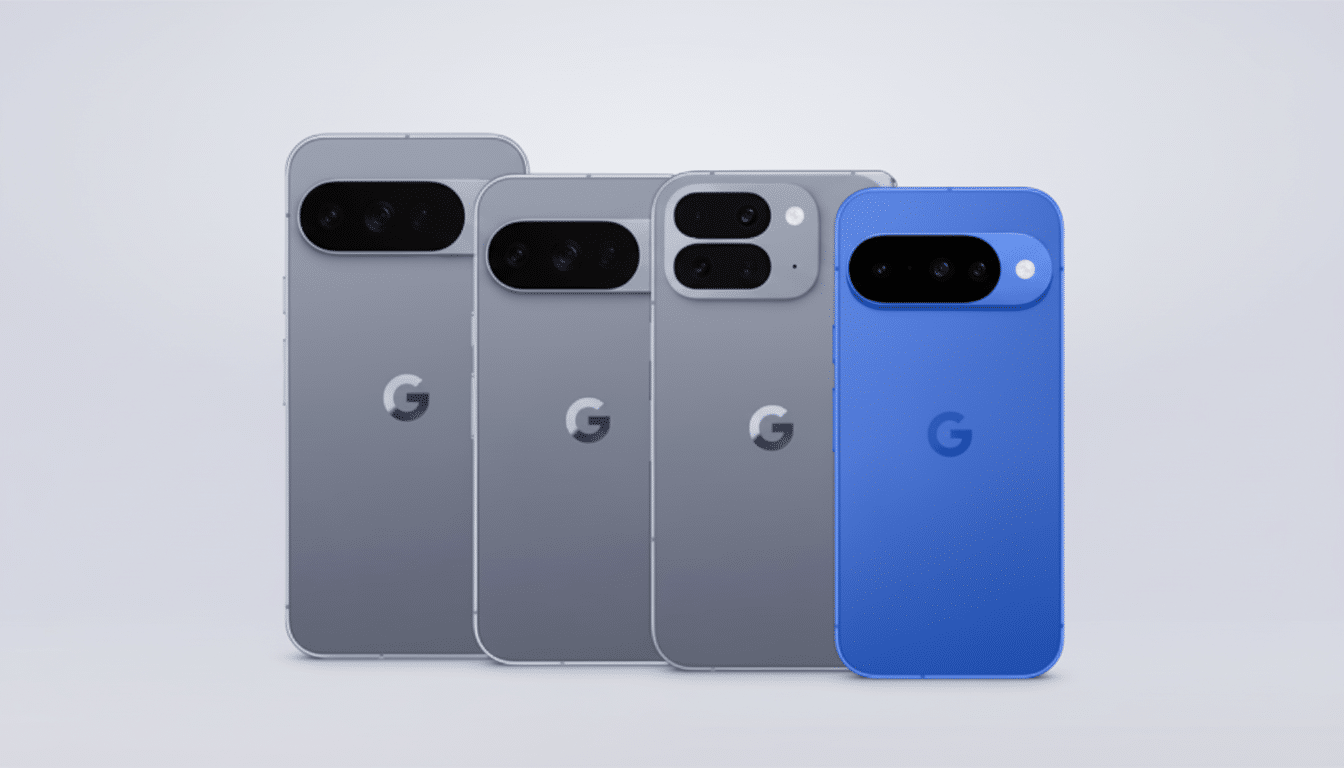
It is now painless to switch back to opaque panels—no root, no launchers, just a quick trip into the settings.
What’s New in the Latest Pixel Update Release
Android 16 QPR2 silently introduces a new accessibility control: Reduce blur effects. When turned on, it removes the soft-focus backdrop from the app drawer, Quick Settings, and the recent apps screen. Those surfaces toggle to a vibrant color that keeps up with your Material You accent, so the UI feels cohesive and less haphazardly tinted.
That’s a significant departure from the blur-first step we saw above. Google’s Material Design guidelines do recognize that transparency and motion “can be detrimental to legibility” and comfort for some, particularly users who are sensitive to visual effects. Accessibility teams, including the one that came up with W3C’s guidelines, have always recommended providing a control to reduce such treatments. Now, Google has finally brought the Pixel experience in line with this best practice.
How To Turn Off Background Blur On Your Pixel Phone
First, ensure that your phone is on Android 16 QPR2 by going to Settings > System > System update. The toggle is present on that release and later releases.
If so, do this:
- Open Settings and navigate to Accessibility.
- Tap Color and motion.
- Turn on Reduce blur effects.
You’ll see the control switch to the On position immediately; there’s no need for a reboot.
If you don’t see Color and motion on your device, look under Accessibility > Display. For Pixel phones running QPR2, Reduce blur effects appears in one of those two locations.
What Really Changes When Blur Is Off on Your Pixel
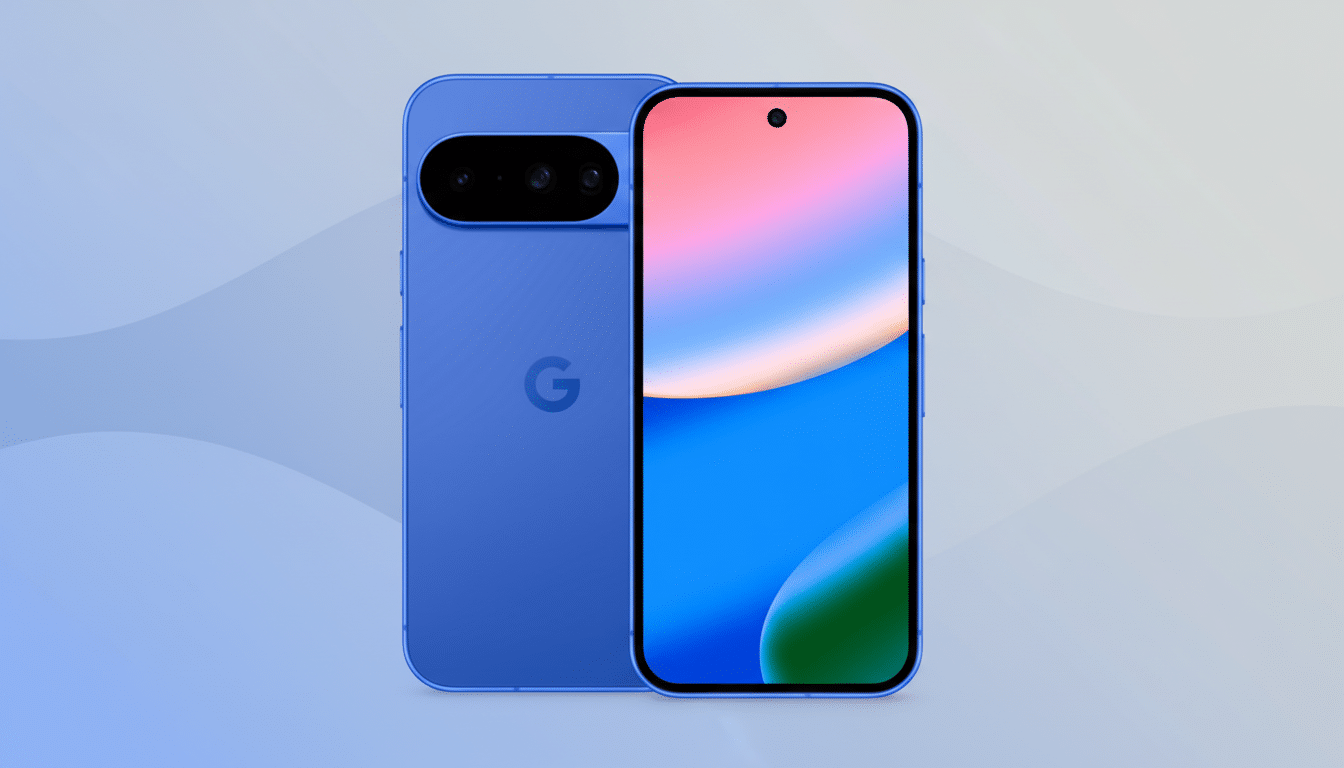
Toggling it on will present the app drawer’s background with a solid color from your current wallpaper’s palette. So it is with Quick Settings and the background of recent apps. The slow, subtle blur animation you’re accustomed to seeing in Quick Settings when dragging down from the top or opening your app drawer also goes away.
The result is a cleaner, higher-contrast look that many people find easier to process with their eyes. As per internal design studies that platform teams referred to, reducing layers of translucency can help with better readability of text over busy wallpapers and reduce visual noise for high-activity states.
Performance And Accessibility Insights For Pixel Phones
Blur is not free—on modern GPUs it’s efficient, but nonetheless requires sampling and compositing. It’s not going to dramatically change your battery life, but some people see slightly snappier animations and a little smoother frame pacing when their phones are pinned in heavy multitasking. Google’s developer tooling indicates that blur shaders are a non-trivial cost on complex walls; based on the above, this seems to gel with my impressions.
This switch is as far as it goes, by way of accessibility. Users can have eye strain and fatigue caused by animation and translucency. Groups like the American Academy of Ophthalmology and advocates for accessibility typically suggest turning down transparency and motion when possible; this option is one more place where that control resides—within the system, not an add-on launcher.
Troubleshooting And Limits of the New Blur Toggle
Still blurry after you flick the toggle? Just make sure you’re using the Pixel Launcher. Some third-party launchers or apps create their blur effect without regard to system settings. The new control deals with system surfaces, and it doesn’t necessarily get applied to individual apps that decide to blur their own UI.
If you don’t see the option at all, your device is likely still waiting to get Android 16 QPR2 or you’re on a phone that’s not a Pixel. Carrier-delayed rollouts can spread the availability, so be sure to check for updates a bit later.
Bottom Line: Why This Pixel Blur Toggle Matters Now
Regardless of whether you feel like they just get in the way or that they’re more distracting than you’d like, Android 16 QPR2 marks the first time Google’s given a native option for Pixel owners to turn off background blurring. It’s a tiny change with outsized effects—one that accommodates individual taste and device accessibility while not detracting from Material You’s overall, unified look.
