SD cards serve as primary storage for cameras, drones, action cameras, and mobile devices, holding countless precious videos from life's important moments. Accidentally deleting videos from an SD card can feel devastating, but understanding how SD card data recovery works and using the right tools can often restore your lost footage completely. This comprehensive guide explains exactly how to recover deleted videos from SD card storage and restore your valuable recordings.
SD Card Video Recovery: What You Need to Know
SD cards are the primary storage for cameras, drones, and smartphones. Because they use specific file systems (like exFAT for large 4K files), understanding how they handle data is the key to a successful recovery.
How SD Cards Manage Videos
When you delete a video or format an SD card, the actual video data isn't immediately erased. Instead:
The Index is Hidden: The card simply marks the space as "empty" and hides the file from your camera’s gallery.
Fragmentation: Large 4K/8K videos are often stored in pieces across the card. As long as these "fragments" aren't replaced by new data, professional tools can still stitch them back together.
Why Do Videos Disappear?
Human Error: Accidental "Delete All" or unintended formatting in-camera.
Errors & Corruption: Improperly ejecting the card or a sudden power loss while recording.
Compatibility: "Card Error" messages usually mean the file system is corrupted, even if the physical data is intact.
The "Golden Rules" of Immediate Recovery
The minutes following a deletion are critical. To maximize your chances of getting 100% of your footage back, follow these steps:
Stop Using the Card Immediately: This is the most important rule. Every second the card is active, the camera or device could be writing background data that overwrites your deleted video.
Physically Remove the Card: Power off your camera/drone and take the card out. Do not attempt to "test" the card by taking a quick photo.
Toggle the "Lock" Switch: Most full-sized SD cards have a physical write-protect switch on the side. Slide it to the Lock position to prevent any accidental data writing during the recovery process.
Ignore "Format" Prompts: If you plug the card into a PC and it says "You need to format the disk," click Cancel. Formatting can complicate the recovery of fragmented video files.
Keep it Safe: Store the card in a dry, room-temperature environment away from magnets or static electricity until you are ready to run recovery software.
Professional SD Card Video Recovery with Wondershare Recoverit
For reliable, comprehensive SD card recovery, Wondershare Recoverit provides professional capabilities specifically optimized for video file recovery.
Why Choose Recoverit for SD Card Video Recovery:
Recoverit excels for several compelling reasons. AI-accelerated SD card scanning uses machine learning algorithms to rapidly identify video file signatures and fragments, significantly speeding up the recovery process. The specialized SD Card Recovery module is specifically designed for memory card recovery with optimizations for camera file systems. It supports all SD card types and brands—SD, SDHC, SDXC, microSD from SanDisk, Samsung, Lexar, Kingston, Transcend, and all others.
- Recoverit recovers all video formats including MP4, MOV, AVI, MKV, MTS, M2TS, 3GP, WMV, FLV, ASF, and professional formats.
- High-quality 4K/8K video recovery handles large, fragmented ultra-high-definition video files that free tools often fail to recover.
- It also has camera-specific optimization for Canon, Nikon, Sony, Fujifilm, Olympus, Panasonic, GoPro, and DJI devices.
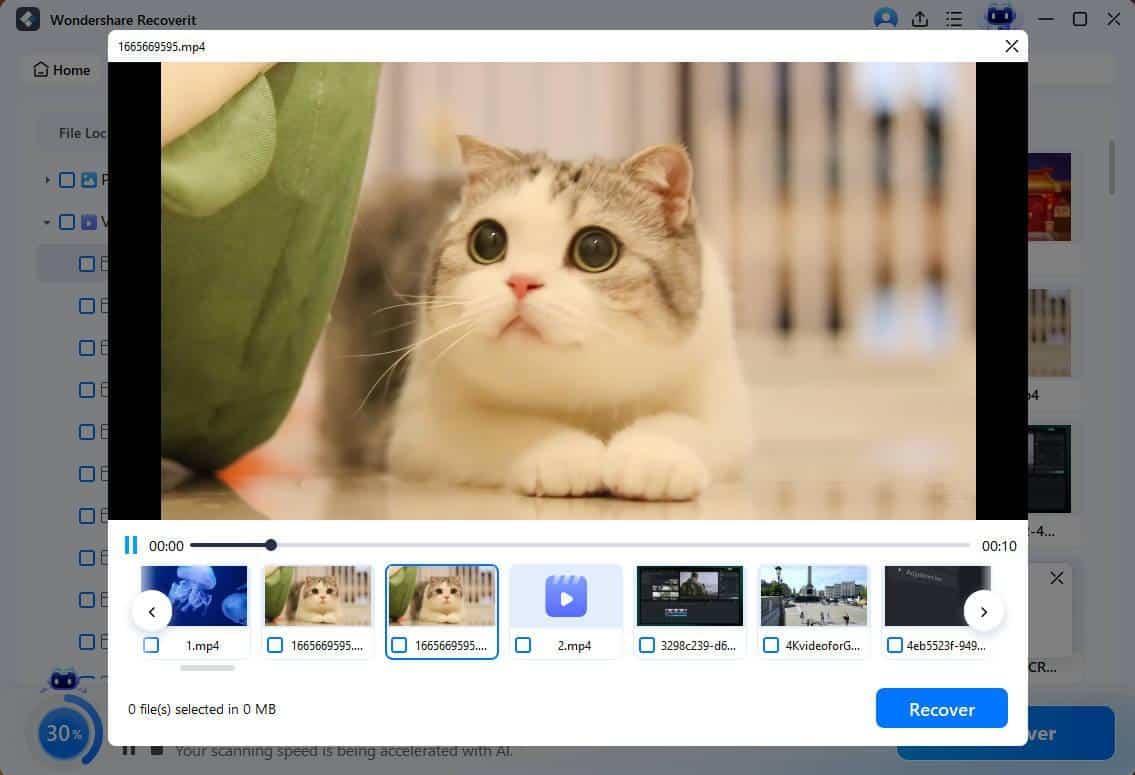
- The preview videos before recovery feature lets you verify video integrity before saving.
- Enhanced Recovery for large video files uses patented technology to locate and reassemble fragmented large videos scattered across the card.
Complete Recovery Process:
Step 1: Connect SD card to computer. Use reliable card reader—quality USB 3.0 card readers provide stable, fast connections. Don’t use camera as card reader since cameras often have slower data transfer and less stable connections. Ensure proper connection—insert the SD card fully into the reader and connect the reader to a working USB port.
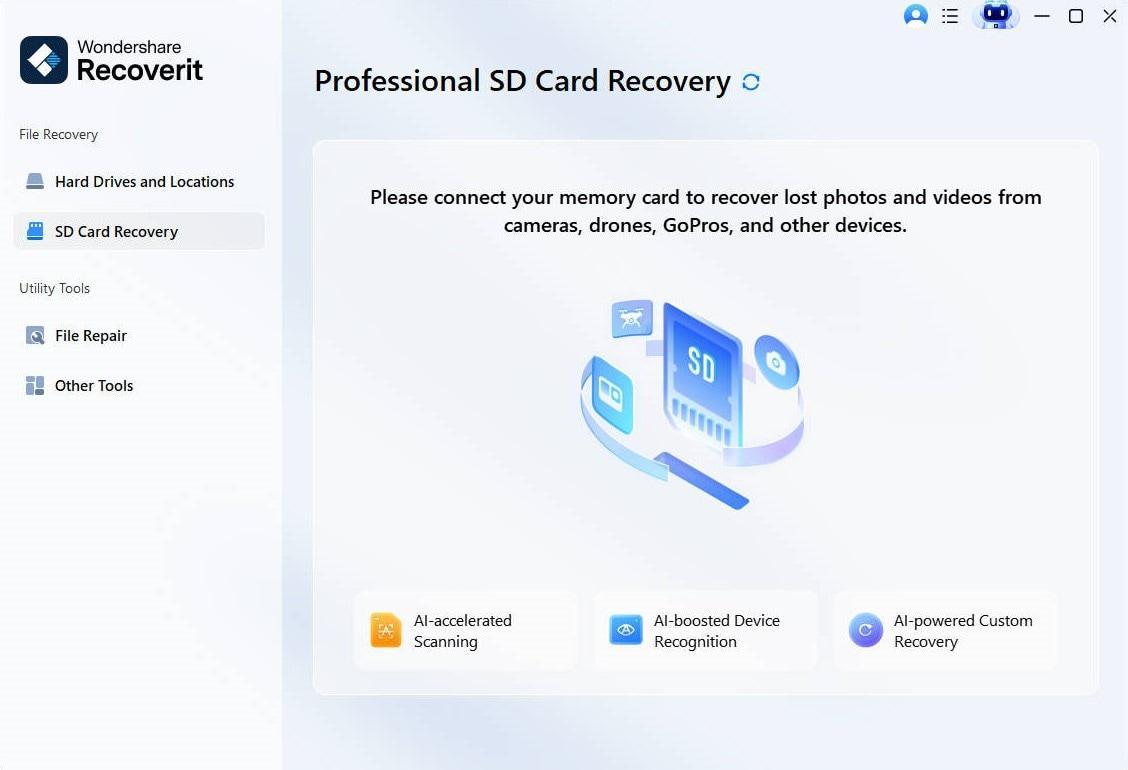
Step 2: Launch Recoverit SD Card Recovery. Open Wondershare Recoverit free data recovery software. In the left sidebar, select "SD Card Recovery" which opens the specialized SD card recovery interface. AI-boosted device recognition automatically identifies your SD card with optimized scanning parameters.
Step 3: Select your SD card. Identify correct card from device list—Recoverit displays all connected storage devices; select your SD card by recognizing its capacity and label. View card information and capacity to confirm you've selected the right device.
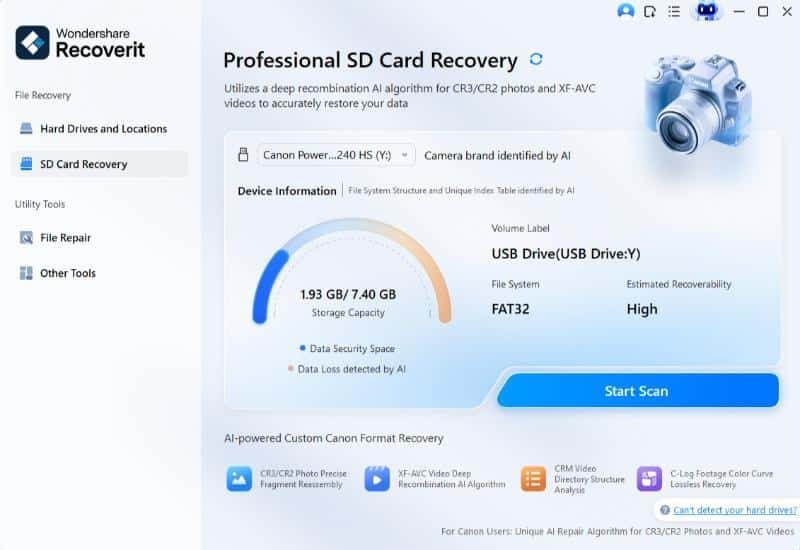
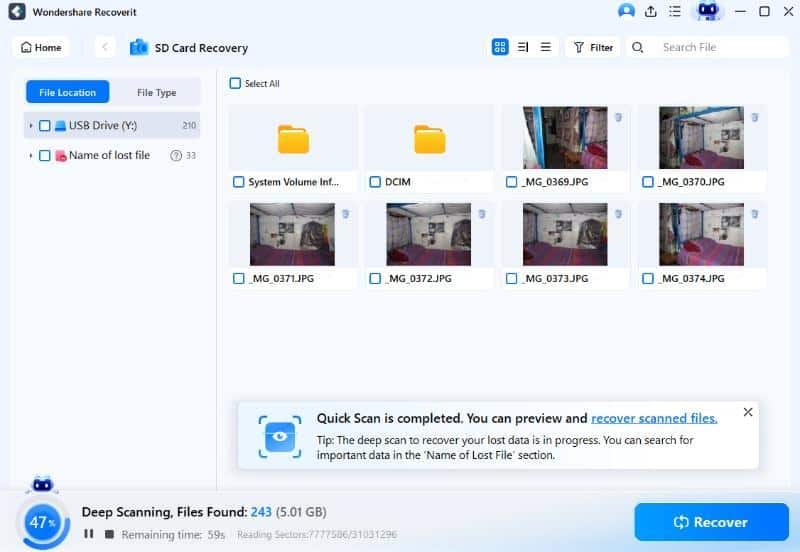
Step 4: Scan for deleted videos. Click "Scan" to begin. AI-accelerated scanning technology rapidly searches for deleted videos using intelligent file signature recognition. Recoverit lets you pause if you find your videos early or resume later.
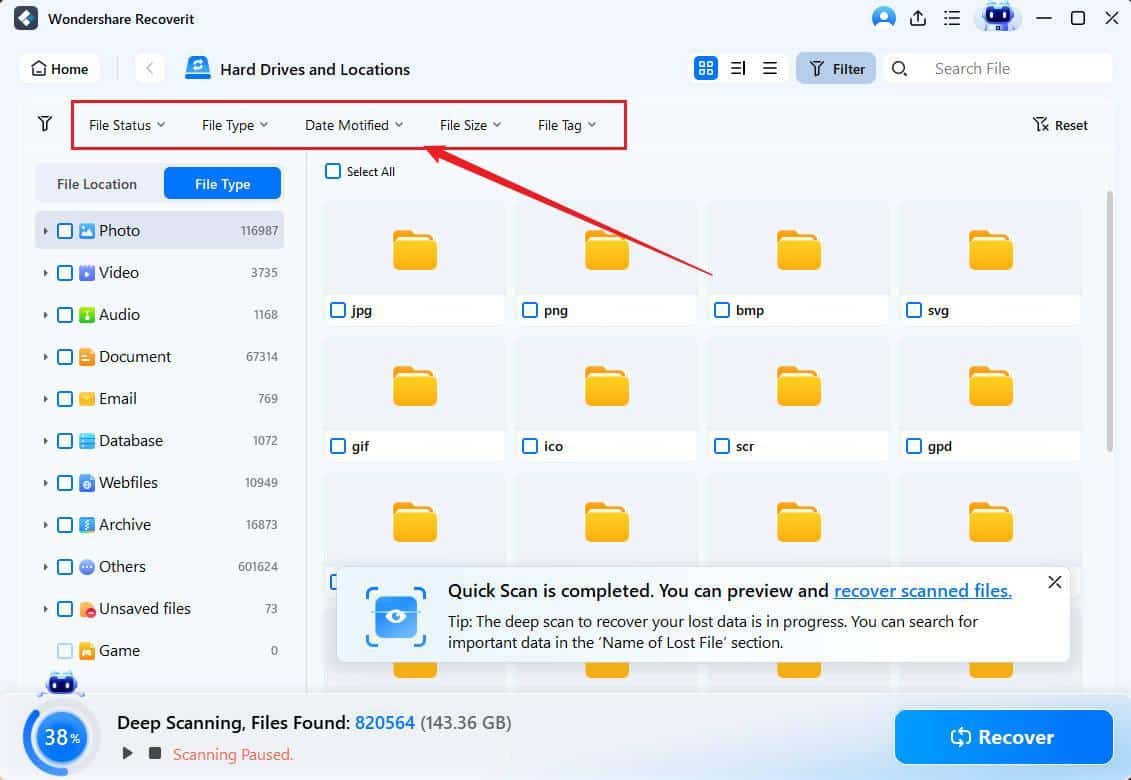
Step 5: Filter and locate video files. Recoverit provides the filtering option to let your find the desired files quickly.
- Filter by "Videos" file type by clicking the Videos category, instantly showing only video files.
- Filter by file size to find large footage—select "File Size" and choose ranges like 100MB+ or 1GB+.
- Filter by date modified to narrow results to when videos were recorded.
- Search by video filename using the search box if you remember any part of the filename.
Step 6: Preview videos before recovery. Click any video to preview. Recoverit plays the first 10 seconds (full video for paid version). You can check the video quality and playback to ensure the file isn't corrupted. Ensure that you verify correct video files before proceeding to recovery.
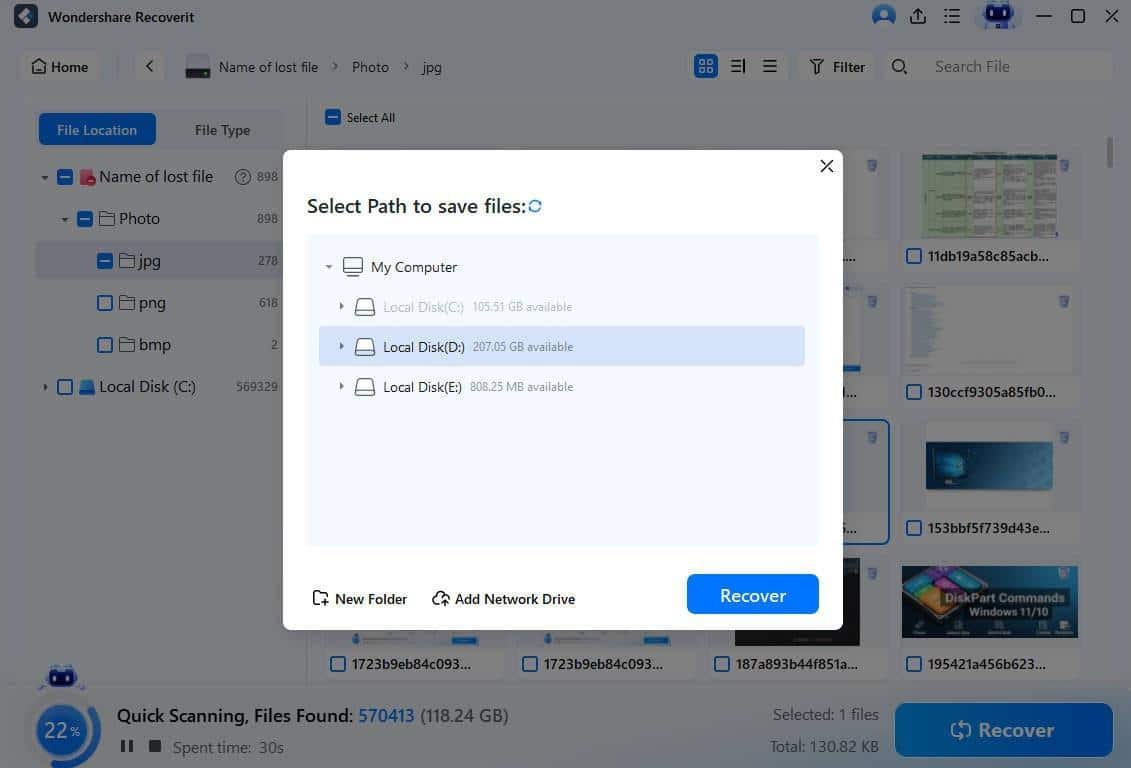
Step 7: Recover videos to safe location. Select desired videos and click "Recover." Never save the recovered files to the same SD card, it may overwrite the additional recoverable data.
Proactive Protection: How to Prevent Future Video Loss
To protect your future projects and memories, adopt these professional habits:
1. Data Backups
- Immediate Transfer: Always copy and paste your footage to a computer or cloud storage immediately after a shoot.
- 3-2-1 Strategy: Keep 3 copies of your data, on 2 different media types (e.g., SSD and Cloud), with 1 copy stored off-site.
2. Best Practices for SD Card Health
- Safe Ejection: Always power off your camera or use the "Eject" function on your PC to safely eject your device.
- In-Camera Formatting: Periodically format your cards inside the camera they will be used in. This ensures the file system is perfectly optimized for that specific device.
- Buy Quality: Stick to reputable brands like SanDisk, ProGrade, or Lexar.
3. Smart Shooting Habits
- Retire Aging Cards: SD cards have a limited lifespan. If a card starts lagging or throwing occasional errors, replace it immediately—it's not worth the risk.
- Use Multiple Cards: For critical events (like weddings), use several smaller-capacity cards rather than one giant one. If one card fails, you haven't lost the entire day's work.
With Wondershare Recoverit's professional SD card video recovery capabilities and proper prevention practices, your valuable video recordings remain protected and recoverable even in worst-case deletion scenarios.