


Android Auto has a hidden developer menu that is used for debugging, and can be useful for parametric equalization controls.
It’s not the kitchen-sink toolkit of options you get on Android phones, but it could really help if you use wireless connections or sideload applications. Here’s how to unlock it—and whether you should, in fact, do so.
- How to Unlock the Hidden Android Auto Developer Menu
- The Two Toggles Most People Want to Know About
- Should You Turn On Android Auto’s Developer Mode?
- Troubleshooting and Caveats for Android Auto Developer Mode
- Industry Context on Android Auto and Safe App Design
- Bottom Line on Using Android Auto’s Developer Settings
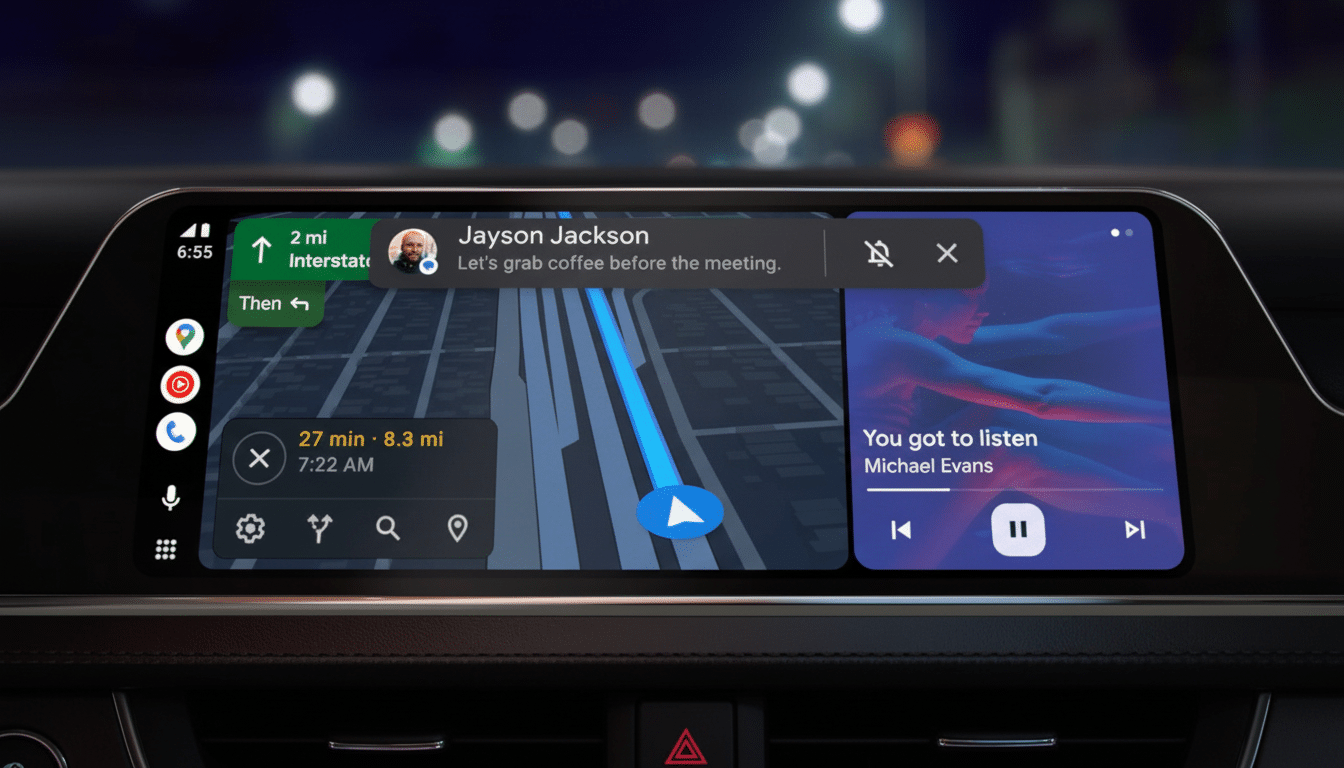
How to Unlock the Hidden Android Auto Developer Menu
Begin on your phone off the road. Open Settings then search for “Android Auto.” Tap on through to Android Auto’s settings screen, which lives in your phone’s system Settings app. (On some phones it’s buried in Settings > Apps > Android Auto; Pixels might list this under “Additional settings in the app.”)
Scroll to the About section. Find the Version line, tap it to reveal more (and tap again if necessary) and then firmly and repeatedly tap on “Version and permission info.” After about 10 taps, you’ll see a message informing you that you are now a developer. Confirm.
Return to the Android Auto settings screen and tap the three-dot menu in the top-right, then choose Developer settings. That’s the hidden panel. To leave later, go back into that menu and select Quit developer mode.
The Two Toggles Most People Want to Know About
- Wireless Android Auto: This switch toggles between having Android Auto attempt to connect over Wi-Fi and Bluetooth, not just a cord. Keep this on if you use a compatible car or use a popular dongle such as AAWireless or Motorola MA1. And if your head unit or route is finicky—or you simply appreciate the reliability of a cable—switch it off to prevent your phone from searching for wireless sessions.
- Unknown Sources: By default, Android Auto will only display apps that you’ve installed from Google Play. Unknown Sources must be enabled in order for compatible apps sideloaded from other sources to appear on the in-car launcher. That’s useful if you rely on open-source clients from F-Droid or a beta build from a developer that uses Google’s Car App Library templates. Keep in mind that not every app you sideload will be optimized for driving or supported by policy; some will refuse to show up or work while the vehicle is moving.
The remainder of the developer panel is technologist-skewed—read: diagnostic logging and internal testing flags. For those who don’t develop, stay away.
Should You Turn On Android Auto’s Developer Mode?
If you want wireless and your car has a feature for it (or if you’re working with a wireless adapter), yes—the dedicated switch is the best way to direct behavior. If you frequently sideload apps from developers who are reputable and have taken the time to sign their Android Package files, then sure, the Unknown Sources switch can be a good thing.
If neither applies, skip it. Sticking to the defaults is the way to go, lest you run into unnecessary complexity and occasional incompatibility. Google’s own recommendations limit in-car categories for safety, and the developer menu doesn’t disable those safety protections.
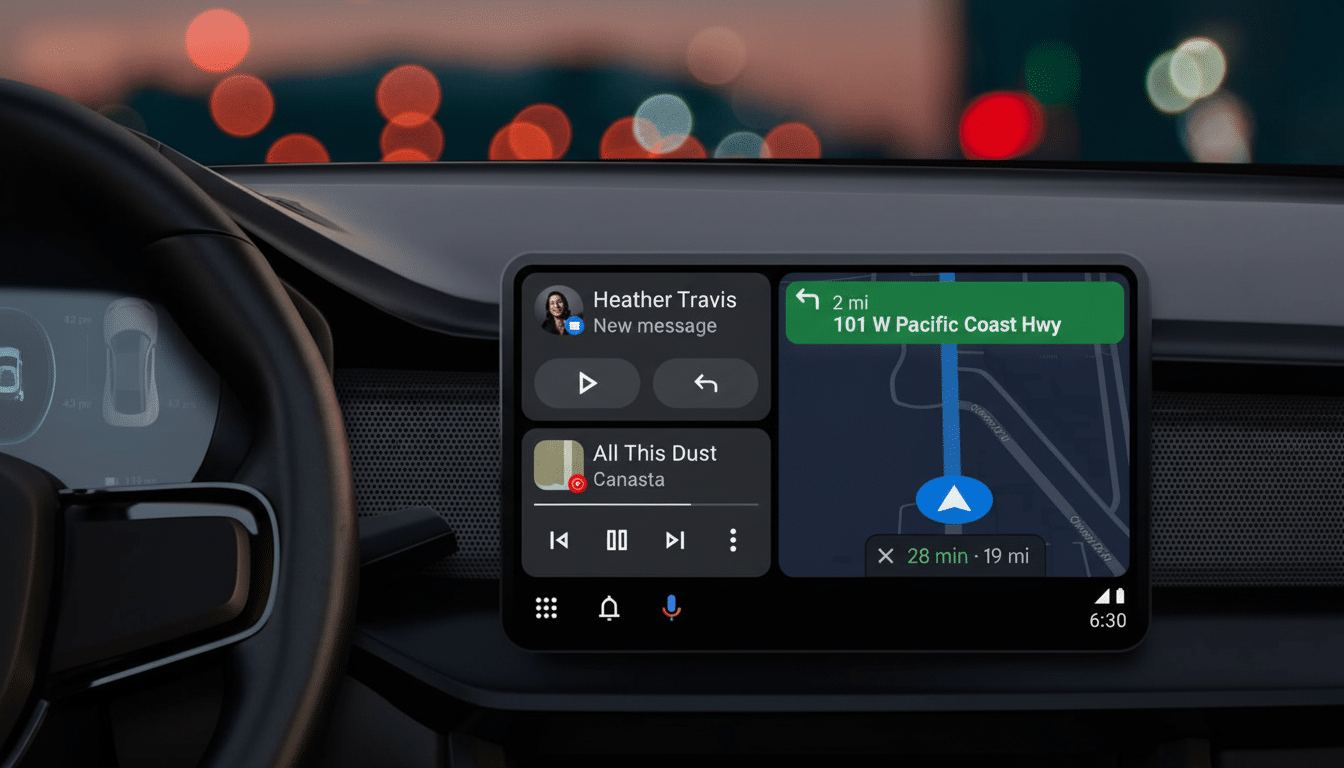
Safety should be your north star. Even brief moments when a driver looks away from the road increase the risk of a crash, says the National Highway Traffic Safety Administration, and research by AAA has found that infotainment-related activities can take attention for more than 40 seconds to fully regain focus. That’s why the Car App Library imposed a prohibition on interfaces that were not simple, glanceable templates like those found in Agrippa and its sister apps. You cannot bypass those guardrails in this menu—and that’s a good thing.
Troubleshooting and Caveats for Android Auto Developer Mode
If wireless doesn’t connect, make sure the developer toggle is enabled, that your phone’s Wi-Fi and Bluetooth are turned on, and that the car or dongle supports 5 GHz Wi-Fi. The first connection over USB is the first step for many vehicles to establish trust and, from then on, wireless works. Even power-cycling the head unit and deleting Android Auto’s cache on your phone can help.
Unknown Sources only impacts what Android Auto can display; it does not enable unsafe installs everywhere on your phone. In order for an app to appear, it needs to use Google’s sanctioned car templates. Media, messaging, and navigation are the main categories; video playback in motion is still locked down by design.
Expect some OEM variance. Automakers have especially varied in their implementations of Android Auto, and a few have publicly altered course toward native platforms. The dev menu will not override a manufacturer’s choice to disable smartphone mirroring in certain models or markets.
Industry Context on Android Auto and Safe App Design
Google is broadening the reach of Android Auto, while its new criteria for phone apps could help prevent distracted driving. Tech ownership studies from J.D. Power consistently find that drivers value phone projection because it’s familiar, not least because satisfaction plummets when connections fail or are slow. That’s where the wireless toggle and an appreciation for the limitations of the platform can add to everyday experience without compromising safety.
Bottom Line on Using Android Auto’s Developer Settings
Enabling the Android Auto developer settings only takes a few moments. If you require wireless controls or would like validated sideloaded apps to show up in your vehicle, it’s worth doing. If not, you’re not losing out on much by ignoring the hidden menu. Either way, continue the emphasis on reliability, security, and distraction-free driving.
