With a 2026 phone in your hand, you can actually gather insurance-ready evidence just by sticking to a handful of key shots: wide scene overviews, plenty of angles on vehicle damage, license plates, visible injuries, road markings, and any traffic controls around. Try to snap clear, steady images from a few different distances, make sure they’re timestamped, and turn on your phone’s geotagging plus RAW or high-res mode—so your photos actually stand up if you need them later.
Walk through simple steps that show exactly what to capture, and how to use your phone’s newer features to keep photos organized and, well, usable in court if it comes to that. If you’re worried about legal stuff after a crash, maybe reach out to a Garland personal injury attorney—they usually offer a free case review anyway.
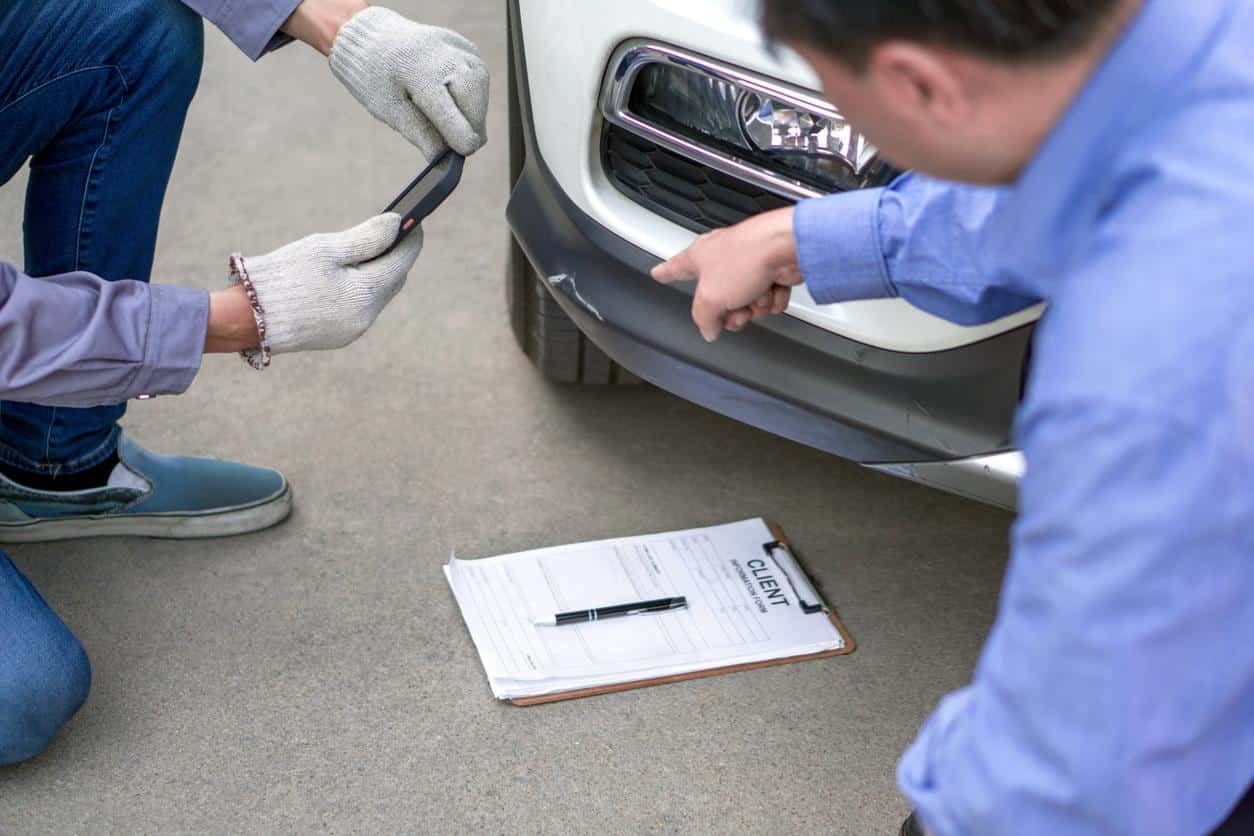
Essential Accident Photo Checklist for 2026 Phones
This checklist spells out which shots to get and why they matter. It covers the scene itself, where vehicles ended up, close-ups of damage with time info, and a record of injuries and safety gear.
Scene Overview and Environmental Context
Start with wide-angle shots from at least three spots: one from each direction you could approach from, and, if you can, one from up high (like a curb, a little hill, or even the back of a truck). Try to get traffic lights, signs, lane lines, skid marks, crosswalks, and any debris that might show what happened or where the impact was.
Don’t forget the weather and visibility—shoot the sky, wet or icy pavement, where the sun’s glaring in, and anything blocking the view, like parked cars or trees. If your phone’s got panorama or multi-frame, use it for a long stretch of road so everything’s in scale.
For distance, toss down a tape measure or drop something visible (even a jacket or cone) at a few spots, so anyone reviewing later can get a sense of space. And honestly, it helps to jot down or voice-note right after each shot, just in case your phone’s metadata gets changed.
Vehicle Positions and License Plates
Take pictures of every vehicle from all four corners: front-left, front-right, rear-left, rear-right. Try to keep the camera level so it’s obvious how the cars are oriented. If you can, get a shot from above that shows where all the vehicles are in relation to each other and nearby landmarks—it really helps with context.
Make sure license plates are readable from both the front and back, if possible. If a plate’s missing or smashed, shoot the VIN plate inside the driver’s door and any visible registration docs. Don’t forget the tires and steering wheel position; those little details can back up claims about how things happened.
If a car was moved before you got pics, mention it, and if you can, photograph any tow marks or disturbed gravel so there’s a record of what changed from the original scene.
Damage Close-Ups With Timestamp Features
Get in close—good lighting helps—and shoot every impact point: paint scrapes, dents, bent metal, broken lights. Use your phone’s macro or telephoto if it’s got one, so you can see all the gritty details without things getting warped.
Turn on verified timestamps and geotags in the camera app, or use a solid third-party app that locks in the time and place right in the photo file. For scale, toss a little ruler or even a coin in the frame so it’s easier to measure stuff later.
Shoot from a few angles to show how the damage wraps around. Always save the originals and make high-res copies—resist the urge to edit those originals, since that can mess with their value as evidence.
Injuries and Safety Equipment Usage
With permission, document visible injuries, focusing on what they look like, their size, and exactly where they are—bruises, scrapes, swelling, bandages, all of it. Get both close-ups and wider shots that show where the injury is in relation to the car or seat. It’s a little awkward, but it really helps support what happened.
Snap pics of seatbelt use, airbags (if they went off), child seats, helmets, and any first-aid stuff used right there. If emergency responders are treating anyone, note their agency and the time, and photograph their ID and what they’re doing if it’s allowed.
If you’re able, record a quick video describing symptoms and pain right away—combine that with official timestamps (EMS arrival, hospital intake) to build a timeline that pairs what you felt with what was treated.
Maximizing Photo Usability With 2026 Phone Features
Here’s how to make sure your phone pics are actually useful later, both for insurance and legal stuff. It’s all about using your phone’s AI camera tools, keeping all the right metadata, and organizing files so you’re not scrambling later.
Using AI and Enhanced Camera Capabilities
Newer phones are packed with on-device image analysis and multi-sensor tricks that make it easier to get clear, useful crash photos. They’ll auto-detect plates, skid marks, damaged spots, and even suggest how to frame or adjust the shot. Take those prompts, honestly—they usually help you get sharper, more readable images without fussing around.
If things are moving, use burst mode or motion-aware capture to avoid blur. Night modes and HDR are your friends in bad light—turn them on if shadows are hiding details. If your phone’s got depth maps or LIDAR, grab a depth-enabled shot to lock in scale. And don’t be shy about marking up the image with the phone’s tools right away so you remember what’s what later.
Metadata and Geolocation Settings
Accurate timestamps and location tags are key—they prove where and when you took the shot. Always keep location tagging on in your camera app and double-check your phone’s time zone, especially if you’ve been traveling. If your phone can do cryptographic timestamps, turn that on to avoid arguments about edits down the line.
Hang onto the originals whenever you can; don’t export to lower-quality formats unless you have to. If you need to edit, save a copy and keep the untouched version. It’s smart to jot down your device model and software version somewhere in the folder—sometimes insurance or courts want that info. And if your privacy settings strip metadata, just turn full EXIF back on while you’re gathering evidence—better safe than sorry.
Organizing Accident Photos for Documentation
As soon as you can, set up a folder just for that incident—trust me, it saves headaches later. It might feel fussy, but you’ll thank yourself when you’re searching later. Sort your photos by what they show: wide shots of the scene, close-ups of the vehicles, license plates, any injuries, and debris. For each subject, try to snap at least three shots—one wide, one medium, one close. It helps put everything in context and shows the scale, which can be surprisingly important.
Back everything up—use your phone’s album and sync it with a cloud service, ideally to an encrypted drive. Inside that main folder, drop in a quick text file with the names and contact info of any witnesses, plus a short line about the weather and road conditions (rainy, dry, whatever). Go ahead and tag the key photos with a star or flag; it makes them way easier to find when you’re dealing with insurance or, heaven forbid, lawyers.