


Volume control is the bare minimum promise a smart TV makes, and yet owners of sets across Samsung’s lineups sometimes find its volume bar locked, skipping through numbers with no input, or turning it up only to realize that nothing is happening.
The good news is that the majority of these issues boil down to settings conflicts, accessory handshakes, or a remote control blip — and you can usually get things back on track in minutes without ever having to make a service call.
- What to check first when Samsung TV volume won’t change
- Power cycle the TV and re-pair the Samsung remote
- Fix sound output settings and resolve app conflicts
- Update your Samsung TV software and verify Bluetooth
- ARC/eARC and soundbar handshake fixes that restore volume
- Run built-in Samsung TV diagnostics to test sound
- When to reset your TV or call for Samsung support
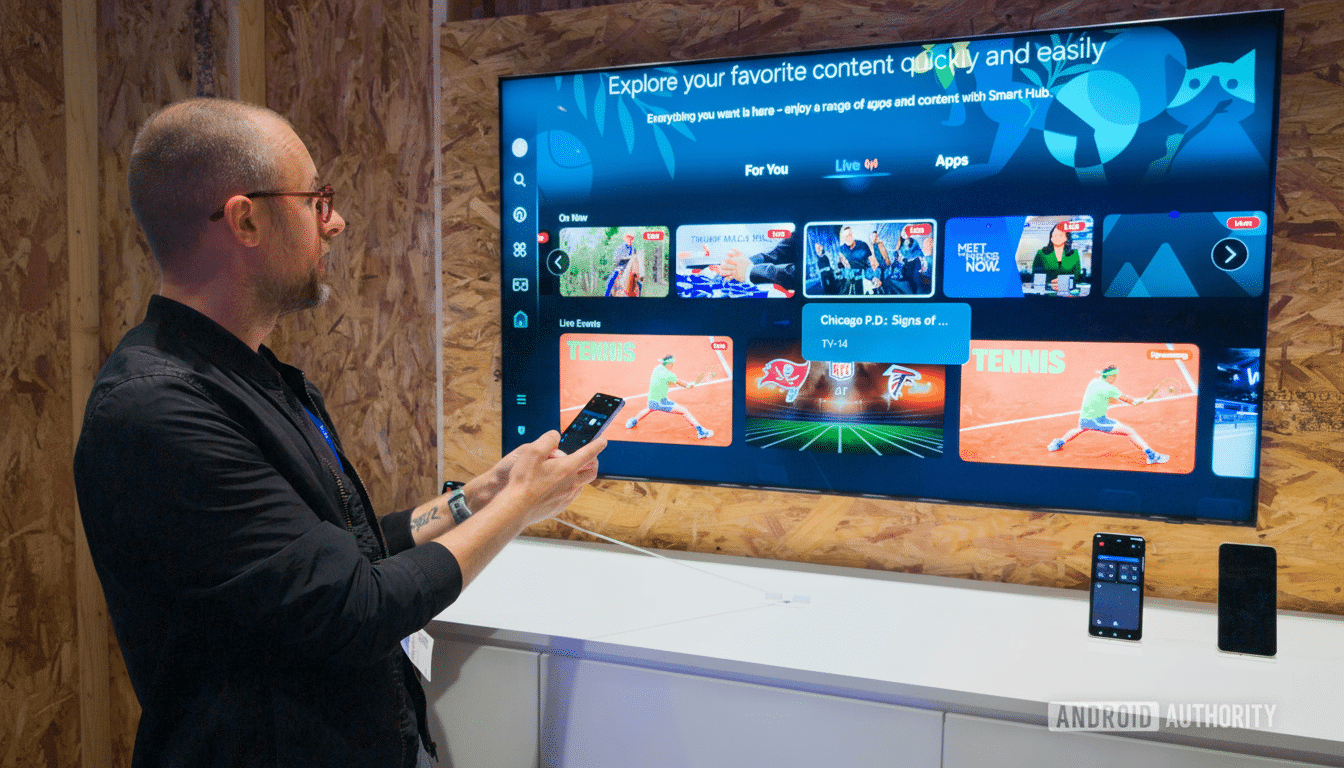
What to check first when Samsung TV volume won’t change
Verify the obvious: Replace the remote’s batteries, then press Mute to ensure you haven’t somehow silenced the set. If the on‑screen volume level is moving but you’re not getting any change in sound, the TV is sending audio to another place.
Open Settings > Sound > Sound Output and select TV Speaker. If you selected Bluetooth headphones or a soundbar, it’s possible your volume keys might be controlling that device rather than the TV. Samsung’s support docs mention that a limited number of models will reset to the output last in use upon restarting.
Working a cable box or streaming stick remote? Be sure it’s set to manage the TV’s volume, not its own internal volume. This mismatch is one of the most frequent reasons for “no change” complaints in support forums.
Power cycle the TV and re-pair the Samsung remote
Try a soft reset on the TV: press and hold the power button until the Samsung logo is displayed, or turn it off at the wall socket for one minute, then turn it back on. This resolves temporary CEC handshake issues.
Re‑pair the Samsung Smart Remote to the TV by pointing it at the TV, and then holding down Back and Play/Pause buttons simultaneously for 2 seconds. If you have the older IR‑only remote, make sure there is a clear line of sight to the IR sensor and test the remote by pointing it at your phone camera — you should see the IR LED blink when pressing Volume.
Fix sound output settings and resolve app conflicts
Go to Settings > Sound > Expert Settings and choose Reset Sound. This resets EQ, balance, and digital output format values, which can mute or lock volume if they are not appropriate for your content or speakers.
Temporarily disable Intelligent Mode features (Settings > General > Intelligent Mode Settings). Adaptive Sound and other features can unexpectedly make your loudness softer, particularly in the middle of the night.
If the volume overlay is grayed out, or apps open slowly in response to a swipe or tap, free up memory: go to Support > Device Care and then run Memory/Storage optimization. Many people report improvements after deleting unused apps and turning off auto‑run previews. If problems continue, reset Smart Hub via Support > Device Care > Self Diagnosis. This logs you out of your apps and clears app data, which can often fix “stuck” volume after an app crashes.
Update your Samsung TV software and verify Bluetooth
Go to Settings > Support > Software Update > Update Now to install the latest firmware.
ARC/eARC and Bluetooth behavior often improves with updates; AV testers have observed better volume reliability after firmware updates across multiple model years.
For wireless audio, go to Settings > Sound > Sound Output > Bluetooth Speaker List. Unpair unused headphones and forget, then reconnect your preferred device. Conflicting Bluetooth profiles can trick the television into thinking that audio has been redirected elsewhere.
ARC/eARC and soundbar handshake fixes that restore volume
When using a soundbar or AVR, volume is controlled through HDMI‑CEC and ARC/eARC. Connect your audio device to the HDMI port labeled ARC or eARC and use a High Speed cable with Ethernet for ARC (HDMI IN 3 on many models) or an Ultra High Speed cable. Then:
- Flip Anynet+ (HDMI‑CEC) off/on: Settings > General > External Device Manager > Anynet+. This forces a fresh handshake.
- In Settings > Sound > Expert Settings, set HDMI eARC Mode to Auto for modern bars, or Off if your bar is not eARC capable. Conflicting modes can block volume commands.
- Power‑cycle TV and soundbar. Unplug both for 60 seconds, then plug the TV in first and let it boot before you connect the soundbar. This sequencing improves CEC discovery per HDMI Forum recommendations.
Real‑world example: it has been found that sometimes after updates, or when your building loses TV reception (meaning the ARC handshake takes a while to re‑establish), users of popular bars like Sonos Arc and Samsung Q‑series have found that if you reset CEC in the receiver and then eject/reseat the ARC cable, volume control comes back.
Run built-in Samsung TV diagnostics to test sound
Try Samsung’s Sound Test in the Support > Device Care > Self Diagnosis menu. If you hear the test tone loud and clear but no audio is streaming from your apps, then it’s nothing to do with your internal speakers, but more likely a problem with settings in the app or at the source. If the test is not successful, you probably have a hardware or board‑level issue.
When to reset your TV or call for Samsung support
As a final resort, do a full reset: Settings > General > Reset (default PIN 0000). First, back up Wi‑Fi credentials and app logins. This addresses underlying software conflicts that won’t be resolved by a Smart Hub reset.
If none of the above help, please contact Samsung Support or your supplier. Because Samsung ships more TVs than any other brand — its global share by unit volume is about 20%, according to Omdia, the research firm — parts and service routes are robust. Intermittent sound on new sets is typically under warranty, so they could check the speaker drivers, amp stage, and non‑mod board in that order, or simply swap the main bd if it’s a P‑series set.
The bottom line: The great majority of Samsung TV volume failures may be solved at home by something as simple as resetting the audio stack, correcting ARC/eARC handshakes, or clearing Smart Hub buffers. Complete the quick checks before you decide hardware needs repair.
