


Q4OS is drawing attention as a Debian-based Linux distribution that makes the first step into open-source remarkably easy—and it comes with a surprising bonus for Windows users. Beyond a polished out-of-the-box desktop, Q4OS offers a native Windows installer that sets up a dual-boot system without complicated workarounds, lowering the barrier for anyone curious about Linux but not ready to abandon their current setup.
The timing is smart. According to StatCounter, Windows still commands well over 70% of desktop market share, while Linux hovers in the low single digits. A distro that meets users where they are—on Windows PCs—can meaningfully reduce friction and risk, two of the biggest reasons first-timers hesitate to switch.
What Makes Q4OS Beginner-Friendly for New Users
Q4OS ships with KDE Plasma as its primary desktop, a choice that matters. Plasma succeeds at the hard balance: it looks modern, behaves predictably, and is deeply configurable without forcing users into arcane settings. The Q4OS team doesn’t overload it with tweaks; instead, they add just enough to simplify onboarding.
The built-in Welcome app does the heavy lifting. From one place, newcomers can run updates, install media codecs, set screen scaling and auto-login, and check hardware. A standout feature is Desktop Profiler, which lets you toggle between full, basic, and minimal setups, or even switch to a different desktop—Trinity is available for those who prefer a classic, lightweight look and feel.
Familiarity for Windows Users from Install to Use
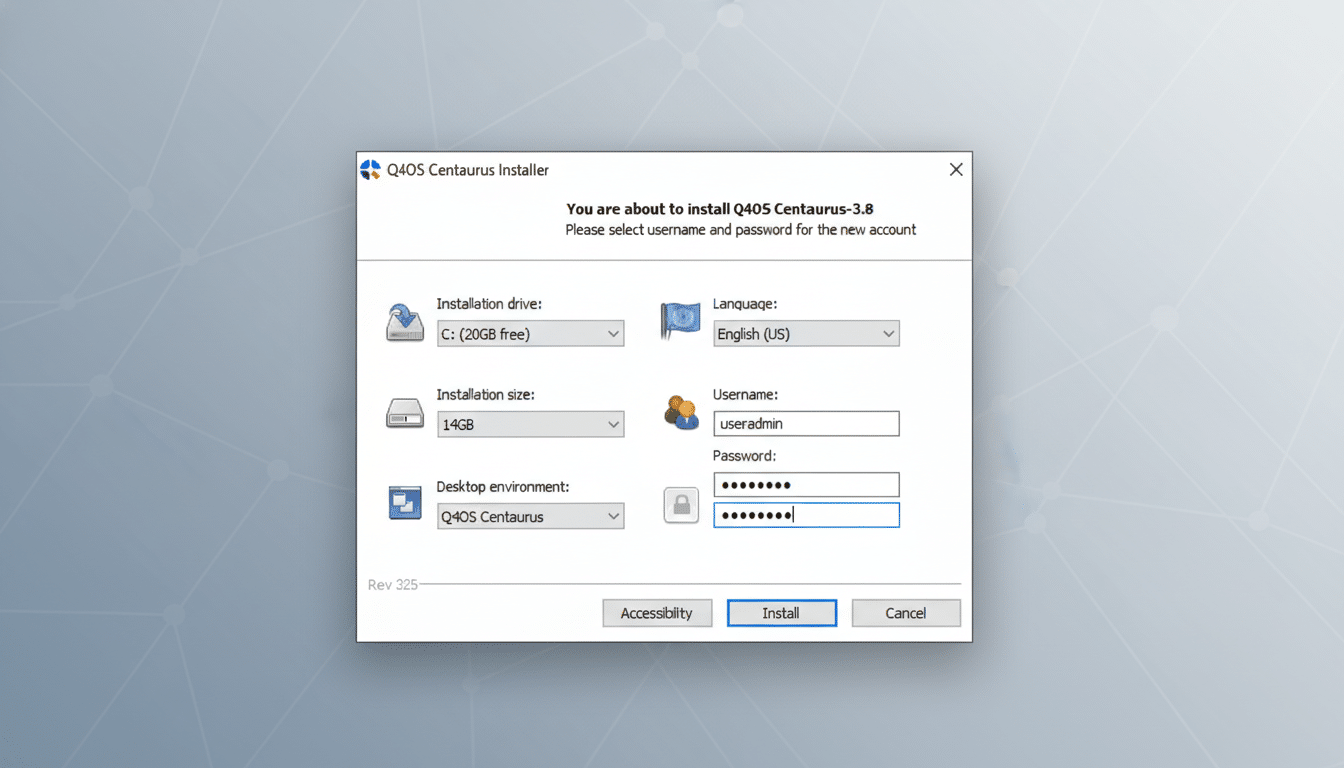
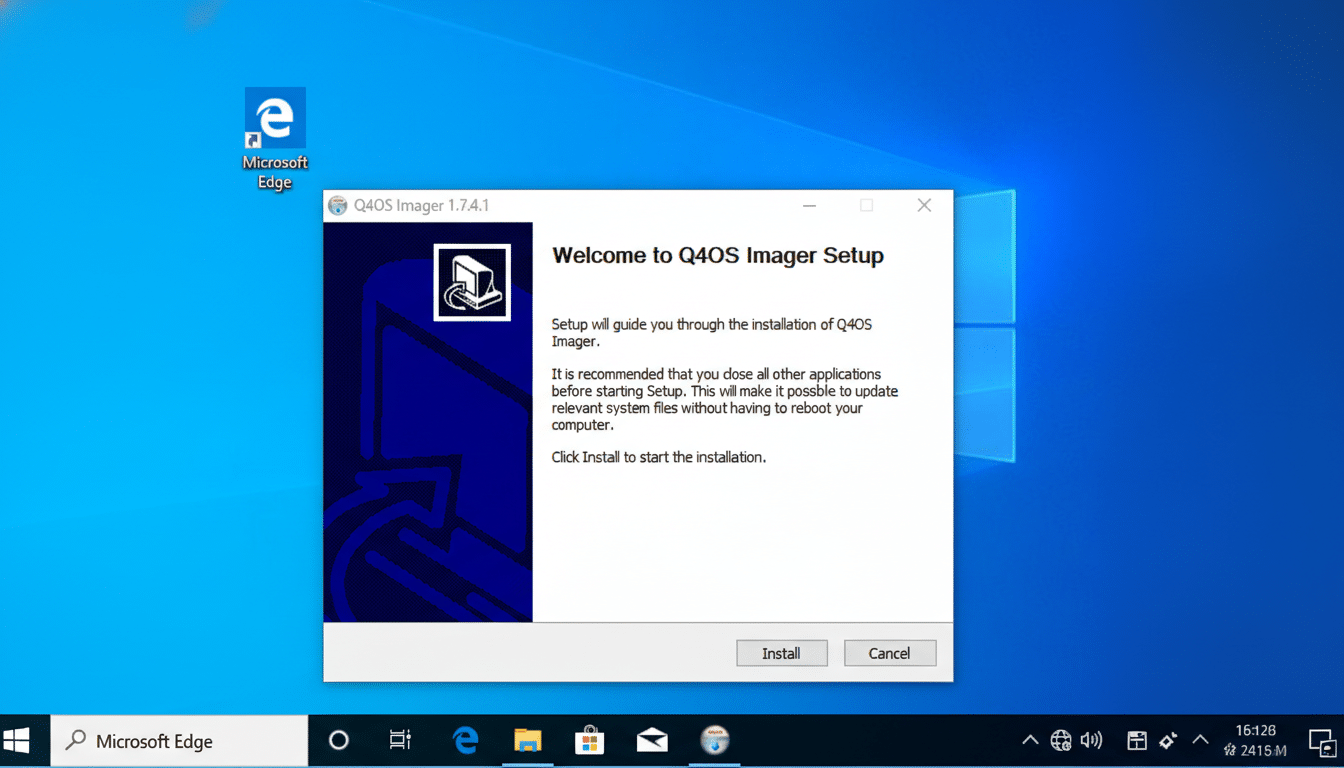
The headline bonus is q4os-winsetup, a Windows executable that installs Q4OS alongside Windows and configures a dual-boot menu. That means you can try Linux on real hardware without wiping your existing system or crafting a bootable USB. It’s a pragmatic bridge for nervous first-timers and a time-saver for IT admins piloting Linux on a few machines.
Q4OS also leans into familiarity after installation. Its Software Center uses a Windows-style installer flow that feels instantly recognizable. The LookSwitcher utility can apply curated themes that mimic popular Windows layouts, softening the learning curve while you explore Linux alternatives to everyday tools.
App Installation Without Headaches or Confusion
Out of the box, Q4OS covers the essentials: LibreOffice for documents and spreadsheets, Chromium for browsing, Thunderbird for email, VLC for media, Strawberry for music, and K3b for disc tasks. If something’s missing, KDE Discover acts as the central app hub, with traditional Debian APT packages as the default and Flatpak support enabled.
That dual-path approach is thoughtful. APT packages are vetted and stable, aligning with Debian’s reputation, while Flatpak provides the latest upstream app versions in sandboxed containers maintained via the freedesktop.org ecosystem. You can even set Flatpak as the default in Discover settings if you prefer fresher builds.
Note there are two storefronts: KDE Discover and the Q4OS Software Center. Discover is the best primary choice for most users, but the Software Center includes handy Q4OS-specific tools—like LookSwitcher—that add polish and familiarity, especially for Windows migrants.
Performance And Stability Backed By Debian
Q4OS inherits Debian’s conservative development model, which favors stability over constant change. For new users, that translates to fewer surprises, predictable updates, and reliability that feels enterprise-grade. It’s a strong counterpoint for anyone frustrated by frequent disruptions in other operating systems.
KDE Plasma’s performance story has also improved significantly in recent cycles. The KDE community has consistently emphasized efficiency, and independent testing from outlets like Phoronix has shown Plasma to be competitive on memory and CPU use versus other full-featured desktops. Add the optional Trinity desktop, and Q4OS becomes a credible option for older PCs as well as modern hardware.
Who Should Try It and How to Get Started Today
If you want a daily driver that “just works” and gently introduces Linux concepts, Q4OS is a strong candidate. Students and home users get a clean, productivity-first environment; small businesses gain predictable updates and a familiar workflow with minimal retraining. And gamers or creators who need Windows can keep it—dual-boot gives you both worlds while you test Linux at your own pace.
Starting is straightforward. From Windows, run the q4os-winsetup installer to configure dual-boot with minimal fuss. Prefer a clean install? Use the standard ISO image with a bootable USB and follow the guided setup. Either way, back up your files, verify checksums, and let the installer handle the rest.
Linux adoption grows when the first step is simple and safe. Q4OS pairs a welcoming desktop with Windows-friendly onboarding, and that combination feels tailor-made for newcomers who want to explore without losing a safety net.
