


Hotels, cruise ships, and even a few airports still meter Wi‑Fi access by device, forcing us to contort ourselves into an overnight geek street corner at the local library, juggling phones, laptops, and tablets in order to get our Facebook fix. Here’s the underreported part: A lot of today’s Android phones can silently work like a travel router, signing in once and then letting you share that single connection with all of your gear.
How Android Transforms a Single Sign‑In into Multiple Connections
The trick is Wi‑Fi sharing, a function on many recent Androids letting the phone connect to a hotel network and also broadcast its own hotspot. Rather than passing out mobile data, your phone is really just rebroadcasting the hotel’s Wi‑Fi, meaning every device you own gets to take a joy ride on that one authenticated session.
- How Android Transforms a Single Sign‑In into Multiple Connections
- Step‑by‑step setup on Android phones for Wi‑Fi sharing
- Why this is better than per‑device Wi‑Fi charges at hotels
- Performance and battery trade‑offs when using Wi‑Fi sharing
- Compatibility and key things to check on your Android phone
- When a dedicated travel router still makes sense over your phone
- Legal and etiquette notes for sharing hotel Wi‑Fi responsibly
- Quick troubleshooting tips for common hotel Wi‑Fi sharing issues
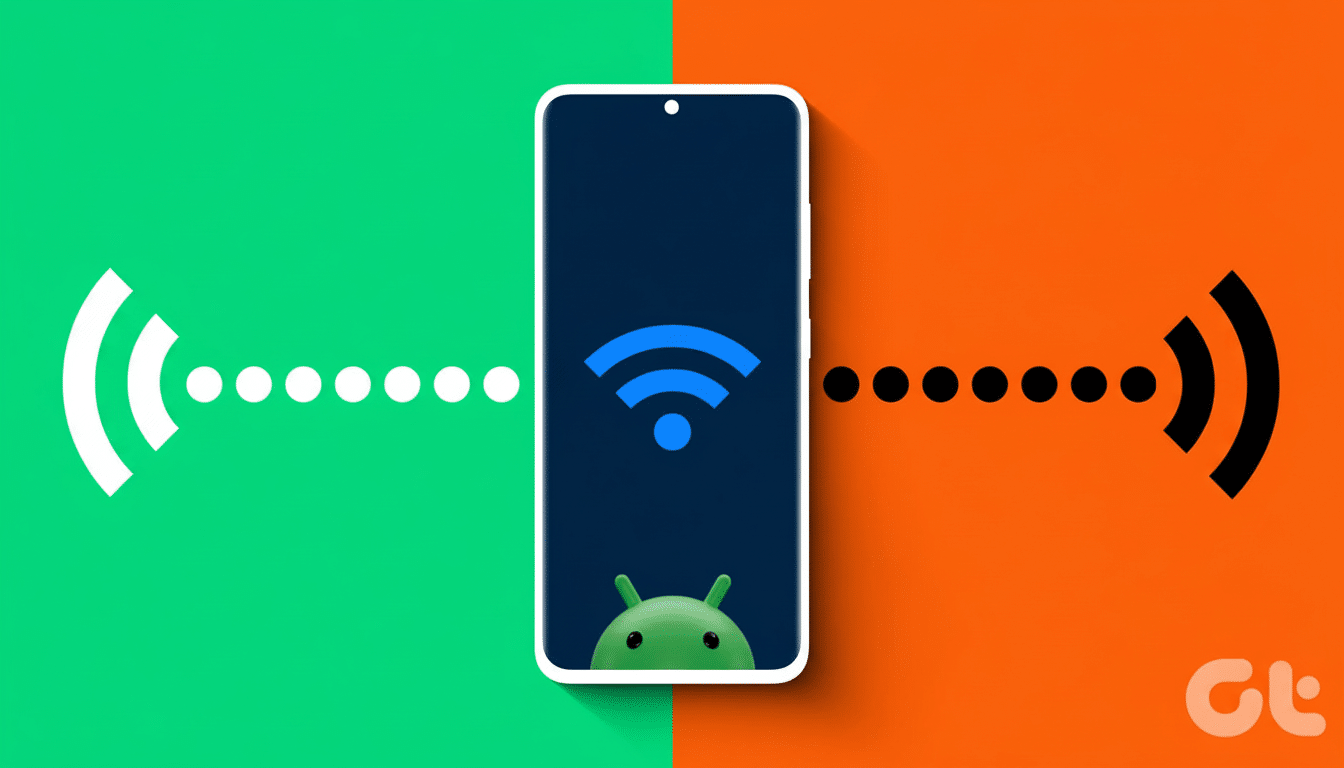
Under the hood, this is done using the phone’s Wi‑Fi chipset itself running as a client and an access point at the same time (often referred to as concurrent STA + AP mode). Qualcomm and MediaTek chipsets have had this for a while, but whether to expose it in software is up to manufacturers. On a lot of flagships, it’s important to point out that it is there.
Step‑by‑step setup on Android phones for Wi‑Fi sharing
Some terminology changes from one brand to another, but the flow remains consistent. Connect your phone to the hotel Wi‑Fi and complete any captive portal sign‑in on your phone. That is the only place where you will see the paywall or be prompted for a room number.
Next, go to Settings and search for Hotspot or Tethering. On Samsung, it’s Mobile Hotspot; flip the Wi‑Fi Sharing toggle in its settings. On many OnePlus, Xiaomi, and newer Pixel models, you’ll find a Share Wi‑Fi or Wi‑Fi Sharing option within the settings for setting up a hotspot. With this enabled, the hotspot is always on as long as your phone is connected to the hotel network.
Connect to your Android hotspot SSID with a secure password — and toss in your laptop, tablet, watch, and secondary phone for good measure. Optional but smart: temporarily turn off cellular data on the Android phone to avoid defaulting to LTE or 5G, which might cost you if the signal at the hotel goes down.
Why this is better than per‑device Wi‑Fi charges at hotels
Hotels mostly count by MAC address. Your phone is now the only “device” that the network sees, even though five gadgets are behind it. You also have to deal with the captive portal only once — perfect for devices such as e‑readers, streaming sticks, even cameras that make browsing‑based logins a giant pain.
It can also bring back local discovery. Your laptop “sees” your tablet now (and can cast or share files with it) because they’re on your phone’s private network, not the hotel’s sliced‑up public one. That alone can save time for road warriors who work from the road.
Performance and battery trade‑offs when using Wi‑Fi sharing
Expect some speed loss. When a single radio covers both the upstream hotel link and your hotspot, throughput can be compared to a daisy‑chain connection. If both your phone and the hotel AP (access point) support 5 GHz or Wi‑Fi 6/7, you should have better performance than 2.4 GHz. Put the phone where the hotel’s signal is strongest and leave it plugged in — hotspotting eats juice.
Security matters, too. On the hotspot side, pick WPA2 or WPA3 with a unique, long password. A few devices come with an option to automatically close the hotspot when no clients are connected. Turn it on, and it can greatly reduce the risk if you walk away from the room.
Compatibility and key things to check on your Android phone
Not all Android phones are capable of Wi‑Fi sharing. If flipping your hotspot kills the Wi‑Fi or sharing is grayed out, then the phone’s hardware — or at least its software — isn’t built for concurrent modes. Flagships from the past couple of years are your best bet; midrange models can go either way.
iPhones do not have this specific capability, at least not today. To do this in iOS, we enable Personal Hotspot, Wi‑Fi is disabled, and an iPhone cannot both join the hotel network and rebroadcast it at one time. You can, however, link an iPhone to an Android hotspot after your Android phone is doing the sharing.
When a dedicated travel router still makes sense over your phone
Dedicated travel routers offer perks your phone can’t match as simply: built‑in Ethernet WAN support for rooms with a wired wall jack, always‑on VPN capability at the router level for every device connected to the network, and more granular tweaking.
This is often the preferred method of business travelers who require a stable tunnel back to their employer’s corporate services, and setup is usually as simple as plug‑and‑play.
Having said that, for short trips or family travel, an Android phone is often sufficient to avoid per‑device fees that typically range from $10–$20 per day in hotels and even more on cruise ships. It’s one less device to pack and power up.
Legal and etiquette notes for sharing hotel Wi‑Fi responsibly
You always need to respect the terms of service for the property. Lending a single paid connection to all your own devices is usually accepted; streaming the one you pay for in your hotspot down some hallway or into a neighboring room is not. The FCC has previously fined establishments that have blocked personal hotspots, but don’t abuse the spectrum or create interference by blasting power close to crowded access points.
If the network keeps booting you back to the portal page, it might have session timeouts or a way to detect new devices. Re‑access the portal on your phone, log in again, and your other devices will retain access without encountering the paywall.
Quick troubleshooting tips for common hotel Wi‑Fi sharing issues
If the speed in Mbps is crawling, change from the 2.4 GHz band to the 5 GHz band (recommended), bring the phone closer to where the AP signal is stronger, such as near a window or in the hall, and reduce the number of connected people. If that does not help, reset the captive portal session by forgetting the hotel network on your phone and reconnecting to Wi‑Fi sharing again.
In a pinch, if your phone has it, toggle off MAC randomization for the hotel’s network to attempt to forestall repeated logouts; some captive portals respond better when they see the same MAC all the time. When you leave the house again, re‑enable randomization for privacy.
The bottom line is that if you have an Android phone with support for Wi‑Fi sharing, a pocket‑sized travel router is already in the palm of your hand. Use it wisely and you can sidestep per‑device restrictions, tame captive portals, and keep all your devices online without paying any extra fees.
