


Samsung’s Galaxy Z TriFold isn’t just a phone-to-tablet hybrid that folds into thirds; it can double as a wireless second display for your Windows PC. Through Samsung’s Second Screen function and the Miracast standard, the TriFold’s 10-inch inner panel can serve as an additional monitor on command—no cables, docks, or adapters necessary.
How it works with Second Screen and Miracast on Windows
Second Screen both mirrors and extends content from your device to the TriFold, casting over Miracast, a protocol the Wi‑Fi Alliance also uses for wireless display casting. Open Second Screen on the TriFold to make it discoverable, then on your Windows PC trigger the Connections pane by pressing Windows + K, or going to Settings > System > Display > Connect to a wireless display. Choose TriFold and your desktop reaches the device in an instant.
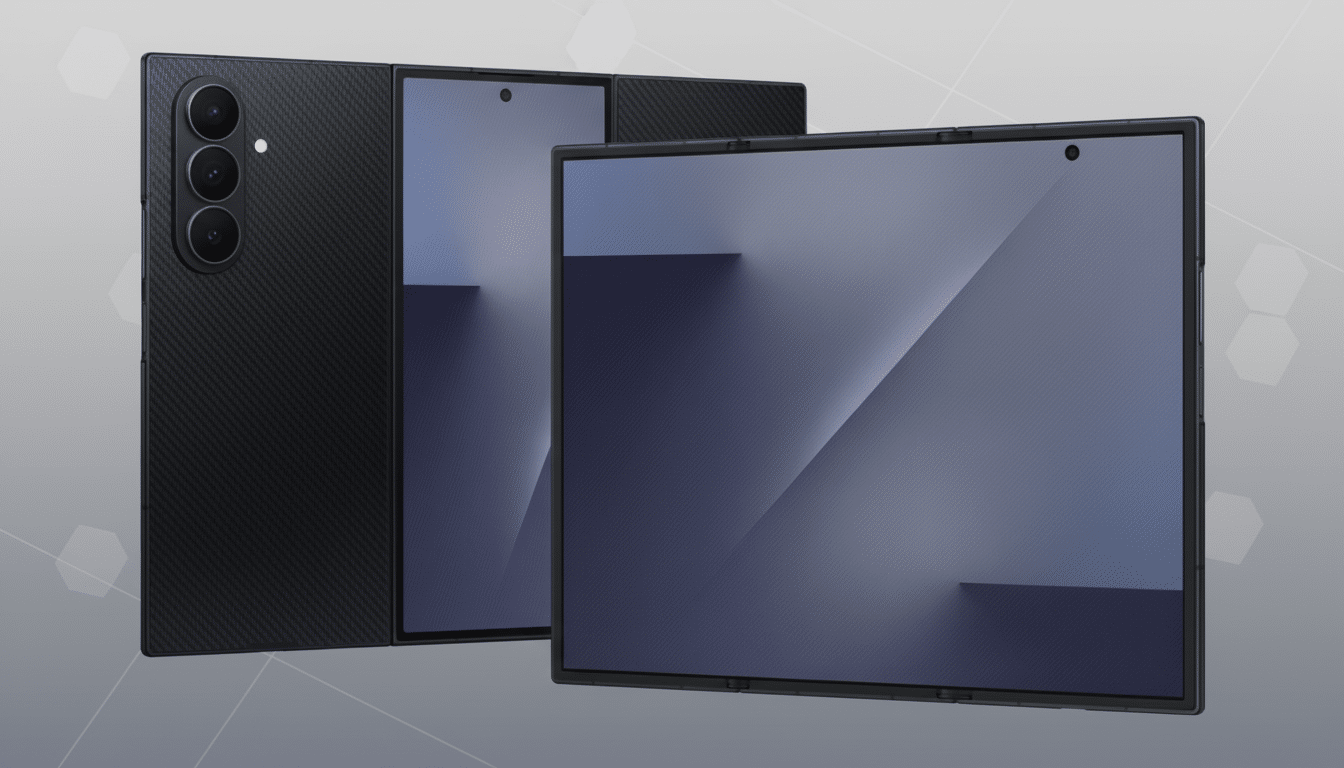
For heavy use, Samsung’s companion Second Screen app for PC also includes extremely useful controls to automatically reconnect the device, tweak aspect ratio, and, of course, a power option to dim the TriFold when inactive. You don’t need this secondary option—the built-in Windows casting panel is also available—but the extra sheen is nice in case you’re planning on using the feature to get work done while traveling or hot‑desking.
In practice, you really do get a second extended desktop, not just a single mirrored screen. That means you can park your email, chat, or reference docs on the TriFold while dedicating your main apps to the primary monitor. It works just like a normal wireless monitor; you can move your windows and orient it in any direction.
Performance and the practical limits of wireless display
Since Miracast frames are sent over Wi‑Fi, there will be some additional latency. In a typical office setting, input lag often falls in the 100–200 ms range—perfectly fine for spreadsheets, browsing, and dashboards, but somewhat lacking for twitch gaming or accurate color work. Quality for most Miracast sessions is negotiated to 1080p resolution with variable refresh based on network conditions and the capabilities of the source and sink devices.
Network quality is the swing factor. A Wi‑Fi 6 or 6E router will cut down on stutter and dropped frames, and keeping the phone and PC in line of sight doesn’t hurt either. The protocol can utilize Wi‑Fi Direct about 99 percent of the time; you do not need Internet access. On the other hand, crowded 2.4 GHz channels will manifest as jitter. You might require IT approval if wireless display casting is disabled in your company.
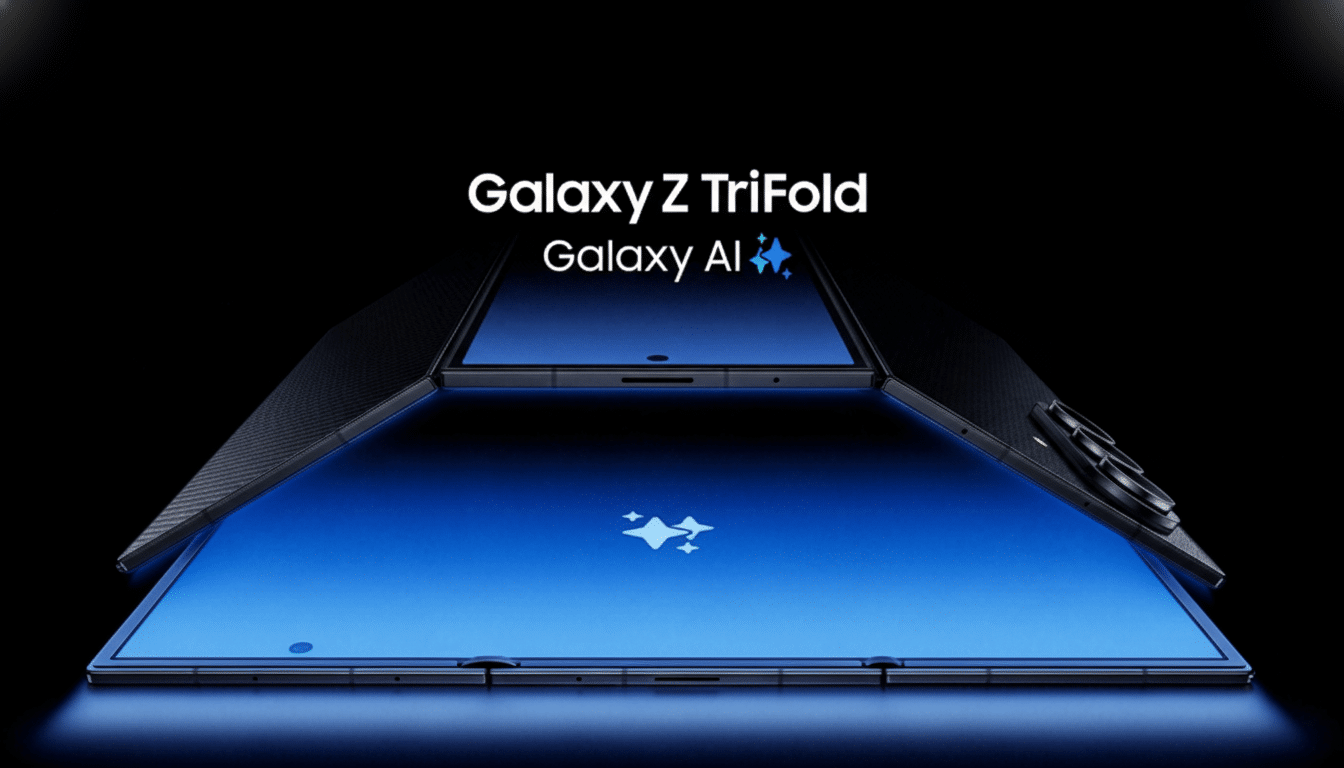
The other thing to consider is battery life. A large, bright OLED and decoding an uninterrupted video stream will drain the TriFold more quickly than standard phone use. Solutions are easy (plug into USB‑C power, dim the brightness), and a stand or an easel case to prop the device up to an agreeable angle can make it a sturdy travel monitor.
Why this matters for productivity and flexible workflows
Multiple screens have been proven to do wonders for productivity. A University of Utah and NEC study that is often cited said participants completed tasks up to 44% quicker using two displays, and many IT departments have built that knowledge into their standard desk setups. The TriFold extends that boast to hotel desks and coffee shops, squeezing a take-anywhere 10‑inch second screen into something you already tote.
Second Screen was previously a premium tablet-only feature from Samsung, including the Galaxy Tab S series. By bringing that to the TriFold, we’re blurring the phone-as-tablet line in a more practical way than specs on a slide. It works in conjunction with standalone Samsung DeX on the device and provides the reverse workflow if you’re anchored to a Windows laptop. Unlike wired options like portable USB‑C monitors or third‑party apps, the TriFold isn’t a cabled solution and doesn’t require real setup at all.
Setup tips and key reminders for the best wireless performance
- Turn on Wireless Display in Windows if you don’t see the casting option—it’s an optional feature in some editions.
- Leave the TriFold’s Second Screen page open when connected; otherwise the device isn’t discoverable.
- Use 5 GHz or 6 GHz spectrum, minimize nearby Wi‑Fi traffic, and lock the TriFold orientation before positioning windows.
- Set the TriFold to a desk‑friendly angle for daily use, and use the Windows + P shortcut to move apps between screens easily.
- In Samsung’s PC utility, tweak aspect and scaling controls until text size is comfortable.
- Remember your content is shared over local wireless—connect only on trusted networks or use Wi‑Fi Direct in public.
The bottom line: a flexible on-the-go second screen for PCs
Support for the Galaxy Z TriFold’s Second Screen makes a new, foldable form factor into an actual work tool that earns its spot in a bag. It’s not going to replace a color‑calibrated external display, but for everyday multitasking it’s one heck of a capable, always-with-you monitor for your PC.
