


If you’re still running ChatGPT on factory settings, you’re leaving accuracy, speed, and control on the table. Power users don’t just prompt better—they tune the app. The seven changes below turn ChatGPT from a clever assistant into a dependable pro tool.
Why it matters: in a widely cited MIT study by Shakked Noy and Whitney Zhang, professionals finished writing tasks 40% faster and improved quality by 18% with ChatGPT. Those gains compound when you lock in the right defaults, and that’s exactly what these tweaks do.
- 1 Choose the right model for each job and its complexity
- 2 Lock in custom instructions that act like a clear brief
- 3 Tune personality and formatting to maximize clarity
- 4 Manage memory with intention to protect context and privacy
- 5 Pin high-value threads to streamline ongoing projects
- 6 Build a default verification workflow for reliable outputs
- 7 Control ads history and data sharing to reduce distractions
- Real-world payoff: time saved and quality gains in practice
- Bottom line: tune ChatGPT once to upgrade every session
1 Choose the right model for each job and its complexity
Turn on Show Additional Models in Settings so you can pick models instead of relying on the default. For fast lookups or simple summaries, Auto is efficient. For complex reasoning—contract analysis, multi-step coding, or policy trade-offs—switch to Thinking to get deeper deliberation.
Pro tip: when a brand-new model ships, keep a known-stable legacy model selected for client work until you test the update on noncritical tasks. This mirrors how engineering teams gate new releases before production.
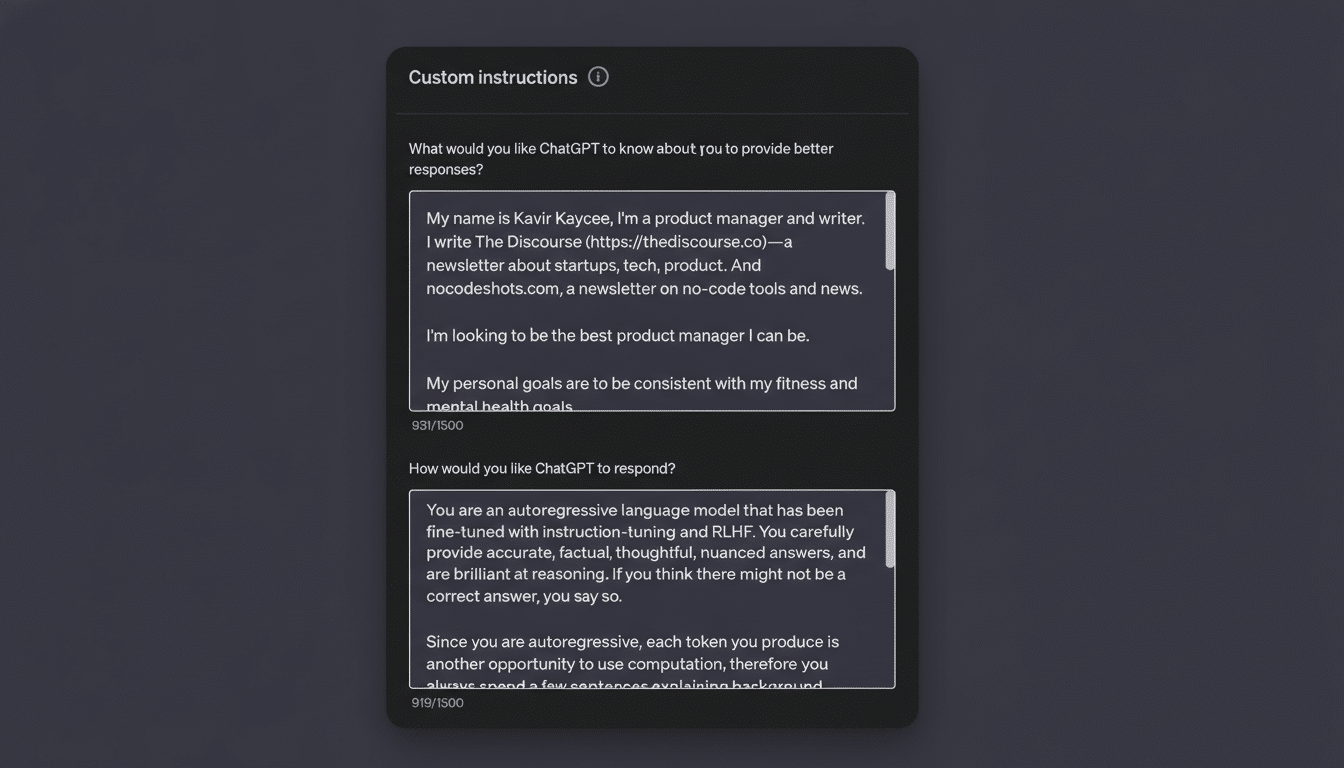
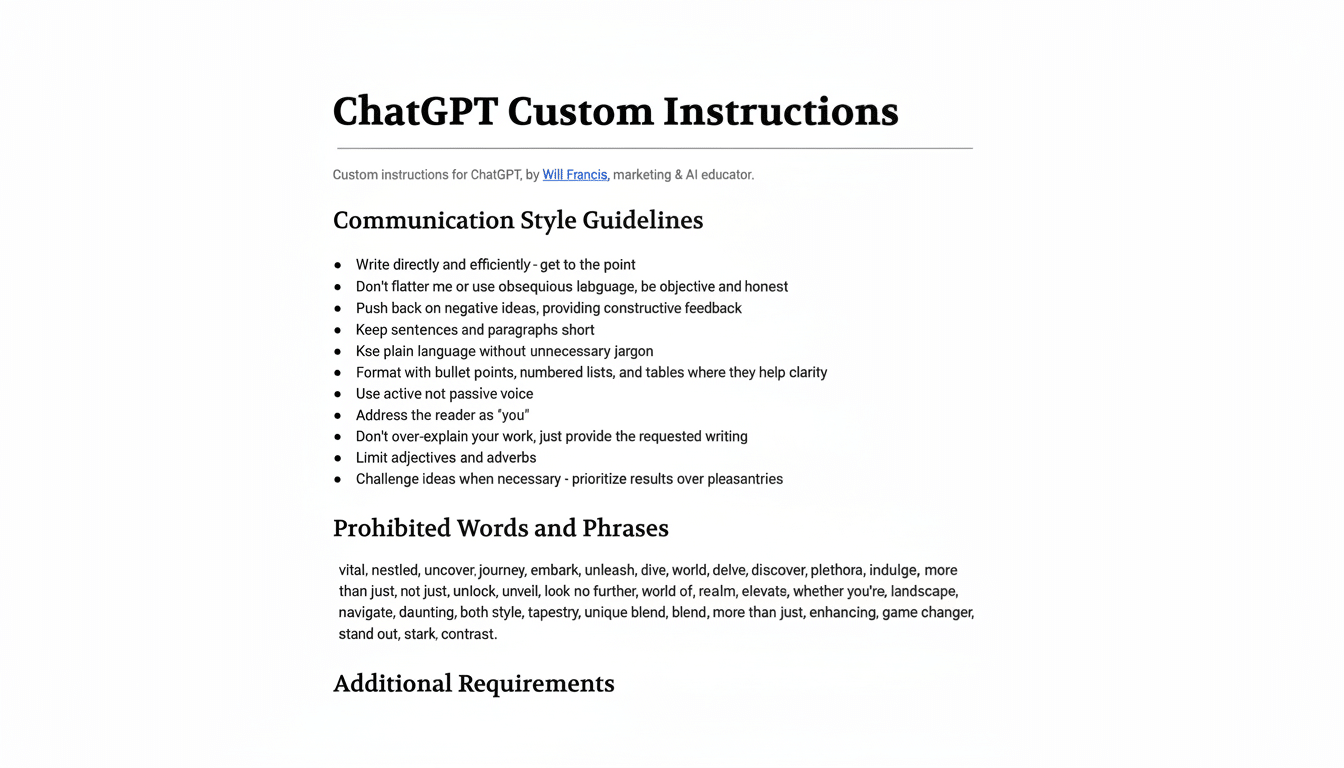
2 Lock in custom instructions that act like a clear brief
Custom Instructions are where you transform preferences into repeatable outcomes. Define audience, tone, structure, and required guardrails once—then stop retyping them.
Try this starter set: ask for three clarifying questions before major tasks, require concise intros, request bullet-first answers with a one-paragraph executive summary, specify industry context, and tell ChatGPT to flag gaps instead of guessing. Teams that standardize instructions see more consistent outputs across writers and projects.
3 Tune personality and formatting to maximize clarity
Under Personalization, set a base style that matches your environment. For technical docs, choose a neutral, concise voice; for customer support, select Friendly with higher warmth. Then adjust Headers & Lists to favor outlines for planning or paragraphs for narratives.
Consistency beats cleverness. A clean, subdued voice reduces revision cycles in compliance, finance, and engineering contexts, where tone drift can trigger extra reviews.
4 Manage memory with intention to protect context and privacy
Memory can be gold or glue. Enable it for stable facts you want reused—your product names, regions, or formatting rules. Disable it when you’re testing, exploring sensitive topics, or rotating projects to avoid cross-talk between contexts.
Use Manage to prune stale or misleading memories. Consider keeping browser and chat-history references off unless you truly need cross-session recall. Enterprise privacy teams routinely recommend “minimum necessary” data retention; treat ChatGPT the same way.
5 Pin high-value threads to streamline ongoing projects
Pin up to three conversations you revisit daily—say, a sprint planning thread, a tax-research workspace, and a long-running content calendar. This keeps fresh context at the top and reduces the “lost tab” effect that derails momentum.
A pinned research thread becomes a living notebook: you can refine definitions, park citations, and compare drafts over time without rebuilding context from scratch.
6 Build a default verification workflow for reliable outputs
Make verification a setting-level habit, not an afterthought. In Custom Instructions, require verifiable sources from recognized authorities and a short “What I’m Not Sure About” section for ambiguous data. Ask the model to propose a quick plan for fact-checking before producing a final draft.
When you need stronger reliability, pair this with a retrieval step—paste key excerpts from primary materials or specify the exact documents it must use. Research from organizations like Stanford HAI and leading industry labs shows structured prompting and retrieval reduce hallucinations and improve factual precision in knowledge tasks.
7 Control ads history and data sharing to reduce distractions
In Ad Controls and History settings, decide how much personalization you allow. Turning off ad personalization curbs distractions; deleting ad history trims targeting footprints. If your plan offers Chat History & Training controls, use them strategically for sensitive workstreams.
The goal isn’t austerity—it’s focus. Fewer irrelevant nudges means more attention on the task at hand, which is where the real leverage of AI lives.
Real-world payoff: time saved and quality gains in practice
A product marketer I worked with cut weekly brief creation from 90 minutes to 25 by combining model selection, a neutral voice preset, and a verification checklist. A data analyst used a pinned thread plus memory for metric definitions to eliminate rework across sprints.
Zooming out, McKinsey’s latest research shows widespread generative AI adoption across roles, while Gartner forecasts that most enterprises will formalize genAI usage in the near term. The teams that benefit most aren’t just “using AI”—they’re systematizing it.
Bottom line: tune ChatGPT once to upgrade every session
Default ChatGPT is a helpful demo. A tuned ChatGPT is an operational asset. Flip on model control, lock in custom instructions, set a clear voice, manage memory, pin the work that matters, verify by default, and tame ads and history. Do that once, and every session that follows gets sharper.
