


The Apple Watch is not just a fitness tracker — it’s an invisible productivity tool. And by moving some important workflows off your phone and onto the wrist, you reduce context-switching fatigue and the temptation of infinite apps. That matters: people require more than 20 minutes to return to a task after being interrupted, according to research by Gloria Mark at the University of California, Irvine. With glanceable complications and the Smart Stack, along with strong voice dictation, the Watch keeps your priorities in sight without stealing every moment elsewhere.
Taskmasters on your wrist: Todoist and Things 3
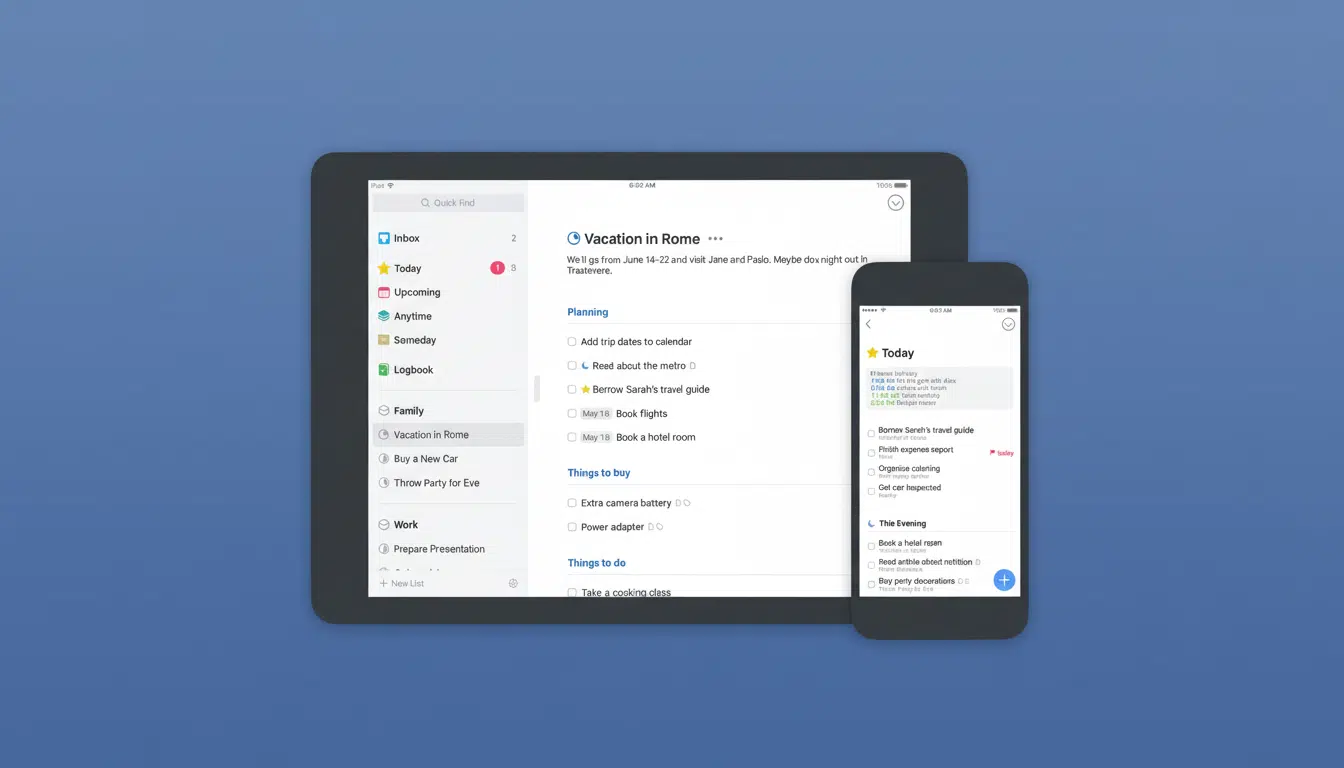
For most knowledge workers, the ultimate impact upgrade is a bumper wrist-first task manager. Todoist still stands out for its natural‑language input (‘email deck tomorrow 9am’), rapid voice capture, and complications showing your next task or daily progress ring. Things 3 is celebrated for its clean “Today” view and Areas to separate work and personal tasks, and its Apple Watch app is quick, works offline, and offers an ideal way to tick off items on your wrist in meetings or during a commute.
- Taskmasters on your wrist: Todoist and Things 3
- Frictionless capture for ideas on the go
- Calendar superpowers spotlighted with Fantastical
- Flow timers to reduce context switching at work
- Develop habits that actually last with Streaks
- Time tracking without having to touch your phone
- Sleep well to work better with AutoSleep insights
- Pro tips: complications, widgets and Siri
- How to choose the right mix of Apple Watch apps
Pro tip: assign a complication to “Next Up.” When your day is divided into micro‑windows between calls, that decision you can make at a glance does wonders for decision fatigue.
Frictionless capture for ideas on the go
Drafts fills the gap nicely because you still do not have a native notes app on watchOS. A single tap opens a new note to dictate, scribble, or use your keyboard and then syncs with your iPhone and Mac. Have Drafts default to an Inbox for capturing ideas before you sort them, at the least. On‑device dictation has become fast and accurate on newer models, making wrist capture suitable even in loud hallways between meetings.
Calendar superpowers spotlighted with Fantastical
Readability and speed are the two things Fantastical’s Watch app gets right. The “Up Next” view displays your immediate appointment and the weather; the List view presents a lean agenda for a few days ahead. Natural language input (“coffee with Priya next Tue 8:30am, 45m downtown”) adds events in a jiffy on the spot, while quick‑add saves time when you’re on the move. Turn on a Fantastical complication and your watch face becomes a living status panel for time‑blocking.
Flow timers to reduce context switching at work
Session‑based work beats task thrashing. Focus — the pomodoro‑style timer app — allows you to start a work interval right from your wrist, nudges you with haptic feedback when it’s time for a break, and gives you a progress update without touching your phone. Short, conscious breaks prevent “vigilance decrement,” something cognitive science long ago established: sustained attention decreases over time. Wearable‑first timers keep you honest without begging for distraction.
Develop habits that actually last with Streaks
Streaks is habit formation done right: clean, tap‑friendly circles on the Watch, Health integration for automatic completions (steps, workouts), and flexible schedule options for “3x per week” goals.
The psychology is simple — having visible streaks re-emphasizes momentum — and the Watch turns daily compliance into a two‑second wrist check.
Time tracking without having to touch your phone
If you’re a consultant, freelancer, or just someone who bills hours for a living, Timery (a popular Toggl Track client) brings start/stop timers and favorites to your wrist. Complications might include presenting the current project in order to minimize “timer leakage.” In our case, it cut logging friction from the Watch to near zero, giving us better timesheets at the close of any week.
Sleep well to work better with AutoSleep insights
Productivity isn’t about doing more; it’s about doing better with a brain at rest. AutoSleep delivers rich, Watch‑native insights into your sleep—how much time you actually spend in bed or asleep, for example, but also how efficiently you slept (or didn’t), trends in heart rate, and a useful “readiness” indicator to inform the rest of your day. RAND Europe has connected too little sleep to gargantuan productivity losses vis‑à‑vis national GDP; more personally, a gentle bedtime nudge and a next‑morning readiness glance can signal whether it’s great deep work or be forgiving of light tasks.
Pro tips: complications, widgets and Siri
Turn your watch face into a cockpit: earmark one complication for “Next Task” (Todoist or Things), one for calendar (Fantastical), and another to display the timer of a Focus in progress. Add Watch widgets for capture from Drafts and a habit snapshot from Streaks to the Smart Stack. Dictate hands‑free using Siri as the text you speak is transformed into written text in real time, and recognize detected text using the Action button. On a new form factor, the double‑tap can power you through confirmations and keep you in flow.
How to choose the right mix of Apple Watch apps
One to two tools per job: a task manager (Todoist, Things), a calendar (Fantastical), a focus timer (Focus, Focus Keeper), and either a habit tracker (Streaks) or a time tracker based on your role. Don’t overlap with existing answers to reduce cognitive load. Apple also still reigns supreme over the smartwatch market, which means continued development for high‑quality Watch apps; take advantage of that ecosystem, keeping your setup lean.
The litmus test: if an app does not help you act within five seconds on your wrist, it belongs on your phone. The top productivity apps for Apple Watch help make work feel less like, well, work by transforming attention into action one glance at a time.
