The moment FRP appears after a factory reset, many users suddenly lose access. This lock asks for the old Google account, which people cannot recall correctly. When details are forgotten, the phone becomes stuck, creating worry. Moreover, different Android brands follow different FRP paths, making the whole process even harder.
Some users attempt random tricks, but many methods fail or work only sometimes. That’s why a clear guide is needed for Xiaomi and all other Android models. Here, tools like Dr.Fone Screen Lock provide simple steps to unlock your device. This guide explains simple ways to remove FRP, so you can restore your phone.
- Part 1. Why FRP Activates on Android and Xiaomi After a Factory Reset
- Part 2. 2 Common FRP Bypass Solutions for Xiaomi and Other Android Phones
- 1. Xiaomi/Redmi/Poco‑specific FRP Tools via Fastboot or “Connect with MiAssistant.”
- 2. On‑Device Tricks (no PC)
- Part 3. Why Dr.Fone Screen Lock Outperforms All General FRP Bypass Methods
- Part 4. Complete FRP Removal Tutorial Using Dr.Fone Screen Lock
- Conclusion
Part 1. Why FRP Activates on Android and Xiaomi After a Factory Reset
After a factory reset, many users wonder why their phones ask for a Google account. So, understanding why it appears from the points below helps choose the right Android phone unlocker:
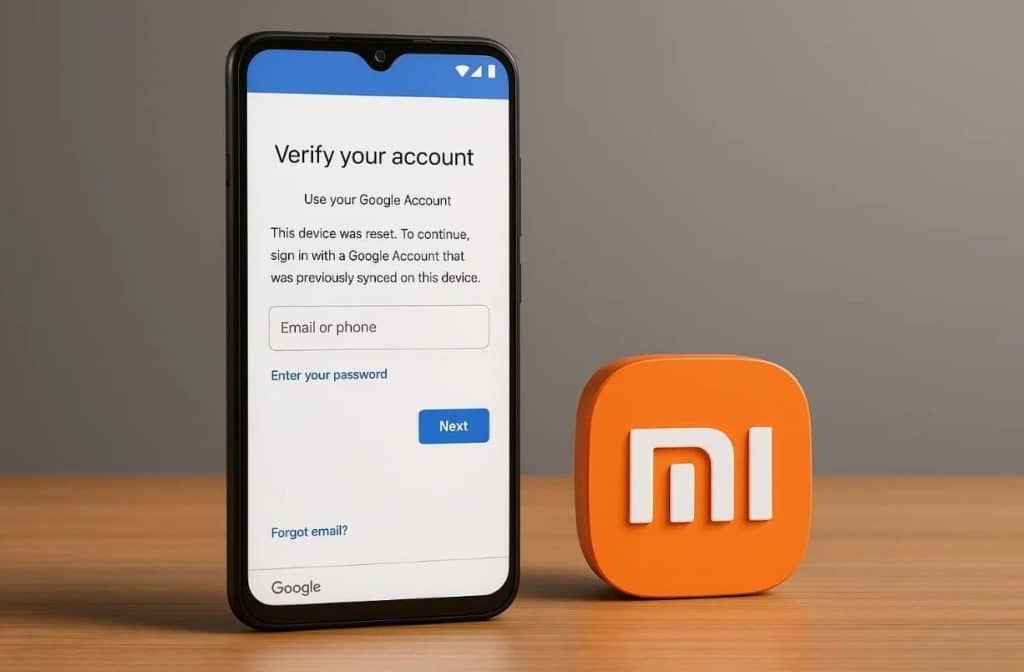
- Security Measure: FRP is a security measure designed to protect personal data from theft. It activates automatically after a factory reset on most Android devices.
- Google Account: Your Google account details are linked to the phone for verification purposes. Without these details, the phone will remain locked after a reset automatically.
- Device Theft: FRP helps prevent stolen phones from being used by others. Thieves cannot access or reset a device without the original account credentials.
- Factory Reset: A full factory reset triggers FRP to protect the previous owner’s information. This prevents someone from easily bypassing the lock without proper authorization.
- Network Verification: It sometimes uses internet verification to confirm the Google account after a reset. Without a connection, unlocking attempts may fail even with the correct credentials provided.
Part 2. 2 Common FRP Bypass Solutions for Xiaomi and Other Android Phones
Many users search for simple methods to unlock their devices after a reset, especially Xiaomi models. Thus, this part shows 2 ways to remove FRP Xiaomi and other Android phones:
1. Xiaomi/Redmi/Poco‑specific FRP Tools via Fastboot or “Connect with MiAssistant.”
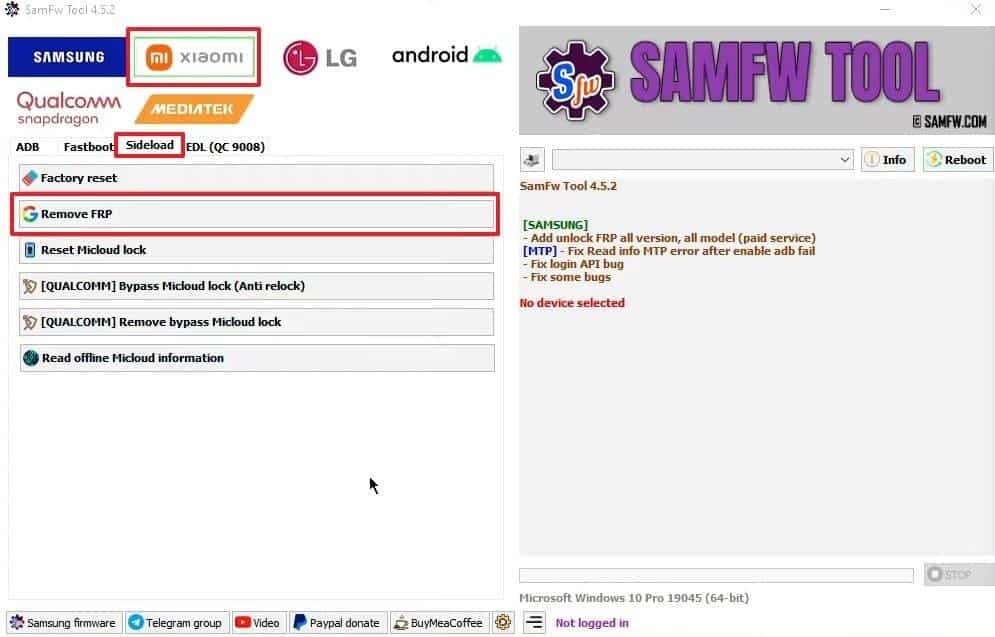
SamFw Tool is a simple and effective solution designed to remove FRP from Xiaomi devices. It works through a computer connection and helps unlock phones within minutes. The tool supports various Android brands, including Xiaomi and Poco, with consistent performance. Plus, it can remove FRP Xiaomi devices by using fast commands and automatic detection. So, you can go through the steps below to bypass FRP through SamFw:
Step 1. When you power off your phone, keep pressing both the “Power” and “Volume UP ” keys. As you enter the “Recovery Mode,” opt for “Connect with MiAssistant” and link your phone to the PC.
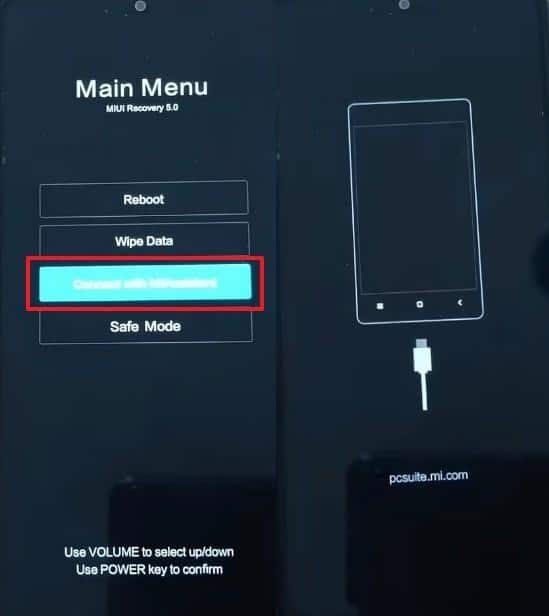
Step 2. Upon running the “SamFw tool,” choose “Xiaomi” and access the “Sideload” tab. Afterward, press “Remove FRP,” and it will start bypassing FRP from your phone.
Cons
- It does not guarantee device safety during the FRP removal procedure.
- Some users face difficulty installing the required drivers before starting unlocking.
2. On‑Device Tricks (no PC)
This trick offers a quick way to unlock phones without using a computer. These methods rely on native options like accessibility shortcuts, browser paths, or helper apps. They help users reach hidden settings and create a simple path for bypassing FRP. Anyhow, adhere to the following steps to use this Android phone unlocker trick:
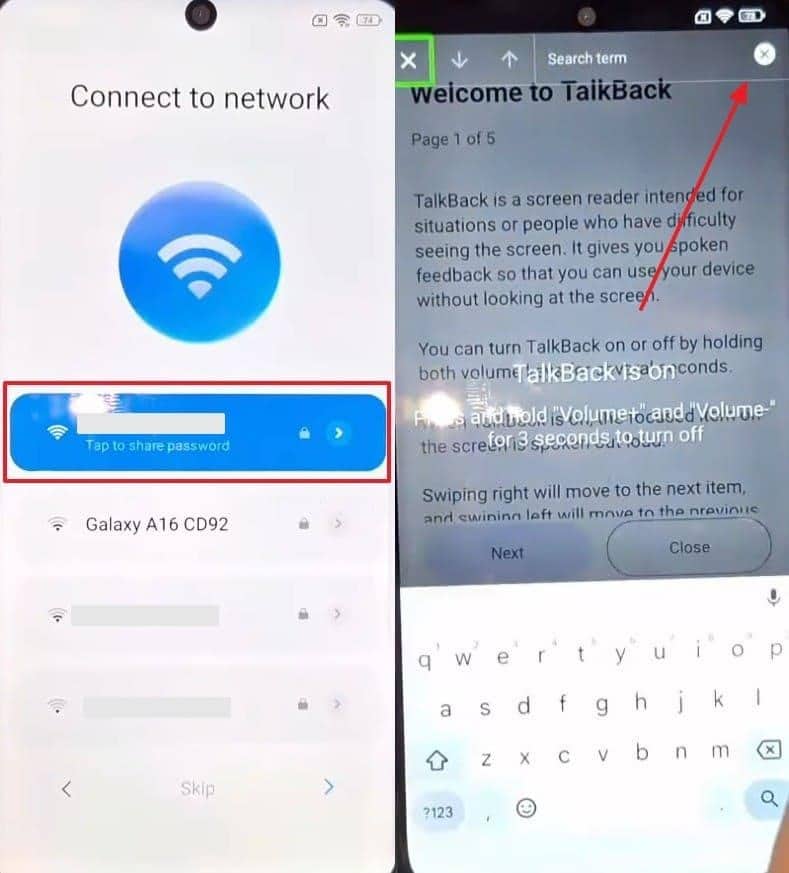
Step 1. Start the phone setup and connect it to your “WiFi” and go back to the welcoming screen. Afterward, keep pressing the “Volume Up” and “Volume Down” keys to enable “Talkback.” Then, type “L” and tap “Screen Search” and turn off the “Talkback” by pressing the same keys.
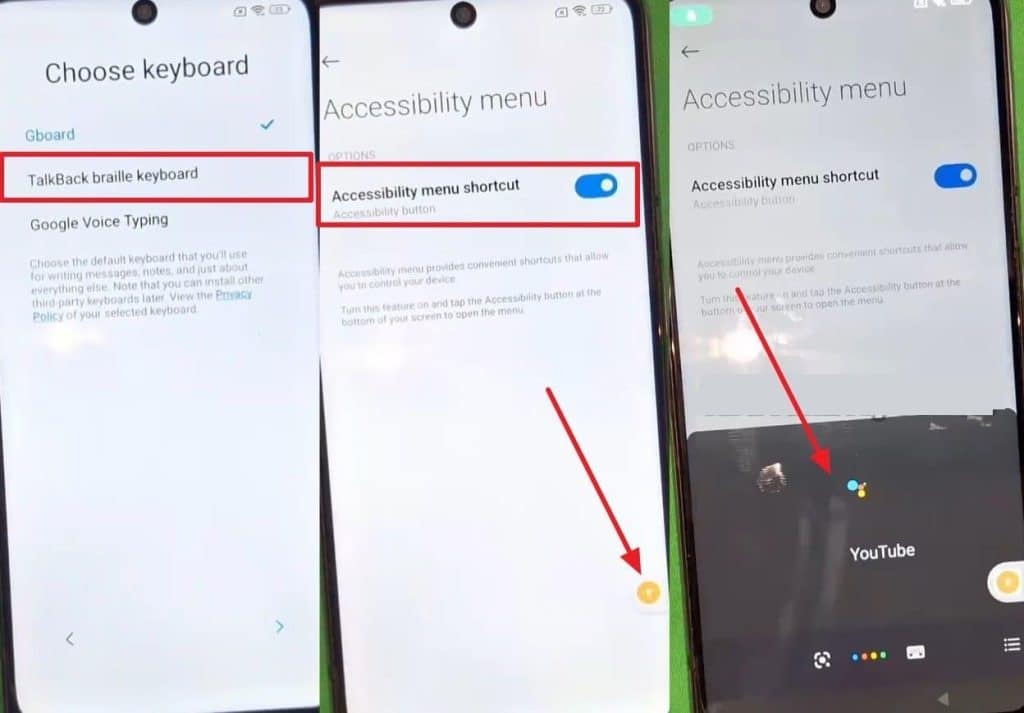
Step 2. Again, set up your phone to access the “Choose Keyboard” screen and tap “Talkback Braille Keyboard.” Follow the displayed prompts to reach “Connect to Networks” and tap “Add Network > Network Name > Turn On Accessibility Settings > Accessibility Menu > Allow.” Press the “Accessibility icon > Google Assistant” and say “Open YouTube.”
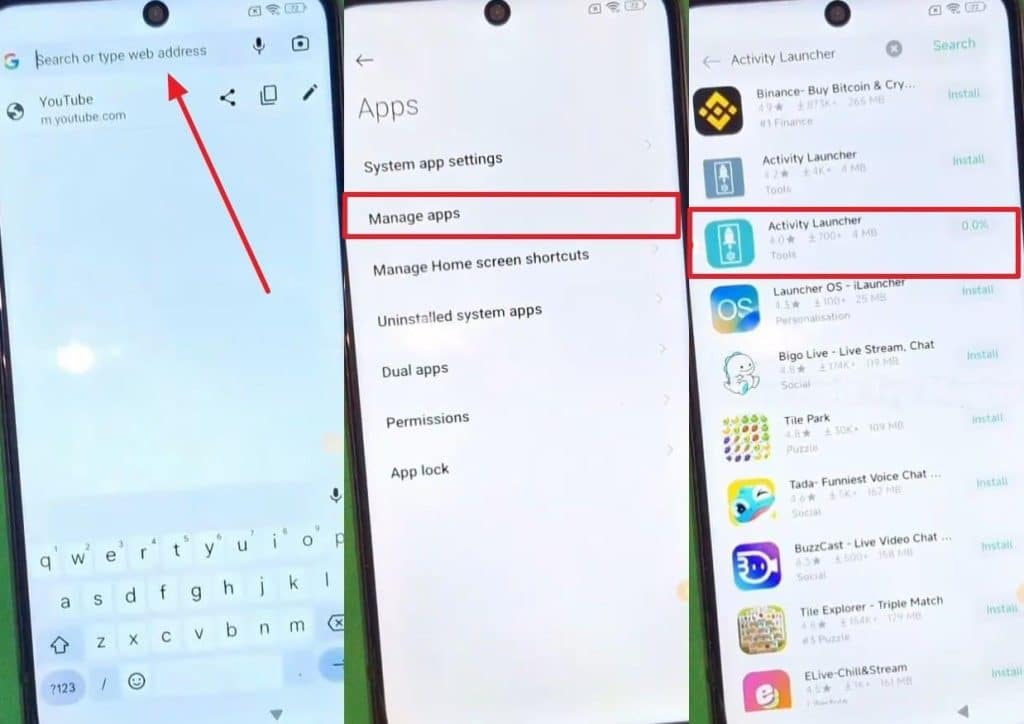
Step 3. As it is opened, tap the browser link and type “https://abufarizfrp.blogspot.com/” to access it. Tap “Menu” to opt for “Google Account Bypass” and swipe up to choose “Settings.” Head to “Apps > Manage Apps > Find Apps” to search and install the “Activity Launcher” app. Upon launching this app, type and choose “Security Core Components > Second Space Fingerprint > Skip,” and your device will bypass FRP.
Cons
- It requires multiple steps, which can confuse beginners during the unlocking setup.
- Results are not guaranteed because different phone models react differently to tricks.
Part 3. Why Dr.Fone Screen Lock Outperforms All General FRP Bypass Methods
Dr.Fone Android Phone Unlocker offers an effortless solution to bypass FRP locks on Android. It supports Android 16 and newer devices, ensuring compatibility with most phones. Moreover, the tool provides a near 100% success rate during FRP bypass attempts reliably. Users can even bypass FRP of more than 15 major brands, including Xiaomi and POCO. During bypassing, it automatically selects the correct unlocking method to bypass FRP.
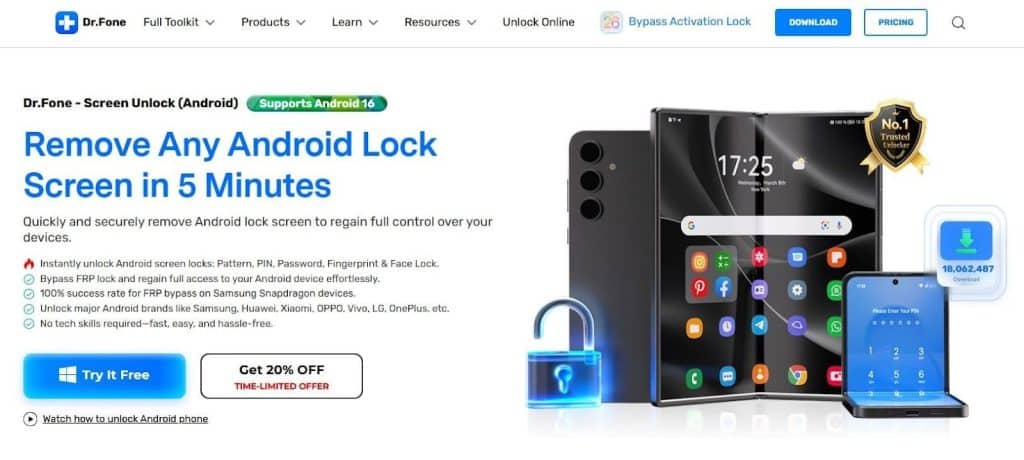
Plus, Dr.Fone Screen Lock allows entering the recovery menu and connecting through “MiAssistant” easily. Its unlocking process completes within minutes, saving time compared to manual methods. The tool can also remove all screen locks on Android devices, including mainstream models. For that, it also supports over 2,000 Android phone and tablet models for widespread device coverage.
Key Features
- Dual Methods: Offers 2 unlocking modes for Xiaomi, Redmi, and POCO devices to bypass FRP.
- Device Safety: Keeps your device firmware safe from bricking during the FRP unlocking process.
- Fast Processing: Completes FRP or screen unlocking tasks within just a few minutes for all models.
Use Cases of Dr.Fone Screen Lock
- Forgot Credentials: Users forget their Google login details after resetting their phones. This tool helps regain access quickly without needing complicated manual unlocking steps.
- Used Phones: Many people buy used phones that remain locked after factory resetting. The tool removes leftover screen or FRP locks, restoring complete control.
- Damaged Screen: If your phone screen stops responding, the unlock process becomes difficult. The software bypasses screen locks without needing manual touch access or a visible display.
- Business Devices: Companies manage multiple devices locked by different employees after job changes. Dr.Fone Screen Lock helps businesses regain access without wiping essential company data.
- Multiple Users: Shared phones used by family members may get locked due to forgotten codes. The program resets screens to allow quick re‑access for every user.
Part 4. Complete FRP Removal Tutorial Using Dr.Fone Screen Lock
Dr.Fone works as a powerful Android phone unlocker designed for easy FRP removal. It helps users unlock their phones fast without needing advanced technical knowledge. With safe processing and quick performance, it ensures reliable results every single time. Thus, take guidance from the steps below to remove FRP via this tool:
Step 1. Launch the Dr.Fone Xiaomi FRP Bypass Tool
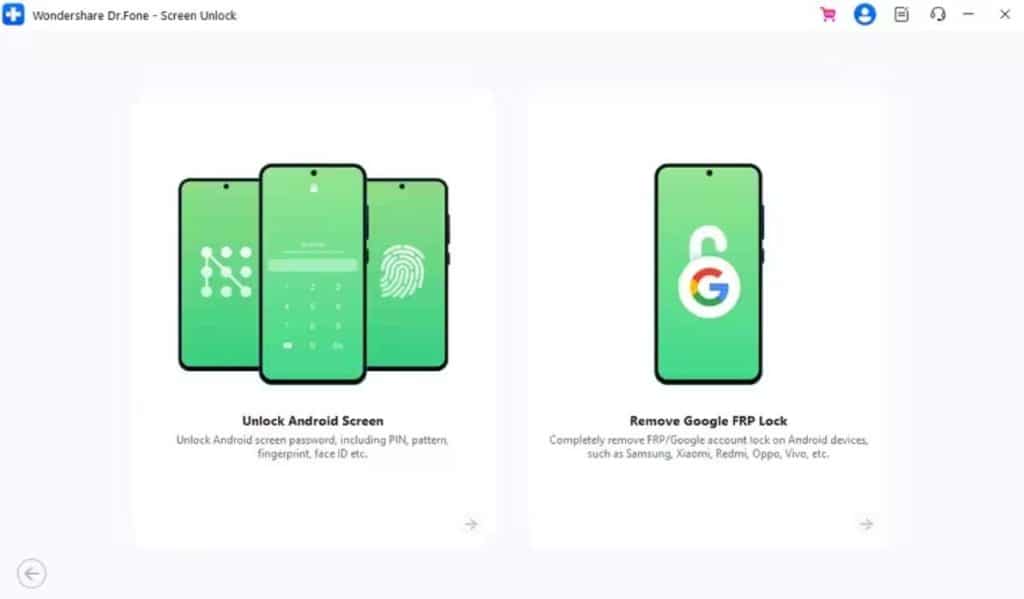
Open the “Toolbox” section to head to the “Screen Unlock” section and proceed with “Android.” On the following screen, choose the “Remove Google FRP Lock” option to continue.
Step 2. Select Xiaomi or Another Android for FRP Removal
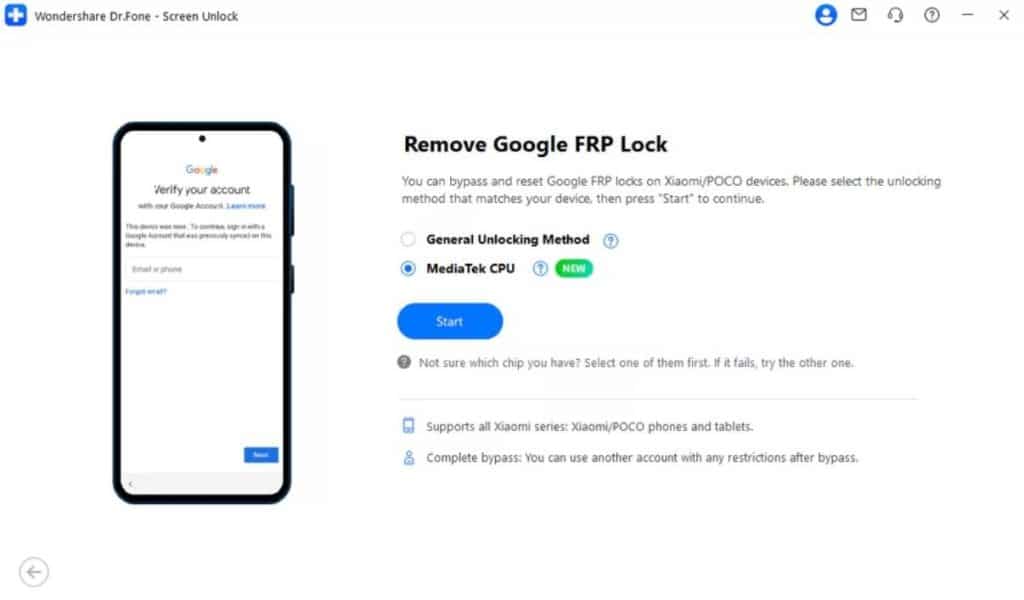
Going ahead, pick “Xiaomi” as your device brand and click the “Start” button. Connect your phone to the computer, choose “MediaTek CPU,” and hit “Start” again. The software will commence downloading the necessary drivers for your device.
Step 3. Complete the FRP Bypass on Your Xiaomi
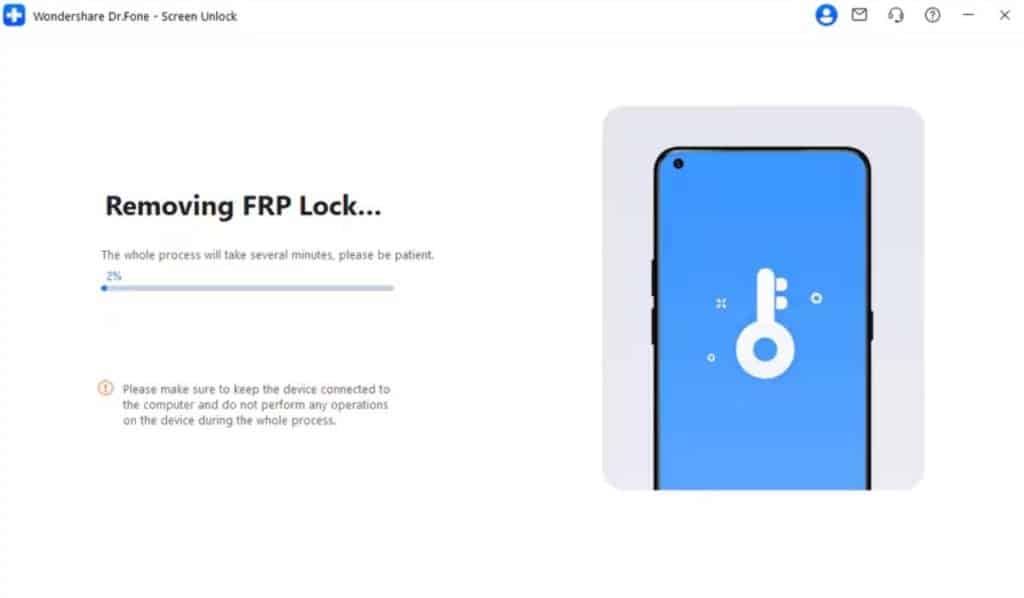
After a while, you will be guided by the screen to perform the required actions. Dr.Fone will process the FRP bypass and display a confirmation message once it’s complete.
Conclusion
To sum up, removing FRP can feel confusing, especially when different phones use different steps. Still, users can regain access and set up their devices again with the right guidance. This guide explained why FRP appears and how to unlock Xiaomi and other Android models safely. For a faster and safer experience, using a trusted tool becomes important. That’s why Dr.Fone Screen Lock is the best choice for easy and reliable unlocking.