


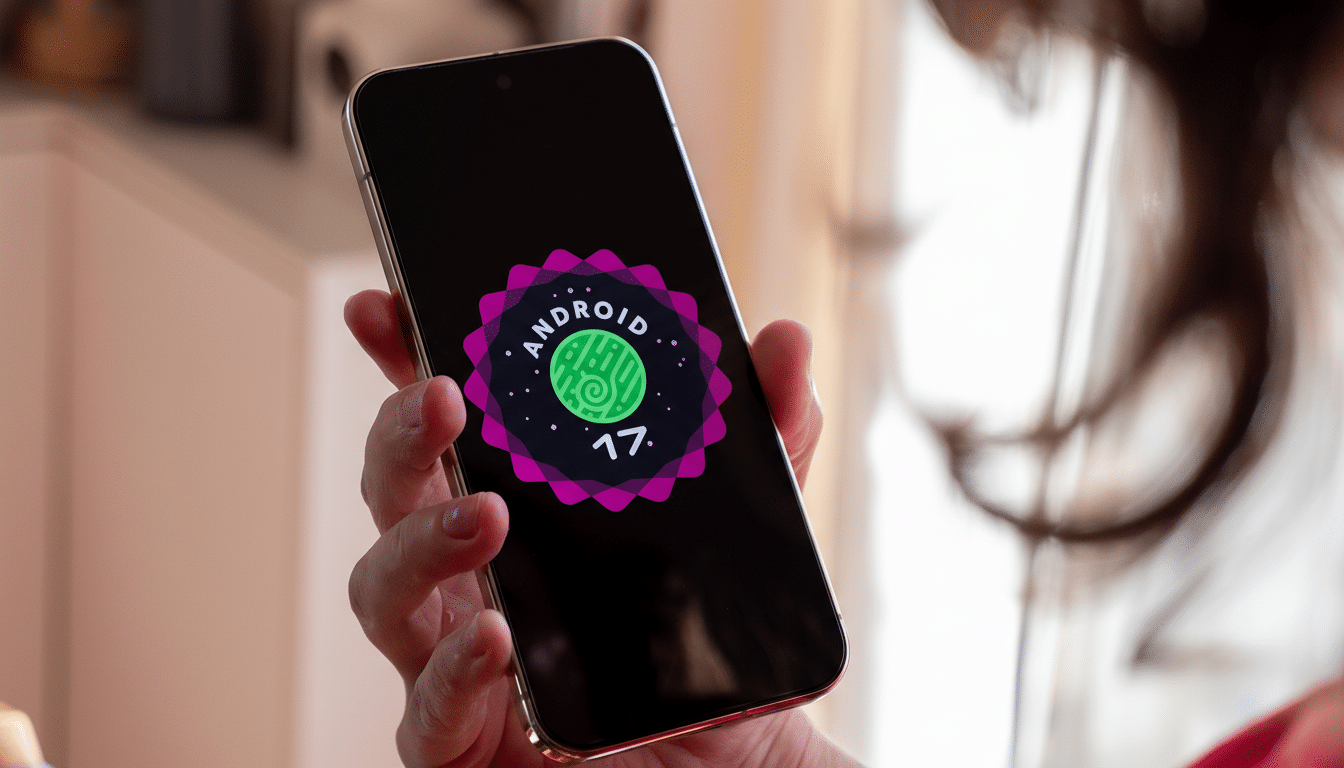
Google has released Android 17 Beta 1 for Pixel, opening the door for early adopters and developers to test what’s next for Android. You can enroll today and pull the update over the air to a compatible device, with the usual caveats that come with unfinished software.
This first beta is a modest step rather than a radical overhaul, but it sets the foundation for features and polish that will arrive in subsequent builds. If you’re curious and comfortable with potential bugs, it’s a straightforward install.
- What Android 17 Beta 1 Is and What It Means for Testers
- Eligible Pixel devices for Android 17 Beta program
- How to install the Android 17 Beta 1 on your Pixel device
- What changes to expect in Android 17 Beta 1 right now
- Backup and rollback guidance before testing the beta
- Pro tips for early testers to get the most from the beta
![description in this exact format: Alt Text: [description here]](https://www.findarticles.com/wp-content/uploads/2026/02/android_17_beta_1_edited_1771369279.png)
What Android 17 Beta 1 Is and What It Means for Testers
Beta 1 marks the transition from closed developer previews to a public-ready test build. Historically, Google follows Beta 1 with several updates that move toward platform stability before final release. Expect iterative improvements, more visible UI tweaks, and broader app compatibility testing as the cycle progresses.
Early reports highlighted by Android Central point to subtle interface changes rather than sweeping features. That’s typical for an initial beta: it’s about getting the plumbing right and collecting feedback at scale.
Eligible Pixel devices for Android 17 Beta program
If you own a Pixel from the Pixel 6 generation or newer, you’re likely covered. That includes A‑series models and the Pixel Tablet. Google’s recent flagship phones and its tablet line are part of the official beta program, making it easy to enroll and update over the air.
Carrier restrictions can occasionally delay availability, so if the update doesn’t appear right away, give it a little time before trying again.
How to install the Android 17 Beta 1 on your Pixel device
- Step 1: Enroll in the Android Beta Program using the Google account tied to your Pixel. Look for the option to opt in your specific device.
- Step 2: On your Pixel, go to Settings then System then Software update and tap Check for update. The Android 17 Beta 1 build should appear shortly after enrollment.
- Step 3: Download and install the update over Wi‑Fi with your battery well charged. Your phone will reboot to finish installation.
Advanced users can also sideload the beta via ADB or flash a factory image from Android Developers, but the Beta Program route is the easiest and most reliable for most people.
What changes to expect in Android 17 Beta 1 right now
The initial build focuses on polish. Per reporting from Android Central, the home screen search bar gets a slimmer look, and users can finally remove the At a Glance widget from the home screen. Under the hood, early betas typically include refinements to performance, animations, and system services that aren’t flashy but set up bigger features later.
Use the preinstalled Feedback app to report bugs and usability issues. This data helps Google and app developers tune compatibility and performance ahead of the stable release.
Backup and rollback guidance before testing the beta
Before you enroll, back up everything. Use Google One or your preferred backup method for photos, messages, and app data. Betas can introduce battery drain, app crashes, or connectivity hiccups—great for testing, not ideal for a daily driver.
If you need to leave the beta, unenrolling from the Android Beta Program will return you to the stable channel. Important note: Opting out while on a beta build typically triggers a full device wipe during the rollback. Plan ahead so you don’t lose data.
Pro tips for early testers to get the most from the beta
Consider installing the beta on a secondary device. Keep at least 10 GB of free storage to accommodate system updates, and ensure your phone has ample battery or is plugged in during installation.
After updating, give the system a few hours to reindex and settle—background optimizations can initially make the device feel warm or slow. Check the Android Developers release notes for known issues before you enroll so you’re not surprised by app compatibility quirks.
If you’re eager to follow along with changes, subsequent betas usually land on a predictable cadence. The earliest builds prioritize stability and app testing, while later ones surface user-facing features and lock down APIs for developers.
Bottom line: If you’re comfortable with a few rough edges, Android 17 Beta 1 is a low-friction way to preview Google’s next Android chapter on your Pixel today.
