


In a setting that goes unused by many, and is hiding in plain sight, you can make an immediate difference in your speed of work: rotate your display into portrait.
Even though most of us tend to shoot video in landscape mode out of habit, the difference a portrait orientation can make is remarkable: it minimizes swiping or scrolling, cuts context switching, and makes document-heavy work tasks feel lighter.
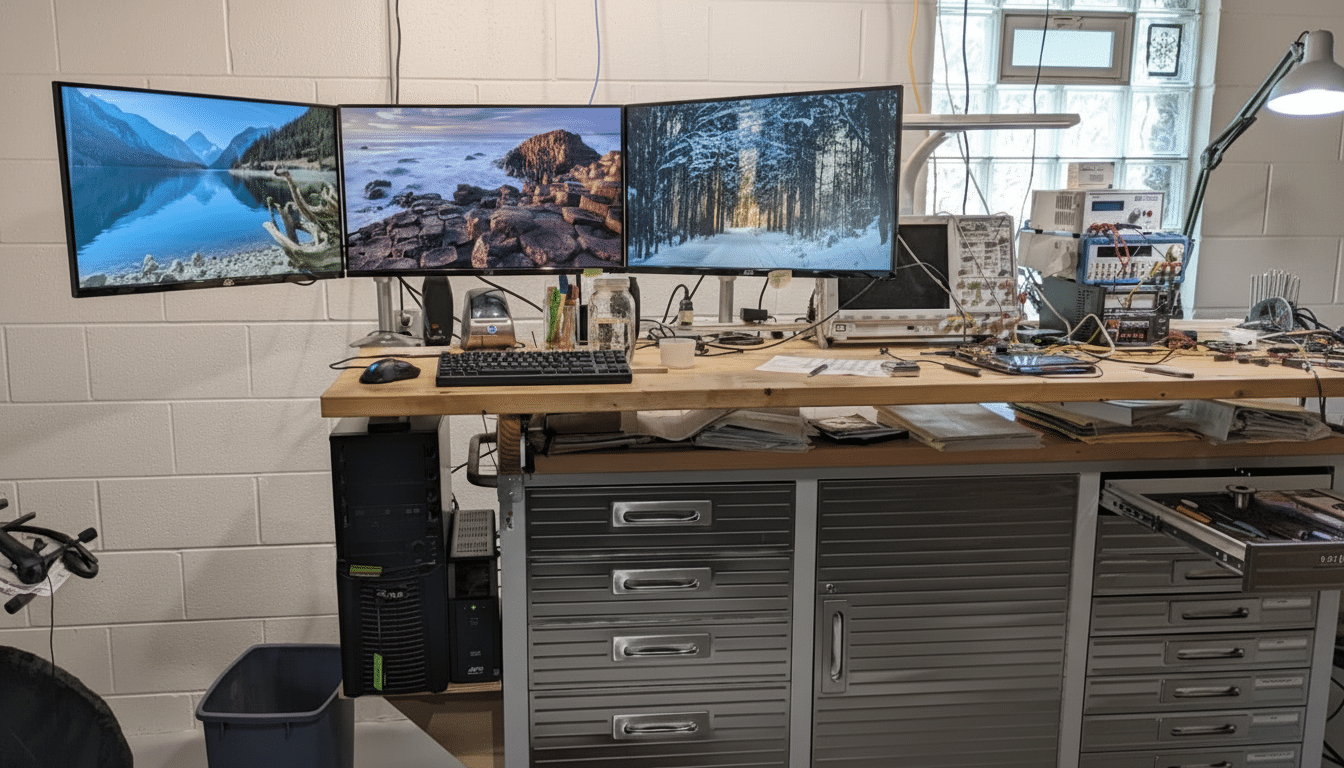
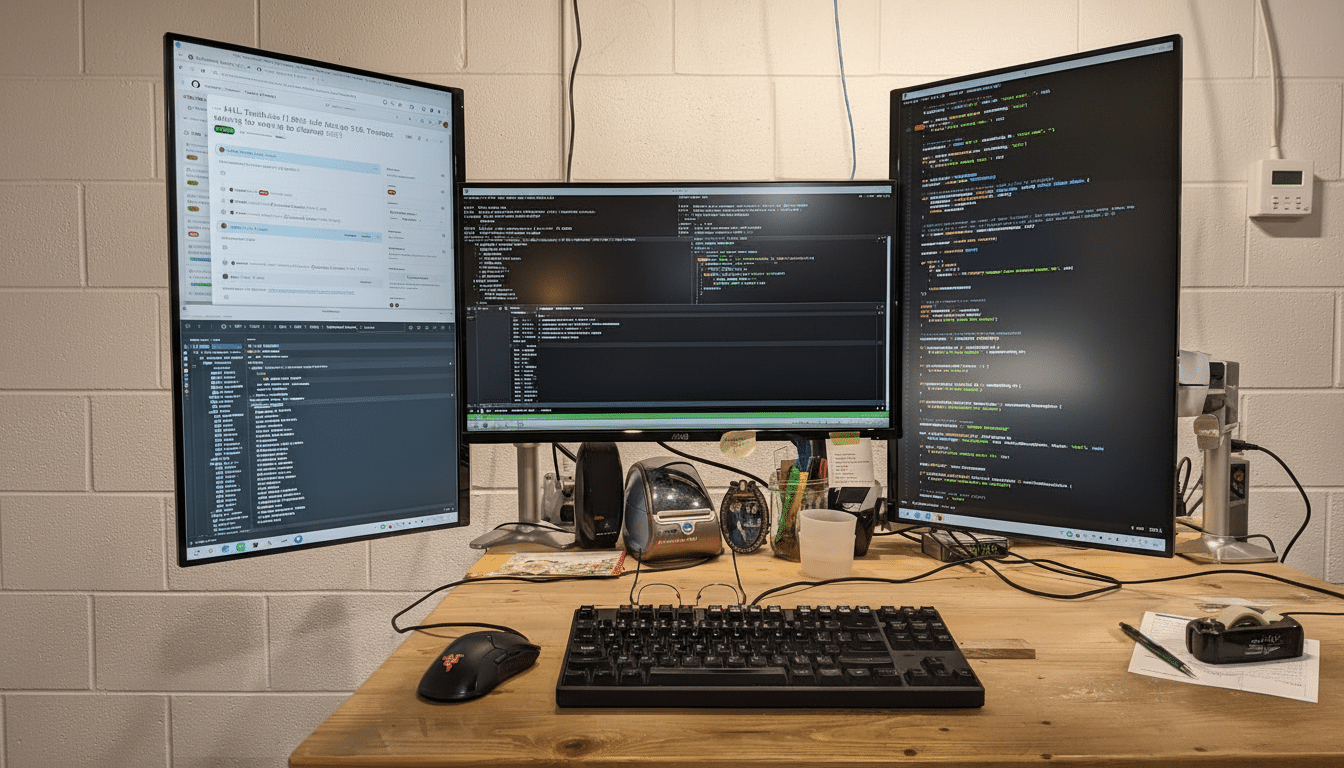
The payoff is surprisingly measurable. On a typical 16:9 screen, you’re looking at increasing the vertical pixels by around 78% (e.g., 2560 pixels tall instead of 1440 found on a fancy-pants I’m-a-boss-have-an-eyepatch-I-now-fly-first-class model). Just that gets you many more lines of code, paragraphs, or messages in view at a time — without having to scroll.
What the Portrait Setting Actually Changes
Productivity isn’t just sitting on a large screen; it’s how information fits your work. Portrait mode is the natural form of documents, PDFs, and long web pages. It gives you more context right on your screen — headers, footnotes, and paragraphs being edited — so you can make decisions more quickly.
Landscape +90–110 SLOC doesn’t cut it compared to 50–60 for most developers, so a vertical secondary display works best. And writers, analysts, and lawyers can all find the experience profitable when going through multipage briefs or research. Usability researchers at Nielsen Norman Group have long reported that lowering interaction costs such as excessive scrolling improves reading flow, and portrait mode is an easy way to achieve exactly that effect.
It also helps with multitasking. A narrow, tall display is great for stacking Slack or Teams on top of a browser tab or a live log window over dashboards so you can see two streams at once with fewer window shuffles.
How to Turn Portrait Orientation On in Seconds
Windows: Go to Settings > System > Display, then under Scale and layout, select Display orientation and choose Portrait. Windows will make you confirm before saving, which is good because the controls may feel “sideways” at first. If you have an Intel-integrated system, hotkeys like Ctrl + Alt + Arrow are supported or can be turned on in Intel Graphics Command Center.
macOS: Under System Settings > Displays, select the external display (if you have several), and set Rotation to 90°. Note that on some panels, macOS will only show rotation when the display declares support; a pivot-capable monitor or one mounted via VESA is usually enough.
Linux: Inside GNOME, navigate to Settings > Displays and switch Orientation. If you like the shell, xrandr -o left or xrandr -o right do a quick one-step toggle (most recent Xorg only).
Many 2‑in‑1 laptops auto-rotate with built-in sensors. If your convertible’s constantly turning when you don’t want it to, simply toggle Rotation Lock in Windows or turn off automatic rotation in your OS settings to keep things firmly planted on a desk.
Ergonomics and Monitor Size Matter for Comfort
Portrait mode does, yes — if your posture does too. OSHA and ISO 9241 guidelines suggest positioning the top line of text at or slightly below eye level with a neutral neck. Lift the monitor high enough that your eyes are not looking up at it — but straight ahead.
Steelcase ergonomists say that lifting the chin, or neck extension, causes long-term stress on the neck and shoulders. That is why super-sized vertical panels can be a double-edged, yet self-defeating, sword. For a typical desk, a 22–28 inch monitor in portrait looks and feels great: it’s big enough to see plenty of StreetMap or writing windows without feeling cramped, and can be viewed from about an arm’s length.
Use any pivot stand or VESA arm to customize height, distance, and tilt. Feel free to tweak OS scaling and font sizes — boosting text by 10–25% often offers better legibility, but you don’t end up squandering that vertical space.
Real-World Wins and Where Portrait Displays Excel
- Programming: Code portrait, app or docs landscape is a solid setup. With its deep vertical context, you’ll be catching those related functions and imports without jumping between files as often.
- Writing and research: Use landscape for a draft while you park references, PDFs, or citation managers on the portrait screen. Longform editing stops being about chasing the cursor and becomes a way to refine ideas.
- Operations and comms: Put ticket queues, logs, or chat threads at the top, and a live runbook or dashboard below. Less window swapping, less mental reset.
Pitfalls and Quick Fixes When Using Portrait Displays
Tall and narrow is not always loved by software. Some legacy apps or websites won’t reflow gracefully. And if a page seems cramped to you, you can always widen your browser window a bit or use reader mode for tidier columns.
Color and lightness can appear different after you rotate the display. Do a quick calibration in your OS or GPU utility to normalize white balance and contrast. Gamers take note: some titles also lock rotation; keep one display in landscape if you’re a heavy player.
The bottom line: portrait aspect is one of the quickest, most reversible tweaks to buy you some vertical space — often the most precious dimension in a modern workflow. You can reclaim more of your day with a sensibly sized monitor and ergonomic setup, without buying an entirely new PC.
