


Microsoft is introducing a new Auto-Categorization feature in the Windows 11 Photos app that utilizes on-device AI to organize your photos into useful buckets such as screenshots, receipts, identity documents, and notes. If your camera roll is littered with memes, receipts, and vacation pics, this is the first built-in tool on Windows meant to help you automatically declutter it — and you can now give it a shot as long as you meet a few conditions.
What Auto-Categorization actually does in Photos
Auto-Categorization reviews your local and cloud-backed photo folders and thinks of them in terms of predefined categories in the Photos app’s left pane. Think of it as real-time smart folders for the things you tend to track down most often: that boarding pass, a product serial number, a screenshot you took last week.
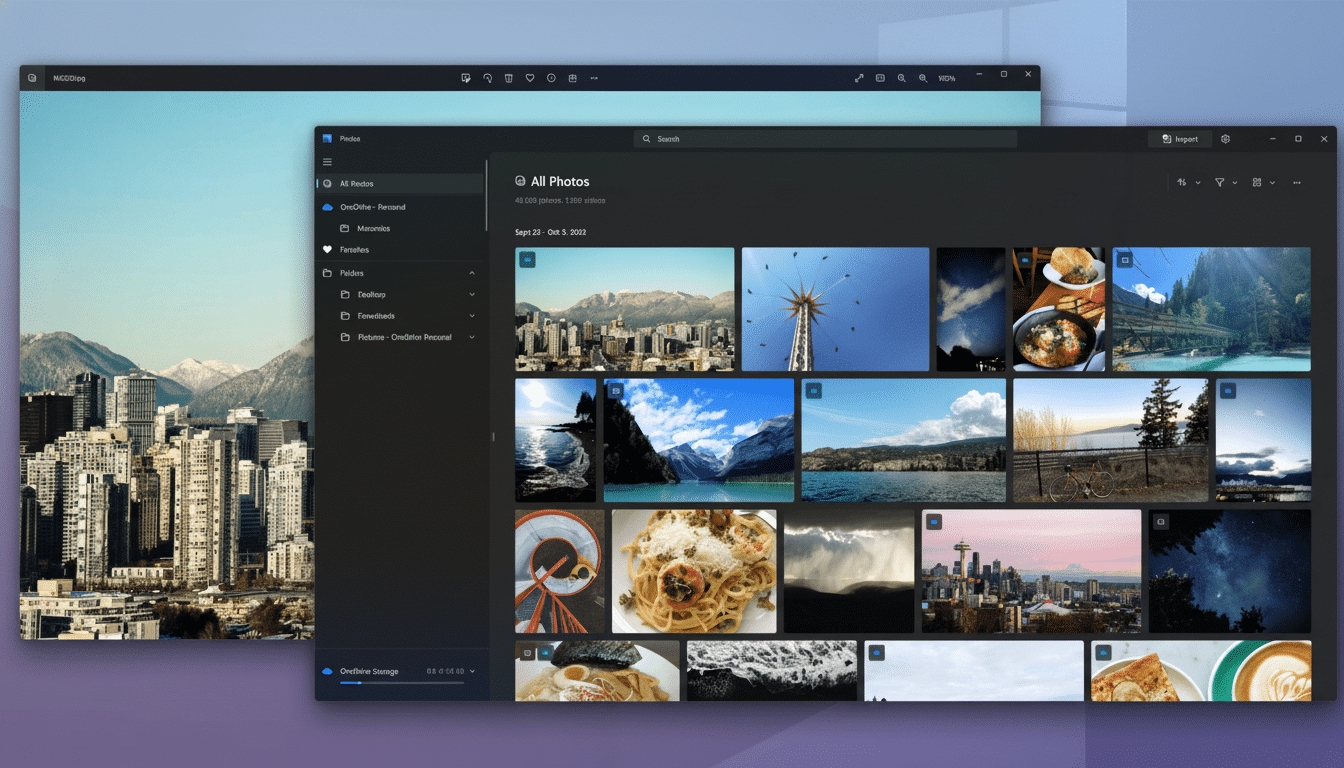
Because the model learns from visual and textual cues, it can identify items in any language. This is the case even if the wording on, say, a passport or driver’s license isn’t in English. During early testing on Copilot+ PCs, classification happens on the device’s neural processing unit (NPU), which means it’s fast, power-efficient, and doesn’t require you to upload your gallery for cloud inference.
The current scope is a deliberately conservative one — screenshots, receipts, IDs, and notes — concentrating on clear, high utility. Anticipate Microsoft adding more categories over time, as it gathers feedback through the Windows Insider Program.
How to try Auto-Categorization now on Windows 11
- Check your hardware: You’ll need a Copilot+ PC, such as more recent systems built around an NPU rated at about 40 trillion operations per second. These can range from the latest Surface Laptop to new thin-and-light models from major OEMs that have on-device AI features.
- Join the Windows Insider Program: Sign in with your Microsoft account and choose to become an Insider on the Copilot+ machine. Features like Auto-Categorization usually land in Canary or Dev first, polish there, then get promoted to Beta as they stabilize.
- Update Windows and Photos: Ensure that you’re running the latest Insider build of Windows. Next, open the Microsoft Store, hit Library, and select Get updates — this will retrieve the latest version of Microsoft Photos. The feature starts rolling out to Insiders in the later stages.
- Turn it on in Photos: Open Photos, locate a banner asking if you’d like to try Auto-categorize, then select Turn on. If you don’t get the prompt, visit Settings in Photos and turn on Auto-categorize (phrasing may differ with preview builds).
- Let indexing take its time: The initial pass can take from a few minutes to several hours depending on your library size and disk speed. On a contemporary Copilot+ laptop, an assorted library of 10,000 images can be classified within a few hours. You can still use your PC — processing takes place in the background.
PC privacy and control for Auto-Categorization in Photos
Auto-Categorization functionality is intended for processing on-chip on Copilot+ hardware. In other words, the NPU processes content on-device and doesn’t have to send it to the cloud for classification. You always control it: turn off the feature any time, exclude folders in your Photos settings, and delete specific items from a category if needed.
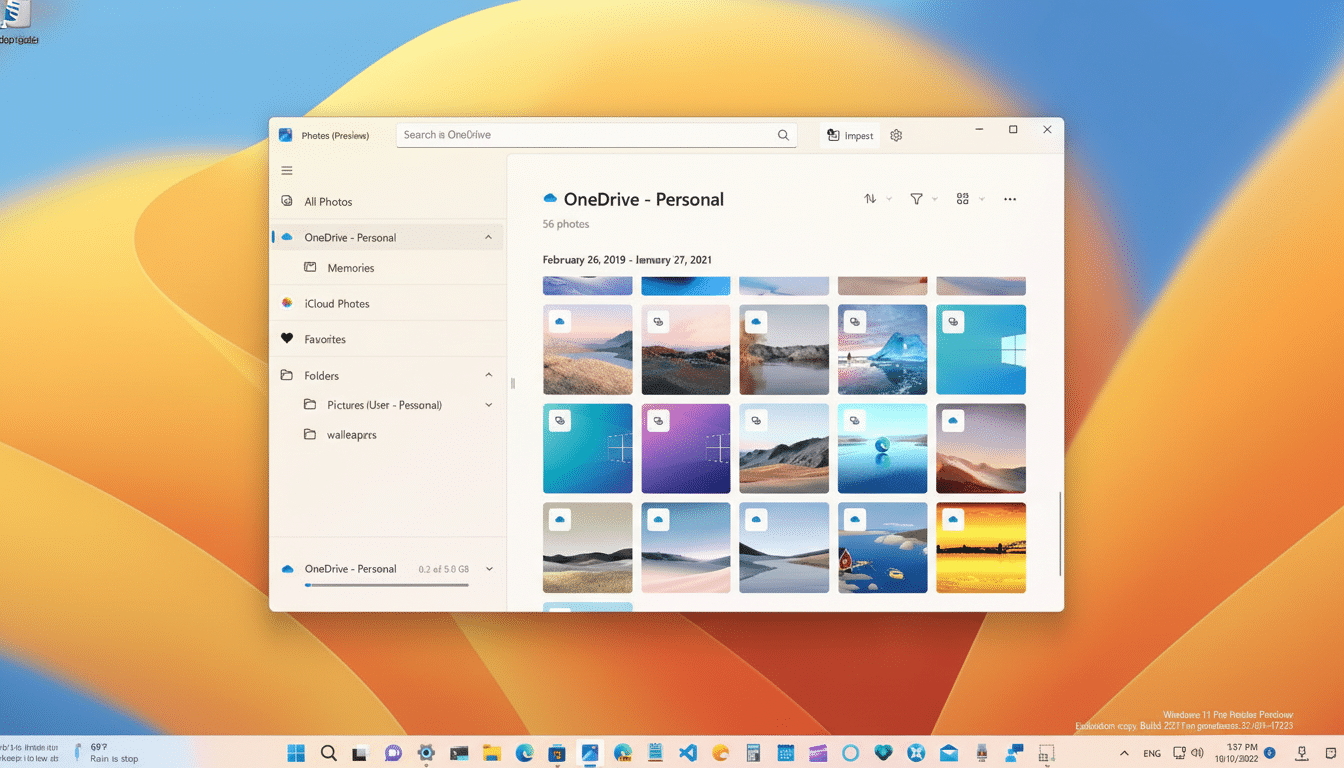
Since the categories are static in this preview, you can’t create new, customized labels yet. The smaller scope, though, does help accuracy — particularly with tricky material like bills and handwritten notes, whose text and layout cues are critical.
Why it matters, and how it compares to rivals today
Windows users have always taken advantage of search by date or filename, which falls apart when you’re after something very specific as quickly as possible. By bringing high-value categories up front, Photos lowers the time-to-find for daily tasks — expensing a coffee, finding a serial number, or grabbing a screenshot for a support ticket.
Competitors are also establishing similar norms about what to expect: Google Photos can automatically categorize screenshots and documents; Apple Photos can identify receipts and IDs with on-device intelligence. Microsoft has the edge with close integration to Windows, OneDrive, and the system NPU; this reduces latency and is battery-saving when compared to cloud-only pipes.
Pro tips for a clean finish when using Auto-Categorization
- Trim loud folders: Remove scanned app cache or messaging downloads you don’t need to be scanned.
- Reorganize sources: Before using the app, bring all your main photo folders under Photos > Settings > Sources so the index will be complete.
- Keep your PC plugged in: The first indexing pass is more aggressive while on AC power and when the device is idle.
- Review edge cases: Handwritten notes and crumpled receipts can be challenging — fix any misclassifications to help Photos learn your habits over time.
Microsoft has been gradually implementing AI features in Photos — background replacement, object cleanup, super resolution — but Auto-Categorization may be the most user-friendly update for the masses right now. If you have a Copilot+ PC (preferably one running the latest Insider build, where we’re fixing some bugs specific to this device), I’d recommend turning it on today and seeing how quickly that photo chaos turns into something useful.
