


Personal files don’t stay private by accident. With breach costs topping $4 million on average according to IBM’s latest Cost of a Data Breach report, I treat local documents, IDs, financial records, and project files as assets that deserve real defenses — not just whatever protection ships with an operating system. Below are seven apps I rely on to lock down, encrypt, and safely store private files. Most are free, all are proven, and together they close the most common gaps I see in everyday file security.
The Seven Apps I Trust for Private Files
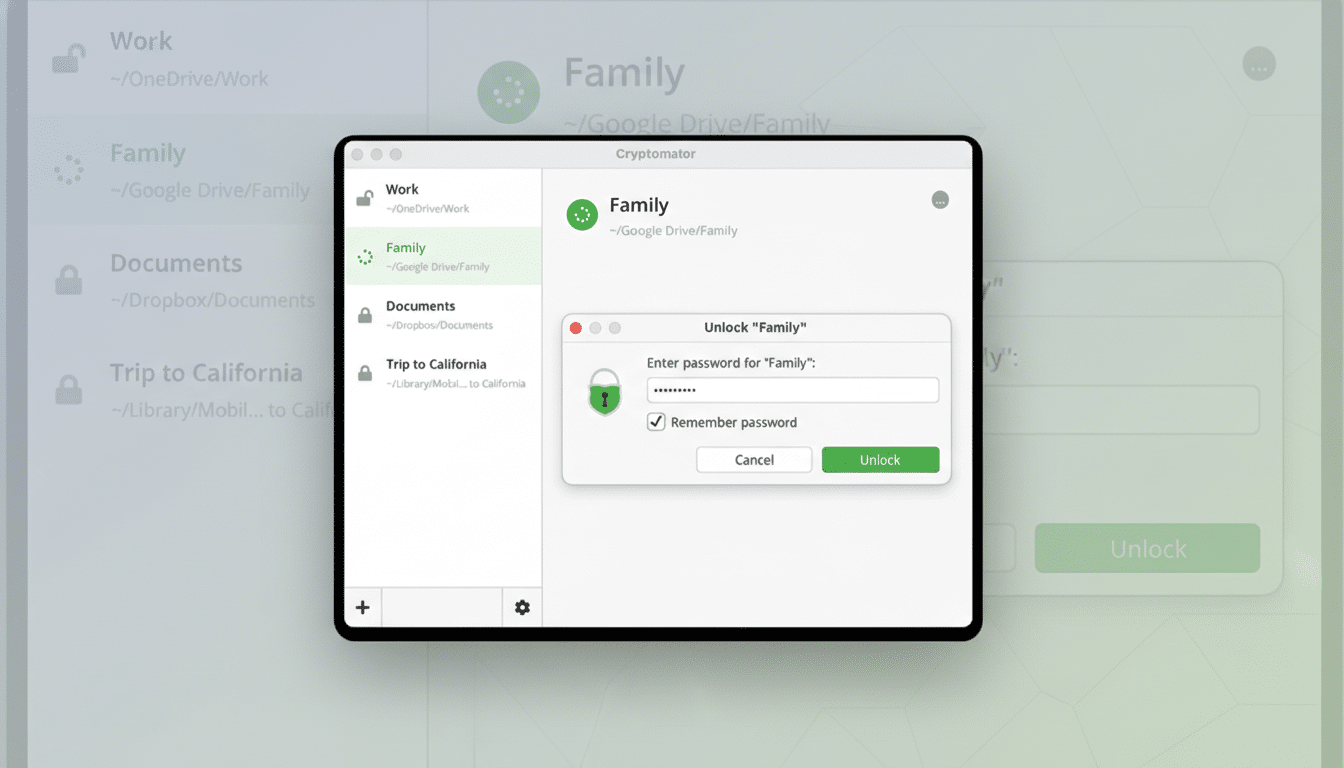
Cryptomator: If you use cloud drives, this is table stakes. Cryptomator wraps your files in client-side AES-256 encryption before anything touches Dropbox, Google Drive, OneDrive, or WebDAV. Filenames and folder structures are encrypted, and the project is open source with a public audit track record. Desktop apps are free; the mobile apps are inexpensive and worth it if you access sensitive docs on the go. For me, it neatly solves the “I want cloud sync without trusting the cloud” problem.
VeraCrypt: For vault-style storage on a computer you control, VeraCrypt is the standard. It creates encrypted containers or entire encrypted drives using modern modes like XTS-AES, with options to cascade ciphers and tune key-derivation strength. It’s open source, cross-platform, and fast on modern CPUs with AES acceleration. I use it for large archives and project folders that never need cloud exposure, and for detachable containers I can move between machines.
Nextcloud: When I want the collaboration of a workspace without third-party data mining, I self-host Nextcloud on my LAN. With user controls, file sharing, server-side encryption, and optional end-to-end encryption for especially sensitive shares, it becomes a private Google Workspace analog I can audit. It also helps reduce the attack surface by removing a public-cloud dependency. The bonus: strong community support and a rich app ecosystem for documents, calendars, and more.
KeePassXC: Best known as a password manager, KeePassXC doubles as a secure vault for attachments — scans of IDs, recovery keys, contracts, and license files. Databases are protected with AES-256 or ChaCha20 and hardened with Argon2 key derivation. Because the vault is a single encrypted file, I can sync it via my storage of choice and still keep all sensitive content client-side encrypted. It’s a tidy way to keep documents and their related credentials in one place.
The Vault: On Apple devices, The Vault is a polished option for storing confidential documents, photos, and notes with strong encryption and biometric unlock. It supports duress codes and quick force-locking, which matters if you travel or carry work material on a phone. It’s not free, but the one-time price undercuts many subscriptions and gives you a consistent UX across macOS and iOS for files you absolutely want under your sole control.
Censor: Redaction is notoriously easy to get wrong — too many “black box” PDFs still reveal text when copied or searched. Censor, a lightweight Linux tool, cleanly removes content and metadata from PDFs rather than masking it. I use it when I must share documents but need to eliminate account numbers, signatures, or personal information. After redaction, I export a new copy and spot-check by searching for the removed strings to confirm they’re truly gone.
DocVault: Phones leak data through convenience. DocVault counters that by corralling IDs, invoices, and other sensitive documents into a single, locked app on Android with biometric or PIN access. It’s not a full encryption suite, but it narrows exposure by moving private files out of general-purpose galleries and downloads. I treat it as the “travel wallet” on my handset: quick to open when I need it, and closed off from everything else.
Why These File Security Tools Work Best Together
I aim for defense in depth. Redact first with Censor to remove anything that should never be shared. Store and sync only in encrypted form with Cryptomator or a VeraCrypt container. Keep a local-first hub via Nextcloud to cut third-party risk and simplify permissioning. Place recovery keys, PDFs of vital IDs, and service credentials inside a KeePassXC database so access depends on a single strong passphrase and key file. On mobile, DocVault and The Vault ensure sensitive items aren’t scattered across apps that auto-backup by default.
Practical Tips To Maximize File Protection And Privacy
Build a threat model. Decide what you’re protecting, from whom, and on which devices. Then match the tool: VeraCrypt for large offline archives, Cryptomator for cloud-facing folders, KeePassXC for small attachments tied to logins.
Use strong keys. Favor long passphrases and modern key derivation like Argon2 where available. NIST guidance continues to support AES-256 and well-vetted implementations over exotic or proprietary schemes.
Separate environments. Keep a “clean” workstation for vault management and updates. Avoid installing encryption tools on machines you routinely lend out. Consider hardware security keys for OS logins and password manager unlock where supported.
Verify outcomes. After redaction, search the final PDF for removed terms. After setting up a vault, test restore from backup. After enabling encryption, confirm that cloud providers only see ciphertext and meaningless filenames.
Keep it current. The Verizon Data Breach Investigations Report consistently attributes a large share of incidents to credentials and misconfigurations. Regular updates, MFA on all accounts tied to storage, and periodic audits of who has access matter as much as the apps themselves.
Bottom Line: Layered Encryption Keeps Private Files Safe
No single app will save you from sloppy habits, but this stack makes it easy to do the right thing by default. Redact what you must, encrypt everything else, minimize trust in third parties, and keep your most private files where only you hold the keys.
