


Samsung Secure Folder has matured from a Knox experiment into one of the most effective privacy tools on Galaxy phones, giving you a hardware-backed vault for apps, photos, and documents that you don’t want mixing with the rest of your device. If you’ve wondered what it does, how it keeps data safe, and the smartest ways to use it, here’s the expert walkthrough.
What Secure Folder Actually Is and How It Works
Secure Folder creates an encrypted, isolated space on your Samsung phone that operates like a second user profile. Apps inside this space run separately, keep their own data, and are invisible to the rest of the system until you authenticate with a PIN, password, pattern, or biometrics.
- What Secure Folder Actually Is and How It Works
- How to Enable Secure Folder and Set It Up on Galaxy
- Adding and Managing Apps and Files in Secure Folder
- Backups and Restores You Control for Secure Folder
- Hide or Disguise the Folder for Extra Discretion
- Security Model and the Real Limits You Should Know
- Who Benefits from Secure Folder and Exactly How
- Alternatives and How Secure Folder Fits the Ecosystem
- Key Takeaways Before You Rely on Secure Folder
Under the hood, it rides on the Samsung Knox platform, which uses hardware-backed security and the Trusted Execution Environment to protect keys and enforce isolation. Knox has earned certifications from organizations such as NIAP and Common Criteria used by governments and enterprises, and Secure Folder benefits from those same foundations.
How to Enable Secure Folder and Set It Up on Galaxy
On most modern Galaxy devices, Secure Folder is pre-installed but disabled by default. Turn it on via Settings > Security and privacy > More security settings > Secure Folder. You’ll be asked to sign in with a Samsung account to enable backup and device verification.
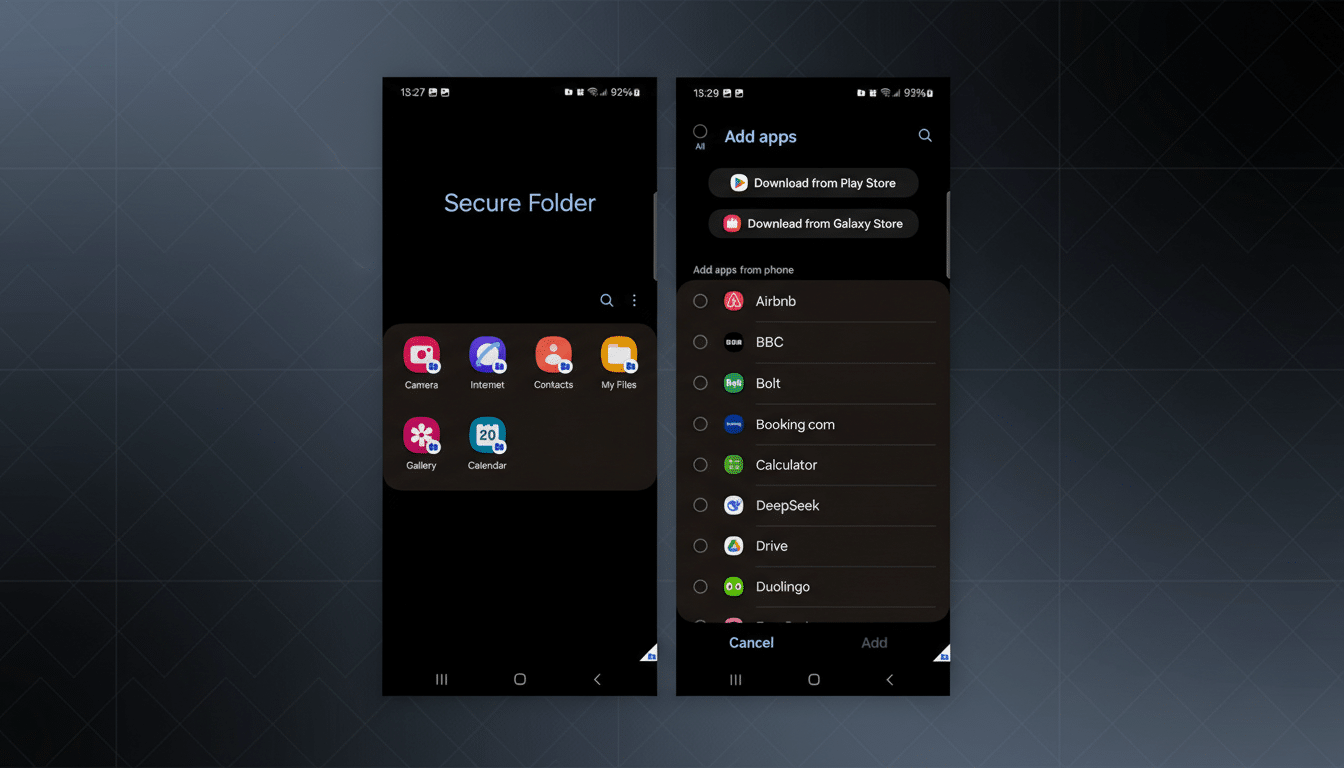
Choose your unlock method for the folder. Biometrics are convenient, but you’ll still set a fallback PIN, pattern, or password. Once created, Secure Folder appears as its own app container, with its own home screen, app drawer, and settings.
Adding and Managing Apps and Files in Secure Folder
You can add content in two ways. Inside Secure Folder, tap the menu and select Add files or Add apps. Adding apps creates a separate instance of that app inside the folder; you can sign in with different accounts for services like WhatsApp, Instagram, or banking apps without mixing data.
For photos, videos, documents, and audio, you can import from Samsung’s Gallery or My Files. When prompted, choose Copy to keep a version in both places or Move to remove the original from your public space. Once moved, items only appear inside Secure Folder and require authentication to view.
Pro tip: Use Secure Folder’s Camera and Gallery apps to capture and store sensitive images directly inside the encrypted container, skipping the public photo library entirely.
Backups and Restores You Control for Secure Folder
If your phone is lost, stolen, or factory reset, Secure Folder’s local data is wiped. To safeguard it, enable backup to your Samsung account from Secure Folder settings (Backup and restore). You can selectively back up app data, photos, and files, then restore on a new Galaxy device after signing in.
You can also delete old backups from the same menu to keep your cloud footprint lean. Remember: without a backup, the encryption that protects your data also makes it unrecoverable after a reset.
Hide or Disguise the Folder for Extra Discretion
For extra discretion, toggle off Show Secure Folder in settings. This removes its icon from the app drawer and search, forcing access through settings when you want it back. If you prefer to keep it visible but less obvious, you can rename Secure Folder and change its icon to something innocuous.
You can also suppress sensitive notifications from apps inside the folder, so alerts don’t reveal content on your lock screen. Quick panel toggles let you lock the folder on demand when handing your phone to someone else.
Security Model and the Real Limits You Should Know
Secure Folder’s strength is isolation and encryption, not magic. The container relies on device integrity checks from Knox; if the bootloader is unlocked, the device is rooted, or the software fails integrity validation, Secure Folder may refuse to run or will warn you that protection is reduced.
Biometric data never leaves the device and is matched in secure hardware. However, like any biometric, it’s a convenience layer; your strongest defense is a robust passcode. For compliance-minded readers, Samsung’s public documentation details Knox’s validations with NIAP and DISA STIG, and the architecture aligns with sandboxing principles advocated by NIST for mobile endpoints.
Who Benefits from Secure Folder and Exactly How
Professionals can separate work credentials from personal apps without enrolling in full device management. Travelers can keep border-sensitive accounts in the folder and remove the shortcut from the app drawer before crossing checkpoints. Parents can store IDs, school records, or health PDFs out of the main photo stream. Even power users can run a second instance of chat apps cleanly alongside the primary one.
Alternatives and How Secure Folder Fits the Ecosystem
On Android 15, Google’s Private Space offers a similar locked profile approach and can even tie to a different Google Account. Enterprise users may prefer an Android work profile via Mobile Device Management, which gives IT policy control. Some brands, like OnePlus, provide Private Safe features for files. Still, Secure Folder’s integration with Knox and Samsung’s system apps makes it the most seamless option on Galaxy devices.
Key Takeaways Before You Rely on Secure Folder
You need a Samsung account to set it up and to back it up. If it’s not pre-installed, download Secure Folder from the Galaxy Store. Use Move for truly private files, not Copy. Enable cloud backup if you can’t afford loss. Keep your device locked down and updated to preserve Knox protections. With those habits, Secure Folder becomes a trustworthy vault for the data you’d rather keep to yourself.
