


Google is bringing out a new display setting for Pixel phones that will help solve an issue that has been bugging smartphone users since HDR screens became ubiquitous: unwatchable contrasts in direct sunlight.
The feature, “Enhanced HDR Brightness,” enables you to dim or fully disable the blinding highlights that HDR photos and videos can produce in apps like Instagram, Threads, YouTube, and Google Photos.
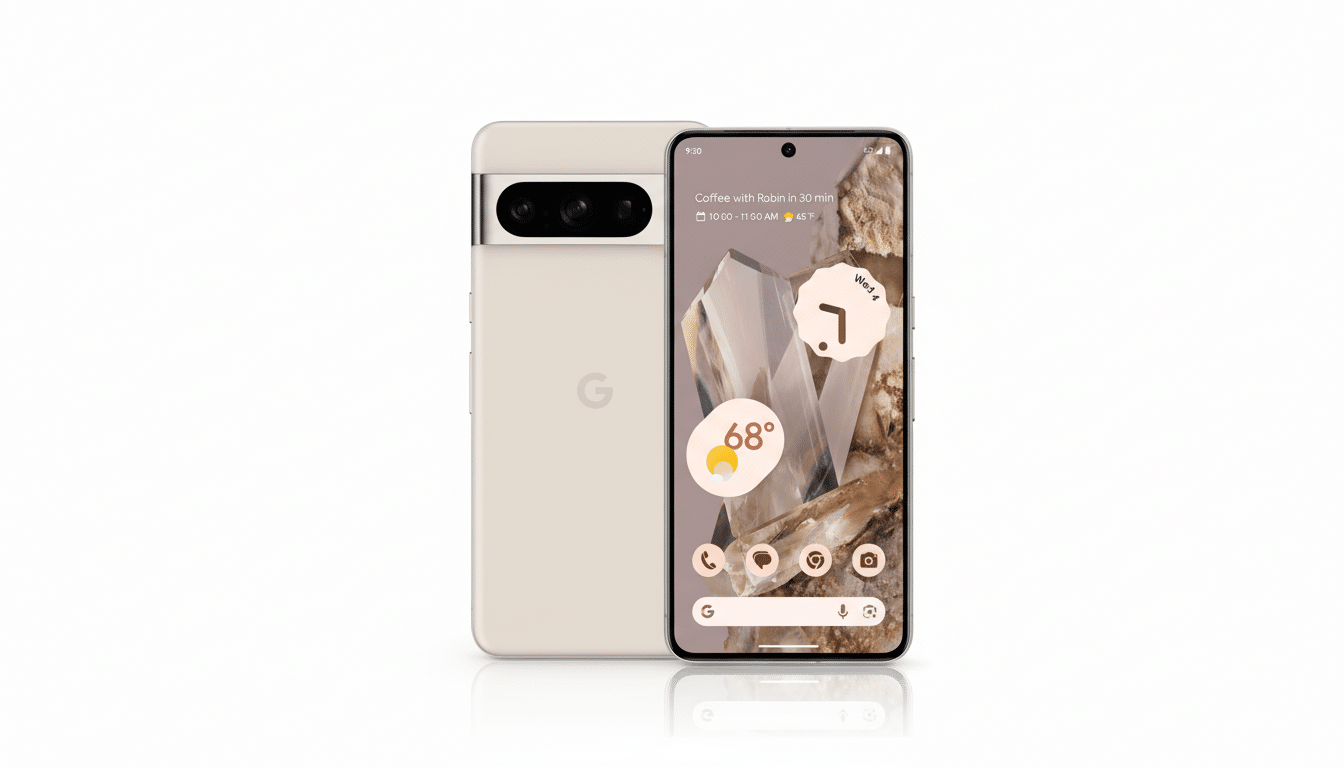
What changed and why it matters for HDR on Pixel
High dynamic range brings out specular highlights so scenes sizzle, but on current OLEDs that can produce extremely high peak light output, it’s just as annoying in dark rooms when the content demands very high nit levels. Google’s own numbers peg the Pixel 8 Pro hitting up to 2,400 nits at its peak, which is great when you’re outdoors but almost blinding when in a dark environment. Enhanced HDR Brightness allows you to tame those highs without dulling the entire screen, so standard content looks normal, and HDR stops nuking your retinas.
The move is part of a broader trend in the industry. Samsung included a comparable Super HDR switch in One UI 7, and for years screen observers like DisplayMate have noted that power draw and perceived glare go up with luminance. Allowing users to control HDR intensity is a convenience win for comfort, battery life, and consistency between apps that handle HDR differently.
Who gets Enhanced HDR Brightness on Pixel phones
Enhanced HDR Brightness comes with the Android 16 QPR2 update for Pixel. Google’s release notes further state compatibility with Pixel 6 and later models. The update is rolling out in stages, so there’s no hard-and-fast rule about when it will hit your device based on region and carrier. If you don’t see this feature yet, update your phone and check back after a reboot.
How to turn off or control HDR on Pixel phones
- Update your phone: Go to Settings > System > System update and install the Android 16 QPR2 release, if available.
- Find the control: Go to Settings > Display and look for Enhanced HDR Brightness.
- Pick your preference: On the Enhanced HDR Brightness screen, you’ll find a “Use enhanced HDR brightness” switch and an Intensity slider with live preview images.
- If you want to turn off HDR highlights altogether, open the setting and turn off the switch. HDR photos and videos will then display closer to SDR brightness.
- If you want to keep highlights under control, leave the switch on and reduce Intensity. A good middle ground that works for many users is typically around 50–60%, but choose to taste with the side-by-sides.
You can change this at any time; the effect is systemwide for those apps that play along. These aren’t general brightness or Extra Dim controls—this setting is specifically designed to target HDR highlights, leaving your non-HDR content untouched.
What it affects on your Pixel, and what it does not
This is a display behavior change, not a file conversion. It does not strip HDR metadata from your photos or video, and it does not change how the Pixel camera captures HDR in the first place. Instead, the phone adjusts how bright the highlights can be when rendering HDR formats like HDR10/HLG in compatible apps. Friends who share content with each other will still watch the full HDR versions on their devices when we send them streams, unless they dial it down too.
Some apps have their own tone-mapping pipelines. The system’s HDR display behavior is mostly honored by the big players that support HDR—you’ll see HDR in your Instagram media, Threads photos, or Google Photos more often than not. A few smaller players might do their own thing. If things look funny, try flipping the setting on or off and relaunching the app.
How it compares to HDR controls on other phones
One UI 7’s Samsung Super HDR toggle is equally effective and can clamp down on HDR highlights for social feeds and streaming too. On iPhones, Apple largely puts you into HDR with little looking back; a few apps feature custom toggles, and the Photos app includes settings for what happens when displaying images, but there’s no system-wide slider to tune how much HDR processing goes on. Google’s implementation falls in between—it is simple, exposed, and consistent across most apps.
Pro tips and caveats for using Enhanced HDR Brightness
- Nighttime comfort: Lower Intensity or turn off HDR in dimly lit environments to reduce sudden flashes of bright light when viewing HDR content.
- Outdoor visibility: If you are using HDR to cut glare in bright sunlight, keep Enhanced HDR Brightness cranked up high.
- Battery notice: Increased HDR peaks can draw more power on OLED displays. Dialing down the intensity may help endurance a bit over long video sessions.
- Set it and forget it: Set your preferred brightness level in the configuration and you won’t need to adjust this setting every time you reboot; nor will it affect Adaptive Brightness or color profiles.
The rub: With Enhanced HDR Brightness, Pixels at last let you specify just how startling that HDR will be. Whether you’re shutting it off or just turning it down, chances are your eyes—and your battery—are going to thank you.
