


Google’s newest Pixel update quietly introduced a feature that people have been wanting for ages: expanded dark mode, a system-wide setting that turns Google’s white/gray toolbars into black. It’s meant as an accessibility and readability helper, but for those of us dwelling in the dark theme universe it can finally suppress those few blinding white holdouts.
What is expanded dark mode on Google Pixel phones?
Dark mode with expanded dark takes an app’s light user interface and maps it to darker colors while maintaining images and certain key graphics. Unlike full color inversion, it tries not to touch photos and maps but only backgrounds, typography, and basic components. Google spins it as an accessibility feature for minimizing glare and maximizing legibility in darkness — not a substitute for native dark themes, which continue to offer the best contrast and iconography.
- What is expanded dark mode on Google Pixel phones?
- How to check compatibility and update your Pixel first
- Step-by-step instructions to enable expanded dark mode
- Which apps will show correctly with expanded dark mode
- How expanded dark mode compares to other Android options
- Tips and caveats for daily use of expanded dark mode
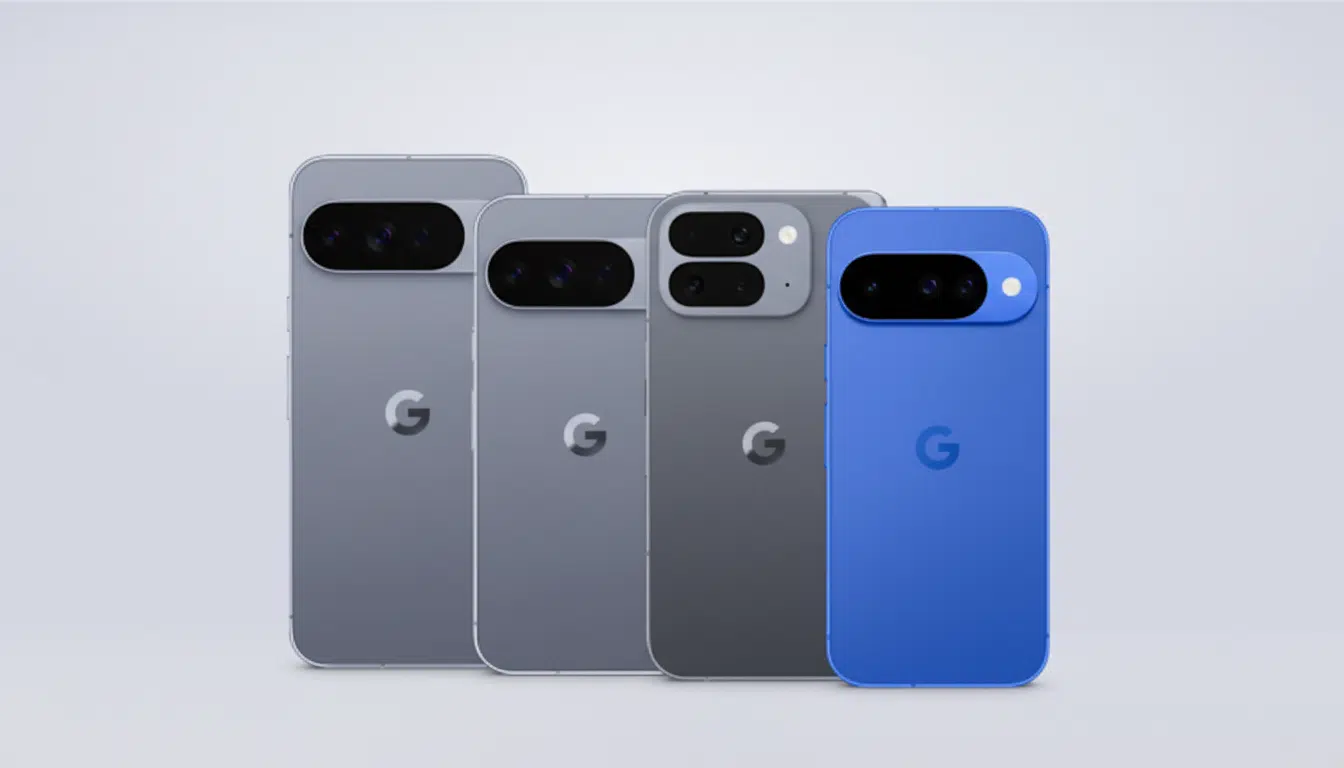
There’s real upside beyond comfort. Google’s own Android Dev Summit displays also reportedly proved OLED screens can dramatically reduce power draw with darker pixels, with internal measurements topping around 50–60% reductions at maximum brightness in high-contrast scenes. Your mileage varies by app and brightness, sure, but dark UIs can mean real battery life changes on Pixel’s OLEDs.
How to check compatibility and update your Pixel first
Expanded dark mode arrives with the latest quarterly platform release for Android 14. It’s coming to current Pixel phones, with general support set to take effect around the time of Pixel 6 series and beyond. If it’s not there yet, grab the latest system update and reboot — carrier waves can slow availability by a few days.
To update: Open Settings, select System, then System update and follow the prompts. If the latest build still doesn’t present you with your new option, give Google Play system components a moment to finish updating and then reboot for good measure.
Step-by-step instructions to enable expanded dark mode
- Open Settings
- Tap Display & touch
- Tap Dark theme
- Switch from Standard to Expanded
- Ensure Use dark theme is on (or configure a schedule that follows sunset/sunrise or your working hours)
You can also turn on dark mode from the Quick Settings tile; just make sure you select Expanded in the Dark theme settings so the operating system applies this new behavior to all supported apps.
Which apps will show correctly with expanded dark mode
Apps that use standard Android UI components and Material guidelines have a good chance of converting cleanly: messaging clients, utilities, airline or transit apps featuring straightforward lists, and many productivity tools.
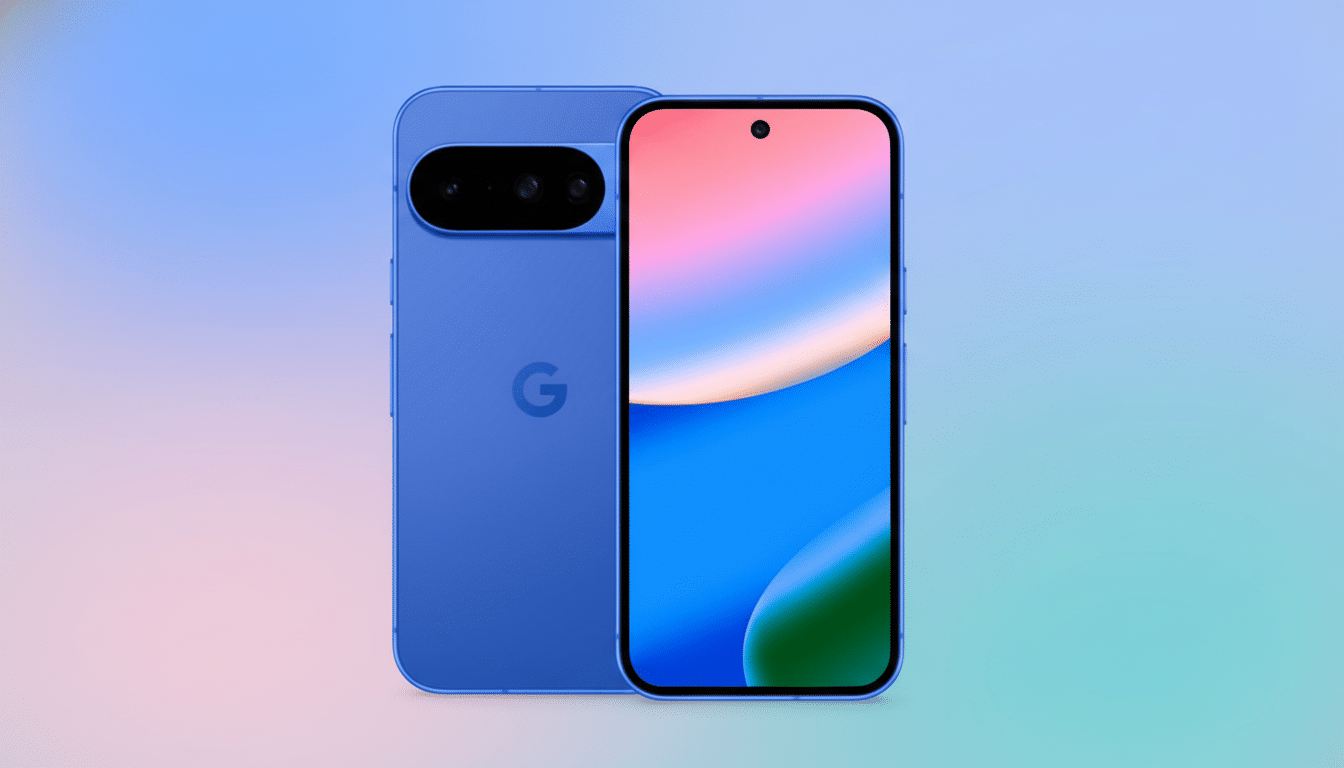
Interfaces flip to dark backgrounds, on which the text is still readable and layouts remain intact, dramatically lessening glare when opened at night.
Applications that rely extensively on web browsers, bespoke rendering engines, or embedded maps are a different story. Shopping and banking apps that ship giant web wrappers could just ignore the override altogether; mapping apps generally leave the map bright (it is an image layer) and darken only the buttons and menus surrounding it. Assume we’ll get some odd icons that interpret a light background and look weird against the forced dark palette.
How expanded dark mode compares to other Android options
Expanded dark mode is better than the Accessibility color inversion toggle, which inverts everything — photos and videos included — so interfaces are often unusable. It’s also a more reliable approach than the old Developer options setting, “Override force-dark,” which was experimental and hit or miss with different types of apps. The new concept honors media and is geared toward UI surfaces.
Still, it’s not magic. Google’s Material Design has recommended using native dark themes for a while already, since contrast ratios, elevation, iconography, and so forth are tuned to be clear when they should be read. Studies from usability experts like Nielsen Norman Group also suggest that dark mode can be comfortable in low light, but might impede legibility for long-form reading in brighter conditions. That is why the system provides scheduling — go light during the day and dark at night, if your eyes like that.
Tips and caveats for daily use of expanded dark mode
- If you feel like an app’s not cooperating, go back to Standard in Settings > Display & touch > Dark theme. You can switch Expanded on and off without a restart.
- Dark mode is scoped independently from Night Light. Dark mode only makes the high-contrast UI darker while keeping the common white UI unaffected, and Night Light only reduces blue light instead of applying a reddish tint to it.
- Report bugs to app developers. Expanded dark mode is a band-aid; a true dark theme should still be the goal for accessibility, contrast, and brand assets.
- For power users: if a particular app doesn’t work properly in dark mode (do what now, Citi?), force-overriding the force (–Override-force-dark) using Developer options can sometimes wring out extra darkness — but it might warp images and is not intended for everyday use.
Bottom line: Expanded dark mode is the best we’ve seen for achieving an almost-all-dark Android experience on Pixel. It’s not going to solve every cantankerous app, but it gives a smoother, battery-friendlier UI to plenty of them with one simple switch — no hacks, no guesswork; just a bit more comfort where it matters.
