


Google quietly changed how the Pixel’s home screen search is accessed, directing taps on its search bar to the old-fashioned Google Search interface instead of the unified search in the Pixel Launcher.
If you’d prefer the faster, on-device results that the old UI offered, there’s good news: you can switch it back with a simple ADB tweak — no root required.
- What changed on Pixel phones after Google’s update
- How to go back to the old on-device Pixel search
- Run these two ADB commands to restore Pixel search
- What we know about device and Android version compatibility
- Why you might prefer the legacy on-device Pixel search UI
- If you’d prefer not to use ADB, here are alternatives
- Troubleshooting and tips if the search switch fails
What changed on Pixel phones after Google’s update
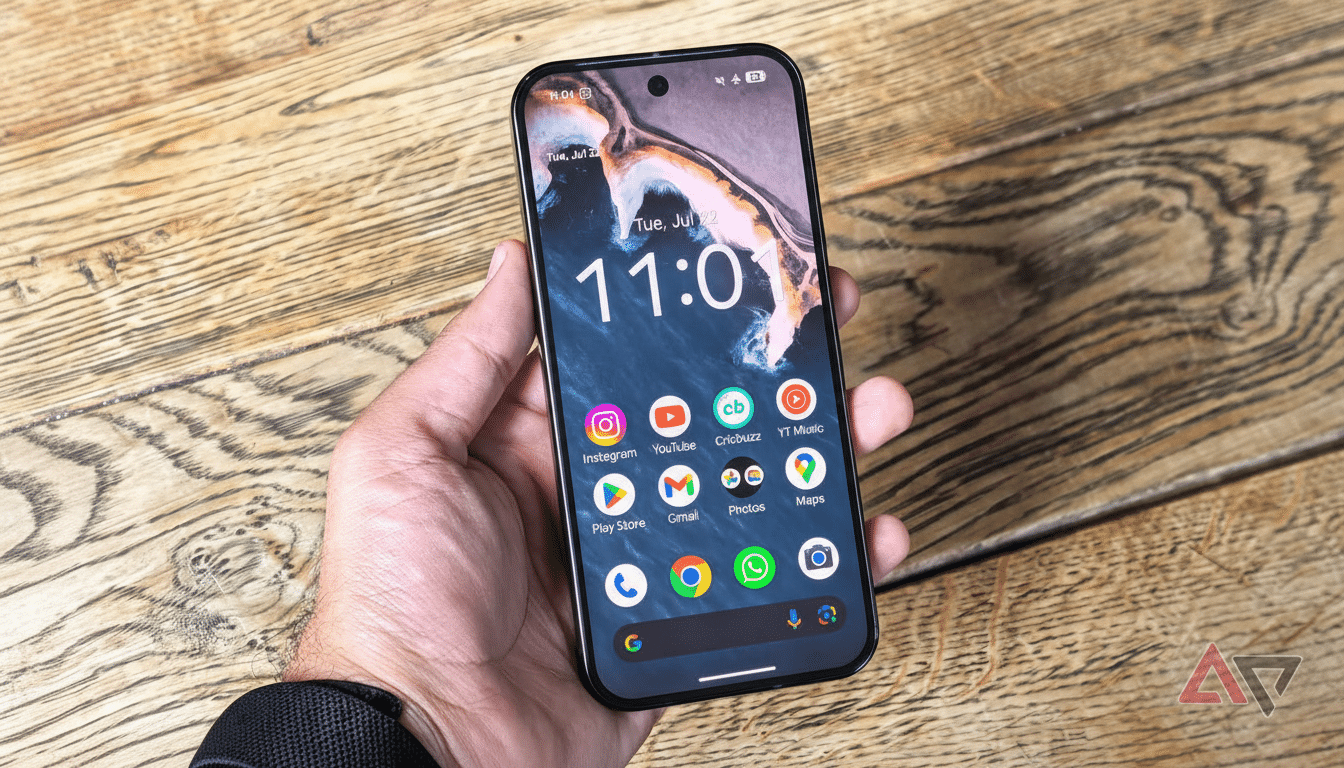
Pixel Launcher’s search has been wayward for the last week or so, bringing up apps, contacts, and settings as well as the web in a single pane. The behavior has been reprogrammed to funnel you into the Google app’s UI instead, which gives preference for web-first results and plops something like AI Mode at the top. That’s great for some flows, but it means more taps when you depend on local results, app actions, and the like as a power user using instant settings (directly on the home screen).
For instance, typing “Wi‑Fi” used to immediately get the direct Settings shortcut, and “Gmail” or “PayPal” would immediately bubble up the app and relevant shortcuts. Users finally got the web-heavy design they see now, and something about it feels less tied to the launcher.
How to go back to the old on-device Pixel search
This technique relies on Android Debug Bridge (ADB) commands to flip an internal launcher flag. You’ll need a computer with Google’s platform-tools, a USB cable, and Developer Options enabled on your Pixel. Turn on USB debugging, connect your phone, agree to authorize the computer when prompted, and then check that ADB is seeing your device.
Run these two ADB commands to restore Pixel search
When ADB is installed, execute the following in a terminal, one line at a time:
- adb shell cmd device_config override launcher enable_one_search true
- adb shell am force-stop com.google.android.apps.nexuslauncher
The first command tells Pixel Launcher to use its compact, on-device search. The second restarts the launcher so the change takes effect immediately.
If you ever want to revert this and go back to the newer Google Search UI, simply redo the process and set that same flag to false instead of true, then force-stop the launcher once again.
What we know about device and Android version compatibility
Community testers report the workaround working on recent devices and builds up to the current stable update and the latest Android 16 QPR3 beta. Since this behavior is governed by a server-side flag that’s checked by the Pixel Launcher, Google could always tweak or even retire it in an update at some point. If the search bar changes back after a reboot or app update, just redo the commands.
The above steps were dug up by some long-time Android modders and tested by more than a few users to prove that this is indeed a real launcher flag and not just a brittle exploit. No data is erased, no root is required, and only a short-lived home screen refresh occurs when the launcher restarts.
Why you might prefer the legacy on-device Pixel search UI
Unified search works wonders if you spend your time in apps and settings. Type “Bluetooth” or “Hotspot” and you’re jumping directly into toggles. Press a contact, and call or message it by jumping into another app. Search “Photos Venice” and you can surface local results before the web. For many, that saves seconds dozens of times a day.
The newer Google Search UI leans toward web results, Discover content, and AI features. That’s ideal for research and drafting, but it can feel slow if you’re just looking to open an app, locate a file, or prompt an on-device action. The ADB toggle lets you decide what to optimize for your workflow.
If you’d prefer not to use ADB, here are alternatives
If you’ve got a thing against command-line tools, there’s also hope. You can place the standalone Google app widget for web searches and keep your muscle memory there, but for on‑device stuff just use gesture navigation or open the app drawer. Another avenue is third-party launchers that have strong on-device search, including customizable shortcut- and universal-search–friendly options — although they may take extra time to configure to match Pixel’s polish.
Troubleshooting and tips if the search switch fails
If ADB gives an error, make sure that your computer is authorized and USB debugging is enabled. Ensure your device is picked up with adb devices, and then run the commands again. If the change doesn’t take after updates to the Google app or Pixel Launcher, repeat the steps. Like any experimental flag, behavior can change as Google iterates; watch Android developer and enthusiast communities for updates.
Bottom line: if the change to the Pixel search UI introduced in October has you feeling sluggish, the ADB switch above will bring back that fast, unified search experience that many a Pixel owner has grown fond of — until Google decides to take it away again.
