


Microsoft is expanding a Bluetooth LE Audio upgrade that lets Windows 11 PCs share audio to two compatible devices at once, bringing the feature to more systems after an initial, quiet rollout. The option appears as a Shared audio preview tile in Quick Settings on supported machines, enabling you to broadcast your PC’s sound to a pair of headphones, earbuds, or hearing aids without the splitter cables, latency penalties, or clunky workarounds of the past.
This is built on the Bluetooth LE Audio standard using the LC3 codec, which delivers higher quality at lower bitrates than classic SBC according to the Bluetooth Special Interest Group. In practice, that means clearer sound at lower power draw and more reliable multi-device streaming—particularly valuable on ultraportables and for long video calls.
- How to Try Bluetooth LE Audio Sharing on Windows 11 Now
- What You Need for Bluetooth LE Audio Sharing to Work on Windows
- Auracast Explained and Why Windows Limits Sharing to Two Devices
- Why This Matters For Calls, Games, And Accessibility
- Compatibility Checks and Troubleshooting for Shared Audio on Windows
- The Bigger Bluetooth LE Audio Picture on Windows 11 PCs
How to Try Bluetooth LE Audio Sharing on Windows 11 Now
On supported hardware, opt into the Windows Dev or Beta Channels and install the latest Windows Update packages. Many Copilot+ PCs and a growing number of recent Windows 11 laptops are receiving the toggle via driver and firmware updates delivered through Windows Update.
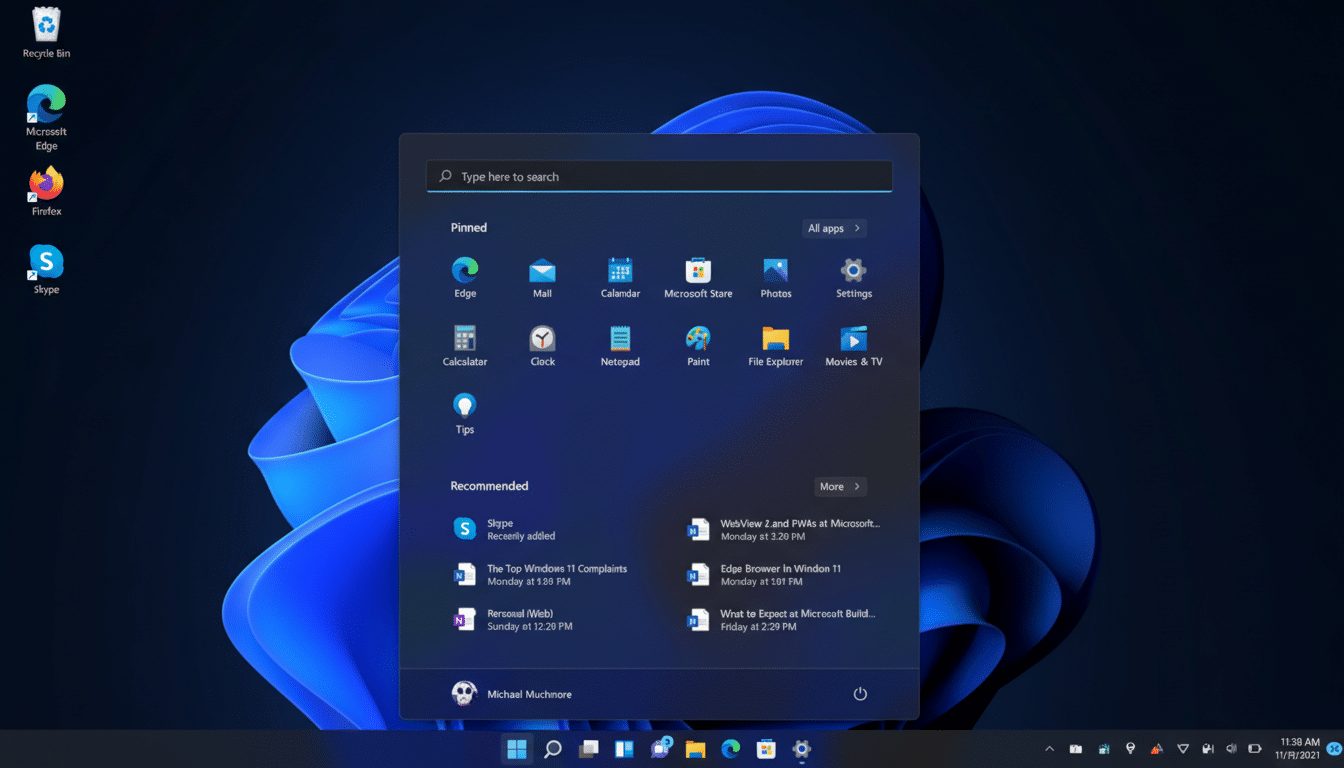
After updating, open Quick Settings on the taskbar. If your system is eligible, you’ll see a Shared audio preview tile. Turn it on, then put two pairs of compatible headphones, earbuds, or hearing aids in pairing or broadcast-receive mode and connect them. You should be able to play music or a movie with synchronized audio across both devices.
If the tile doesn’t appear, check Windows Update again and review Optional updates for Bluetooth drivers. Microsoft notes that driver availability is the key gating factor; as vendors publish updated stacks, more models light up the feature.
What You Need for Bluetooth LE Audio Sharing to Work on Windows
A compatible Windows 11 PC with Bluetooth LE Audio support. This typically requires a recent Bluetooth 5.2 or newer radio and vendor drivers that enable LE Isochronous Channels. The capability is determined by the Bluetooth chipset and its firmware, not just the Windows build.
Two audio receivers that support LE Audio. Look for packaging or spec sheets that mention LE Audio, LC3, or Auracast. Many new flagship earbuds and headsets from brands using recent Qualcomm or MediaTek platforms support LE Audio, and an increasing number of modern hearing aids implement the LE Audio Hearing Aid Profile.
Up-to-date drivers. Intel, Qualcomm, and other radio vendors are shipping LE Audio–capable driver stacks through OEM updates. If your PC is close but not quite there, driver updates are usually the missing link.
Auracast Explained and Why Windows Limits Sharing to Two Devices
LE Audio is the umbrella standard; Auracast is its broadcast feature that allows one source to transmit to many listeners. Microsoft doesn’t name-check Auracast in its announcement, and Windows currently caps sharing at two devices. That limit is a product decision, not a technical ceiling of LE Audio itself, as the Bluetooth SIG has confirmed. The upside is a simpler user experience and reliable sync for the two active streams.
The broader Auracast vision—joinable audio in places like airports, gyms, and classrooms—remains relevant. Headphones and hearing aids that advertise Auracast compatibility will generally interoperate with Windows’ shared audio feature, even if Windows presents it under a different label.
Why This Matters For Calls, Games, And Accessibility
LE Audio’s LC3 codec preserves clarity at lower bitrates and improves robustness in congested environments. For calls and chat, Microsoft has also enabled Super Wideband voice on select Windows 11 PCs, pushing voice sampling to 32 kHz—meaning brighter, more natural speech compared with legacy hands-free profiles. Some systems support SWB stereo for richer game and movie audio over LE.
For hearing aid users, the benefits are substantial. LE Audio enables direct, low-latency streaming to compatible hearing aids without proprietary dongles. Paired with Windows’ shared audio, a user can listen alongside a companion’s earbuds, or keep aids connected while a second listener uses headphones—handy for shared entertainment and collaborative work.
Compatibility Checks and Troubleshooting for Shared Audio on Windows
If shared audio doesn’t appear, verify your OEM’s support page for Bluetooth driver updates and firmware notes mentioning LE Audio or LC3. In Settings, remove and re-add your headphones to prompt Windows to negotiate LE Audio where supported. Ensure both devices are updated to the latest firmware from the manufacturer’s app.
For best sync, keep both listeners within a few meters of the PC, avoid USB 3.0 port interference near the Bluetooth antenna, and minimize heavy 2.4 GHz congestion. If one set of earbuds consistently falls back to classic Bluetooth, it likely lacks LE Audio; check the specs and look for an LE Audio or Auracast badge.
The Bigger Bluetooth LE Audio Picture on Windows 11 PCs
The Windows rollout aligns with industry momentum. Android platforms, major silicon vendors, and the Bluetooth SIG have rallied around LE Audio as the successor to classic Bluetooth audio. The shift brings practical gains—longer battery life, higher reliability, and flexible sharing—without forcing users into brand-specific ecosystems.
Bottom line: if your Windows 11 laptop and headphones support LE Audio, you can now share your sound with a second listener using a native, power-efficient broadcast. Keep an eye on Windows Update and your OEM’s driver releases—this is one upgrade where the right driver unlocks the whole experience.
