


Your encrypted Windows laptop might not be as private as you think. Microsoft has confirmed it will hand over BitLocker recovery keys to law enforcement when served with a valid legal demand—if those keys are backed up to the company’s cloud. The fix is straightforward but essential: control your own recovery key instead of letting it live in someone else’s vault.
What Microsoft Confirmed About BitLocker Recovery Keys
BitLocker encrypts your drive so that stolen hardware won’t expose your files. To unlock a disk when things go wrong—say, after a motherboard swap—you need a recovery key. Microsoft encourages users to store that key in a Microsoft account for convenience. The company told reporters it receives roughly 20 requests a year for BitLocker recovery keys and can comply only when the key is in its cloud. A recent FBI case involving suspected fraud in Guam demonstrates that this isn’t hypothetical: agents obtained BitLocker keys via Microsoft and accessed encrypted drives. A decade earlier, Microsoft reportedly refused an FBI request to add a backdoor to BitLocker; today’s issue isn’t a backdoor—it’s key custody.
- What Microsoft Confirmed About BitLocker Recovery Keys
- Why Cloud-Backed Keys Change Your Threat Model
- How to Keep BitLocker Truly Secure on Your PC
- What to Do if Your BitLocker Key Is Already in the Cloud
- Pro Tips to Raise the Bar on BitLocker Security
- The Wider Policy Debate Over Key Escrow and Access
- Bottom Line: Controlling Your BitLocker Keys Reduces Risk
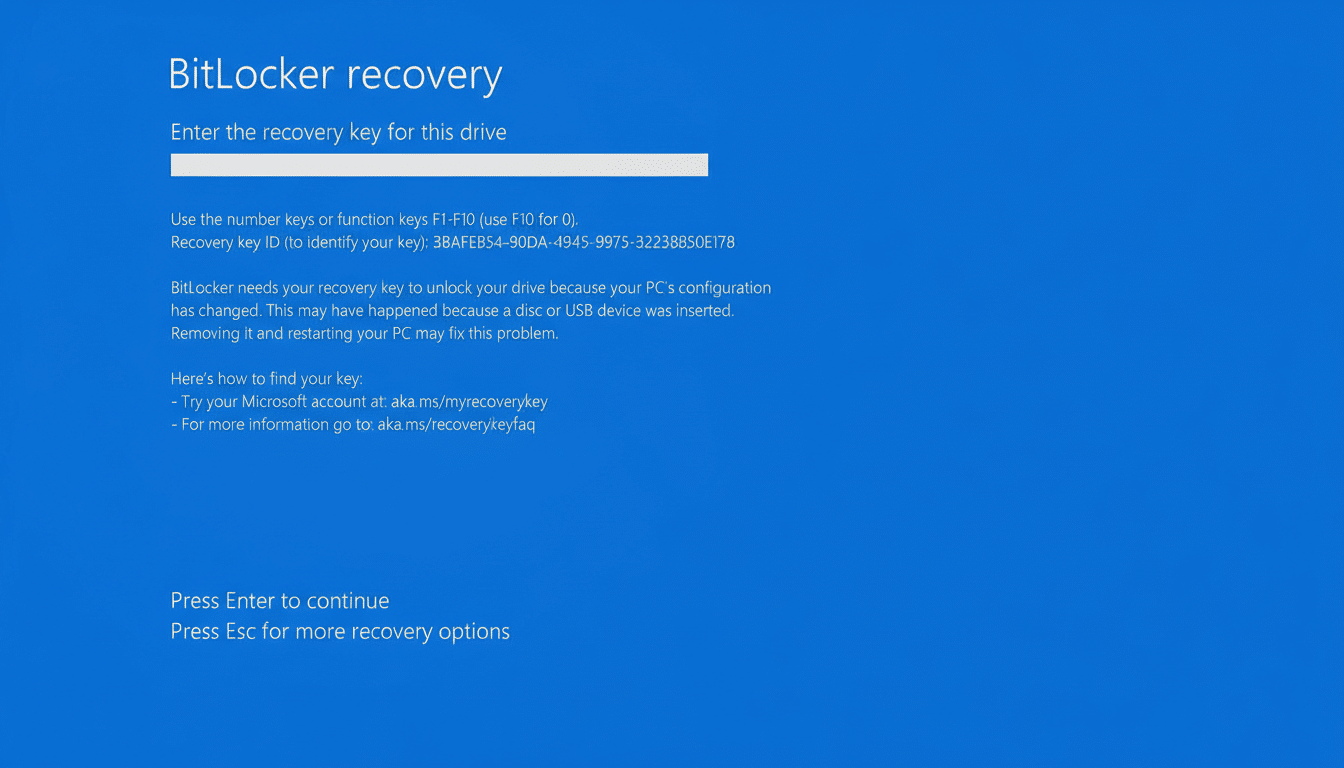
Why Cloud-Backed Keys Change Your Threat Model
Encryption is only as private as the people who can access the keys. When your recovery key is escrowed to a provider, your risk surface expands beyond your device. Lawful access orders, account compromise, or cloud breaches can all become pathways. Privacy advocates at organizations like the Electronic Frontier Foundation have long warned that “key escrow” reduces the practical protections of strong encryption, even when the crypto itself remains sound.
This matters to everyday users, not just high-risk professionals. If a laptop is lost or stolen, BitLocker with local-only key custody protects you from casual thieves and data brokers. If the key sits in a cloud account, more parties—some benign, some not—may ultimately get access under certain conditions.
How to Keep BitLocker Truly Secure on Your PC
First, verify your BitLocker status. In Windows 11 and Windows 10 Pro, go to Settings, System, About, then select BitLocker. If it’s off, turn it on—unencrypted laptops are the bigger risk. If it’s on, choose to back up your recovery key, but select Save to a File or Print, not to your Microsoft account or Entra ID. Store the file on an external USB drive kept in a safe place, or print and lock it away. If you keep a digital copy, protect it with strong encryption via a reputable tool like 7-Zip or a secure password manager.

If you use Windows Home, you may have “device encryption” rather than full BitLocker options, and keys are often uploaded automatically when you sign in with a Microsoft account. Consider turning off device encryption temporarily, removing any cloud-stored keys, then re-enabling encryption while backing up the key locally only.
What to Do if Your BitLocker Key Is Already in the Cloud
Sign in to your Microsoft account and review your BitLocker recovery keys. Identify the entry tied to your PC and delete the cloud copy after you’ve safely stored a local backup. For work or school devices joined to Entra ID, ask your administrator about key escrow policies; enterprises often escrow keys by design to meet recovery and compliance needs. If you own the device and want privacy-first defaults, request a policy that allows local-only custody or a documented procedure for removing cloud copies when appropriate.
Pro Tips to Raise the Bar on BitLocker Security
- Enable a pre-boot PIN with BitLocker on Windows Pro or Enterprise. In Local Group Policy Editor, require additional authentication at startup and set TPM+PIN. This thwarts “evil maid” scenarios where someone with brief physical access tries to bypass protections.
- Prefer hibernate or full shutdown over sleep when traveling; cold-boot and DMA attacks are harder when the disk is fully locked and memory is cleared.
- If performance allows, set BitLocker to use XTS-AES 256 in policy for stronger cryptographic margins, though 128-bit is still considered secure by NIST guidance.
- Keep Secure Boot on and firmware up to date to reduce low-level attack surfaces.
The Wider Policy Debate Over Key Escrow and Access
Law enforcement argues that timely access to encrypted evidence can be critical to investigations. Civil liberties groups counter that routine key escrow undermines privacy for everyone and creates attractive targets for attackers. Microsoft’s stance lands in the middle: no backdoors, but compliance with lawful orders when it controls the keys. The practical takeaway for users is clear—decide who should hold the recovery key, because that decision determines who can ask for it.
Bottom Line: Controlling Your BitLocker Keys Reduces Risk
BitLocker is still one of the most effective defenses against data theft from lost or stolen devices. Its weakness isn’t the math—it’s where the keys live. To keep your BitLocker-secured PC truly secure, don’t escrow your recovery key to the cloud, maintain your own offline backups, and add a pre-boot PIN if you can. Once you control the keys, you control the risks.
