


If Steam isn’t opening or is stuck on Connecting, you’re not alone. Many are currently unable to start the client, sign in, or reach the Store and Community. Monitoring and social reports surged, confirming that authentication and web services are affected, too. Below is what’s going on, and how to fix Steam not opening when the service itself isn’t down.
First check for a platform-wide Steam service outage
Before you go troubleshooting your PC, check if Steam is down. Third-party monitors such as SteamDB, Downdetector, and Unofficial Steam Status frequently display live spikes in received errors and outages in specific regions. Valve’s support and community resources may also recognize the service interruption.
- First check for a platform-wide Steam service outage
- Quick troubleshooting steps when the Steam client won’t launch
- Network and security checks to restore Steam connectivity
- Clear caches and repair configuration for Steam
- Update or roll back recent system and driver changes
- Try stable Steam client options to improve reliability
- Reinstall (without having to redownload your library)
- Why Steam outages occur and when to escalate for support
If it’s a confirmed outage, the only guaranteed solution is patience. If you were previously signed in, give Offline Mode a go to boot up single-player games that don’t require online checks! Steam also does some short routine maintenance on Tuesdays in the late afternoon Pacific Time, which can look like downtime.
Quick troubleshooting steps when the Steam client won’t launch
Force close and relaunch. On Windows, you can open Task Manager and kill all the Steam processes such as Steam Client Bootstrapper and Steam WebHelper to restart the app. This resets a stuck session that could prevent a startup.
Reboot your PC. A cold reboot is even better as it also clears:
- Orphaned processes
- Locked files
- Nasty drivers
Other issues that often cause a launch failure.
Bring a hidden window back. Steam sometimes gets lost on multi-monitors. Switch to Steam using Alt+Tab, and then use Win+Arrow keys to snap Steam to your current display.
Network and security checks to restore Steam connectivity
Test your connection. Open a couple of web pages or run a speed test. Power-cycle your router (unplug for 60 seconds, then plug it back in). If you’re on a metered or captive Wi‑Fi, switch to a solid network.
Temporarily disable VPN or proxy. VPNs are typically tolerated on Steam, but you should be cautious when making unexpected region changes as it can eventually kick you out of your account or cause a Store issue. Try turning off the VPN, wait a few minutes, and sign in again, then turn the VPN back on after connection.
Whitelist Steam in your firewall and antivirus. Antivirus suites that get overzealous may even block Steam’s web helpers and content delivery. Add Steam to your exceptions in Windows Security or third-party AV and check that real-time protection is not quarantining it. Do a malware scan first, then experiment with shields temporarily down.
Clear caches and repair configuration for Steam
Flush Steam’s configuration. Type steam://flushconfig in the Run box and click OK. This clears browser cache for downloads, but doesn’t touch installed games—fixing bad tokens and stale web content. Unless the Steam User Forums cacheinfo article is out of date or otherwise wrong.
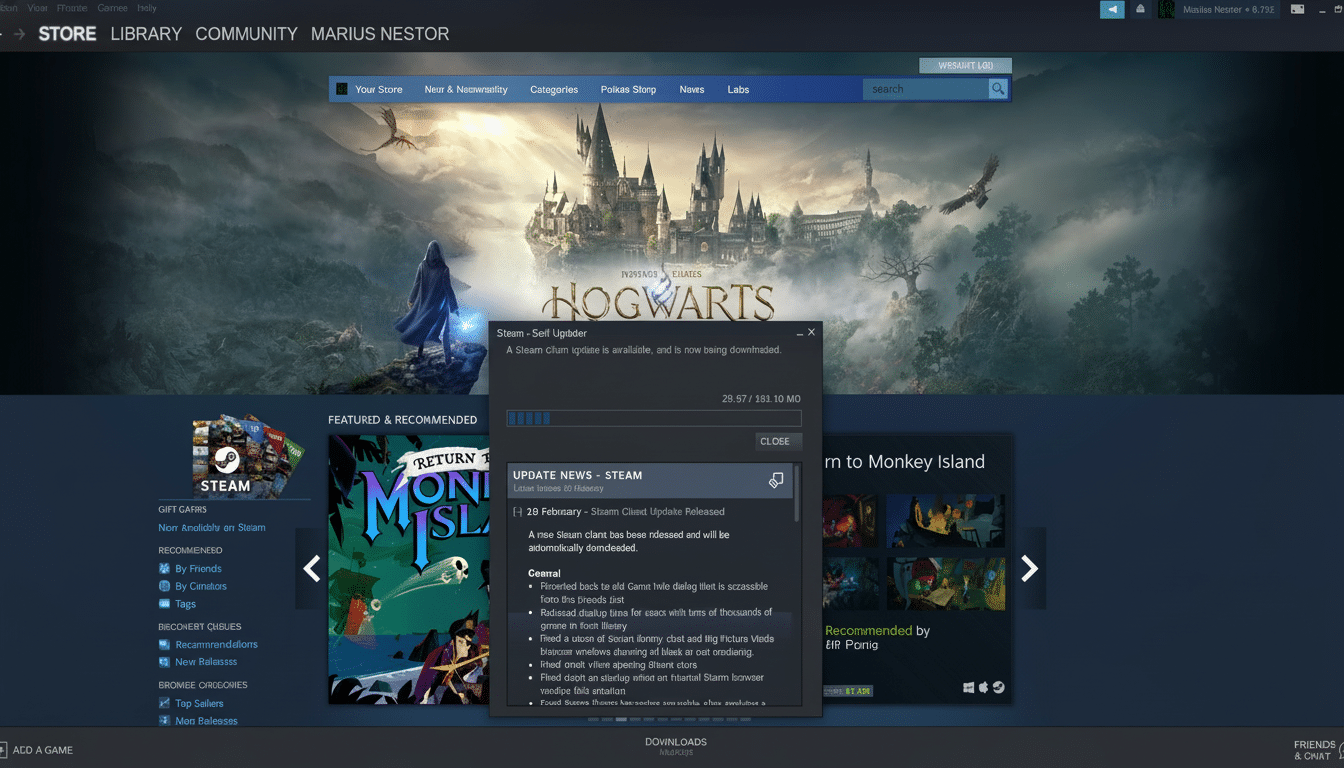
Clear the download cache. If you are able to open the client once in a while, open Settings > Downloads and click Clear Download Cache. You’ll be asked to sign in again.
Refresh legacy files. In the Steam install folder, close out of Steam and rename ClientRegistry._OLD.blob to ClientRegistryOld.blob, then relaunch. More recent builds allow for a simple reset by deleting the appcache folder after you shut down Steam.
Update or roll back recent system and driver changes
Update Windows and drivers. Legacy GPU or network drivers and older versions of Visual C++ may affect the embedded browser and authentication processes. Install any long-overdue OS updates and get the latest drivers for your hardware (NVIDIA, AMD, or Intel).
If you have had issues since the last recent update, then roll back. You might try System Restore to a time before the problem. Your games and personal stuff are safe.
Try stable Steam client options to improve reliability
Opt out of beta. If you are on the Steam Client Beta, you can go into your settings and change to the stable channel by selecting it under Settings > Interface > Beta Participation. Beta builds deliver fixes quicker but bring crashes more frequently.
Launch with TCP. Right-click your Steam shortcut, select Properties, and add -tcp to the Target line. Some networks do better with TCP (as opposed to UDP) for handshake-oriented traffic.
Reinstall (without having to redownload your library)
If all else fails, the final solution is to do a clean install and keep games.
- Delete everything in your Steam folder except “steam.exe” and the “steamapps” and “userdata” folders.
- Double-click “steam.exe” to reinstall and recreate core files.
- Your library should be detected when it opens.
Why Steam outages occur and when to escalate for support
Steam typically sees more than 30 million simultaneous users, and big sales can drive peaks higher still. As authentication, Store, or content delivery networks shuffle, the client may appear stuck or not load as web components fail to time out. Services like SteamDB and Downdetector, which provide monitoring for services across the internet, often list spikes in usage around the same time as these types of occurrences.
If your client is still not launching even after the platform becomes stable and you’ve attempted some or all of these steps, please send an email to Steam Support. Give system specs and recent changes, along with fixes attempted. Try to have your Steam Guard device at hand.
