Microsoft Outlook users often face a situation where some important emails are missing from the folders –Inbox, Sent Items, or any custom folder. You may not find the emails if you’ve moved them to another folder or mistakenly deleted them. In addition, there are various internal and external factors that might be responsible for the Outlook missing emails in folders issue. In this guide, we will be covering different solutions that can help you find your missing emails in Outlook.
Ways to Fix Missing Emails in Folder Issue in Outlook
Here are some possible ways you can try to resolve the missing emails in folder issue in Outlook.

1. Check Deleted Items Folder
It is quite possible that you have mistakenly deleted the emails you’re looking for. So, first, check the Deleted Items folder in your Outlook for the missing emails. For this,
- In your Outlook application, click on the Deleted Items folder.
- Search for the required emails. You can also sort the emails based on date.
- If you found the emails, right click on them and select Move.
- Then, select the folder (Inbox or any other) to restore the emails.
2. Check Junk Email Folder
At times, emails are mistakenly marked as junk by the application and moved to the Junk Email folder. You can check this folder for the missing emails. Here’s how:
- In Outlook, open the Junk Email folder in the left pane.
- Search for the emails you’re looking for.
- If the missing emails are there, select them and then choose Not junk > Not junk.
3. Check and Change View Settings
Outlook’s View settings might have hide some emails, even though they’re still in the folder. You can reset these settings to default to clear any filters and restore the complete list of messages. Follow the steps given below to review and reset the View settings:
- Open Outlook and click on the View tab on the ribbon

- Click on Reset View.

This will restore the default layout of the current folder and remove custom sorting, grouping, columns, and common filters that might be hiding the emails.
If you still can’t find the emails, then clear the search box if a filter is active. Here’s how to do it:
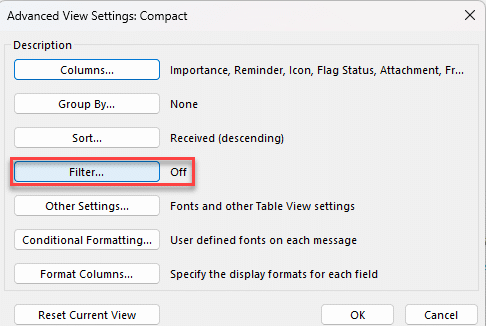
- Click on the View tab and select View Settings.

- Click on Filters.
- If a filter is set, click Clear All (or remove the filter criteria) and click OK.
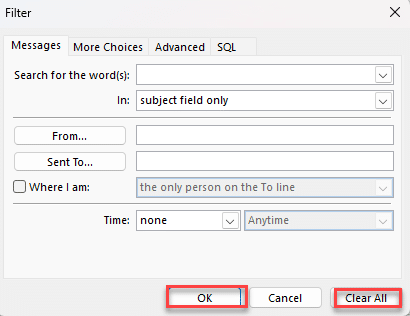
- Now check for your missing emails.
4. Check and Change Synchronization Settings
If your Outlook is setup with an Exchange or IMAP account, then it is downloading the mail items to a local data file, based on the set duration (for instance 6 months, 1 year, 2 years, etc.). If you’re looking for emails which are older than the set duration, then you’ll not find them as these are not downloaded into the data file. You can check the synchronization settings and adjust the “Download email from the past” option to All. The steps are as follows:
- Open Outlook.
- Go to File > Account Settings > Account Settings.
- Under the Email tab, select your account and then click Change.
- Find Download email for the past and move the slider to All.
- Click Next > Done.
- Restart Outlook. Wait for the synchronization to complete and then see if you’re able to find your missing emails.
5. Verify Account Settings
Incorrect or misconfigured account settings may also lead to the missing emails issue in Outlook. You can verify and adjust the account settings to fix the issue. Here’s how:
- Open Outlook.
- Go to File > Account Settings > Account Settings.
- Under the Email tab, select your POP3 account and click Change.
- In the Change Account window, verify:
- Incoming mail server (POP): Correct server name and port (usually 995 with SSL/TLS).
- Outgoing mail server (SMTP): Correct server and port (usually 465 or 587).
- Click More Settings > Advanced.
- Ensure “Leave a copy of messages on the server” is checked if you want emails to remain on the server after download.
- You can also set how long to keep messages before removing them.
- Click OK > Next > Finish.
6. Check AutoArchive Settings
AutoArchive is a feature in Outlook, which when enabled, moves the older items, earlier than the set data, to an archive file automatically. If this feature is enabled in your Outlook, then the older emails will be automatically moving to an archive file. You can your missing emails in the archive file if AutoArchive feature is enabled. Follow these steps to do so:
- Open Outlook, go to File > Options > Advanced.
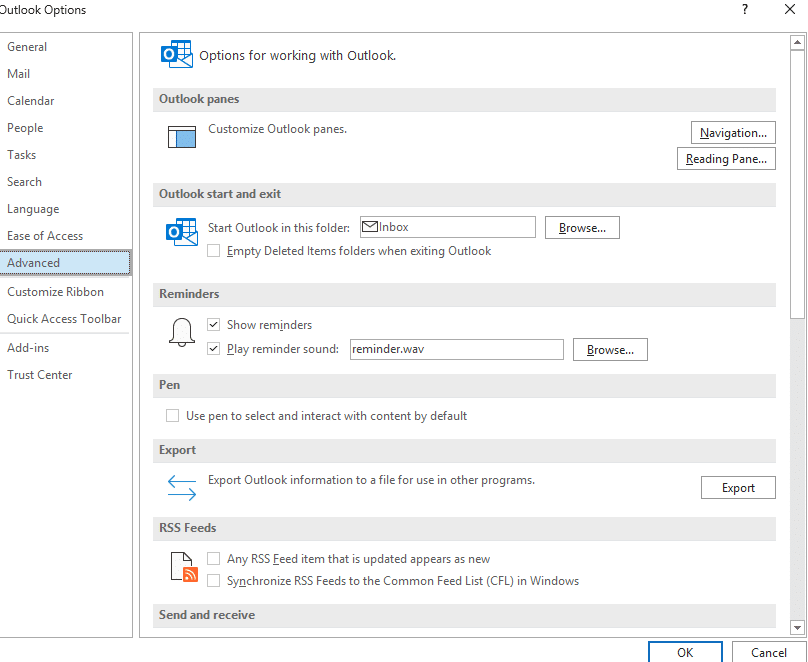
- Under AutoArchive, open AutoArchive settings. Confirm if it is enabled and check where the mailbox items are going.
- To view archived mail, go to File > Open & Export, Open Outlook Data File then select Archive.pst.
- Check the archive file for the missing items.
7. Repair Outlook Data (PST) File
Corruption in Outlook data file (PST) might also be the reason for the missing emails in folder issue. If this is the reason in your case, then repairing the PST file is the only course of action. For performing this process, you can use the built-in tool in Outlook, called ScanPST. Also known as Inbox Repair Tool, it is available in the Outlook installation directory. Let’s see how to use ScanPST to repair the corrupted PST file.
- Close your Outlook application.
- Go to the Outlook installation directory and find ScanPST.exe.
Note: If you are unsure of the location, search your Program Files (and Program Files (x86)) folders for ScanPST.exe.
- When found, double-click on ScanPST to launch it.
- Click on Browse to choose the PST file you want to repair and click on Start. This will start the file scan.
- If the tool reports errors after scan, choose the Repair option. When it completes, open Outlook.
- Check for a folder named Recovered Personal Folders, then move any recovered items back to their proper folders.
If this tool freezes or stops responding while repairing the file, then wait for a while to it to respond. It doesn’t respond, then there are chances that the file is quite large or severely corrupted for the tool to repair.
In such a case, you can look for alternative more powerful tools. A dedicated PST repair tool like Stellar Repair for Outlook can serve as a perfect alternative. It effectively repairs PST files, irrespective of the file size and severity of corruption. It can recover emails, contacts, attachments, and all other items from the PST file and same them in a new fresh file. An advantage of using this tool is that it can recover deleted items from PST file. Here are some key features that make this tool an ideal choice:
- It repairs severely corrupted PST files of any size with ease and precision.
- It provides a full preview of recoverable items before you same them in PST file.
- It keeps the original folder structure, hierarchy and metadata details after repair.
- It supports all the Outlook versions and runs on any Windows OS.
Wrapping Up
Some emails in Outlook may appear missing if you’ve deleted them mistakenly or due to other reasons. Above, we have explained different ways to find and recover the missing emails. There is also a chance that the missing emails issues would be the result of corruption in your PST file. If this would be the possible cause, then rely on a trusted PST repair tool, such as Stellar Repair for Outlook as it is capable of repairing PST file of any size and level of corruption. Also, it can restore deleted mail items from PST file.