Do you want to know how to convert Apple Music to MP3 so you can play your favorite songs on any device? You are not alone. Millions of users are frustrated by the fact that Apple Music tracks are protected by DRM (Digital Rights Management). This protection means you cannot simply drag a song from Apple Music onto a USB drive, MP3 player, or even listen to it on a non-Apple device.
Fortunately, converting Apple Music to MP3 is possible if you use the right tool. In this guide, we will introduce you to ViWizard Apple Music Converter—the most efficient software to help you break free from Apple’s restrictions and enjoy your music forever.

Why Can’t You Normally Convert Apple Music to MP3?
Before diving into the “how,” you need to understand the “why.” Apple Music tracks are encoded in a protected M4P format. Even when you “download” a song for offline listening, it is encrypted with Apple’s FairPlay DRM. If you cancel your subscription, those files become unplayable. You cannot convert Apple Music to MP3 using standard audio editors because the DRM blocks access.
To convert Apple Music to MP3, you need a professional tool that can remove the DRM and re-encode the audio into a universal format.
Meet ViWizard Apple Music Converter
ViWizard Apple Music Converter is a powerful desktop application specifically designed to bypass DRM protection and convert Apple Music to MP3 without losing quality. It works by integrating a built-in Apple Music web player, allowing you to access your entire library and convert songs at up to 30x faster speeds.
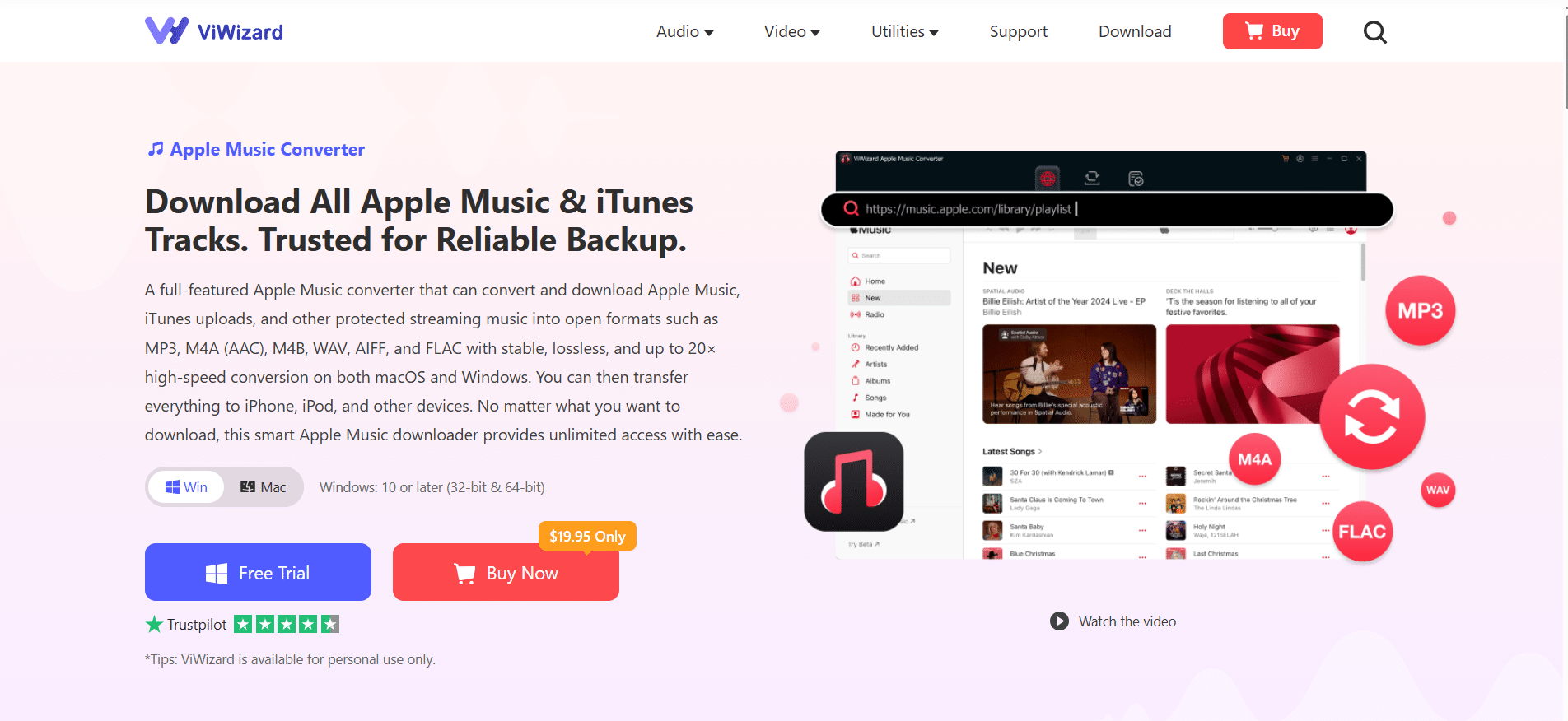
Key Features:
- Lossless Quality: Converts to MP3 while preserving 100% of the original audio quality.
- ID3 Tags: Saves metadata (Artist, Album, Cover Art) so your MP3s stay organized.
- Batch Conversion: Convert entire playlists at once.
- Universal Format: Besides MP3, it supports FLAC, WAV, M4A and more.
How to Convert Apple Music to MP3 in 4 Steps
Ready to convert Apple Music to MP3? Follow this simple step-by-step guide using ViWizard.
Step 1: Install ViWizard
Download and install ViWizard Apple Music Converter on your Windows PC or Mac. Once installed, launch the program.
Step 2: Sign in to Apple Music
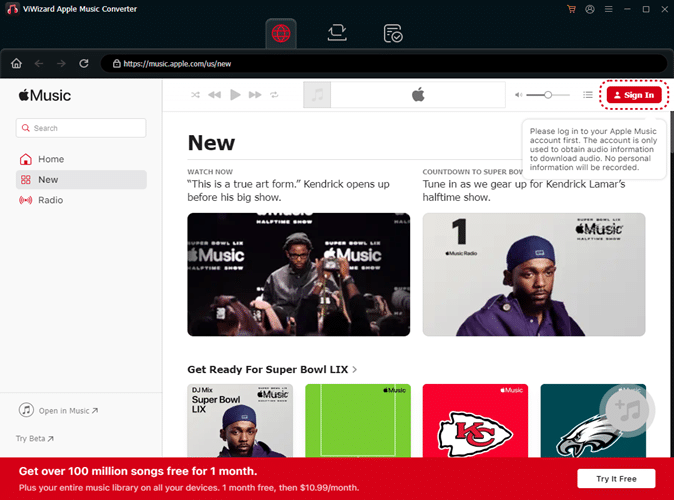
ViWizard has a built-in web player. Click the “Sign In” button in the top right corner and log in with your Apple ID to sync your playlists.
Step 3: Select Output Settings
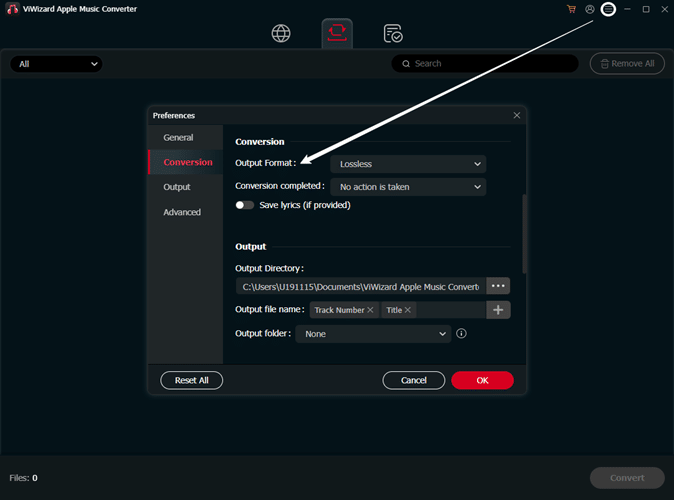
Before converting, you must set your output format. Click the “Menu” bar and select “Preferences.” Here, set the Output Format to MP3. For the best quality, set the bitrate to 320kbps.
Step 4: Add Songs and Convert
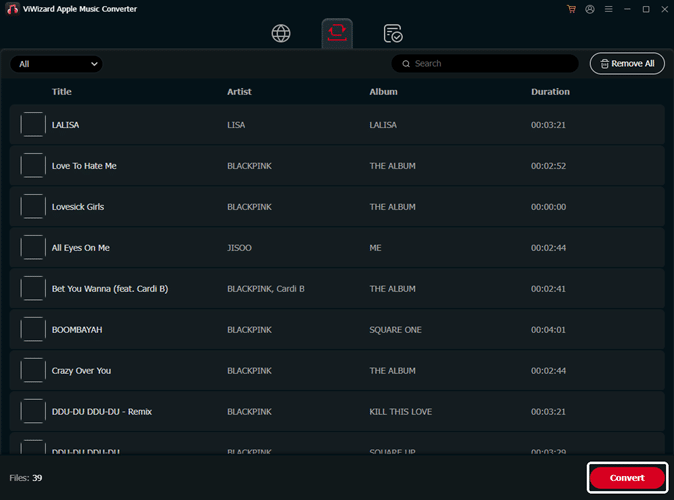
Browse your library, drag the songs or playlists you want into the ViWizard interface. Click the “Convert” button. ViWizard will now convert Apple Music to MP3 files on your hard drive. Once done, you can find them in the “Converted” folder.
The Benefits of Converting to MP3
Why go through the effort to convert Apple Music to MP3? Once you have your MP3 files, you are no longer renting your music—you own it. You can:
- Play on Any Device: Use them on iPods, Sony Walkmans, car stereos, or PS5s.
- Keep Them Forever: Keep the MP3s even after canceling your Apple Music subscription.
- Use for Creative Projects: Edit the tracks in DJ software or video editing tools (for personal use).
Conclusion
Learning how to convert Apple Music to MP3 is the best way to take control of your digital music library. While there are many tools online, ViWizard stands out as the most reliable and fastest solution. It handles the complex DRM removal automatically, giving you a high-quality MP3 file in seconds.
Ready to free your music? Download ViWizard Apple Music Converter today and enjoy your playlists anywhere, forever.