


Pixel owners get that same point-and-shoot reliability, but the app buries a surprising number of pro-grade switches that can take your shots to new heights in seconds.
That same computational photography that keeps the Pixel models near the top of independent rankings from groups like DxOMark is also what these lesser-known tools rely on. Whether you prefer cleaner composition, quicker exposure decisions, or just need to wring more from limited storage, consider these seven settings—smart upgrades overlooked by most users.
- Perfect Alignment With Framing Hints & Grids
- Rapid Access Controls for On-Screen White Balance and Exposure
- Lock Focus With a Long Press to Prevent Refocusing
- Use the Volume Keys to Smoothly Zoom Between Levels
- Motion Photos Controls for Moments Between Frames
- Select the Selfie You See and Stop Mirrored Flips
- Storage Saver for When Space Is Running Out
- Clean Storytelling With Grid Lines and Golden Ratio
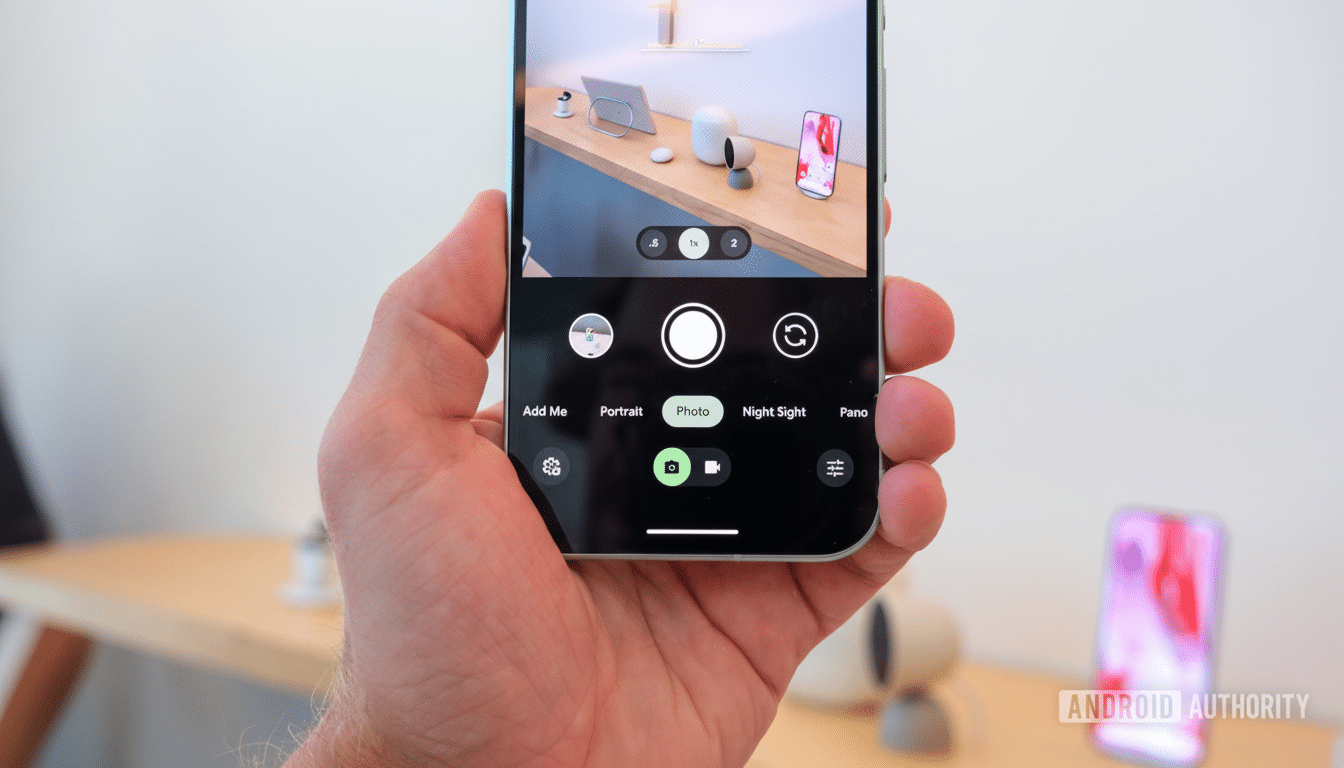
Perfect Alignment With Framing Hints & Grids
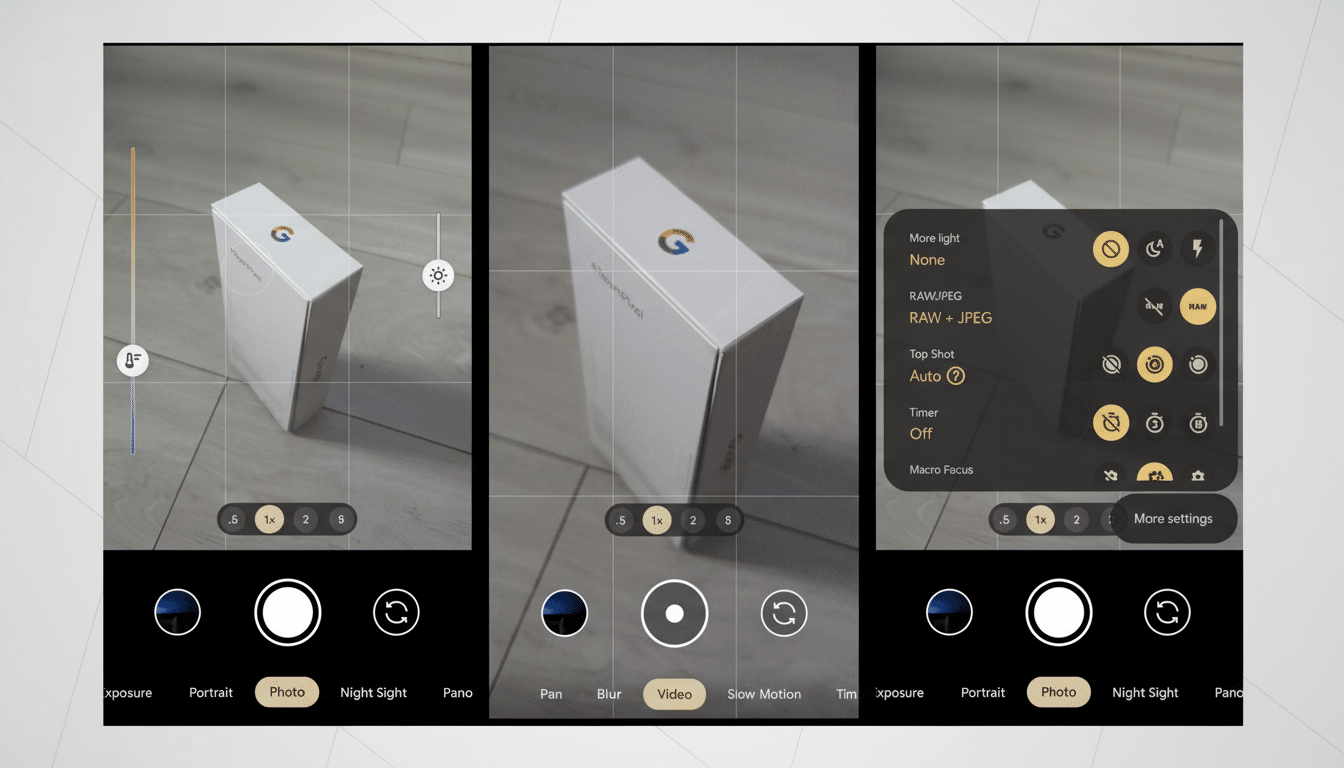
Open the Camera app, go to Settings and then Composition. Activate Framing Hints to get a leveling guide and degree readout; your phone vibrates slightly once you’re dead level. Pair it with any Grid Type (3×3, 4×4, or Golden Ratio) for straighter horizons and easier subject placement.
Real-world win: city skylines, beaches, and interiors are immediately more professional when the horizon’s straight and your subject lines up against a rule-of-thirds line. Clean horizons are often the first sign for a photo editor or shooter in a newsroom, magazine, and elsewhere that some thought went into an image.
Rapid Access Controls for On-Screen White Balance and Exposure
Turn on Quick Access Controls under Fast Access. Tap the viewfinder and you get three sliders: white balance on the left, and shadows and exposure on the right. It’s the Pixel version of “pro mode” minus the mind-bending: nudge warmth for a sunset, lift shadows for people with their backs to the light, and pull exposure down to save detail in the brightest highlights.
Tip: For high-contrast scenes, dial down exposure a little and let HDR+ pull back the midtones. You’ll preserve texture in both skies and neon signs instead of blowing them out.
Lock Focus With a Long Press to Prevent Refocusing
Tap to focus, and a white ring follows your subject. Press and hold to turn it yellow and lock your focus at that distance. Autofocus is quick but can hunt (particularly in low-light situations or when shooting through glass). AF Lock prevents the camera from refocusing when someone walks into your frame or you recompose.
Are you shooting portraits through a fence, food when steam is playing with the AF, or macro close-ups where depth of field can be razor-thin?
Use the Volume Keys to Smoothly Zoom Between Levels
Beneath Fast Access, select Volume Key Action and change to Zoom instead of Shutter. Now you can step cleanly through zoom ranges with volume up and down rather than having to pinch on-screen. This makes it easier to land on native optical steps when shooting with the newer Pro models, which have a periscope lens and fewer available steps at high magnification.
Street photographers will love this for one-handed shooting—line up, tap to focus, bump zoom with your thumb, and shoot without jiggling the phone.
Motion Photos Controls for Moments Between Frames
Switch Motion Photos from Auto to On or Off. Auto is smart; however, always-on captures a short clip of what happened right before and after you press the shutter button, letting you pull a sharper frame if someone blinked. In Google Photos, you can scrub the snippet to select the best instant or hold onto the motion for a subtle living photo.
Context is everything: Google has said Photos holds trillions of images and a billion more are added every week, and small decisions like Motion Photos can salvage borderline snaps that you might otherwise delete—no small thing if you’re shooting kids, pets, or sports.
Select the Selfie You See and Stop Mirrored Flips
Now, in Composition, switch on Keep Selfies As Seen so the saved image mirrors your preview. That is to say, text on shirts reads correctly, hair parts as you expect it to, and framing doesn’t feel reversed. It’s a tiny switch that solves one of the biggest complaints about selfies.
Pro tip: If you like the mirrored look for fast social posts, keep it off. Turn it on for details you want to document accurately and anything with lettering.
Storage Saver for When Space Is Running Out
In Camera settings, find Device Storage and switch on Storage Saver. The phone automatically throttles video down to 1080p, curtails some enhancement features, and dials in lighter photo settings so you can keep shooting. You can even have it kick in only once remaining storage dips below a certain threshold.
This won’t turn free space into an empty drive, but it stretches your runway—important on trips or event days when you’re close to maxing out the disk. Consider it a safety valve to prevent the nightmare scenario of not being able to capture something because your phone is full.
Clean Storytelling With Grid Lines and Golden Ratio
Another composition edge: Give the Golden Ratio grid a whirl instead of the typical 3×3. In architecture and food, putting key lines along those spirals gives images a sense of equilibrium without being predictable. Editors often prefer that because viewers linger just a little longer on these frames—a small, people-pleasing push in newsroom tests.
Bottom line: Pixels already produce really strong images by default. Flip on these seven settings and you’ll go from lucky snapshots to (mostly) reliable shots, with less drift, cleaner exposure levels, faster focus, and fewer storage headaches—all without leaving the stock camera app.
