


After years of living with tiny irritations on my Google Pixel, I finally sat down, dug through Android’s menus, and flipped the switches that actually matter. The result: smoother performance, fewer interruptions, and smarter features that feel truly personal.
I tested these tweaks on recent Pixel models running Android 15 and 16; menu names can vary slightly by device. If your Pixel has been feeling a bit clunky or noisy, these 10 settings delivered the biggest day-to-day improvements.
- Turn on Smooth Display for smoother, faster scrolling
- Customize Quick Tap to assign a handy back-tap shortcut
- Tune Adaptive and Extreme Battery Saver for longer life
- Supercharge At a Glance for smarter, timely updates
- Upgrade Now Playing with a helpful lock screen Search
- Let Pixel suggest apps on your dock based on your habits
- Set up Live Translate for messages, camera text, captions
- Hide sensitive notifications on your lock screen for privacy
- Aggressively filter spam calls with caller ID and blocking
- Sync notifications across your Pixel phones and tablets
- Calibrate your Do Not Disturb rules for fewer interruptions
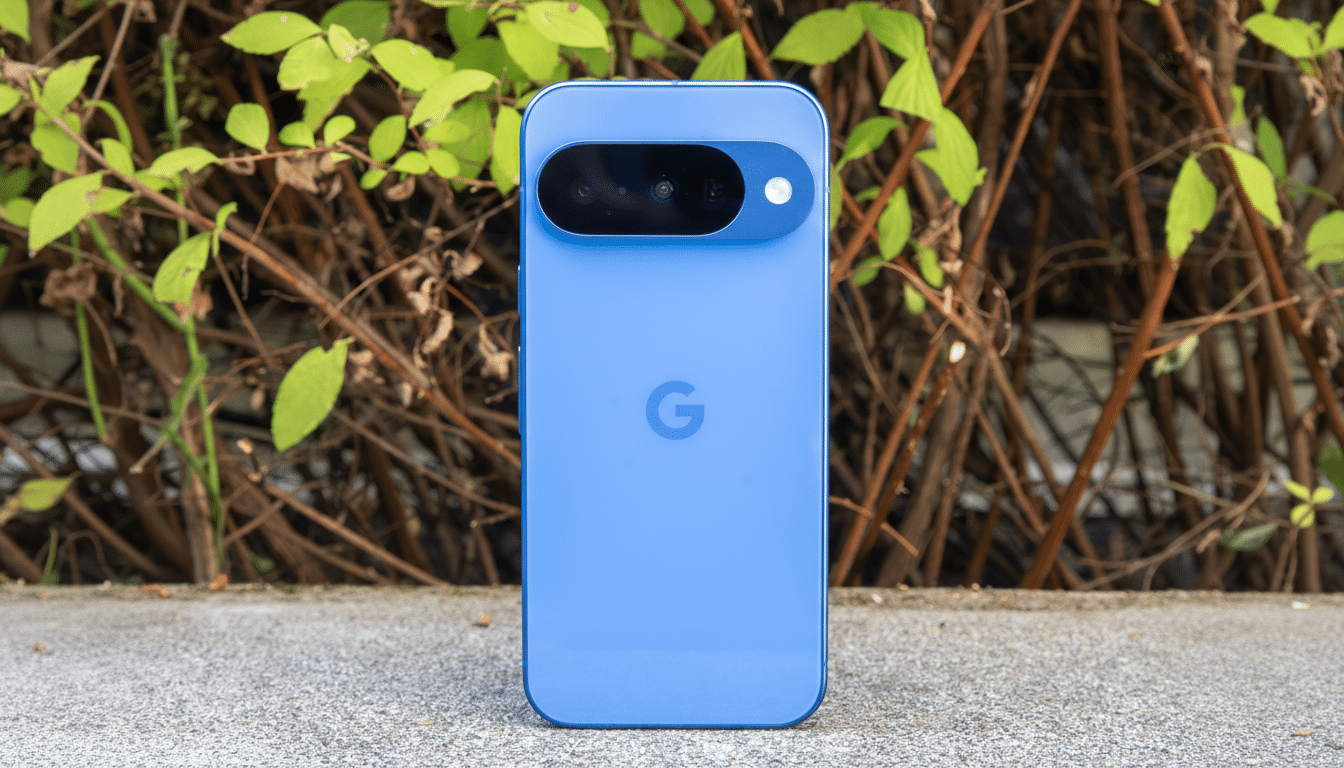
Turn on Smooth Display for smoother, faster scrolling
Pixels with high‑refresh screens often ship set to 60Hz. Enabling Smooth Display unlocks 90Hz or 120Hz, dropping frame intervals from 16.7ms to as low as 8.3ms for visibly fluid scrolling and lower perceived input latency.
Head to Settings > Display > Smooth Display and toggle it on. The difference is immediate in feeds, games, and the app switcher.
Customize Quick Tap to assign a handy back-tap shortcut
Double-tap the back of your phone to do something useful. I use it as a silent flashlight switch, but you can launch the camera, grab a screenshot, or open any app.
Go to Settings > System > Gestures > Quick Tap, enable it, then pick your shortcut. It’s the one gesture I miss instantly on non-Pixel phones.
Tune Adaptive and Extreme Battery Saver for longer life
Adaptive Battery learns your habits and prioritizes power accordingly, while Extreme Battery Saver pauses nonessential apps to stretch a charge dramatically. Google’s support docs say Extreme mode can push runtime up to 48 hours under the right conditions.
Find both under Settings > Battery > Battery Saver. Set them to trigger automatically when you hit a chosen percentage so you never scramble for a charger.
Supercharge At a Glance for smarter, timely updates
At a Glance turns the lock screen and home screen into a mini dashboard for flight gates, severe weather, commute times, and Nest doorbell alerts. It pulls from services you already use, like Calendar and Maps, with processing handled on the device’s Private Compute Core.
Long‑press the home screen > Home settings > At a Glance, then enable the info you actually want. I keep weather alerts and travel updates on; the rest stay off to reduce clutter.
Upgrade Now Playing with a helpful lock screen Search
Now Playing recognizes music around you using an on-device catalog, preserving privacy and saving data. When it misses a track, adding a quick Search button on the lock screen gives you a second shot via Google’s cloud match.
Go to Settings > Display > Lock Screen > Now Playing, turn on song ID, then enable the lock screen search button. It’s the best of offline and online recognition in one place.
Let Pixel suggest apps on your dock based on your habits
The Pixel Launcher can suggest apps based on time, place, and usage, processed on-device for privacy. Clearing a spot on your dock lets the system swap in the app you’re most likely to need next.
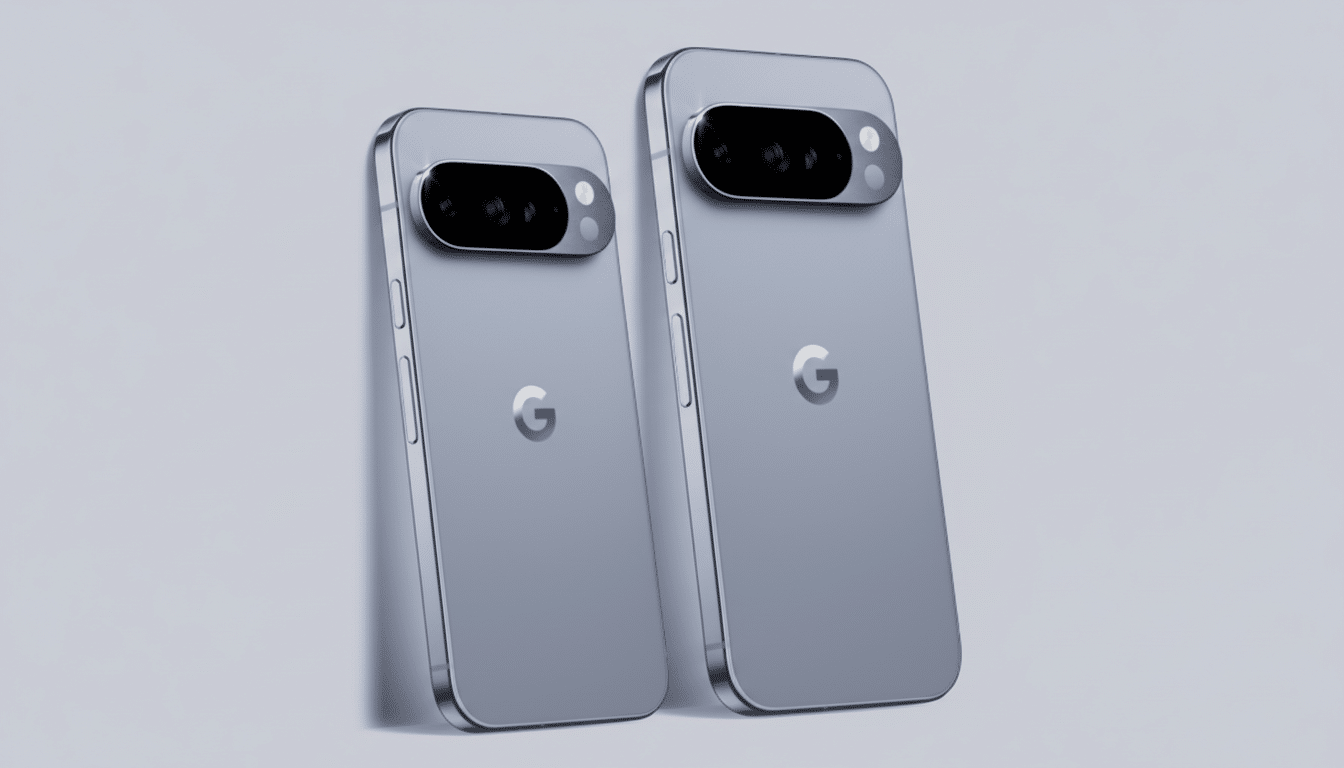
Long‑press the home screen > Home settings > Suggestions, toggle on Suggestions on Home Screen, then free up at least one dock icon to see dynamic picks appear.
Set up Live Translate for messages, camera text, captions
Live Translate handles messages, camera text, and captions in dozens of languages, much of it on-device via Tensor’s ML cores. In my testing, it’s fast enough to make mixed-language group chats feel seamless.
Open Settings > System > Live Translate, download languages you need, and enable auto-translate in supported apps. Interpreter mode is still there when you need live, two-way conversations.
Hide sensitive notifications on your lock screen for privacy
Lock screen previews are convenient but risky. Pew Research has repeatedly found high concern about personal data exposure, and lock screens are often where glances happen.
In Settings > Notifications, disable Sensitive notifications to hide message content while keeping sender and app visible. For maximum privacy, change Notifications on lock screen to Don’t show any notifications.
Aggressively filter spam calls with caller ID and blocking
Americans received more than 50 billion robocalls in 2023, according to the YouMail Robocall Index. Pixels fight back with caller ID, spam warnings, and optional auto-filtering that shunts junk straight to voicemail.
Open the Phone app > Settings > Caller ID and Spam. Enable spam ID, and if available, turn on Filter spam calls to silence the noise without missing real people.
Sync notifications across your Pixel phones and tablets
If you use multiple Pixels, dismissing an alert on one can dismiss it everywhere. It’s a small change that reduces repeat interruptions across phones and tablets.
Go to Settings > Notifications > Dismiss notifications across Pixel devices, grant access, and select apps to sync. Repeat on your other devices for consistency.
Calibrate your Do Not Disturb rules for fewer interruptions
This is the final sanity saver. Custom DND schedules let only the right people or apps break through, while muting everything else during sleep, workouts, or meetings.
Navigate to Settings > Notifications > Do Not Disturb. Set routines, choose starred contacts, and allow only critical apps. The payoff is fewer wakeups and better focus without missing emergencies.
Individually, these toggles seem minor. Together, they transform how a Pixel feels: faster where it counts, quieter when it matters, and smarter all day. The best part is they’re already on your phone—no upgrade required.
