


Android finally has a native way to safeguard the contents of your Downloads folder. A new Google Play system update introduces a Drive-powered backup for locally downloaded files, closing a long-standing gap in Android’s otherwise robust backup story.
Until now, device backups covered photos and videos (via Google Photos) and a mix of settings, call history, SMS, and some app data. Files saved to /Downloads—think PDFs, tickets, invoices, and installers—were often orphaned unless you manually uploaded them. The new option brings those everyday documents into the safety net, with a few important caveats.
- What Is Changing with Android Downloads Folder Backups
- How to Turn On Android Downloads Folder Backups
- What Backs Up and What Does Not in Android Downloads
- Storage and Privacy Considerations for Drive Backups
- Restoring Your Files from Google Drive Backups
- Why Android Downloads Folder Backup Feature Matters
What Is Changing with Android Downloads Folder Backups
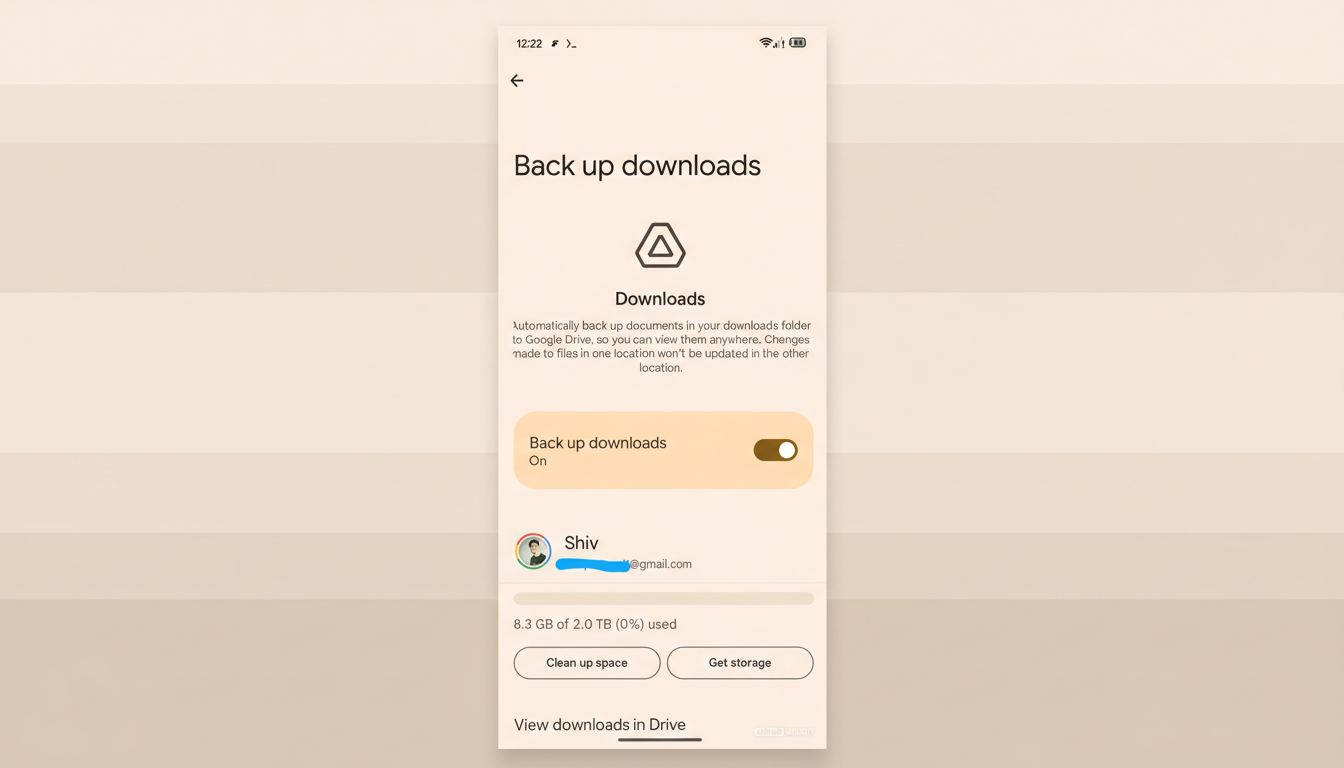
Android will create backup copies of eligible files from your Downloads folder in Google Drive. This is a backup, not a live sync. In practice, that means Android captures a snapshot of your files at the time of backup. Edits you make later on your phone won’t automatically update the Drive copy, and changes in Drive won’t propagate back to your device.
The feature focuses on common document-style formats. While Google has not published a full whitelist, expect support for typical everyday files such as PDFs, text documents, and images saved outside Photos. Very large media or unusual formats may be excluded, since Photos already handles photo/video and Android aims to avoid duplicating massive files.
How to Turn On Android Downloads Folder Backups
Because this ships via Google Play system updates, you won’t need a full OS upgrade, but the toggle may arrive in stages. Here’s the general flow once it appears on your device:
- Update Google Play system components: Settings > Security and Privacy > System and Updates > Google Play System Update (menu names may vary by device).
- Open Settings > Google > Backup and look for a new option related to Files or Downloads. Enable the Downloads backup toggle and confirm the on-screen prompts.
- If you use Files by Google, you may also see a prompt inside the app to protect your Downloads; follow the guided setup there if offered.
After the first run, Android will periodically back up new or changed items as fresh snapshots, subject to the rollout and your connectivity settings. If you don’t see the option yet, it’s likely still propagating on the server side.
What Backs Up and What Does Not in Android Downloads
- Backed up: Common documents and everyday downloads, such as PDFs, boarding passes, tickets, resumes, invoices, small images saved from the web, and files received from email or messaging apps that land in /Downloads.
- Not backed up: Your entire internal storage, app-specific private folders, and files already handled by other backup systems (for example, photos and videos in Google Photos). Edits made after the backup won’t sync to Drive automatically, and changes in Drive won’t mirror back to your phone.
This design respects Android’s scoped storage model, which limits broad file access for privacy and performance. Targeting the public Downloads directory offers high user value without overreaching into app sandboxes.

Storage and Privacy Considerations for Drive Backups
Downloads backups count against your Google Drive quota. Most accounts include 15 GB shared across Drive, Gmail, and Photos, and Google One plans offer more if you need it. Before enabling the feature, consider pruning large, redundant downloads to avoid burning through storage.
Files in Drive are encrypted in transit and at rest. For work profiles and enterprise devices, admins may control whether this feature is available or how it behaves, consistent with existing Google Workspace policies.
Restoring Your Files from Google Drive Backups
Restoration is straightforward but manual by design. After moving to a new phone or resetting your device, sign in to your Google account, then open the Drive app to locate your Downloads backups. From there, you can restore individual files back into the Downloads folder using Files by Google or your preferred file manager.
Because this isn’t a two-way sync, treat it like a safety copy: recover what you need, then make fresh edits locally or store working documents in a proper sync folder if you require live versioning.
Why Android Downloads Folder Backup Feature Matters
Android powers well over 70% of smartphones worldwide, according to IDC, and the Downloads directory is where critical one-off files often live—travel docs, tax PDFs, school forms, and app installers. By elevating Downloads into first-class backup territory, Google reduces the everyday risk of losing vital paperwork to a misplaced phone or a factory reset.
It’s not a replacement for full file sync solutions, but it’s a practical safety net for the files people lose most often. Keep an eye on your device’s Backup settings as the rollout progresses, and once it appears, flip it on—your future self will thank you.
