


Google has quietly removed the Uninstall button from Play Store listings for system apps, taking away an easy method for users to reverse unsupported updates. The change requires taking a detour into device settings to roll system apps back to their factory versions, choking off one potential recourse many power users and support reps turn to when an update goes sideways.
What Changed in the Play Store for System App Updates
Opening up the Play Store page for any of these system apps recently resulted in a display bar that had two options: Open or Uninstall. That Uninstall button didn’t erase the app itself; it erased updates, returning the software to the original build you received when you first brought the device home. These days, the system app listing shows just Open in a lot of cases. The change seems to be server-side and is showing up across several recent Play Store versions, from 49.1.32-31 to 49.2.25-31, according to reports on the r/Android subreddit as well as by way of 9to5Google and XDA community members.

Even system components that you don’t see in the app drawer—like Android Auto and Pixel Camera Services—are impacted. In some cases, their pages will have no buttons at all (which is logical since we don’t launch these apps), but previously those pages always showed the option to Uninstall if you wanted to roll back updates.
Why This Matters for Troubleshooting and Support
Rolling back a system app comes in handy when you encounter a bug, UI regression, or missing feature that is included with an update. It’s also a popular troubleshooting step suggested by carrier stores and OEM support teams for when, for example, your Camera update is suddenly crashing or an updated Phone app has broken rules for recording calls in a region.
Even a small failure rate can add up to millions of users looking for workarounds, especially when the overall number of active Android devices exceeds 3 billion. It adds another level of support overhead, as users who aren’t tech-savvy may think they can only install or delete apps from the Play Store.
Probable Reasons Behind the Move to Limit Rollbacks
Google hasn’t explained the decision, but there are some reasonable potential motives. Downgrades are generally discouraged by security teams as such a step could potentially bring patched vulnerabilities back into an environment. Android already has rollback protections at the OS and firmware levels; clamping down on app-level downgrade paths would follow from that stance.
There is also an angle on platform architecture. It’s no secret that as more foundational elements are shunted over to modular updates through Project Mainline, perhaps Google would rather have one consistent method for dealing with system components — that is, Settings — than having a rollback control in the Play Store UI which works differently everywhere and in every OEM skin.
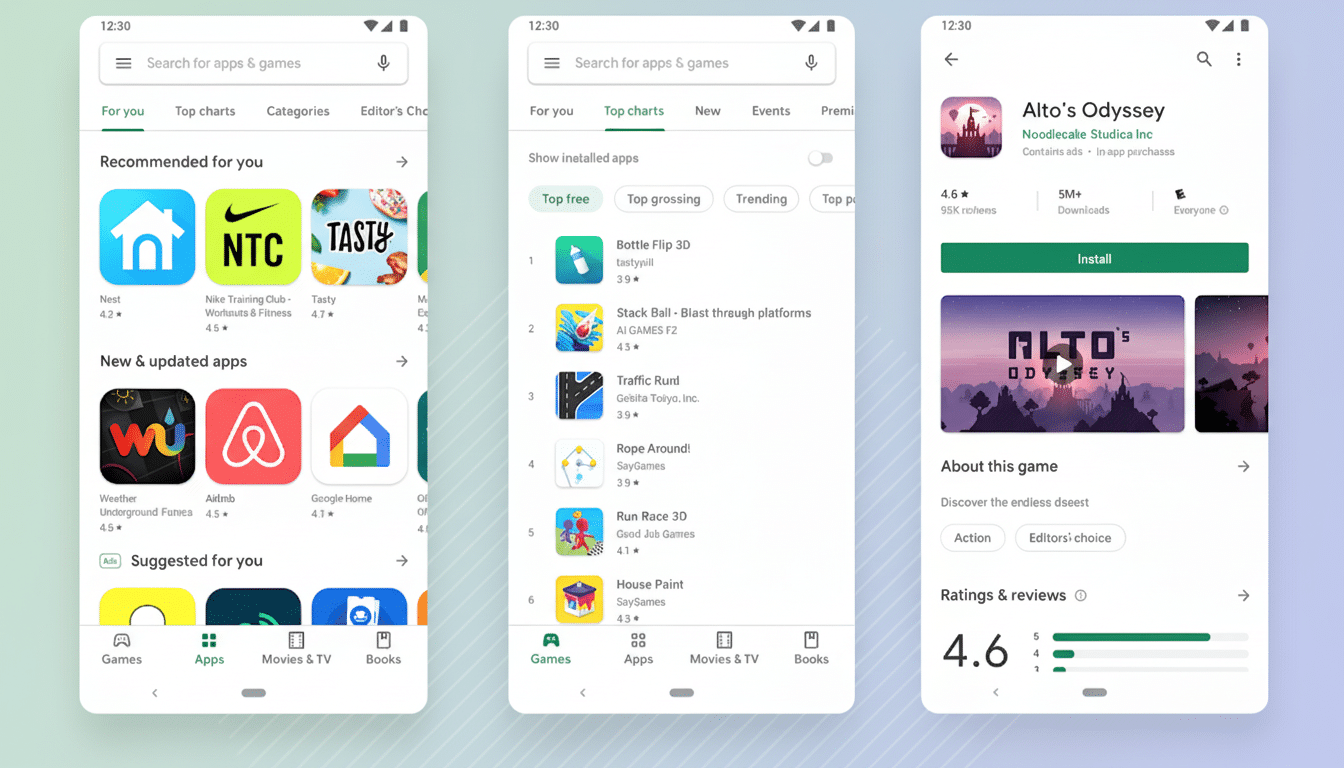
The timing is interesting. Earlier this year, Google introduced updated remote app controls that allow users to uninstall applications on all devices at once from the Play Store. That ease-of-use improvement for user-installed apps stands in stark contrast to the added resistance present for system apps, hinting at an intentional divide between consumer app management and control over system components.
How to Roll Back a System App Now Using Settings
The rollback route is still there on many devices — you just need to dig for it.
- Open Settings, then Apps.
- Tap See all apps and choose the system app you’re targeting.
- Tap the three-dot menu in the top-right corner and select Uninstall updates.
- On some OEM builds, go to App details and disable the app first to reveal the option.
(Two notes of caution: Not every system component can be rolled back, especially if it’s a Mainline module or deeply integrated with the OS. Developer tools or ADB-aided forced uninstalls could be used to remove essential services for the current user profile — so proceed with caution if you delve off-road and outside standard settings.)
What to Watch Next as Google Adjusts Play Store Controls
We will be watching for an official justification from Google, or any signs of pullback if user feedback becomes heavy. Stay tuned to the Google Support Community and the Play Store release notes for more information. So for now, the practical upshot is easy: if a system app goes belly-up after an update, don’t bother with the Play Store—head into settings and uninstall updates instead.
If that sticks, I would expect OEMs and enterprise admins to adjust help docs and policies for managing it. A minor UI tweak in the world’s most popular app market can become a pebble thrown into the pond, with ripple effects at help desks everywhere — and this one throws an additional couple of steps into what might have been a routine fix that many people rely on.
