


Through this service, Google “casts” its Gemini assistant right into Google Chat with the introduction of a Refine button that can rephrase your draft, clean up grammar, and tweak tone to make sure your message is firmer before you hit send. It’s a modest feature, but it makes a big difference for teams managing stakeholders and large group threads and communicating across languages.
What’s new in Google Chat: the Refine writing feature
Refine resides in the Chat composer. You can click the toolbar button or highlight text and choose Refine to see different ways to phrase things. A rambling note can be tightened; a blunt update softened; and a quick ping formalized into something board‑ready. Consider “Need status ASAP” morphing into “Can you pass on a quick update on today’s milestones?” — same intent, fewer rough edges.
- What’s new in Google Chat: the Refine writing feature
- Who gets Gemini in Chat and how to use Refine
- Why this feature matters for teams and collaboration
- Privacy, governance, and guardrails for Gemini in Chat
- How Gemini in Google Chat compares with other tools
- Tips for better rewrites with Refine in Google Chat
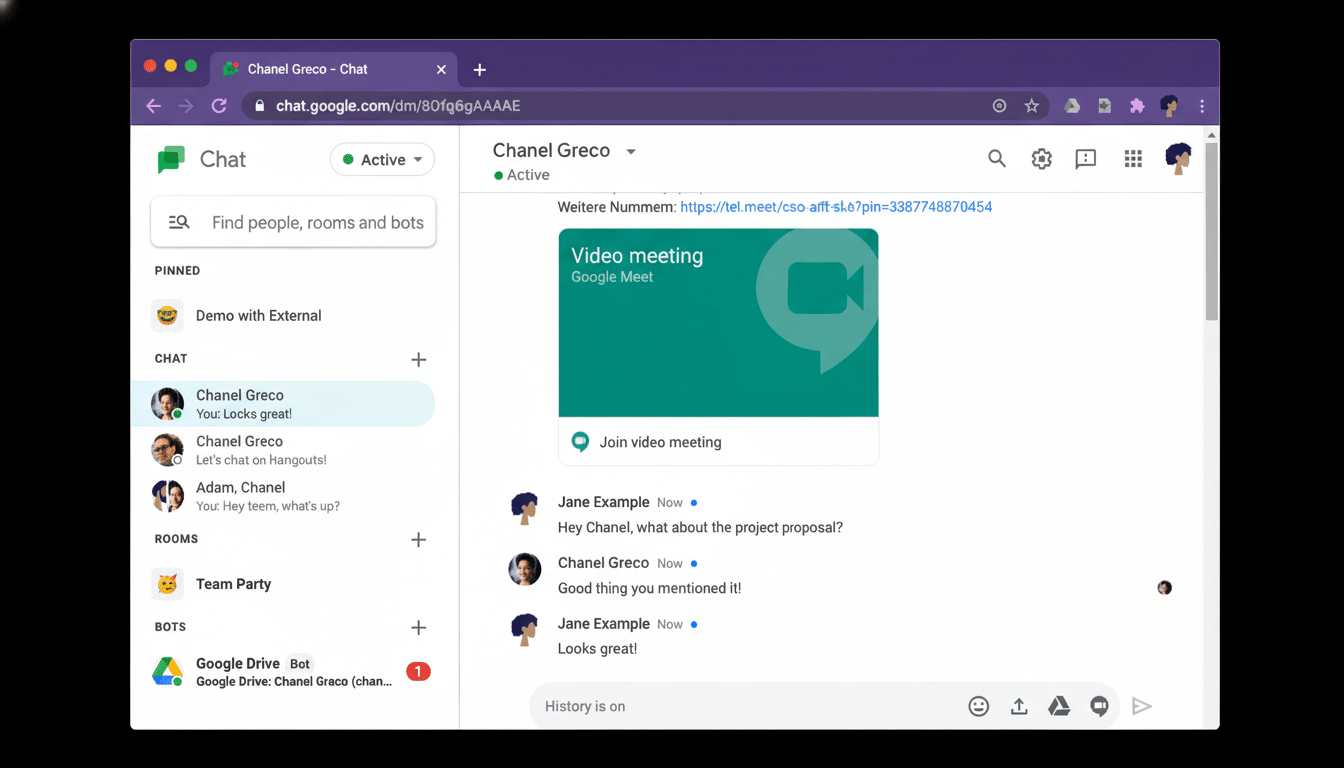
The feature is not merely spellcheck with a flourish. It uses the generative power of Gemini to think about clarity, tone, and audience. In use it can make a number of suggestions, help non‑native users sound more natural, and ensure terminology consistency across a project. But here’s the kicker: Not every suggestion is shorter; a few of the rewrites sacrifice brevity for completeness, so I’d still advise scanning quickly.
Who gets Gemini in Chat and how to use Refine
Gemini in Google Chat is automatically turned on for supported Google Workspace and Gemini add‑on plans. It is available across Business Standard and Plus, Enterprise Standard and Plus, Frontline Plus, Google AI Pro and Ultra, Google AI Pro for Education, and Google AI Ultra for Business. Workspace admins have the ability to control access in the Admin console, like they do for other Gemini features.
Give it a try: Create a Chat message, write out your text, and click Refine. Or select a sentence and hit Refine to focus on a certain section. If you think it’s wrong, or that the idea is overblown, then you can just treat it as a suggestion in one post and discard it in another — there’s no need to reproduce my solution verbatim.
Why this feature matters for teams and collaboration
The reality pretty much is that chat is where a lot of decisions now happen, so being clear and in the right tone matters more than window dressing.
For global teams, the ability to smooth idioms or sand down slang terms helps to reduce friction; for leaders, it aids in crafting updates that are sensitive to their audience. Those micro‑improvements accumulate over the course of an entire workday spent in messages and meetings.
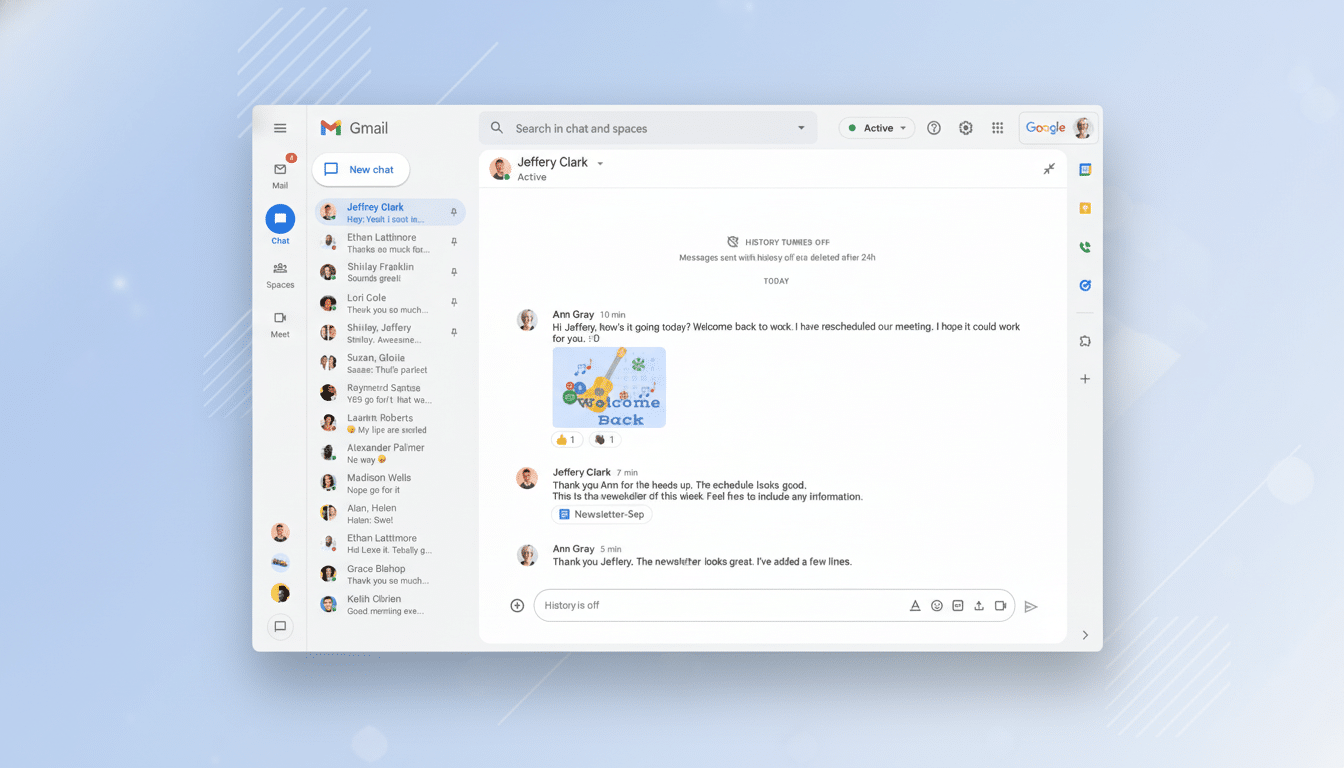
The broader trend is unmistakable. Gartner says generative AI tools will spread through most of the enterprise workflow, and McKinsey’s research suggests generative AI could unlock trillions in annual economic value — a good amount of it from writing and communication. Giving editing help directly in Chat meets people where they are and reduces the copy‑paste‑edit cycle in apps outside Chat.
There is a caveat. Harvard Business Review has issued a caution about “workslop” — an overuse of AI that results in bland, homogenized messaging. The best use of Refine is collective: let Gemini alight on a cleaner structure or friendlier tone, then put your expertise back in.
Privacy, governance, and guardrails for Gemini in Chat
For regulated teams, the first question is how they are dealing with data. Google’s Workspace commitments specify that customer data from Workspace apps is not used to train models at all unless an organization opts into such use, and features are subject to current retention and administrative controls. Like all AI in the flow of work, admins should review DLP, audit logging, and content management policies before broad rollout.
On the user’s side, bear in mind that AI‑generated suggestions may bring inaccuracies or an unintended tone. Limit the amount of sensitive information in your drafts you send to Refine and double‑check any numbers, dates, or names before hitting publish.
How Gemini in Google Chat compares with other tools
Microsoft offers tone and rewrite suggestions in Microsoft Teams using Copilot, while AI in Slack is centered on search and summarization, but third‑party tools such as Grammarly plug the rewrite gap. That’s because Google’s search feature is native, one click away from your seat in Chat, just as Gemini covers more and more of Workspace, from Docs to Sheets and Slides.
Tips for better rewrites with Refine in Google Chat
- Set intent first. Throw down a little note at the top of your draft like “formal” or “quick update for execs,” then click Refine; Gemini will be able to match its tone and structure better.
- Request tighter or simpler language. If the proposed alternative is too wordy, ask for “shorter” or “plain language.” This is particularly useful for presenting to cross‑functional or non‑technical people.
- Keep domain terms. If Gemini replaces with synonyms that aren’t in your team’s verbal inventory, revert or edit; consistent language helps produce a clearer overall picture across threads and handoffs.
- Own the final line. Use Refine to unstick yourself, then add your voice, plus context and any numbers or links that may be required for action.
Gemini in Google Chat won’t replace thoughtful conversation, but it can take real friction out of the moments that count — moving a message from “fine” to “ready to ship” with just one click.
