


Being worn 24/7, fitness trackers take a beating and really aren’t built to last — although that doesn’t mean you’ll be replacing them after they hit the floor just once.
When we did research for our product reviews, it was amazing to see how companies made every type of claim possible, but the only comfortable things are facts.
- The Quick Fixes That Fix Most Every Glitch
- Fitbit sync failures and server outages: what to do next
- Battery drain and charging issues: fixes that work
- Display lines, freezes, and button problems on Fitbit
- App bugs and international changes users should know
- Notifications and silent alarms not working: fixes
- Firmware updates stuck and risky: safe update steps
- Mismatched heart rate or watch GPS readings: tips
- When to reset or replace your Fitbit device
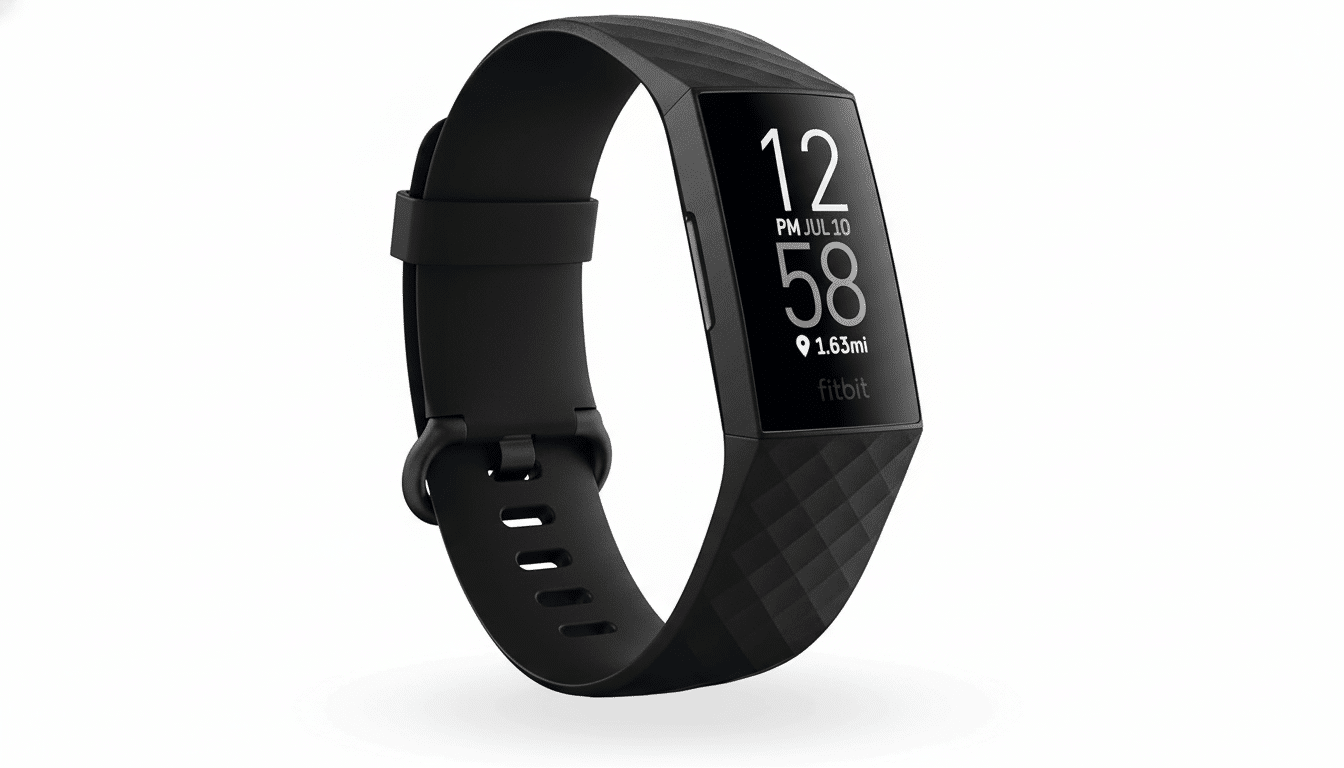
With tens of millions of active users cited in company filings prior to the Google deal, Fitbit problems arrive in recognizable patterns — and are often remediable at home. Below, a quick, expert-led guide to the most common Fitbit problems and how to fix them for good.
The Quick Fixes That Fix Most Every Glitch
Start with a restart. Reboot your Fitbit — Settings > Restart Device — or, if that doesn’t work, try holding the button for about 10 seconds — and reboot your smartphone. Power your tracker to at least 50%, and then try the action that didn’t work before. Reinstalling the Fitbit app, logging out and back in, and turning Bluetooth on/off on your phone clears most transient bugs.
If you just updated, it may take a few full charge cycles to re-index the data and settle background services. It is a wise move to wait a few days so you can avoid early-release hiccups before loading the newest firmware.
Fitbit sync failures and server outages: what to do next
When your stats refuse to sync, find out if it’s you or the cloud. Look up outage trackers such as Downdetector as well as the company’s social channels. If the services are down, there is nothing to do but wait.
No outage reported? Give the app Bluetooth, Location, and Nearby Devices permissions on Android; turn off battery optimization for Fitbit; and clear the app cache. On iPhone, make sure to enable Bluetooth, Background App Refresh, and notifications. Unpair the tracker and re-pair, making sure it is only connected to one phone at a time.
Battery drain and charging issues: fixes that work
For a few days, new devices may drain more quickly as features are being initialized. If you find that heavy drain continues to be an issue, turn off Always-On Display (or further limit the time it remains active), decrease vibration strength, minimize notifications, disable all-day SpO2 and irregular rhythm notifications if you don’t need them, and switch off continuous GPS.
To troubleshoot charging issues, try the original cable, plug directly into a wall adapter, and clean pins with a small brush and a dot of 70% isopropyl alcohol. Now plug the device in to seat it; you should see the charging symbol. If the battery plummets after an update (a common bug with some Charge 5 builds), contact support — the company has acknowledged that isolated reports have surfaced since certain firmware versions.
Display lines, freezes, and button problems on Fitbit
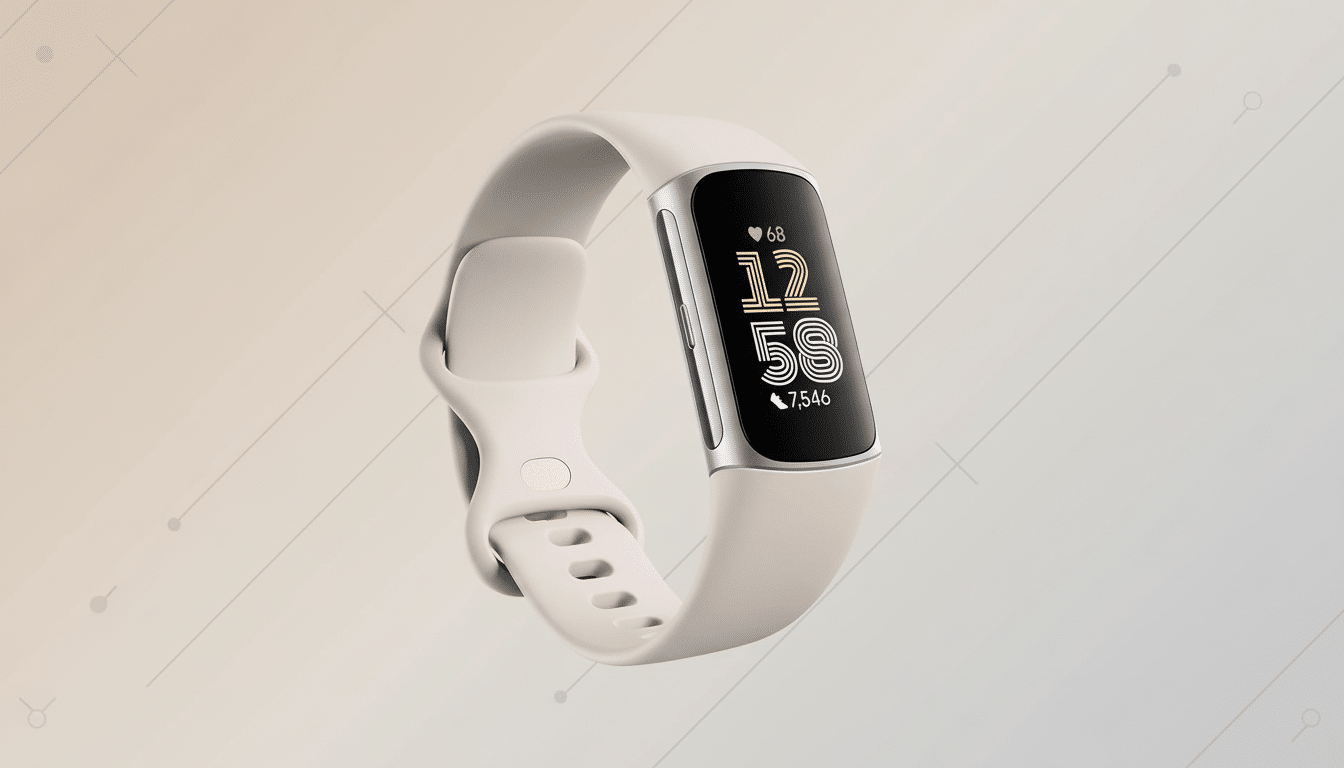
Vertical lines, flicker, and washed-out color often resolve with a restart or by changing your clock face. Try turning down brightness and turn off Always-On to test. Document with photos and open a warranty ticket if the hardware issue persists.
On Sense and Versa models, if inductive “buttons” aren’t responsive (these are actually grooves to press), press right on the groove, keep the area dry, and take off any case that goes over the edge. Physical buttons sticking after a workout generally come around with a rinse or two in fresh water and then a good drying.
App bugs and international changes users should know
UI glitches do crop up. One such example was an Android rendering bug in late 2024 that sliced the top off some screens on newer phones before it was patched. Make sure to update to the latest build of the Fitbit app; if issues persist, remove and reinstall the Fitbit app, then reboot your phone.
Know what’s limited: Sense 2 and Versa 4 don’t support third-party apps at all, and in the EU, the app gallery no longer supports any new third-party downloads, but existing ones continue to work. And if you can’t find a favorite clock face in those regions, that tweak in policy explains why.
Notifications and silent alarms not working: fixes
Check for notifications in the Fitbit app and at the OS level. On Android, there’s an option to have Fitbit run in the background with no restrictions and Bluetooth kept on. On iPhone, turn on Show Previews and allow Bluetooth sharing. Check whether Sleep Mode or Do Not Disturb is preventing the vibrations.
Check the vibrator with a timer. If the timer doesn’t ring, silent alarms certainly won’t. If your errors are not in the “occasional” category, it’s time to diagnose hardware. File a support claim.
Firmware updates stuck and risky: safe update steps
Leave the tracker in its charger, keep your phone nearby with the app open, and have an internet connection so that all this data can sync. If an update gets stuck, reboot both your watch and phone, toggle Bluetooth off and on again, and try the above steps from a different handset if possible. Users have reported severe problems following certain Charge 5 updates in 2023–2024; if your device begins to misbehave after updating, please get in touch with support for resolution.
Mismatched heart rate or watch GPS readings: tips
- Wear your tracker snug, under one finger above the wrist bone, and make sure the back is clean.
Choose the correct exercise mode, wait for GPS to lock, and calibrate your stride length in the app for improved distance accuracy. Optical heart-rate sensors can falter during high-intensity intervals, on tattooed skin, and when cold — a good warm-up (of you and the fit) is key.
Keep in mind, external chest straps aren’t supported by most Fitbit models, so expect limitations on just how accurate the wrist-based sensors can be. Don’t look at the data week by week but instead in the longer term so you can actually see patterns.
When to reset or replace your Fitbit device
If all else fails, back up the watch by syncing and perform a factory reset through device settings.
You will lose unsynced data, but stubborn software glitches often resolve only with a deep reset.
For obvious hardware failures, the company’s support pages and its community forums seem to get past any early kinks, and documented instances — from the initial Sense ECG “inconclusive” errors that some users experienced here at Wirecutter to a band issue I saw discussed before my purchase — resulted in replacement products. If your device is no longer under warranty, band swap-ins are possible on most of the newer models for relatively little expense, making the life of the tracker stretch without a new one.
