


Google is quietly testing a long‑requested upgrade for power users: vertical tabs in Chrome. The feature is available today in Chrome Beta and Canary, and while it’s not yet enabled by default, you can switch it on in minutes. For the world’s most popular browser — StatCounter places Chrome above 60% global share — this is a meaningful shift that mirrors what Edge, Vivaldi, and Arc already offer.
What you need to test Chrome’s vertical tabs feature
You’ll need Chrome Beta or Chrome Canary on Windows, macOS, or Linux. Your profiles, bookmarks, and sync continue to work as usual, and you can run Beta or Canary alongside Stable without conflict. Because this is a test feature, expect minor quirks and occasional design tweaks as Google iterates.
- What you need to test Chrome’s vertical tabs feature
- How to enable vertical tabs in Chrome Beta and Canary
- How to switch back or tweak vertical tab behavior
- Why vertical tabs matter for productivity and clarity
- Troubleshooting and caveats for Chrome vertical tabs
- Bottom line: Should you enable Chrome’s vertical tabs?
How to enable vertical tabs in Chrome Beta and Canary
Open Chrome Beta or Canary and type chrome://flags into the address bar, then press Enter. This is Chrome’s experimental settings page where Google gates features while they’re still in development.
In the Flags search box, type vertical or side panel to surface the relevant controls. Look for entries labeled Side Panel Tabs or Tab Strip in Side Panel. Set any tab‑strip‑in‑side‑panel style flag you see to Enabled. Flag names can vary by platform and build; if you see multiple related items (for example, side panel improvements), enable those as well.
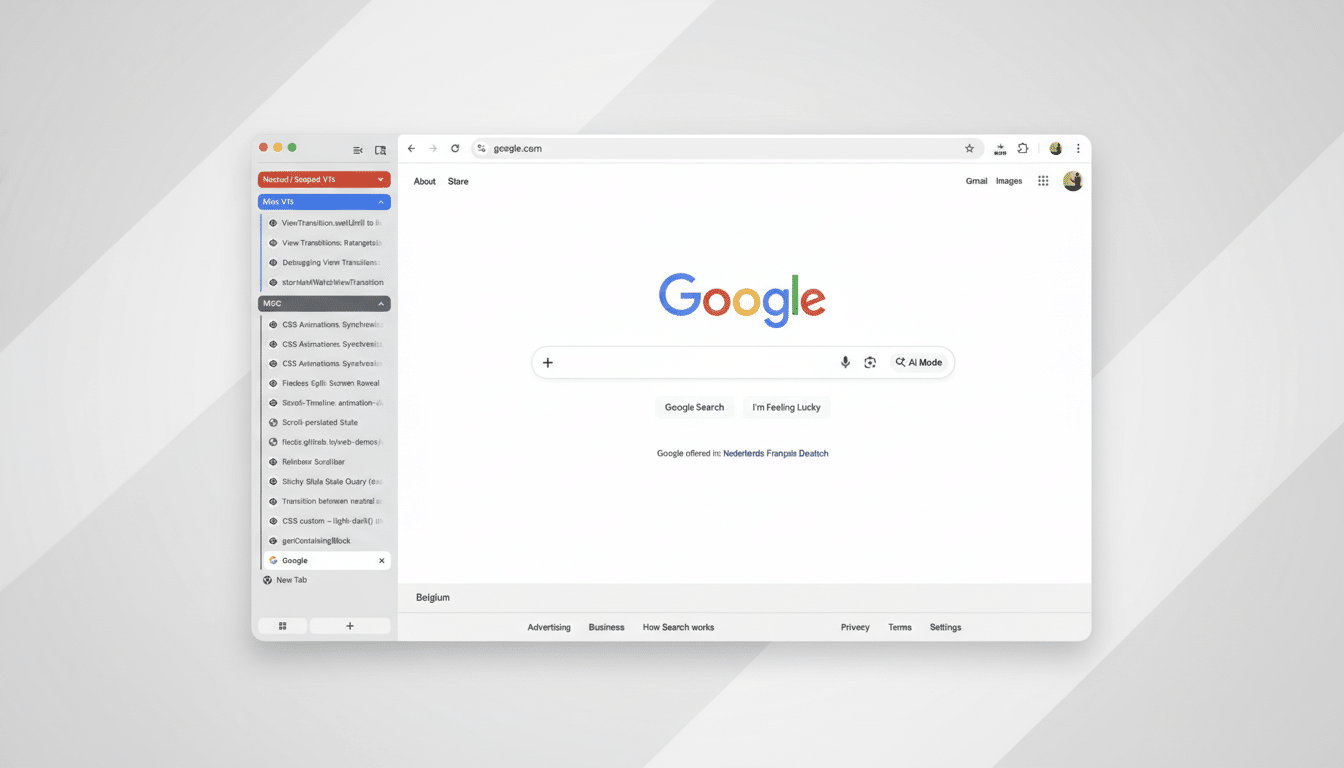
Click Relaunch to restart Chrome. After the restart, right‑click the empty area near the tab bar or toolbar and choose Move Tabs To The Side. Your open tabs will shift into a vertical list on the left, with Tab Search typically up top and controls for new tabs and tab groups near the bottom.
If you don’t see the Move Tabs option, restart Chrome one more time, verify the flags remain enabled, and make sure you’re not in full‑screen mode on macOS, where the context menu can be suppressed.
How to switch back or tweak vertical tab behavior
To return to the classic layout, right‑click near the tab area again and select Move Tabs To The Top. You can toggle between layouts as often as you like; this doesn’t affect your history, groups, or pinned tabs.
Common tab shortcuts still apply: Ctrl or Cmd+T opens a new tab, Ctrl or Cmd+W closes one, and Ctrl+Shift+T or Cmd+Shift+T reopens the last closed tab. Right‑click any tab to create or color‑code a group; groups translate cleanly to the vertical view and are easier to scan when you’re juggling research or project work.
Why vertical tabs matter for productivity and clarity
Most monitors are widescreen, and StatCounter’s device data shows 1080p remains the dominant desktop resolution — which means horizontal space is abundant while vertical pixels are scarce. Moving tabs to a side rail frees up vertical room for content and reduces the “squish” that happens when you open dozens of tabs across the top.
There’s usability backing, too. UX research from organizations like Nielsen Norman Group has long noted that vertical lists are faster to scan than crowded horizontal carousels. Microsoft’s Edge team has similarly advocated vertical tabs to curb overflow and improve tab recognition, particularly for users who keep 20+ tabs open.
If you’ve tried vertical tabs in Arc or Vivaldi, Chrome’s approach will feel familiar: a clean, scrollable column with readable titles, site favicons for quick recognition, and group management in easy reach. Firefox users can achieve a similar layout via extensions, but Chrome building this natively is a big deal given its massive user base.
Troubleshooting and caveats for Chrome vertical tabs
If the side tab strip disappears after an update, revisit chrome://flags to confirm your settings remain enabled — experimental flags can be renamed or reset between builds. If performance feels off, try disabling other experimental features you may have turned on or test in a fresh profile.
Because this feature is in active development, minor behaviors may change — such as where the Tab Search button sits or how groups collapse. That evolution is a positive sign: Google is tuning the UI before it lands in Stable.
Bottom line: Should you enable Chrome’s vertical tabs?
Vertical tabs are finally within reach for Chrome users who install Beta or Canary and flip a couple of flags. It’s a quick upgrade that can declutter your workspace, reclaim vertical pixels, and make heavy multitasking less chaotic. Turn it on now, and you’ll be ready when the feature arrives for everyone.
