


I’ve used Android long enough to remember Cupcake, yet every year I’m surprised by small, quietly brilliant tools that make daily life smoother. These aren’t flashy launches; they’re steady, under-the-radar features that remove friction in ways you only appreciate after living with them.
Below are six overlooked Android capabilities that have genuinely saved me time, reduced hassle, and even added a layer of safety. They’re widely available across recent Android versions, documented by Google, and increasingly recommended by security and usability experts when used thoughtfully.
- Share Wi‑Fi Instantly With QR Codes on Android
- Translate the Real World With Your Camera
- Use Gboard’s Clipboard as a Mini Productivity Hub
- Store Critical Medical Info for Emergencies
- Extend Unlock for Trusted Places and Devices
- Make Developer Options Work Better for You on Android
- Small Features Big Quality‑of‑Life Wins
Share Wi‑Fi Instantly With QR Codes on Android
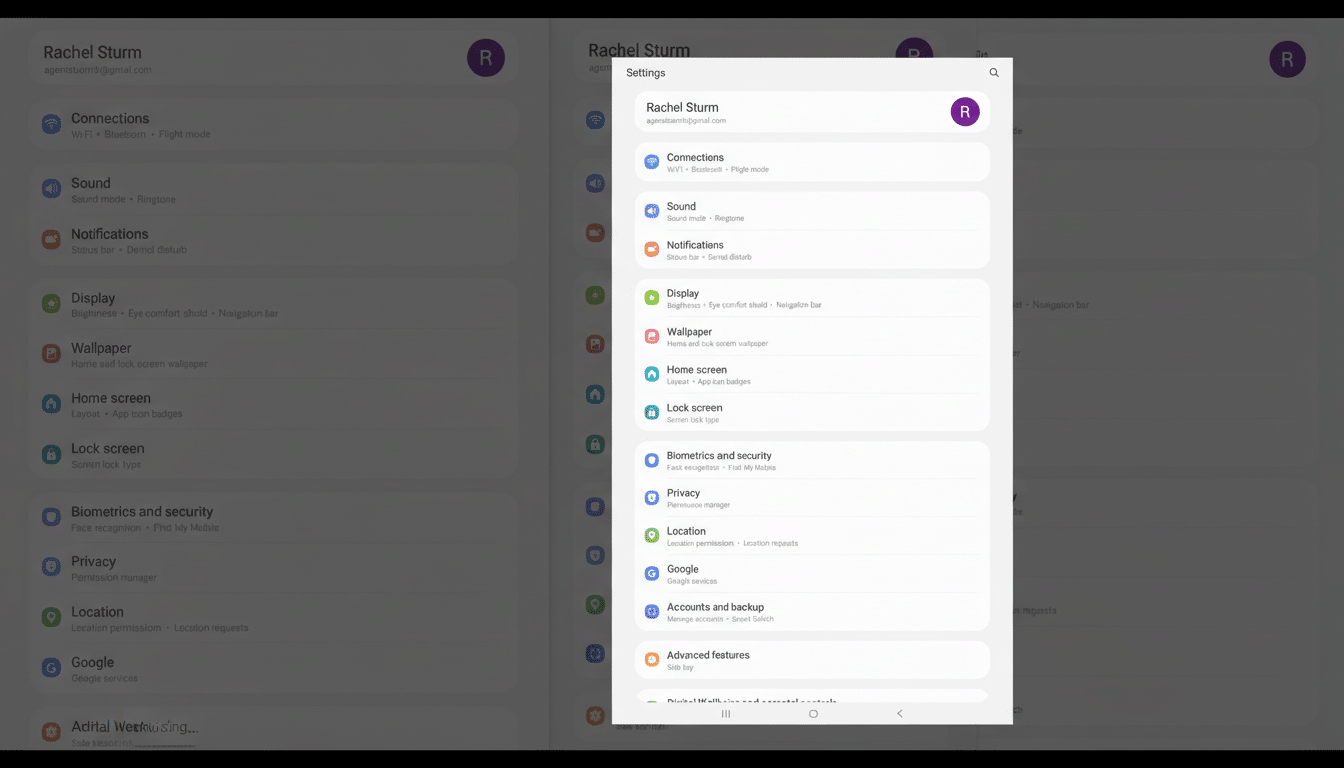
Reading a 20‑character password to guests feels like a relic. On Android, open Settings > Network & Internet > Internet, tap your network, then Share. Authenticate, and a QR code appears. Friends scan it and join in seconds—no typos, no awkward password recitals.
It’s faster and safer than shouting credentials across the room. The QR encodes the SSID and security type, and you can just print it for repeat visitors. The Wi‑Fi Alliance has long emphasized WPA3 for stronger protection; QR sharing plays nicely here because you aren’t normalizing loose password handling.
Translate the Real World With Your Camera
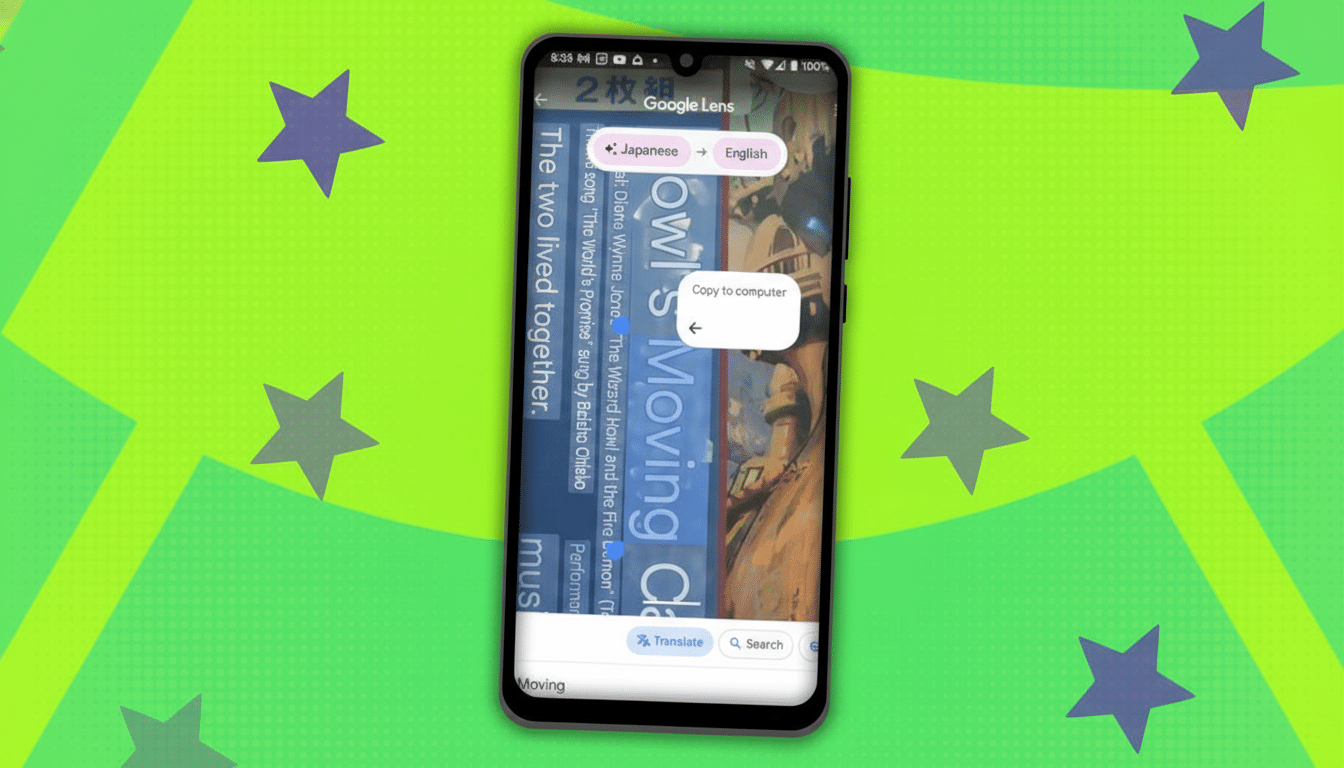
Google Lens turns your camera into a live translator. Tap the Lens icon in the Search bar or open it from the camera on many phones, aim at a menu or sign, and hit Translate. The overlay preserves the layout surprisingly well, which makes foreign transit maps and restaurant lists instantly usable.
When I travel, I also download offline language packs in the Google Translate app to avoid roaming charges. Google has publicly reported that Lens processes billions of queries each month, which tracks with my experience: it’s the rare feature that works the same in a café, taxi, or museum placard.
Use Gboard’s Clipboard as a Mini Productivity Hub
Open Gboard, tap the clipboard icon, and toggle it on. Now you can pin snippets, save images, and keep multiple clips for up to an hour. I keep my address, a short bio, and two email replies pinned; pasting them from the suggestion bar cuts repetitive typing dramatically.
The clipboard also supports rich content, so moving a product image from a browser into chat is seamless. Because items auto‑expire, you get convenience without building a permanent data trail. It’s a small switch that delivers daily gains in speed and accuracy.
Store Critical Medical Info for Emergencies
In Settings > Safety & emergency > Medical information, you can add allergies, medications, conditions, and an emergency contact. Enable access from the lock screen during an emergency call so first responders can see it without your PIN.
The American College of Emergency Physicians has long encouraged accessible “ICE” information; Android’s implementation makes that practical. I list my medication and an emergency contact. It’s privacy‑sensitive but invaluable in a crisis, especially if you have specific conditions or travel alone.
Extend Unlock for Trusted Places and Devices
Formerly called Smart Lock, Extend Unlock reduces lock‑screen friction in safe contexts. Go to Settings > Security & privacy > More security & privacy > Extend Unlock. You can keep your phone unlocked at home, when it’s on‑body, or when it’s connected to a trusted watch or car.
Cooking with wet hands or hopping between rooms, this saves me dozens of unlocks. Security frameworks like NIST stress balancing usability with risk: only enable trusted places where you control the environment, and disable it when hosting guests. Used carefully, it nails the convenience/security trade‑off.
Make Developer Options Work Better for You on Android
Tap Settings > About phone and hit Build number seven times to unlock Developer options (now in Settings > System). Despite the name, several toggles are everyday lifesavers if you know what to touch—and what to leave alone.
Three that help me: Force peak refresh rate for smoother scrolling on supported displays; Disable absolute volume to fix weirdly quiet Bluetooth earbuds; and Increase the max number of active Bluetooth connections when juggling headphones, a watch, and a car. Android’s own documentation explains each switch—read before flipping.
Small Features Big Quality‑of‑Life Wins
None of these tools will dominate a keynote, yet together they’ve erased friction across travel, work, and home. They’re built in, widely supported, and backed by the same principles usability researchers champion: reduce steps, surface context, and keep control in the user’s hands.
If you only try two, start with Wi‑Fi QR sharing and Gboard’s clipboard. They deliver instant payoff—and, like the best Android features, they quietly disappear into your routine once you’ve felt the difference.
